
Website
Filters narrow your search results to the homes that suit you: the price you want to pay, enough bedrooms for the family, a kitchen or parking. Start with a search (see How to search), then refine it.
Start with where, when and who
The search bar at the top has three parts: Where, the Check in and Check out dates, and Guests. They are the most useful filters of all:
- Dates: with dates, you only see homes free on those nights, at their price for those nights.
- Guests: count Adults (14 and older) and Children (2 to 13): you only see homes with room for all of them. Add Infants (under 2) and Pets too: with pets you only see homes that accept them.
Open the filters
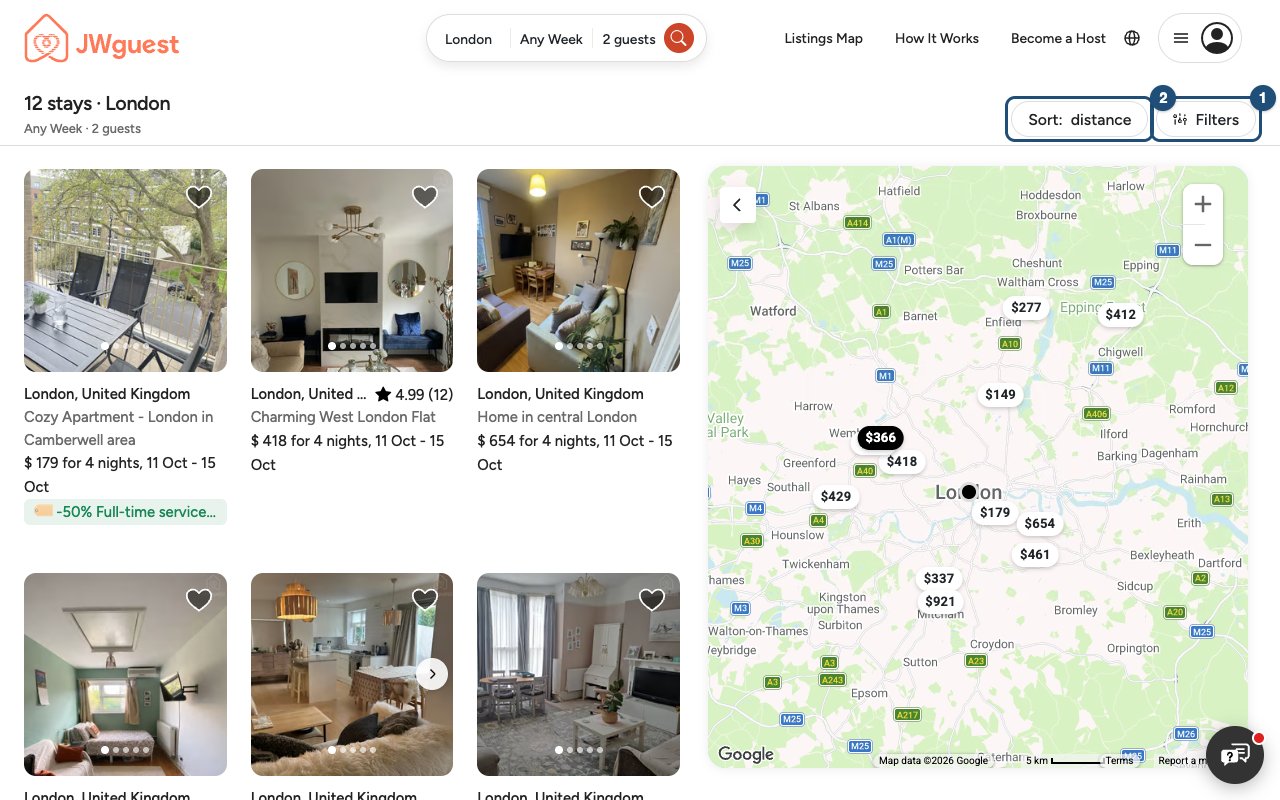
On the results page, click Filters (1) at the top right of the list. A number on the button shows how many filters are on. Next to it, Sort (2) changes the order of the results: Distance from the place you searched (the default), Recommended, Rating or number of Reviews.
Choose your filters
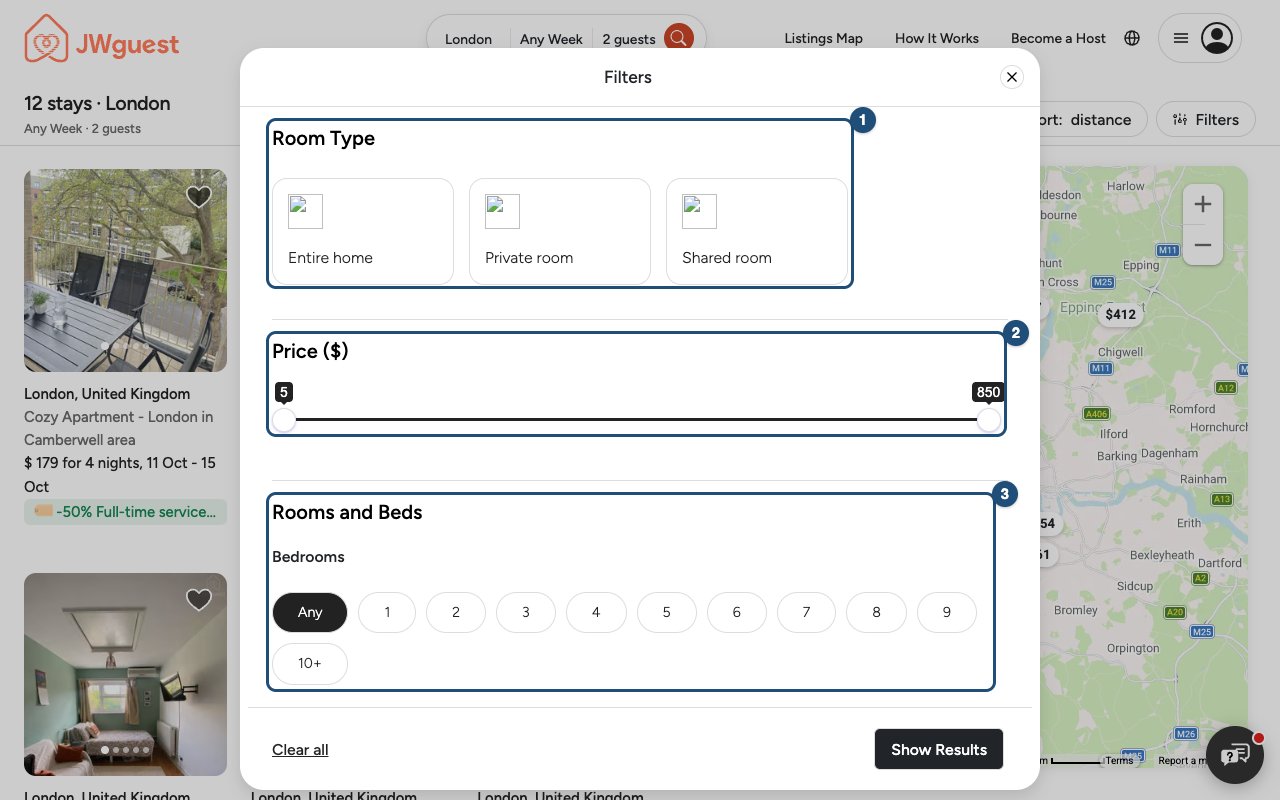
- Room Type (1): an entire home, a private room or a shared room. You can choose more than one.
- Price (2): drag the two handles to set the lowest and highest nightly price, in your currency. With dates, the filter uses the average price of your nights.
- Rooms and Beds (3): the minimum number of bedrooms, beds and bathrooms. Any means no limit.
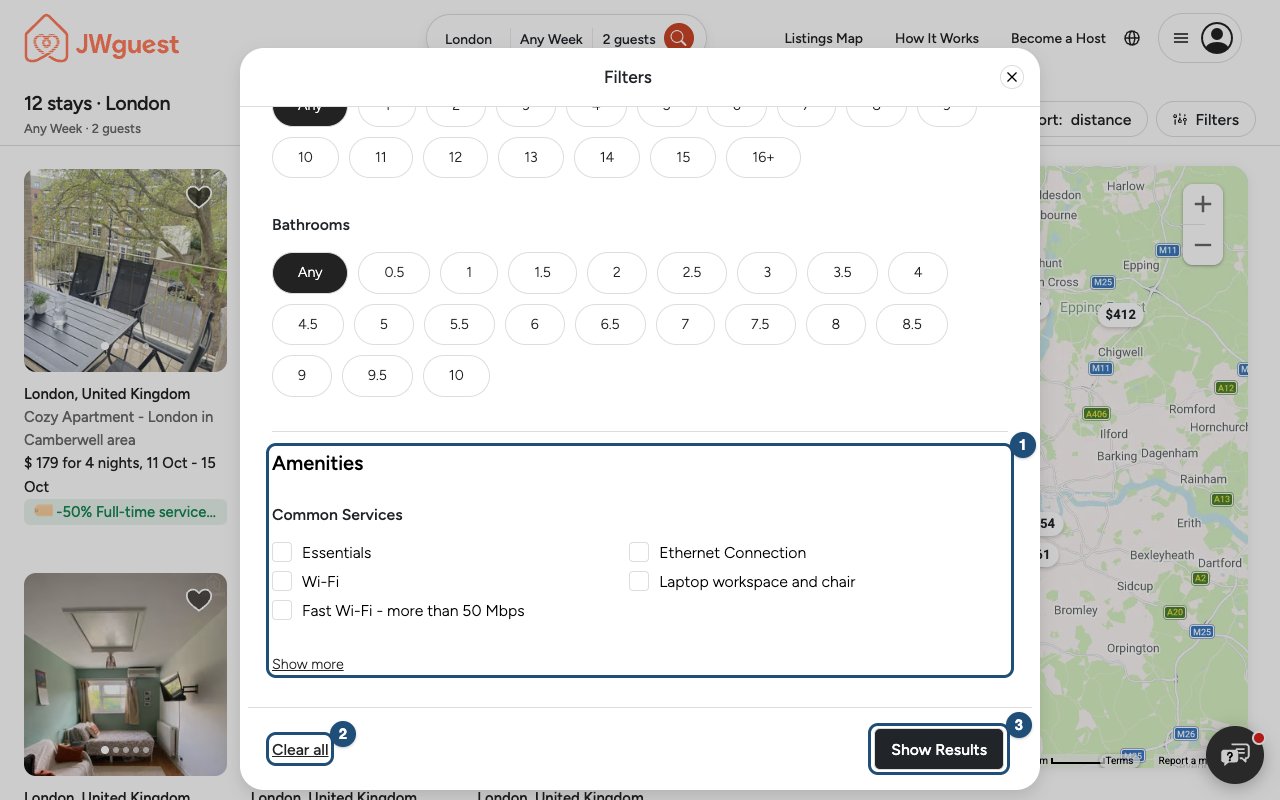
- Amenities (1): tick what you need, such as a kitchen, Wi-Fi or free parking. Show more opens the full list. You only see homes that have everything you ticked.
Then click Show Results (3). Clear all (2) removes every filter and searches again. Closing the window with the X keeps your previous results.
Filters and the map
When you move or zoom the map, the results update to the area you see, and your filters stay on. The heading then shows how many stays are in the map area.
Good to know
- Your filters are part of the page address: reload the page or share the link and they are still there.
- Too few results? Remove a filter, widen the price range or try nearby dates.
- Looking for a stay near an assembly hall, a convention or a Bethel? See Find a stay near an assembly, convention or Bethel.
Related articles: How to search · Contact a host before you book · Booking process
Mobile browser
Filters narrow your search results to the homes that suit you: the price you want to pay, enough bedrooms, a kitchen or parking. Start with a search (see How to search), then refine it.
Start with where, when and who
Tap the search bar at the top to set the place, your Check in and Check out dates and your Guests (Adults, Children, Infants and Pets). With dates you only see homes free on those nights; with pets, only homes that accept them.
Open the filters
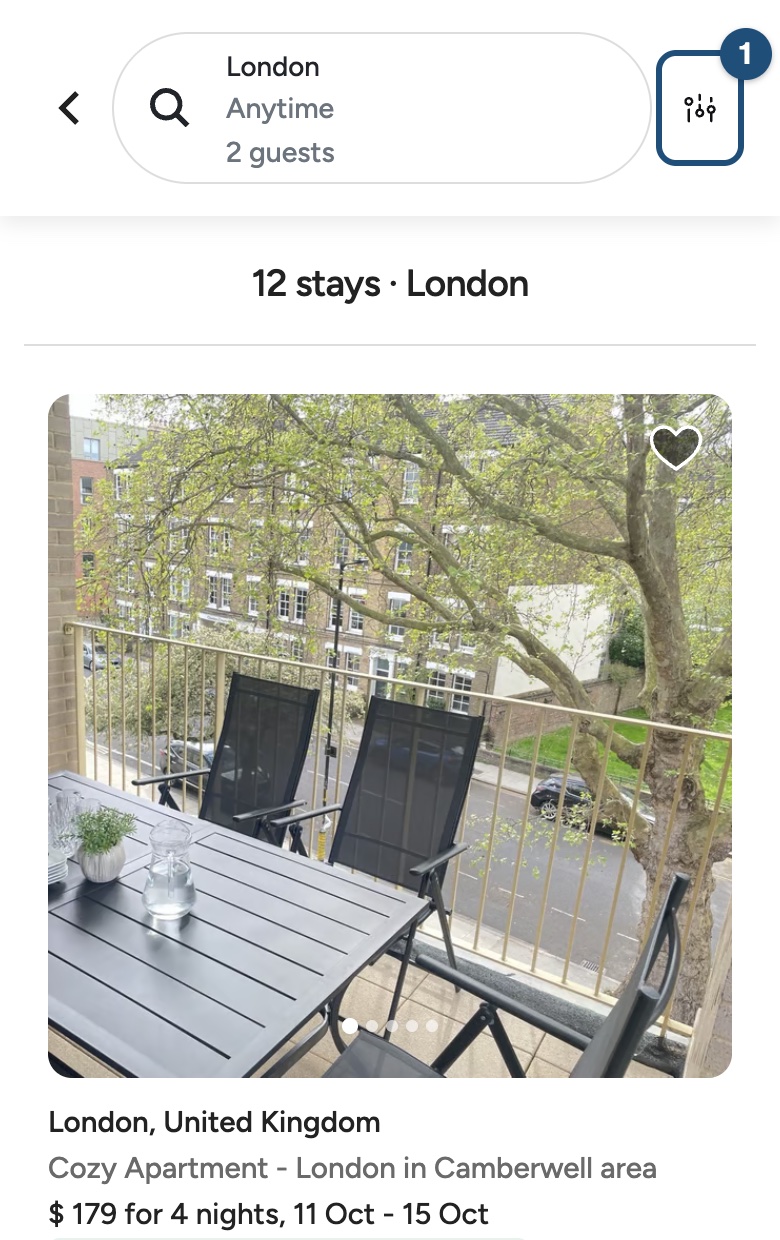
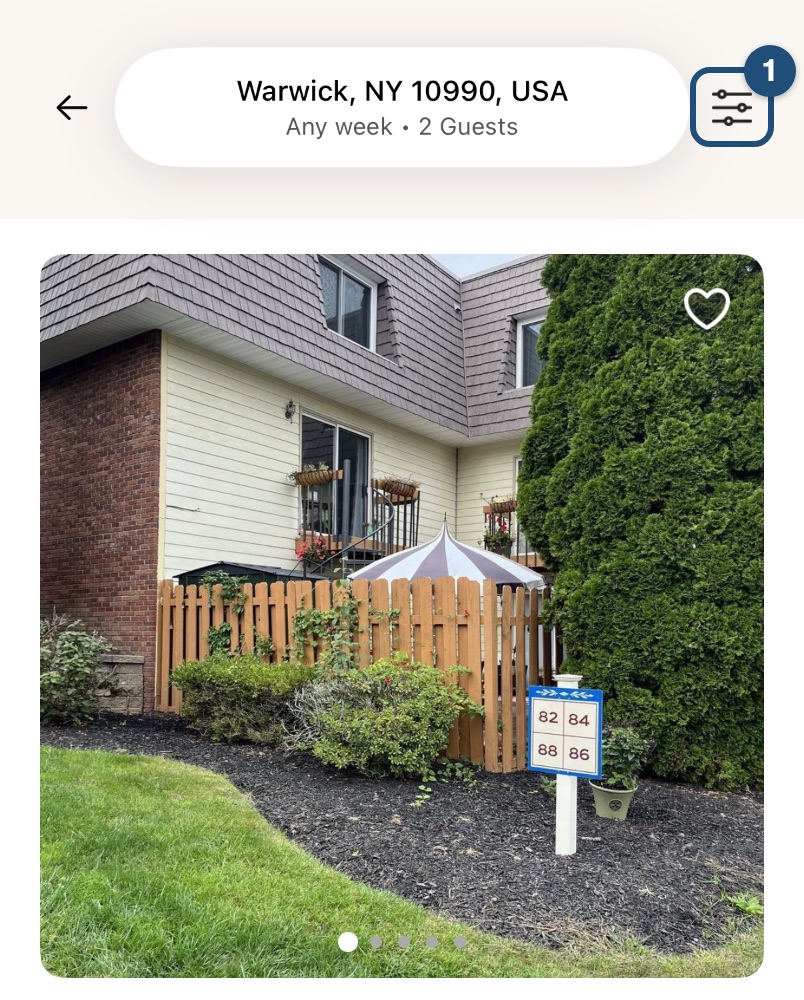
On the results page, tap the filter icon (1) next to the search bar.
Choose your filters
- Room Type: an entire home, a private room or a shared room.
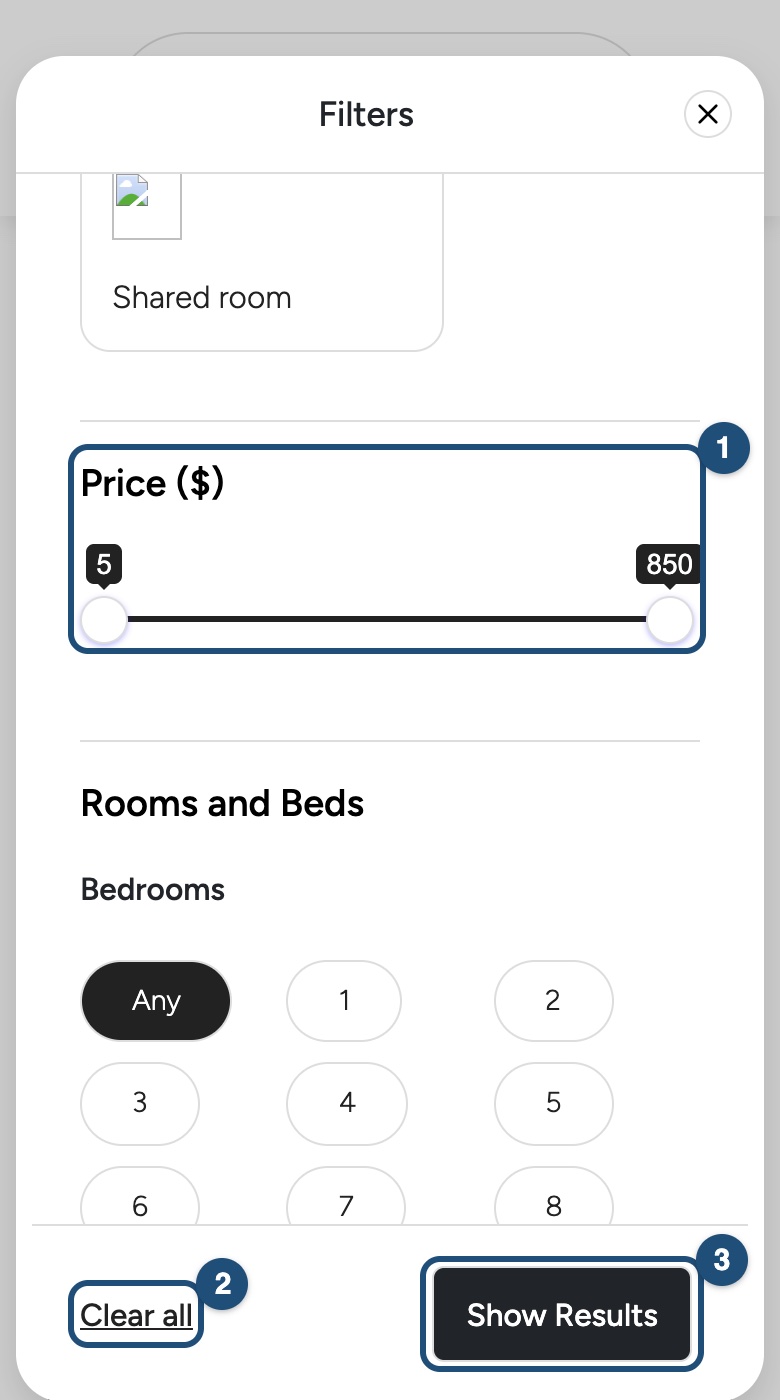
- Price (1): drag the two handles to set the lowest and highest nightly price.
- Rooms and Beds: the minimum number of bedrooms, beds and bathrooms.
- Amenities: tick what you need; Show more opens the full list.
Tap Show Results (3) to apply them, or Clear all (2) to remove every filter.
Filters and the map
Tap Show Map to see the homes on a map. Moving the map updates the results to the area you see, with your filters still on. Show Listings brings back the list.
Good to know
- Sorting the results is available on a computer or a tablet.
- Your filters are part of the page address, so reloading or sharing the link keeps them.
- Too few results? Remove a filter, widen the price range or try nearby dates.
Related articles: How to search · Find a stay near an assembly, convention or Bethel · Booking process
iOS app
Filters narrow your search results to the homes that suit you: the price you want to pay, enough bedrooms, a kitchen or parking. Start with a search (see How to search), then refine it.
Start with where, when and who
Tap the search pill at the top: choose the place (Where), your dates (When) and who is coming (Who: Adults and Children). With dates you only see homes free on those nights.
Open the filters
On the results, tap the filter icon (1) to the right of the search pill. On the map, the same icon is at the top.
Choose your filters
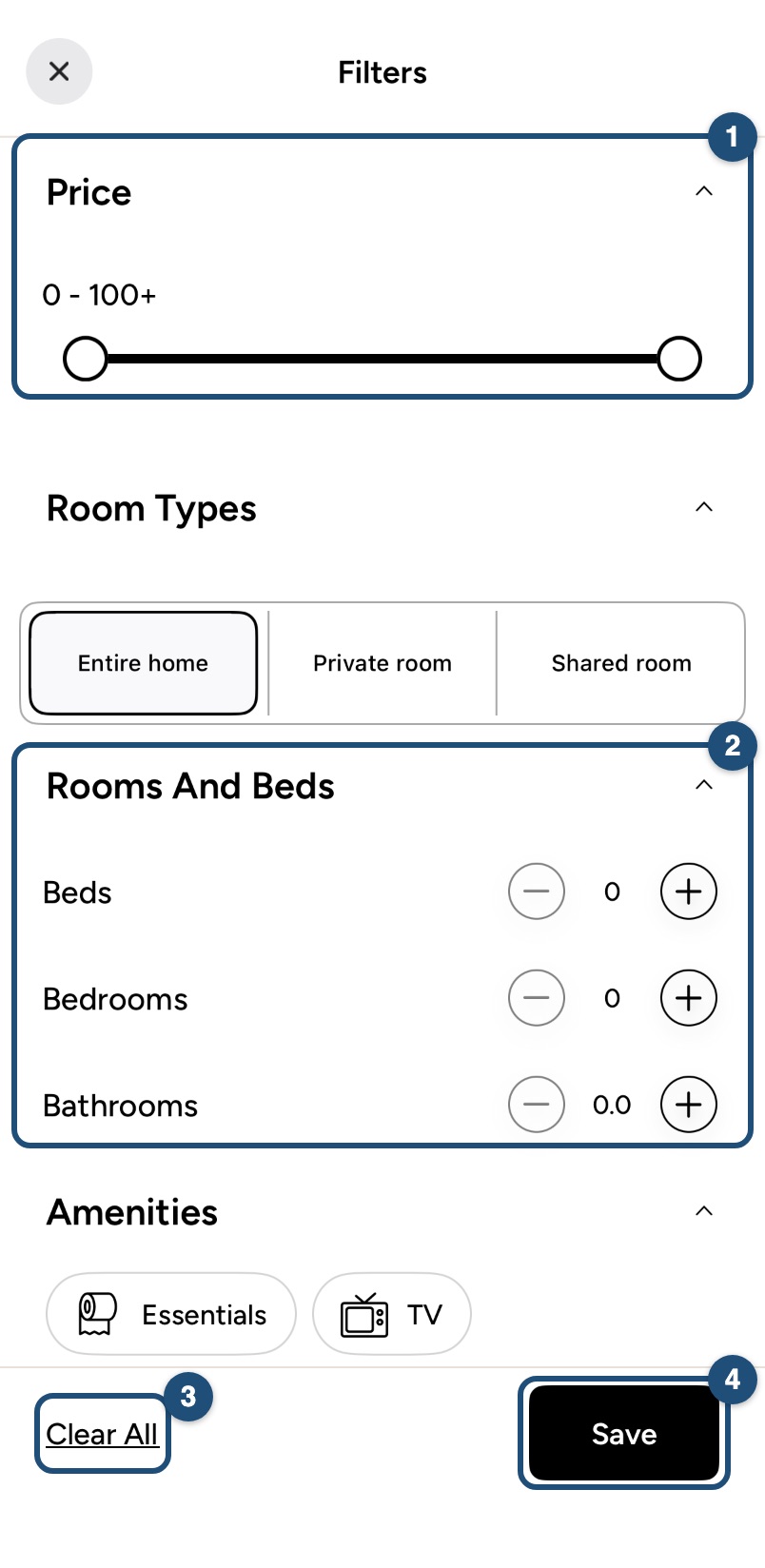
Tap a section's title to open or close it.
- Price (1): drag the two handles to set the lowest and highest nightly price.
- Rooms And Beds (2): use − and + for the minimum number of beds, bedrooms and bathrooms.
- Amenities and Property Type: tap the ones you want; Read more shows the full list.
Tap Save (4) to apply them. Clear All (3) removes every filter. The X at the top closes without changes.
Good to know
- Your filters stay on while you search; going back from the results clears them.
- No results? Tap Remove all filters on the empty results, widen the price range or try nearby dates.
- Sorting the results is available on the website, on a computer or a tablet.
Related articles: How to search · Find a stay near an assembly, convention or Bethel · Booking process
Android app
Filters narrow your search results to the homes that suit you: the price you want to pay, enough bedrooms, a kitchen or parking. Start with a search (see How to search), then refine it.
Start with where, when and who
Tap the search pill at the top: choose the place (Where), your dates (When) and the number of Guests (Who). With dates you only see homes free on those nights.
Open the filters
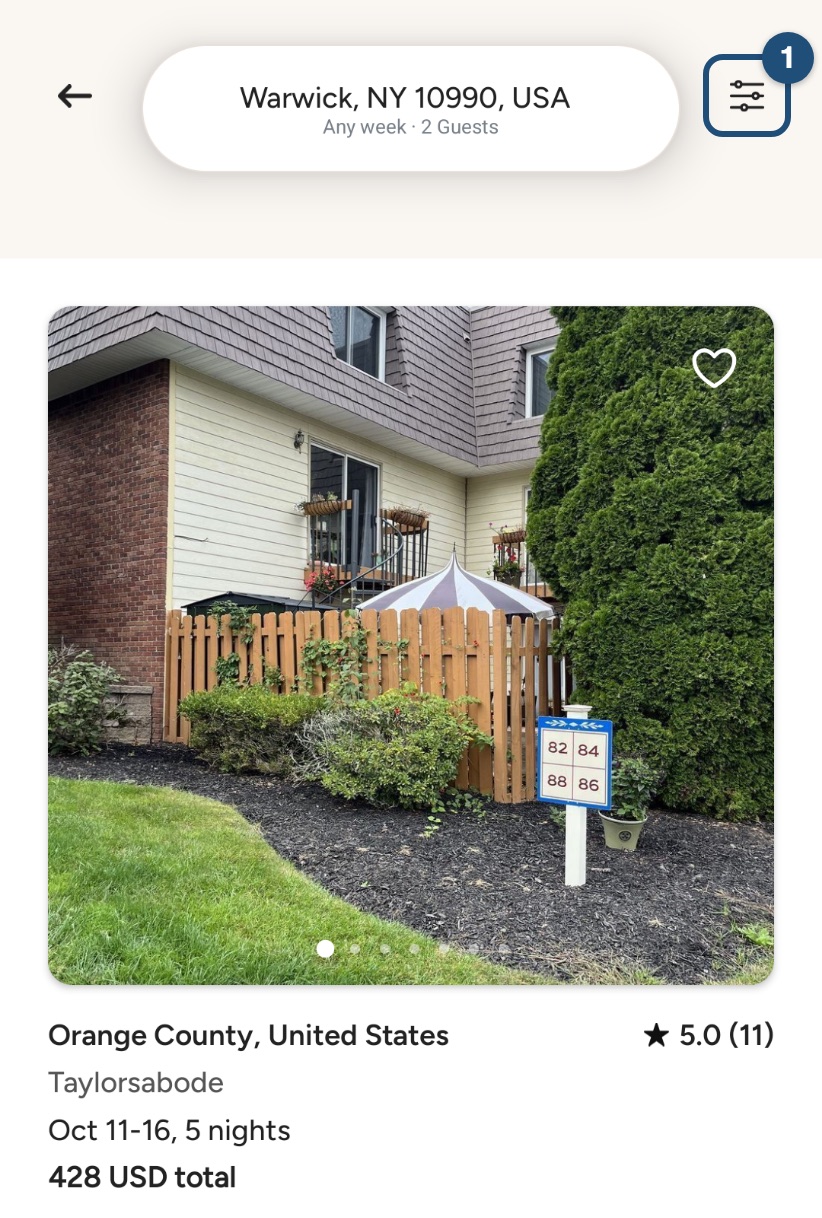
Once you have searched, tap the filter icon (1) to the right of the search pill. On the map, the same icon is at the top.
Choose your filters
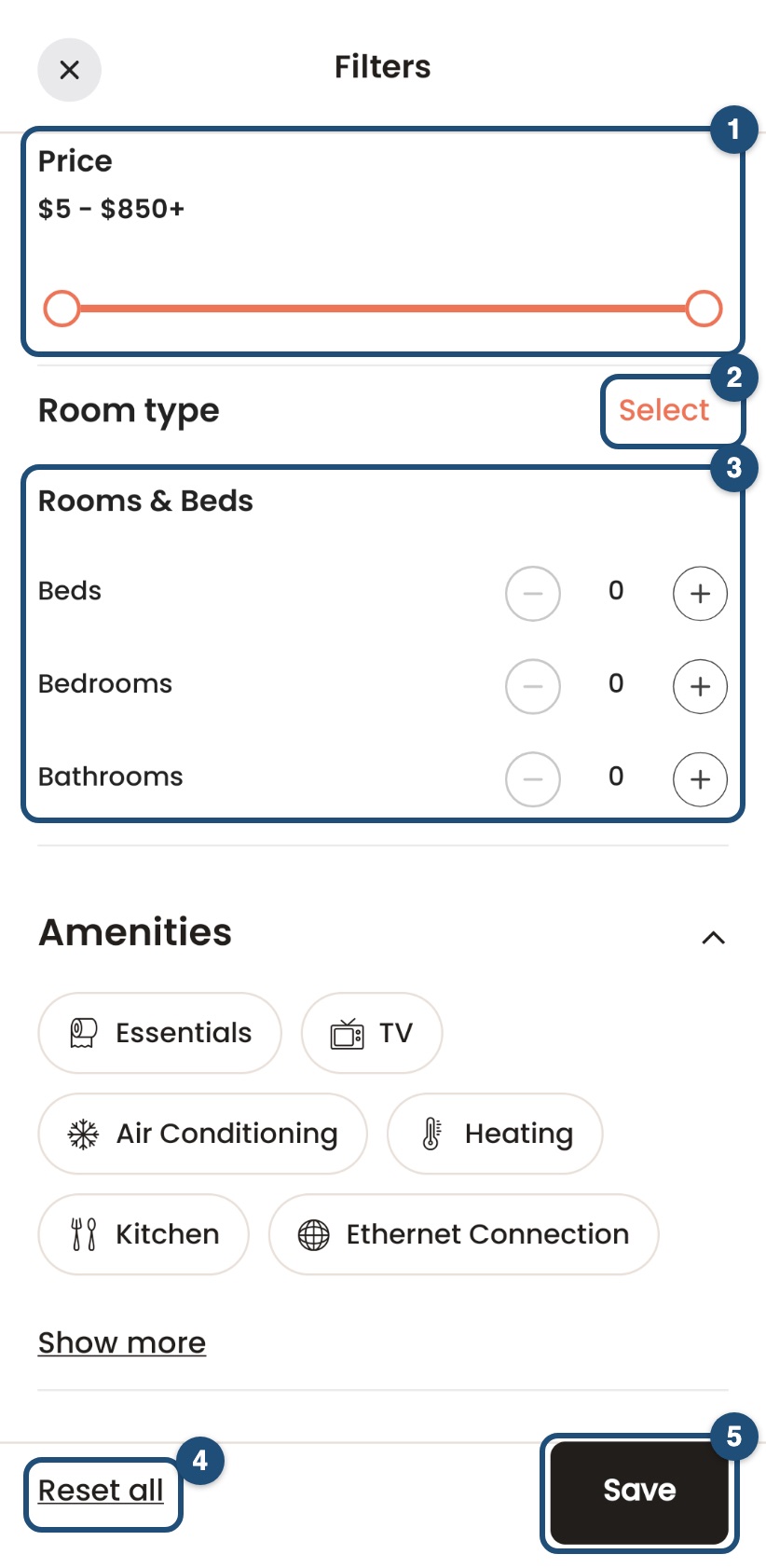
- Price (1): drag the two handles to set the lowest and highest nightly price.
- Room type (2): tap Select, tick one or more types and tap Save.
- Rooms & Beds (3): use − and + for the minimum number of beds, bedrooms and bathrooms.
- Amenities and Property type: tap the ones you want; Show more shows the full list.
Tap Save (5) to apply them. Reset all (4) clears every filter; tap Save afterwards to see all results again.
Filters and the map
On the map, moving or zooming shows the homes in the area you see, with your filters still on.
Good to know
- Your filters stay on for the current search; going back clears them.
- Too few results? Remove a filter, widen the price range or try nearby dates.
- Sorting the results is available on the website, on a computer or a tablet.
Related articles: How to search · Find a stay near an assembly, convention or Bethel · Booking process