
Website
Your booking status tells you where your request stands: Pending means the host still has to answer, Pre-Accepted means the host has accepted and you now need to Confirm & Pay, and Accepted means your booking is confirmed. You find the status in Trips and in your Inbox.
What each status means
| Status | What it means | What to do |
|---|---|---|
| Inquiry | You sent the host a question with Contact Host. No booking has been requested. | Wait for the reply in your Inbox, then send a request if you want to book. |
| Pending | You sent a booking request. The host has 48 hours to accept or decline it. | Wait for the host's answer. You can still change or cancel the request in Trips. |
| Pre-Accepted | The host has accepted your request. Your booking is not confirmed yet. | Complete Confirm & Pay. |
| Accepted | Your payment succeeded and your booking is confirmed. | Get ready for your stay. You can write to your host from Trips > Message History. |
| Declined | The host can't welcome you for this request. | Look for another stay. See What happens if your booking request is declined or expires? |
| Expired | The request was not completed in time, for example because the host did not answer within 48 hours. | Send a new request, to the same host or another one. |
| Cancelled | The request or the booking has been cancelled. | See Cancel your booking or If your host cancels your booking. |
Where to find your status
Here's a step-by-step guide:
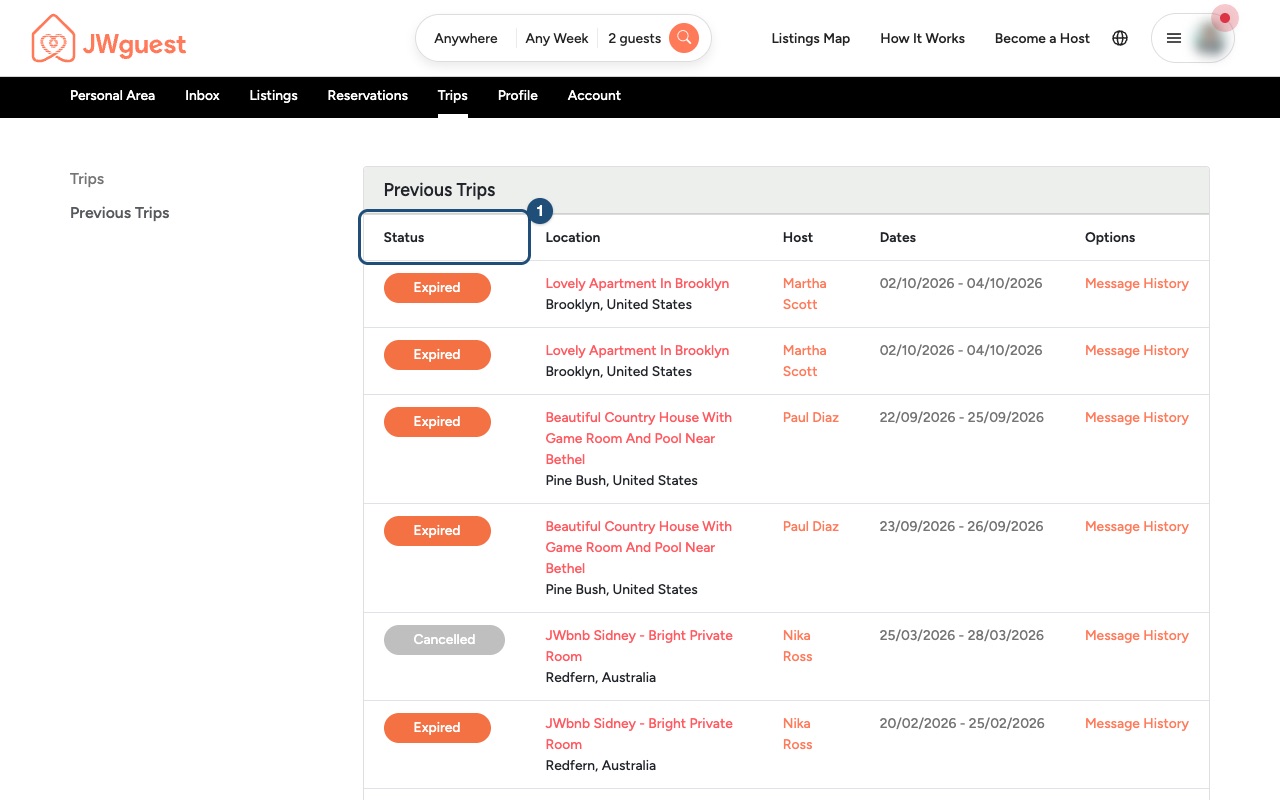
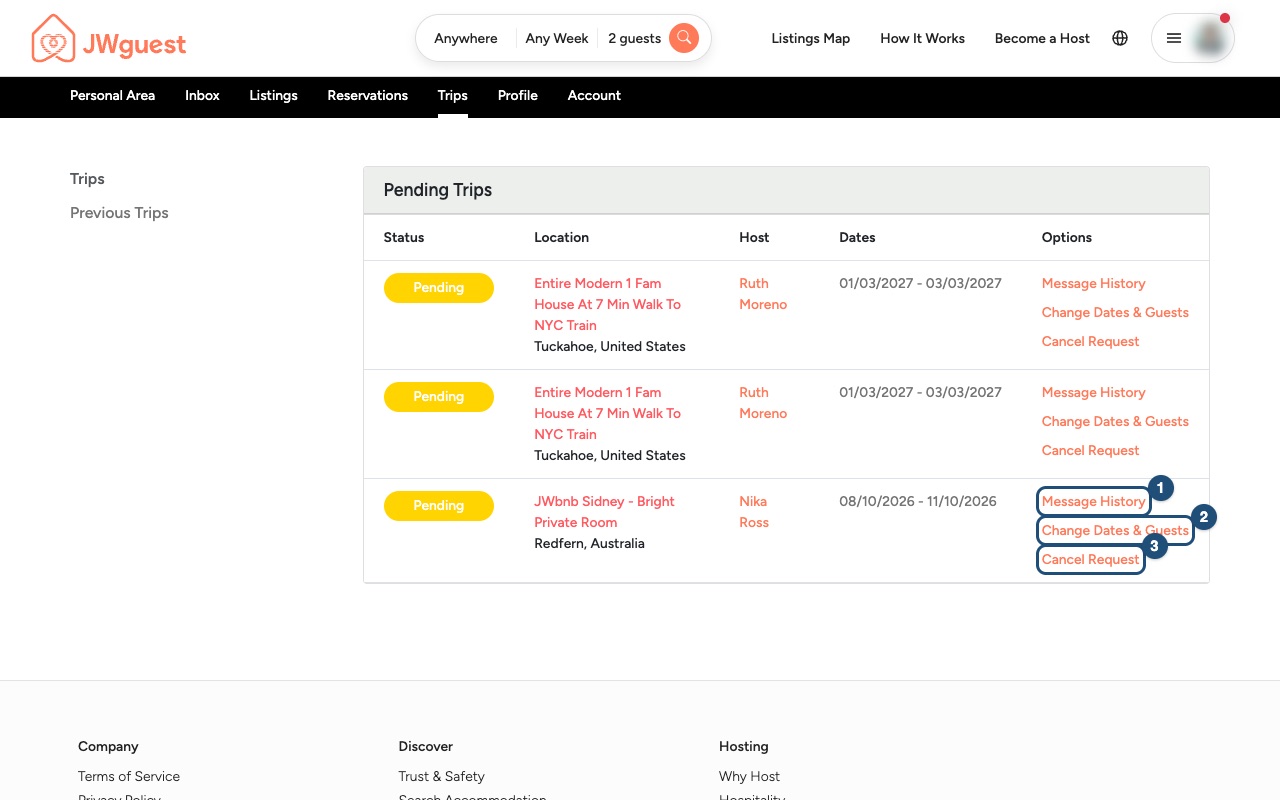
Open Trips: In the Personal Area bar, click Trips. Pending Trips lists your current requests and bookings; Previous Trips lists the ones that are over, declined, expired or cancelled.
Read the Status column (1): each trip shows its status, location, host and dates.
Use the Options column: for a current trip, click Message History (1) to write to your host, or Cancel Request (3) to cancel. Change Dates & Guests (2) works only for requests that are not yet confirmed; to change a confirmed booking, see Change your booking dates.
Related articles: Booking process · Change your booking dates · When will I pay for my booking?
Mobile browser
Your booking status tells you where your request stands: Pending means the host still has to answer, Pre-Accepted means the host has accepted and you now need to Confirm & Pay, and Accepted means your booking is confirmed. You find the status in Trips and in your Inbox.
What each status means
- Inquiry: you sent the host a question with Contact Host. No booking has been requested.
- Pending: you sent a booking request. The host has 48 hours to accept or decline it.
- Pre-Accepted: the host has accepted. Your booking is not confirmed yet: complete Confirm & Pay.
- Accepted: your payment succeeded and your booking is confirmed.
- Declined: the host can't welcome you for this request. See What happens if your booking request is declined or expires?
- Expired: the request was not completed in time, for example because the host did not answer within 48 hours.
- Cancelled: the request or the booking has been cancelled. See Cancel your booking.
Where to find your status on your phone
Here's a step-by-step guide:
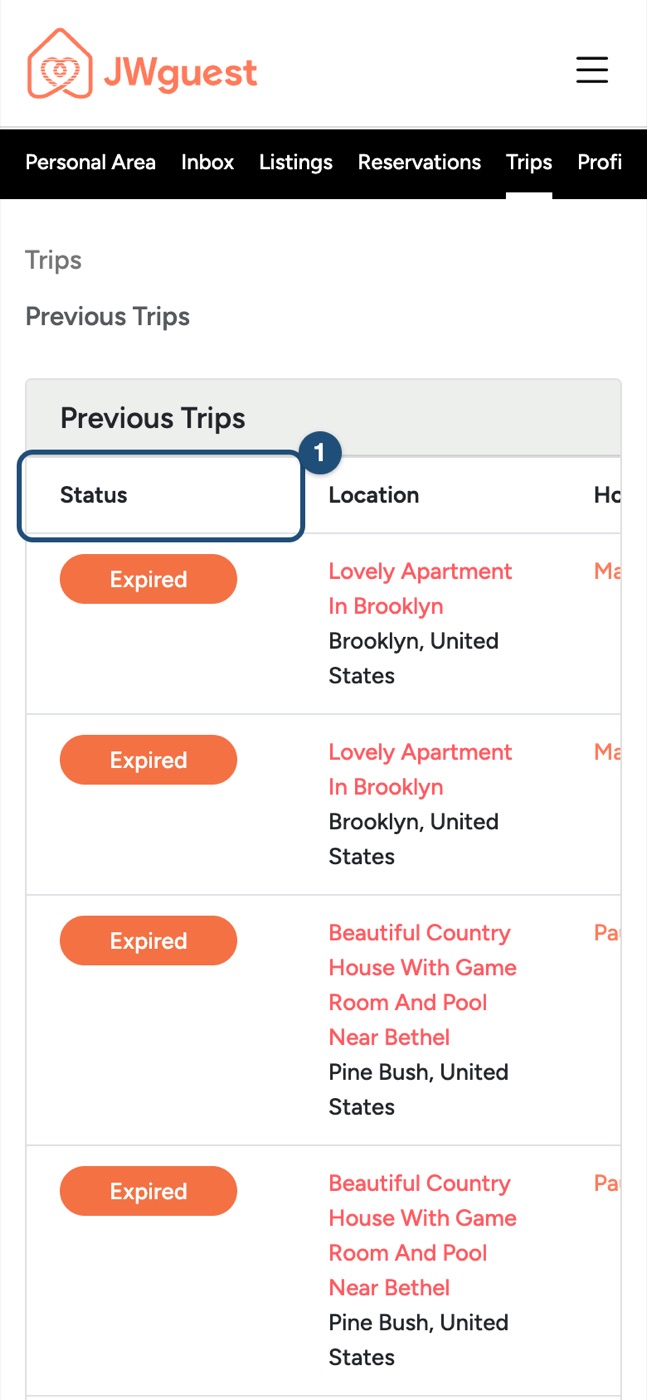
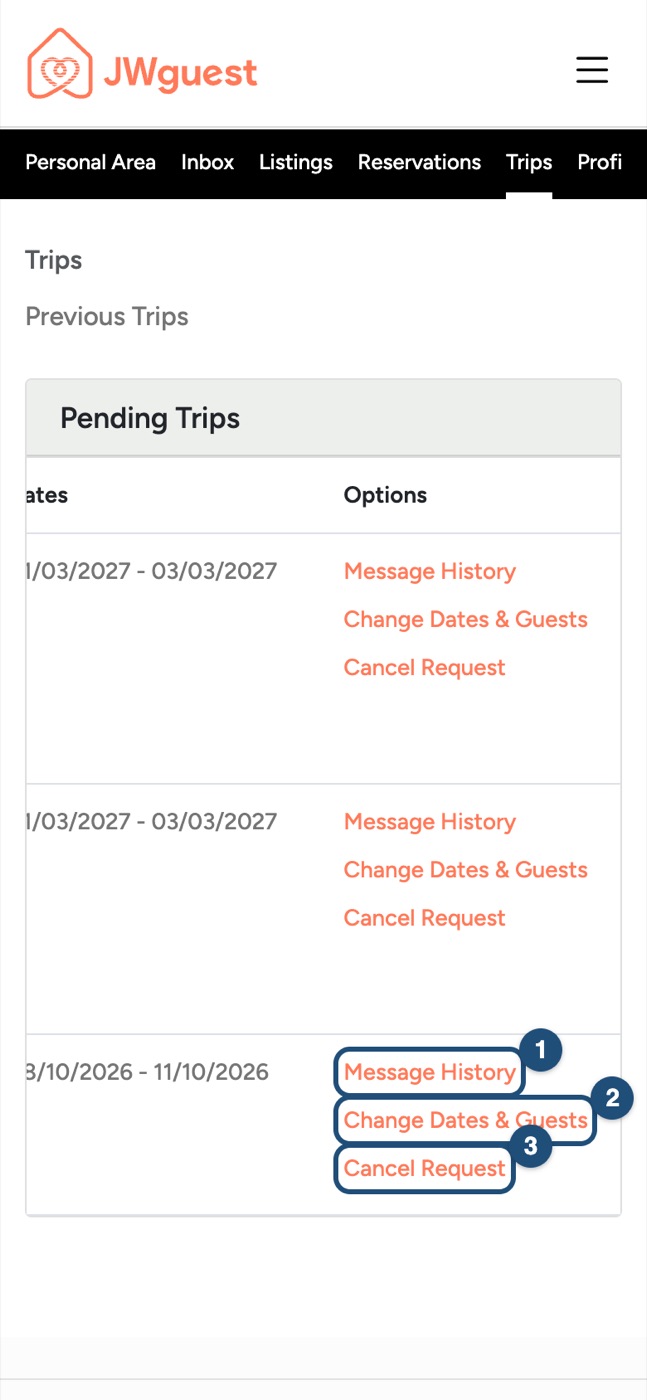
Open Trips: Tap the menu (three lines, top right), then Trips in the black Personal Area bar. Choose Pending Trips or Previous Trips.
Swipe the table to the left: the trips table is wider than your screen. Swipe it left to read the Status column (1).
Use the Options column: keep swiping left to reach Message History (1), Change Dates & Guests (2) and Cancel Request (3). Change Dates & Guests works only for requests that are not yet confirmed; to change a confirmed booking, see Change your booking dates.
Related articles: Booking process · Change your booking dates · When will I pay for my booking?