

Website
Your booking status tells you where your request stands: Pending means the host still has to answer, Accepted means the host has accepted and your booking is confirmed, and Pre-Accepted means the host has pre-approved your inquiry or sent you a special offer, and you now need to complete Confirm & Pay. You find the status in Trips and in your Inbox.
What each status means
| Status | What it means | What to do |
|---|---|---|
| Inquiry | You sent the host a question with Contact Host. No booking has been requested. | Wait for the reply in your Inbox, then send a request if you want to book. |
| Pending | You sent a booking request, and the amount due is held on your card. The host has 48 hours to accept or decline it, counted from your request or from the last message in the conversation. | Wait for the host's answer. You can still change or cancel the request in Trips. |
| Pre-Accepted | The host has pre-approved your inquiry or sent you a special offer. Your booking is not confirmed yet. | Complete Confirm & Pay within 48 hours; your card is charged then. |
| Accepted | The host accepted your request and the payment succeeded: your booking is confirmed. | Get ready for your stay. You can write to your host from Trips > Message History. |
| Declined | The host can't welcome you for this request. | Look for another stay. See What happens if your booking request is declined or expires? |
| Expired | The request was not completed in time, for example because the host did not answer within 48 hours. | Send a new request, to the same host or another one. |
| Cancelled | The request or the booking has been cancelled. | See Cancel your booking or If your host cancels your booking. |
Where to find your status
Here's a step-by-step guide:
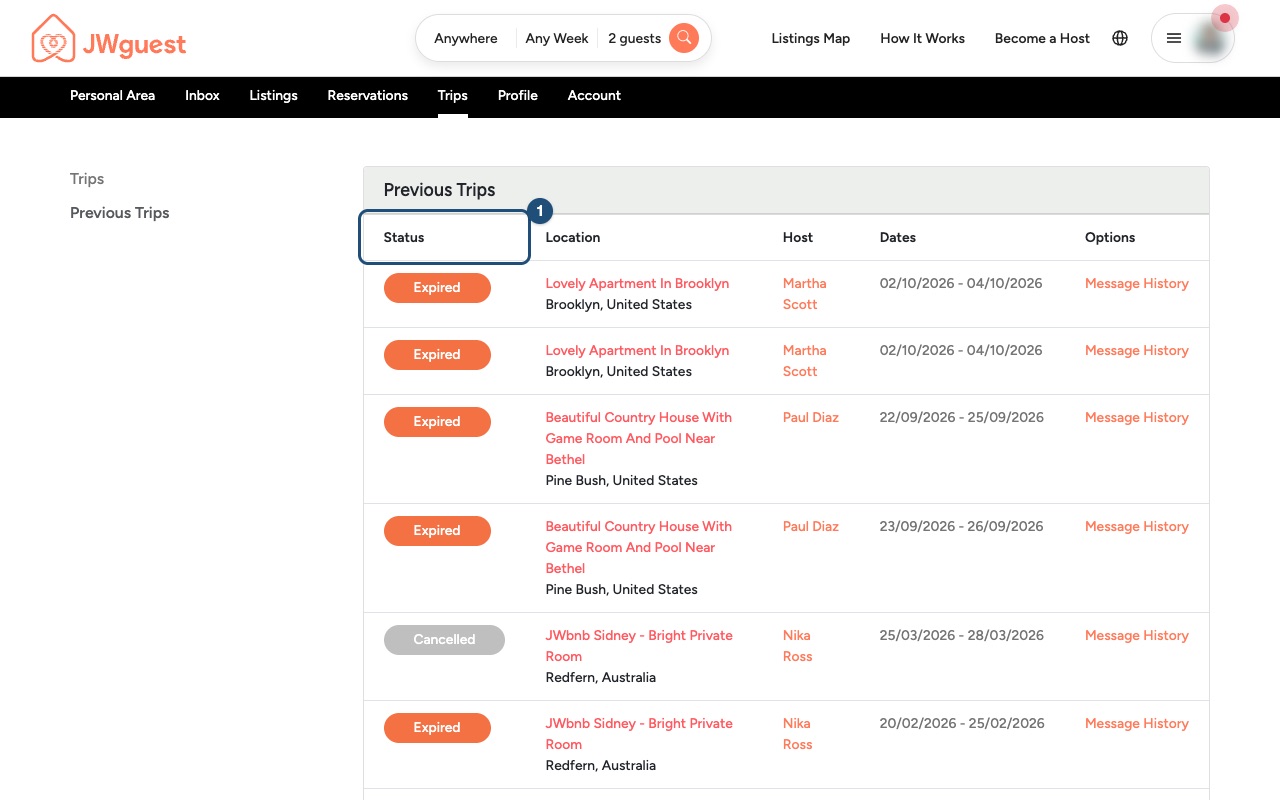
Open Trips: In the Personal Area bar, click Trips. Pending Trips lists your current requests and bookings; Previous Trips lists the ones that are over, declined, expired or cancelled.
Read the Status column (1): each trip shows its status, location, host and dates.
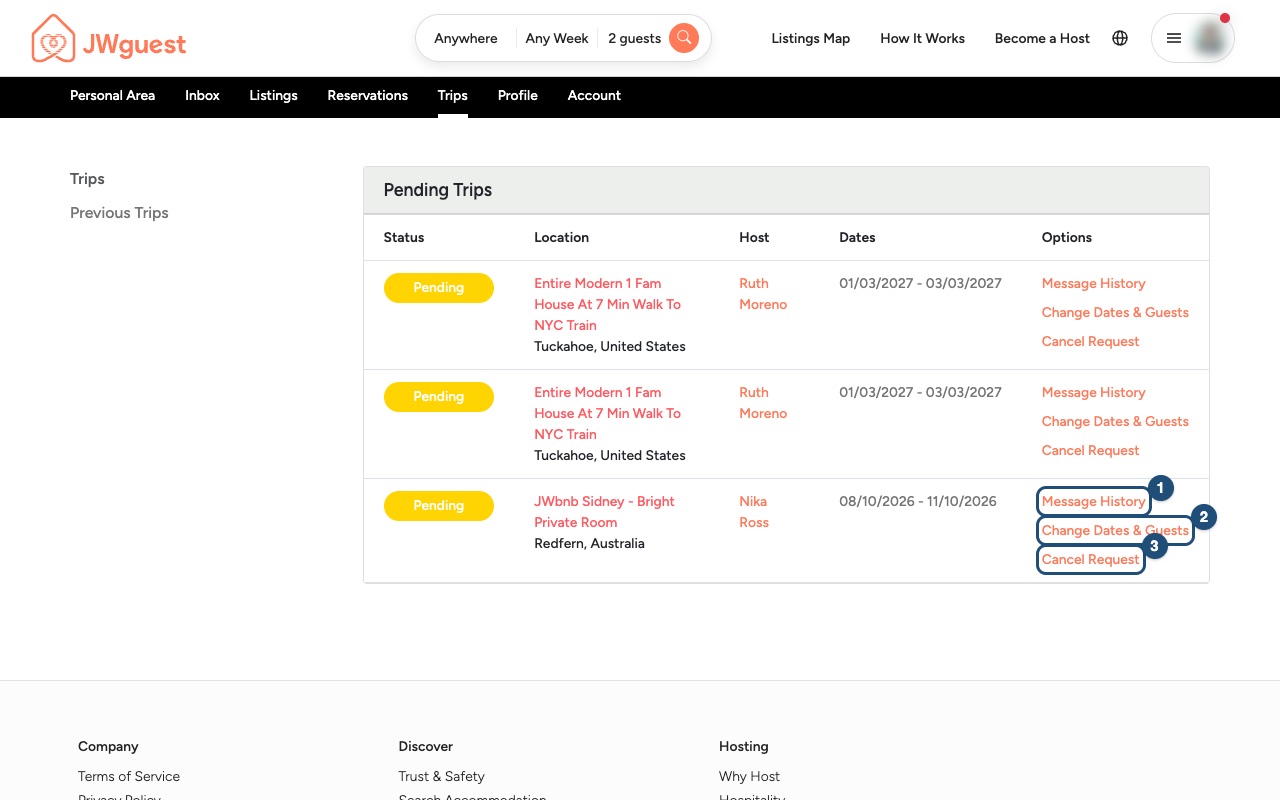
Use the Options column: for a current trip, click Message History (1) to write to your host, or Cancel Request (3) to cancel. Change Dates & Guests (2) works only for requests that are not yet confirmed; to change a confirmed booking, see Change your booking dates.
Related articles: Booking process · Change your booking dates · When will I pay for my booking?
Mobile browser
Your booking status tells you where your request stands: Pending means the host still has to answer, Accepted means the host has accepted and your booking is confirmed, and Pre-Accepted means the host has pre-approved your inquiry or sent you a special offer, and you now need to complete Confirm & Pay. You find the status in Trips and in your Inbox.
What each status means
- Inquiry: you sent the host a question with Contact Host. No booking has been requested.
- Pending: you sent a booking request, and the amount due is held on your card. The host has 48 hours to accept or decline it, counted from your request or from the last message in the conversation.
- Pre-Accepted: the host has pre-approved your inquiry or sent you a special offer. Your booking is not confirmed yet: complete Confirm & Pay within 48 hours; your card is charged then.
- Accepted: the host accepted your request and the payment succeeded: your booking is confirmed.
- Declined: the host can't welcome you for this request. See What happens if your booking request is declined or expires?
- Expired: the request was not completed in time, for example because the host did not answer within 48 hours.
- Cancelled: the request or the booking has been cancelled. See Cancel your booking.
Where to find your status on your phone
Here's a step-by-step guide:
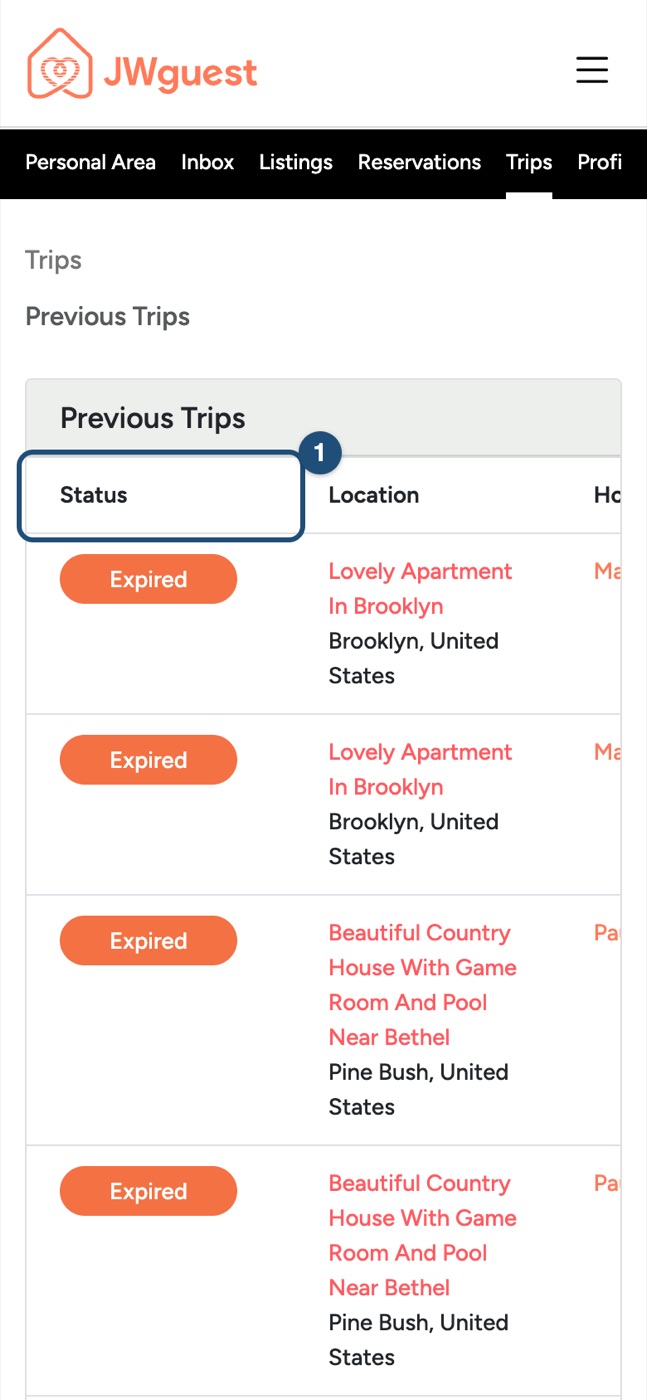
Open Trips: Tap the menu (three lines, top right), then Trips in the black Personal Area bar. Choose Pending Trips or Previous Trips.
Swipe the table to the left: the trips table is wider than your screen. Swipe it left to read the Status column (1).
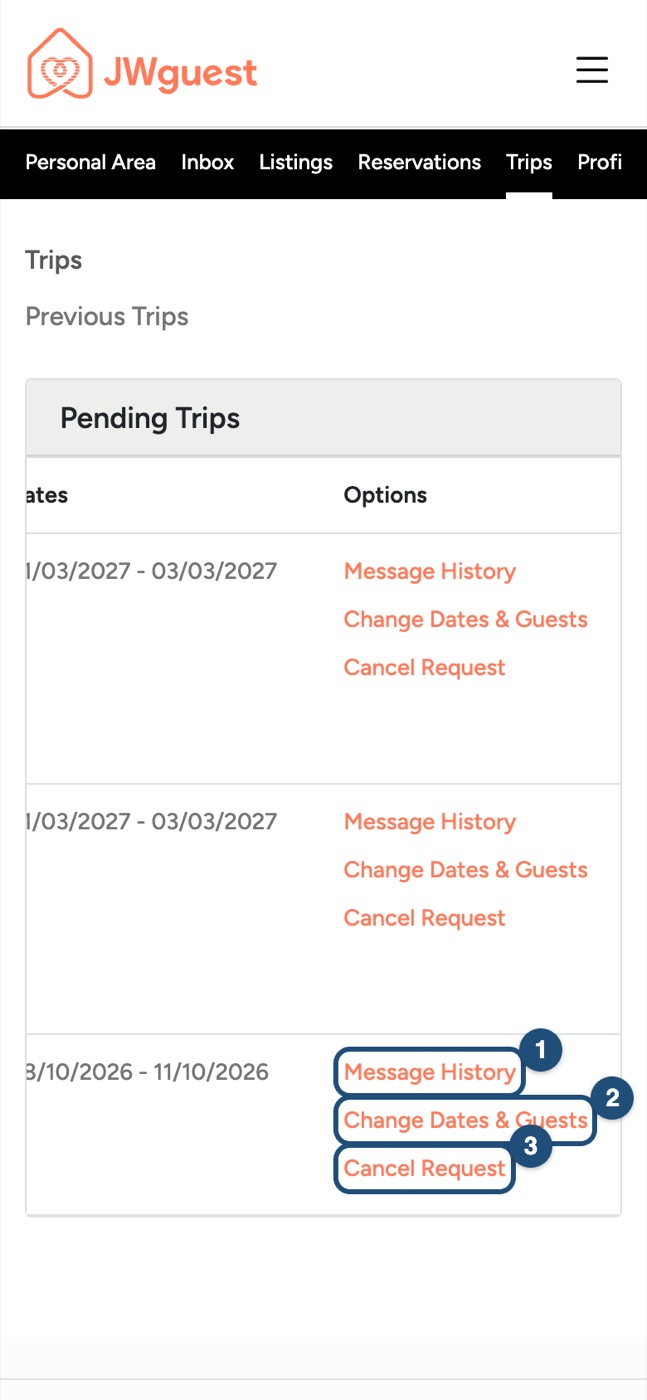
Use the Options column: keep swiping left to reach Message History (1), Change Dates & Guests (2) and Cancel Request (3). Change Dates & Guests works only for requests that are not yet confirmed; to change a confirmed booking, see Change your booking dates.
Related articles: Booking process · Change your booking dates · When will I pay for my booking?
iOS app
Your booking status tells you where your request stands: Pending means the host still has to answer, Accepted means the host has accepted and your booking is confirmed, and Pre-Accepted means the host has pre-approved your inquiry or sent you a special offer, and you now need to complete Confirm and pay. You find the status in Trips and in your Inbox.
What each status means
- Inquiry: you sent the host a question with Contact Host. No booking has been requested.
- Pending: you sent a booking request, and the amount due is held on your card. The host has 48 hours to accept or decline it, counted from your request or from the last message in the conversation.
- Pre-Accepted: the host has pre-approved your inquiry or sent you a special offer. Your booking is not confirmed yet: complete Confirm and pay within 48 hours; your card is charged then.
- Accepted: the host accepted your request and the payment succeeded: your booking is confirmed.
- Declined: the host can't welcome you for this request. See What happens if your booking request is declined or expires?
- Expired: the request was not completed in time, for example because the host did not answer within 48 hours.
- Cancelled: the request or the booking has been cancelled. See Cancel your booking.
Where to find your status in the app
Here's a step-by-step guide:
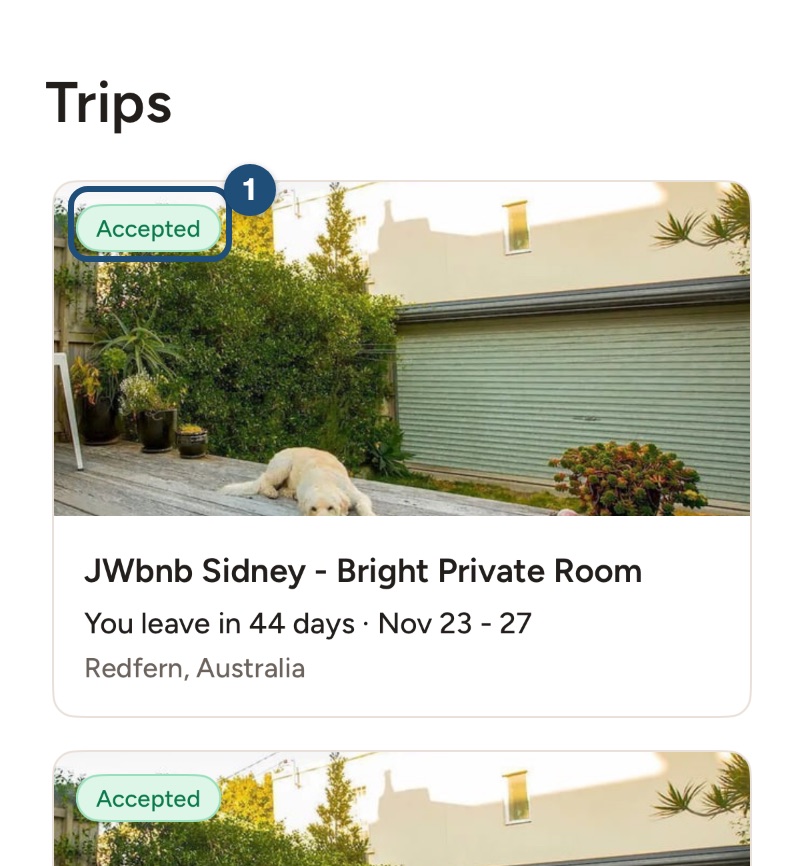
Open Trips: tap Trips in the bar at the bottom. Each trip shows its status in the coloured label on the photo (1). Your current requests and bookings come first; Past trips and Cancelled are at the bottom of the list.
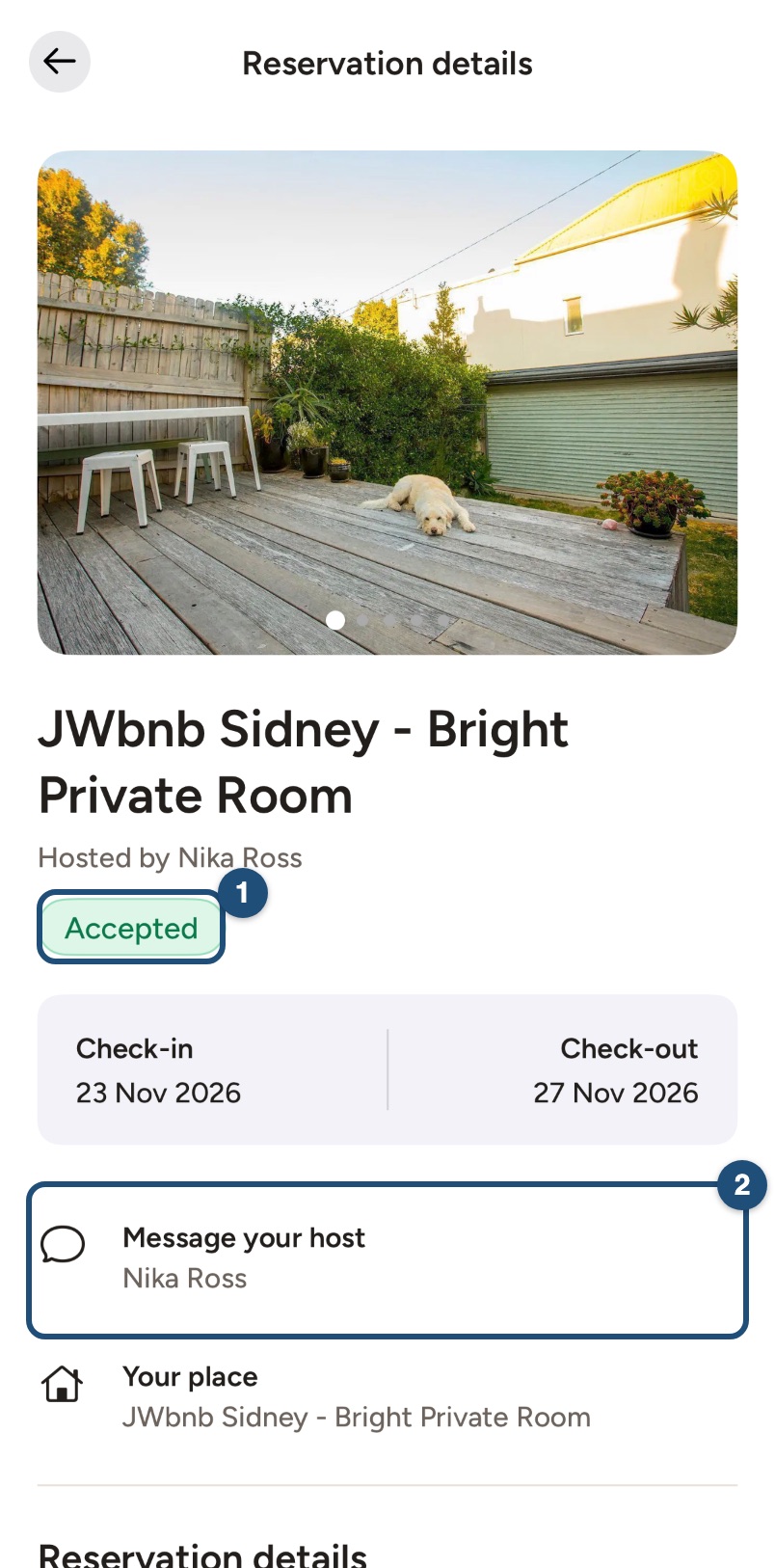
Open a trip to see its status (1) with the dates, and tap Message your host (2) to read or continue the conversation. A request that waits for you shows Book now in the conversation: that is where you complete Confirm and pay.
In your Inbox each conversation also shows its status, and a yellow label tells you when the next step is yours (Awaiting your reply) and how much time is left.
Related articles: Booking process · How a special offer works · What happens if your booking request is declined or expires?
Android app
Your booking status tells you where your request stands: Pending means the host still has to answer, Accepted means the host has accepted and your booking is confirmed, and Pre-Accepted means the host has pre-approved your inquiry or sent you a special offer, and you now need to complete Confirm and pay. You find the status in Trips and in your Inbox.
What each status means
- Inquiry: you sent the host a question with Contact Host. No booking has been requested.
- Pending: you sent a booking request, and the amount due is held on your card. The host has 48 hours to accept or decline it, counted from your request or from the last message in the conversation.
- Pre-Accepted: the host has pre-approved your inquiry or sent you a special offer. Your booking is not confirmed yet: complete Confirm and pay within 48 hours; your card is charged then.
- Accepted: the host accepted your request and the payment succeeded: your booking is confirmed.
- Declined: the host can't welcome you for this request. See What happens if your booking request is declined or expires?
- Expired: the request was not completed in time, for example because the host did not answer within 48 hours.
- Cancelled: the request or the booking has been cancelled. See Cancel your booking.
Where to find your status in the app
Here's a step-by-step guide:
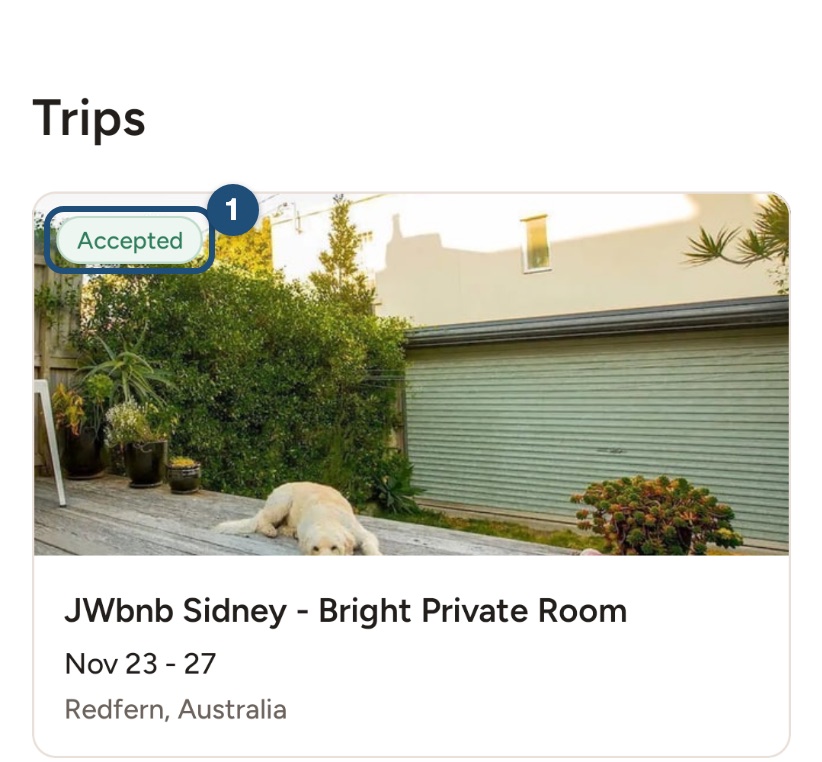
Open Trips: tap Trips in the bar at the bottom. Each trip shows its status in the coloured label on the photo (1). Your current requests and bookings come first; Past trips and Cancelled are at the bottom of the list.
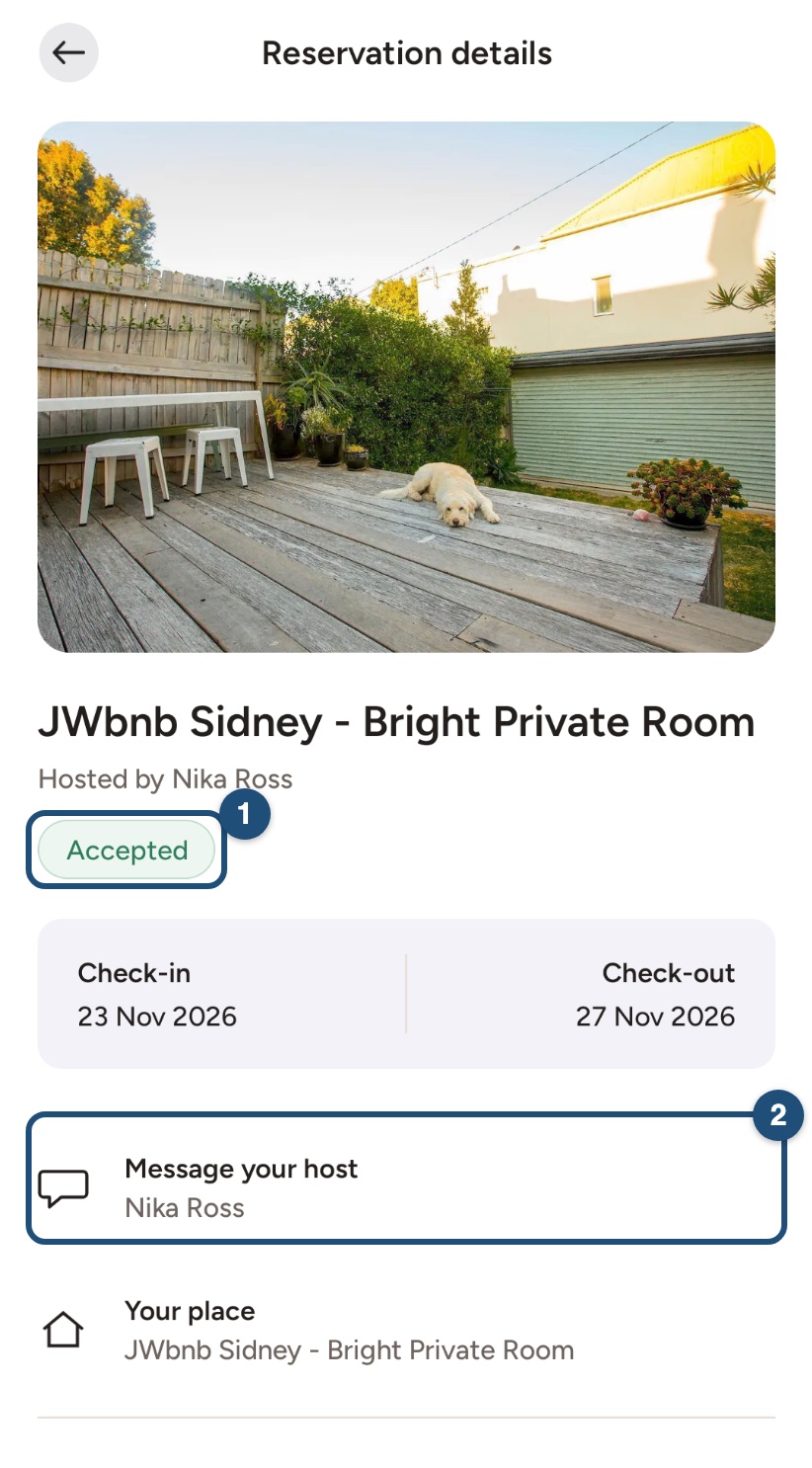
Open a trip to see its status (1) with the dates, and tap Message your host (2) to read or continue the conversation. A request that waits for you shows Book now in the conversation: that is where you complete Confirm and pay.
In your Inbox each conversation also shows its status, and a yellow label tells you when the next step is yours (Awaiting your reply) and how much time is left.
Related articles: Booking process · How a special offer works · What happens if your booking request is declined or expires?