

Website
Your calendar tells guests which nights they can book. Keeping it up to date avoids requests for dates you can't offer, and the declines and cancellations that follow. This guide covers availability; for prices see Update your prices.
Open your calendar
- Log in on a computer (see Log in to your account).
- Go to Listings: in the Personal Area bar, click Listings.
- Click Manage Calendar (2) next to the listing. Manage Listing (1) opens the full listing editor instead.
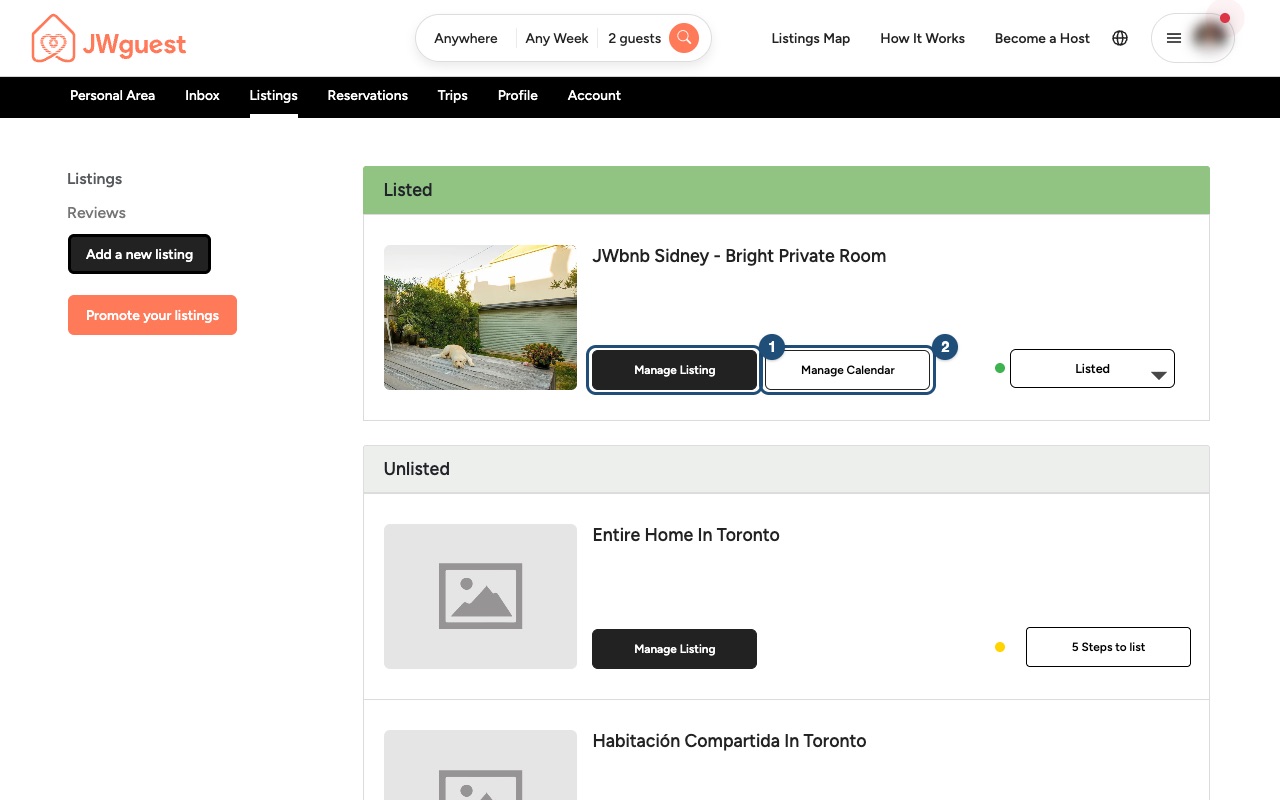
Each day shows its nightly price. Blocked days are greyed out, and nights already booked are marked as reservations.
Block or open dates
- Some days: click the first day and drag to the last one. In the window that opens, choose Blocked or Available and click Save Changes.
- The whole calendar: Block all dates (1) closes every date, for example while you are away for a long time. The same button, now called Unlock all dates, reopens them.
- A whole month: Block Month (2) closes the month on screen; Unlock Month reopens it.
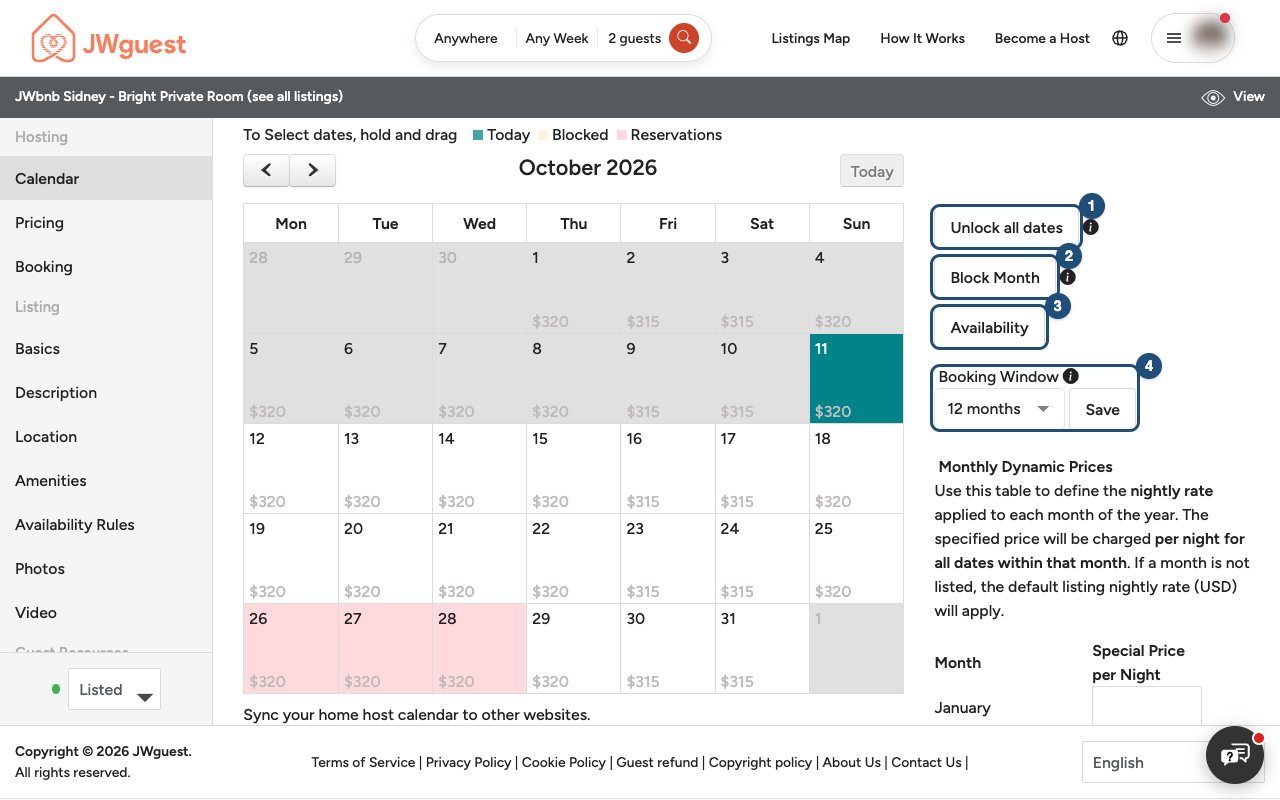
Blocked dates don't appear in guests' searches. Nights that are already booked can't be blocked or reopened from here.
Choose how far ahead guests can book
Booking Window (4) sets how many months ahead your listing can be booked (1, 3, 6, 12 or 24 months). Choose a value and click Save. Dates beyond the window stay closed and open up day by day.
Minimum and maximum stay
The Availability button (3) opens your reservation settings: the minimum and maximum number of nights, and different rules for seasons or weekends. See Set a minimum and maximum stay.
Same-day turnover
A booking occupies its nights only. The check-out day stays free, so one guest can leave in the morning and the next can arrive in the afternoon of the same day. If you need a day to prepare between guests, block it.
Listed on other sites too?
Connect your other calendars with Import Calendar and Export Calendar under the calendar. See Sync your calendar with other sites.
Related articles: Update your prices · Set a special price for some dates · Set a minimum and maximum stay
Mobile browser
Your calendar tells guests which nights they can book. Keeping it up to date avoids requests for dates you can't offer, and the declines and cancellations that follow. You can manage it from your phone's browser. For prices see Update your prices.
Open your calendar
- Log in: tap the menu icon (three lines) at the top right. See Log in to your account.
- Go to Listings: tap Listings in the black Personal Area bar.
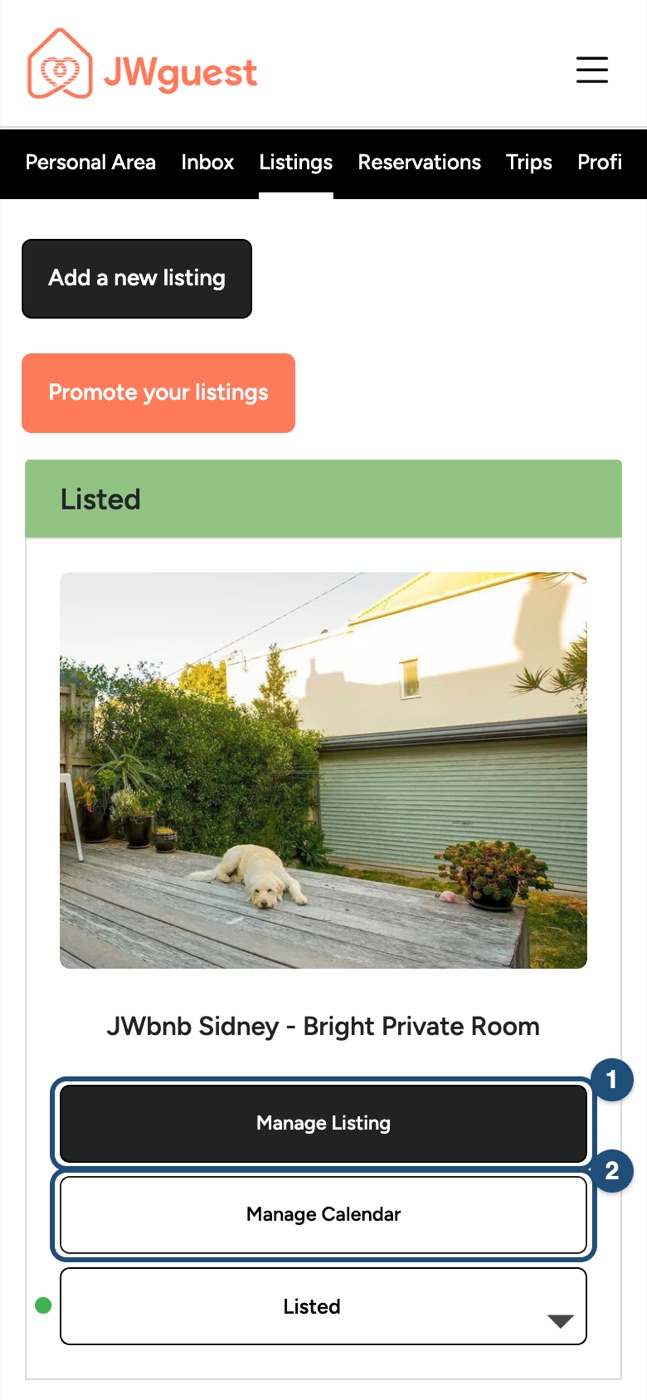
- Tap Manage Calendar next to your listing (scroll down if needed). Manage Listing opens the full listing editor.
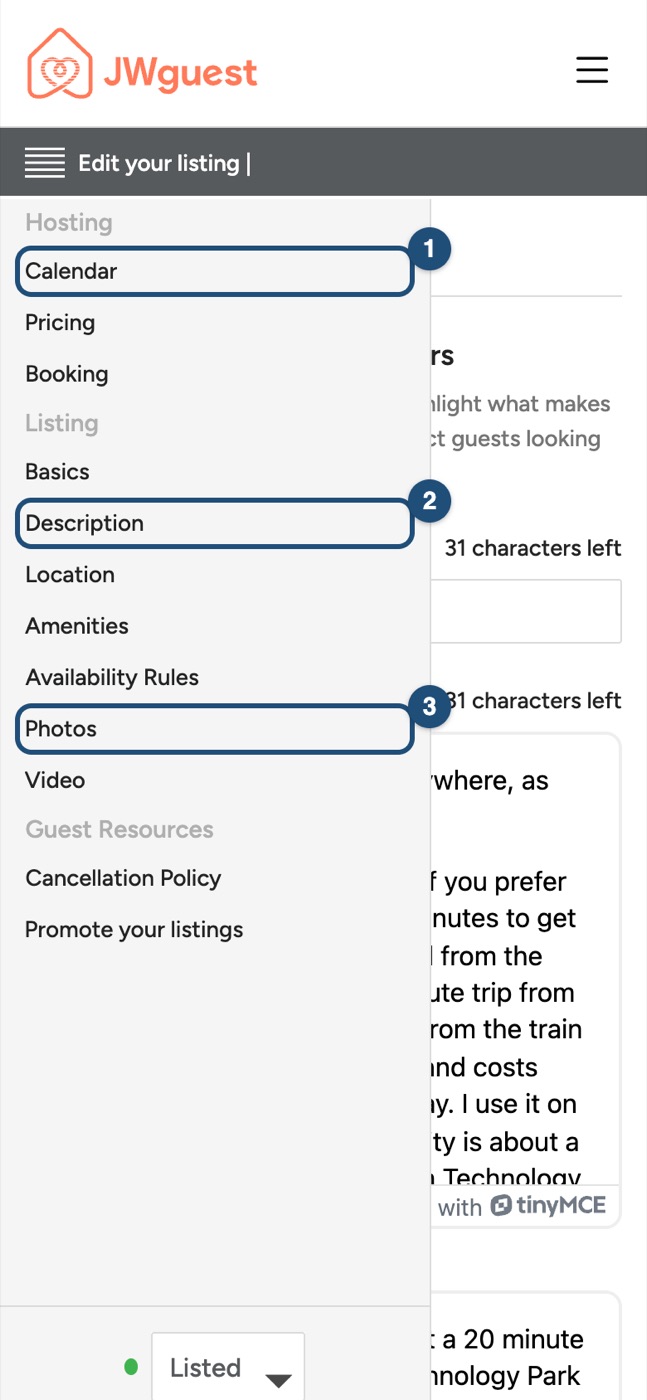
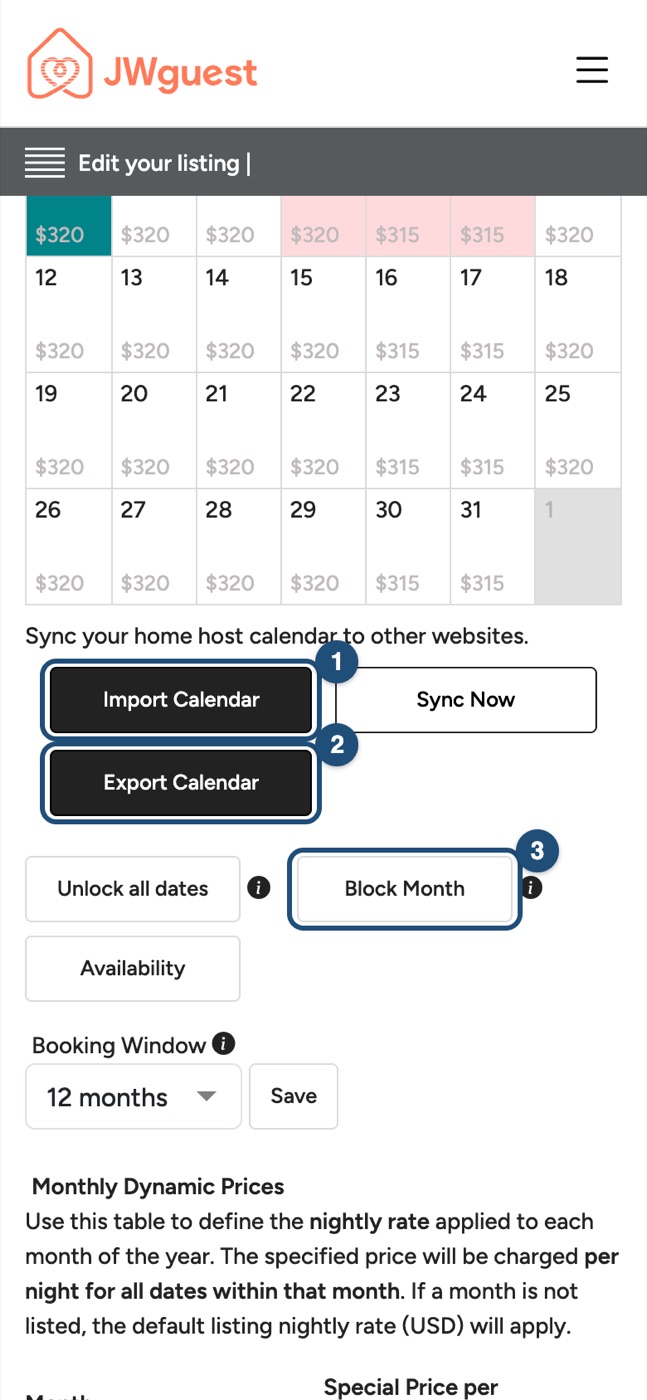
Already in the listing editor? Tap Edit your listing (the icon with lines at the top) and then Calendar (1).
Block or open dates
- Some days: hold your finger on the first day and drag to the last one. Choose Blocked or Available and tap Save Changes.
- A whole month: scroll below the calendar and tap Block Month (3).
- The whole calendar: Block all dates closes every date; tap it again to reopen.
Blocked dates don't appear in guests' searches.
Choose how far ahead guests can book
Below the calendar, pick a Booking Window (1 to 24 months) and tap Save.
Minimum and maximum stay
Tap Availability below the calendar to set the minimum and maximum number of nights. See Set a minimum and maximum stay.
Same-day turnover
A booking occupies its nights only: the check-out day stays free for the next guest. Block it if you need a day to prepare.
Listed on other sites too?
Use Import Calendar and Export Calendar below the calendar. See Sync your calendar with other sites.
Related articles: Update your prices · Set a special price for some dates · Set a minimum and maximum stay
iOS app
Your calendar tells guests which nights they can book. Keeping it up to date avoids requests for dates you can't offer, and the declines and cancellations that follow. For prices see Update your prices.
Open your calendar
Switch to hosting (Profile > Switch to Host) and tap Calendar in the bar at the bottom. With more than one listing, change listing from the name at the top (1). Month and Year (2) switch between the views.
Each day shows its price; blocked days are grey and crossed out, and booked nights show the guest's name.
Block or open dates
Select the days (3): tap the first and the last day. In the Year view you can select whole months.
Block or open them (5): tap Block to close the days, or Make available to open them again. Custom settings (6) holds the other options for those days.
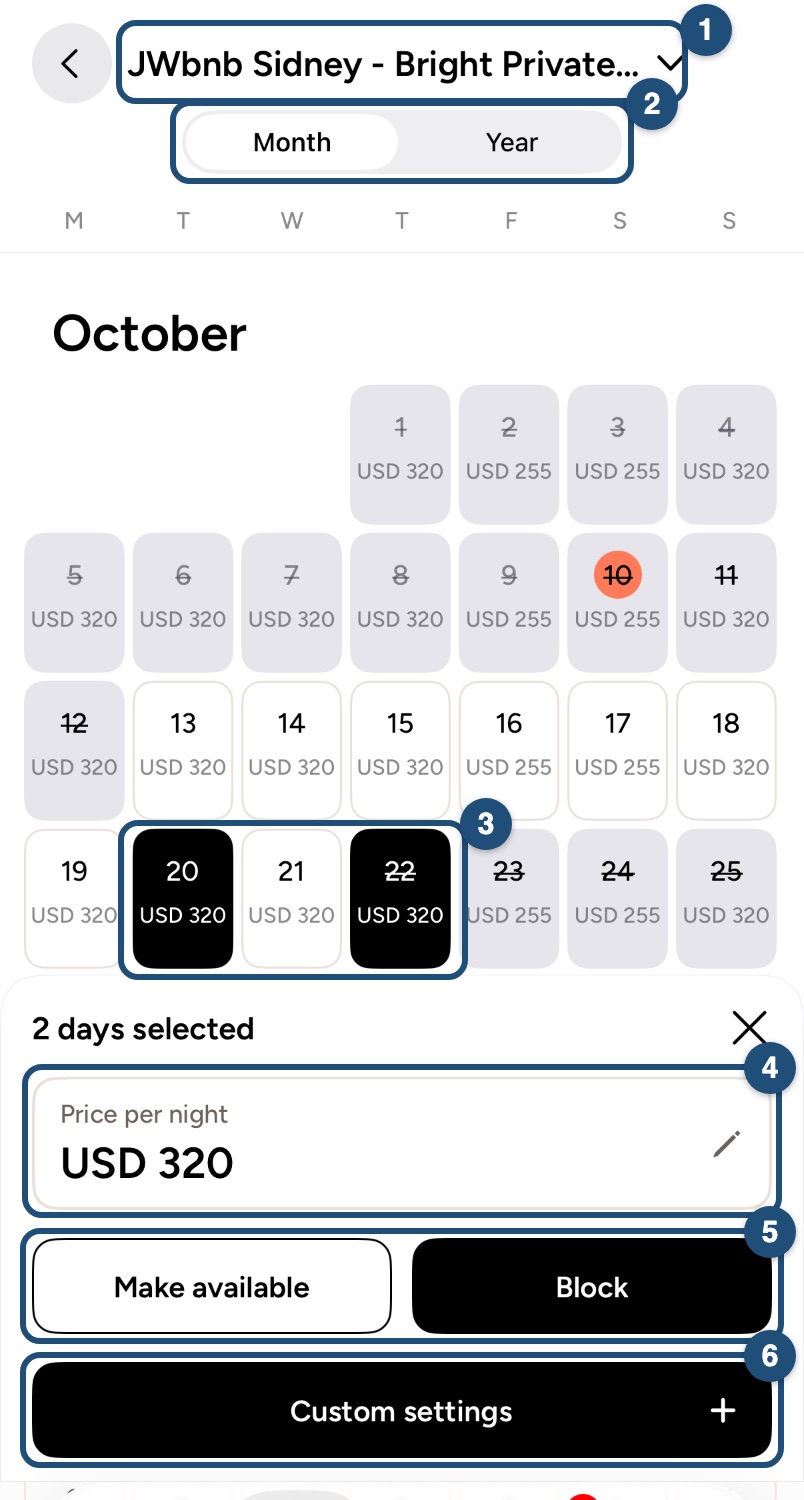
Blocked dates don't appear in guests' searches. The price of the selected days (4) is explained in Set a special price for some dates.
Booking window, minimum and maximum stay
In the listing editor (Listing in the bar at the bottom, then your listing), tap Availability to set how far ahead guests can book and the minimum and maximum number of nights. See Set a minimum and maximum stay.
Same-day turnover
A booking occupies its nights only: the check-out day stays free for the next guest. Block it if you need a day to prepare.
Listed on other sites too?
Tap Custom settings > Import calendars, or in the listing editor Availability > Other sites and calendar sync > ICS calendar sync. See Sync your calendar with other sites.
Related articles: Update your prices · Set a special price for some dates · Set a minimum and maximum stay
Android app
Your calendar tells guests which nights they can book. Keeping it up to date avoids requests for dates you can't offer, and the declines and cancellations that follow. For prices see Update your prices.
Open your calendar
Switch to hosting (Profile > Switch to Host) and tap Calendar in the bar at the bottom. With more than one listing, change listing from the name at the top (1). Month and Year (2) switch between the views.
Each day shows its price; blocked days are grey and crossed out, and booked nights show the guest's name.
Block or open dates
Select the days (3): tap the first and the last day. In the Year view you can select whole months.
Block or open them (5): tap Block to close the days, or Make available to open them again. Custom settings (6) holds the other options for those days.
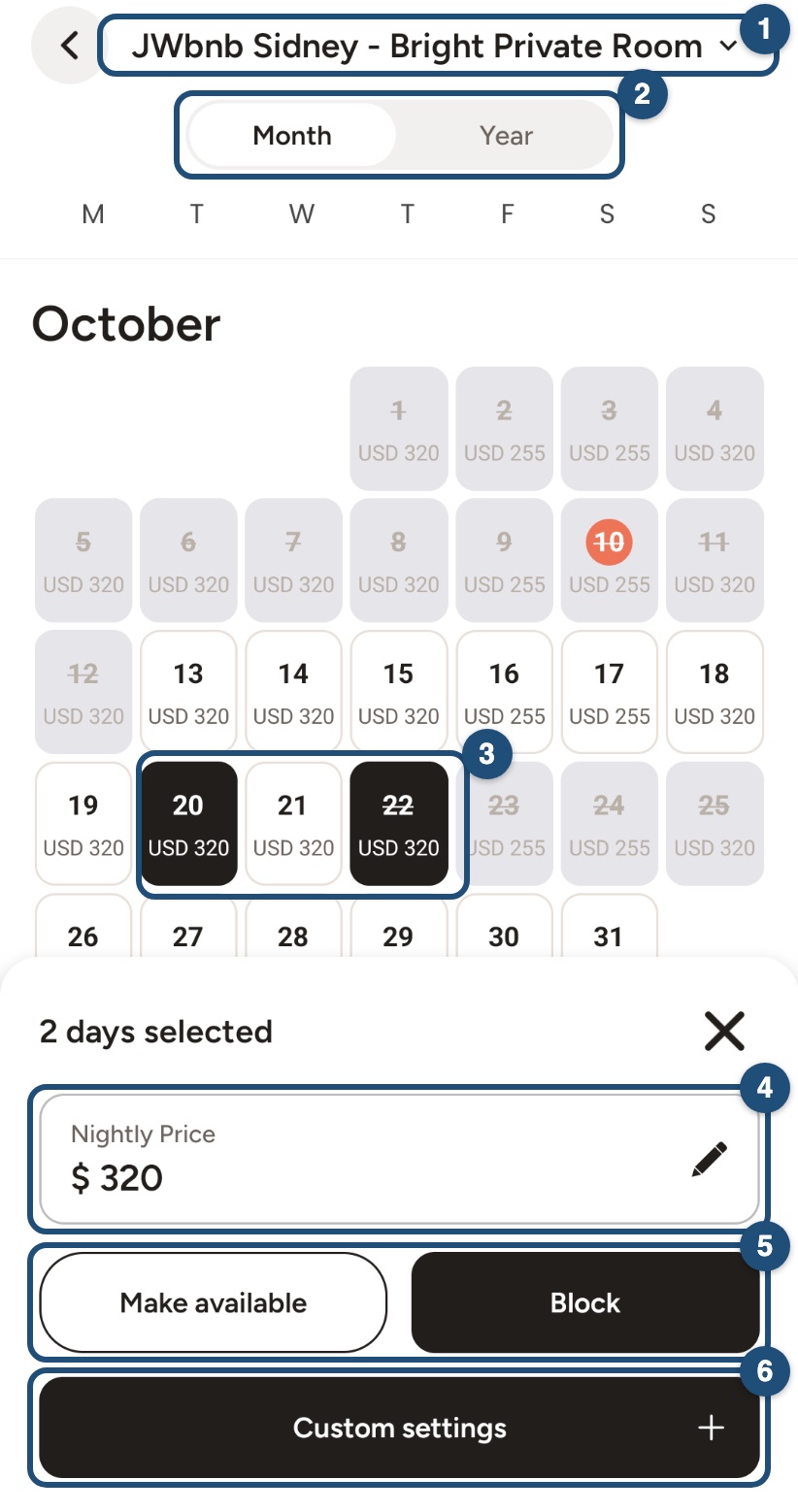
Blocked dates don't appear in guests' searches. The price of the selected days (4) is explained in Set a special price for some dates.
Booking window, minimum and maximum stay
In the listing editor (Listings in the bar at the bottom, then your listing), tap Availability to set how far ahead guests can book and the minimum and maximum number of nights. See Set a minimum and maximum stay.
Same-day turnover
A booking occupies its nights only: the check-out day stays free for the next guest. Block it if you need a day to prepare.
Listed on other sites too?
Tap Custom settings > Import calendars, or in the listing editor Availability > Other sites and calendar sync > ICS calendar sync. See Sync your calendar with other sites.
Related articles: Update your prices · Set a special price for some dates · Set a minimum and maximum stay