

Website
You can log in to JWguest in three ways: with your Google account, with your Apple ID, or with your email address and a password. Whichever you choose, it is the same account on the website and in the apps.
Log in
Go to the log in page, or click the menu button at the top right of any page and choose to log in. Then:
- Log in with Google or Log in with Apple: confirm with Google or Apple and you are in.
- Email and password: enter the email address you registered with and your password, then click Log in with Email.
Tick Remember me to stay logged in on that computer. Without it you are logged out after a while without activity.
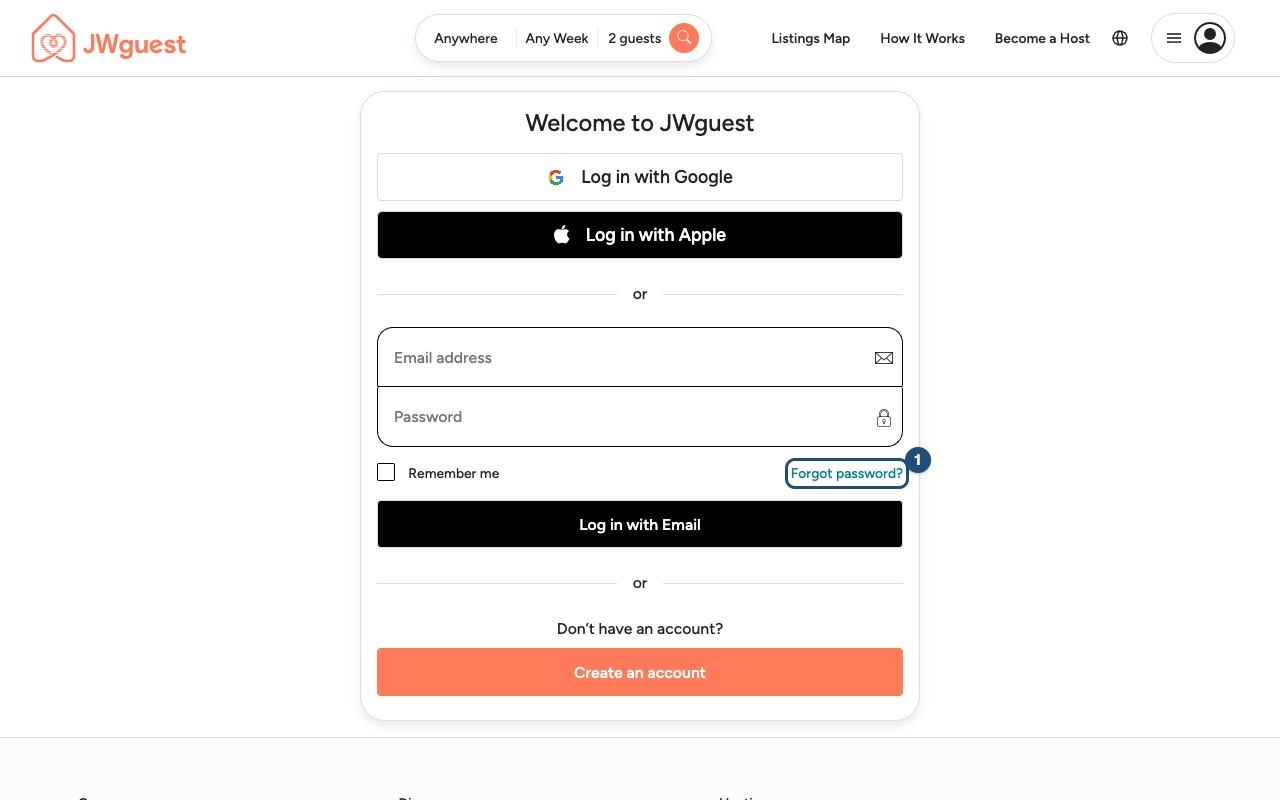
Google, Apple and email lead to the same account when they use the same email address: if you signed up with your email and later click Log in with Google with that same address, you land in your existing account.
Create an account
Click Create an account on the log in page. With your email you fill in your first and last name, email, a password of at least 8 characters, your date of birth (you must be 18 or older), whether you are a brother or a sister, your baptism date and your congregation. With Google or Apple, your account is created from your Google or Apple details. Each person may have only one JWguest account.
Confirm your email address
After signing up with your email, we send you a link to confirm your address. You can look around without it, but you need a confirmed email to contact a host or to book. The link is valid for one hour: if it has expired, ask for a new one in Profile > Trust and Verification. Accounts created with Google or Apple are already confirmed.
Forgot your password?
- Click Forgot password? (1) on the log in page.
- Enter the email address of your account (1) and click Continue (2).
- Open the email we send you and choose a new password (8 to 30 characters). The link is valid for one hour; if it doesn't arrive within a few minutes, check your spam folder.
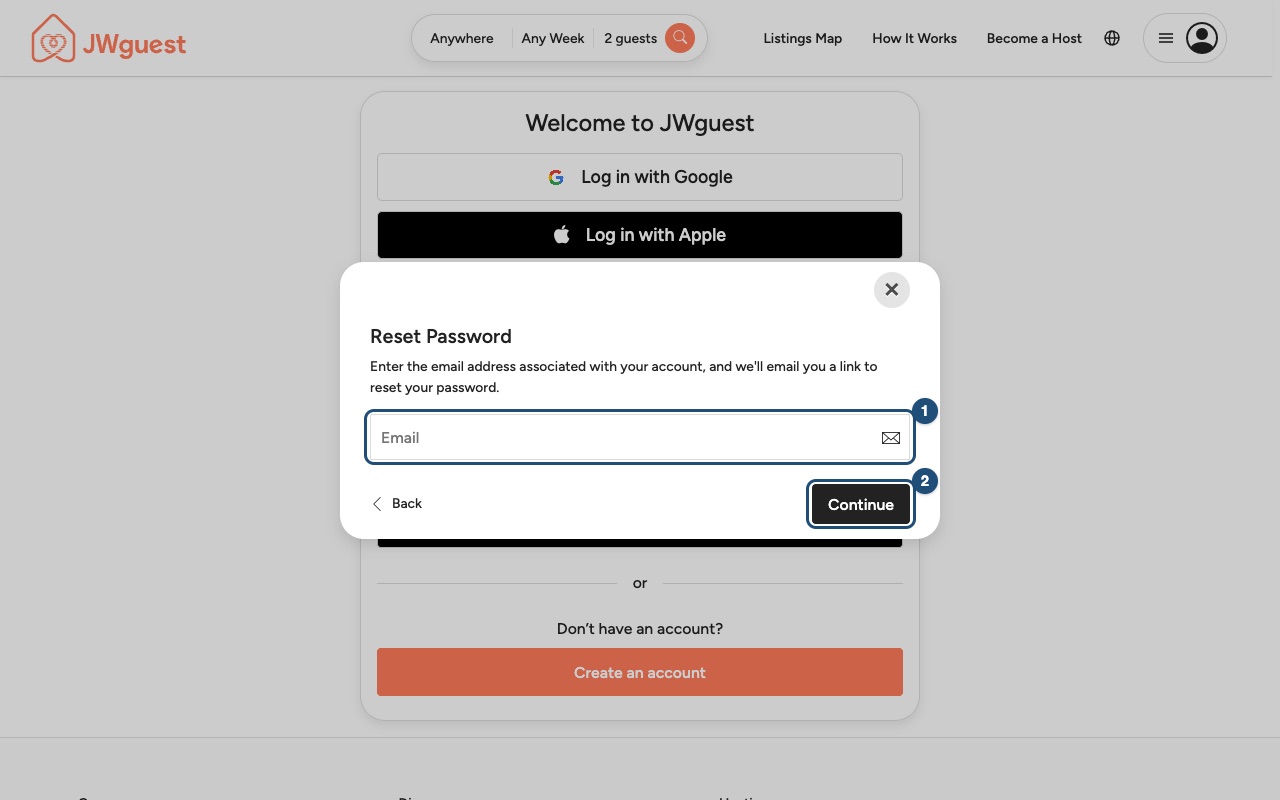
Signed up with Google or Apple? You don't need a password: use the same button again. If you would like a password as well, the same steps create one. See also Change or reset your password.
Your phone number
Hosts and guests may need to call each other, so add your phone number in Profile > Edit Profile. In the apps the number is confirmed with a code sent by SMS before your first booking.
Can't log in?
- "Log In Failed. Please Check Your Email / Password.": check that you are using the email you signed up with, or try the Google or Apple button if you signed up that way. Then reset your password.
- Too many attempts: wait a minute and try again.
- You can't see your bookings: you may have logged in with another email address, and so with another account. Log out and log in with the address you used to book.
- Still stuck? Write to [email protected] from the address of your account.
Log out
Open the menu at the top right and click Log out. Always log out on a shared computer.
Related articles: Edit your profile · Delete your account · Hosts and Guests verification
Mobile browser
You can log in to JWguest in three ways: with your Google account, with your Apple ID, or with your email address and a password. It is the same account on the website and in the apps.
Log in
- Open the menu: tap the menu icon (three lines) at the top right and choose to log in, or go straight to the log in page.
- Choose one way: Log in with Google, Log in with Apple, or enter your email address and password and tap Log in with Email.
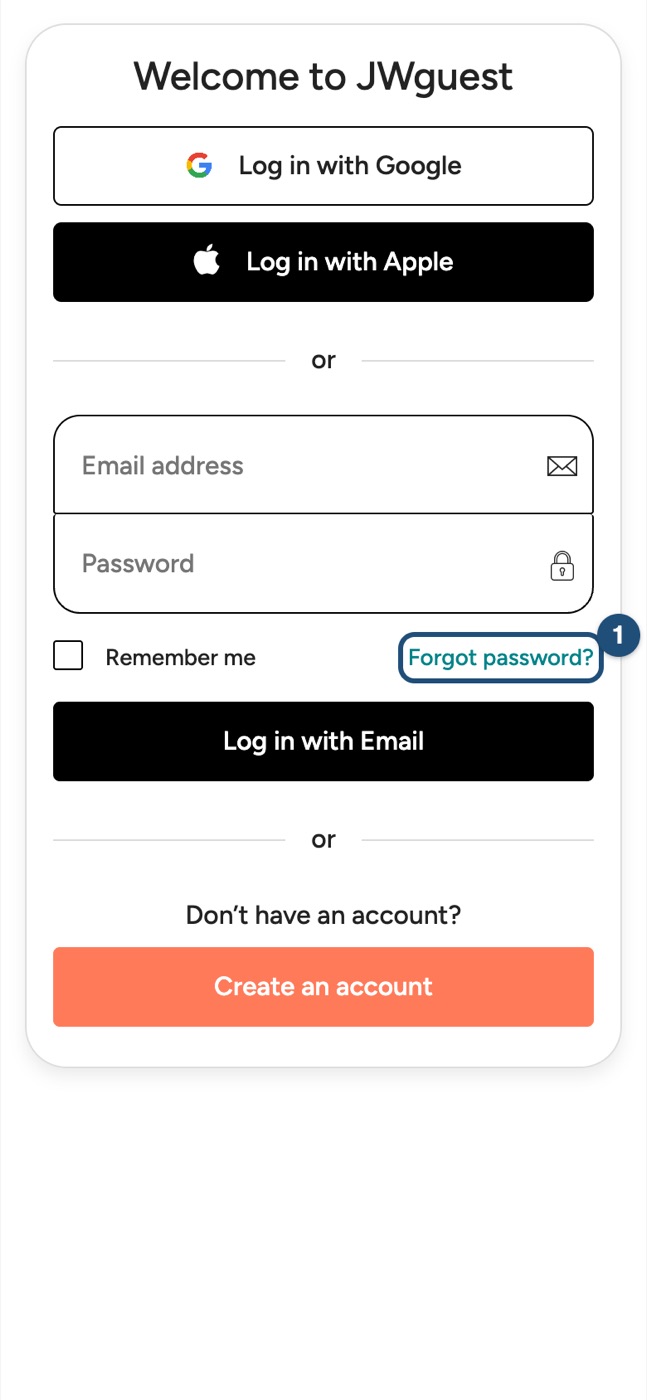
Google, Apple and email lead to the same account when they use the same email address. Tick Remember me to stay logged in on your phone.
Create an account
Tap Create an account. With your email you fill in your name, email, a password of at least 8 characters, your date of birth (18 or older), whether you are a brother or a sister, your baptism date and your congregation. With Google or Apple, your account is created from your Google or Apple details. Each person may have only one JWguest account.
Confirm your email address
After signing up with your email, open the link we send you. You need a confirmed email to contact a host or to book. The link is valid for one hour; a new one can be requested in Profile > Trust and Verification. Google and Apple accounts are already confirmed.
Forgot your password?
- Tap Forgot password? (1) on the log in page.
- Enter the email address of your account (1) and tap Continue (2).
- Open the email and choose a new password. The link is valid for one hour; check your spam folder if it doesn't arrive.
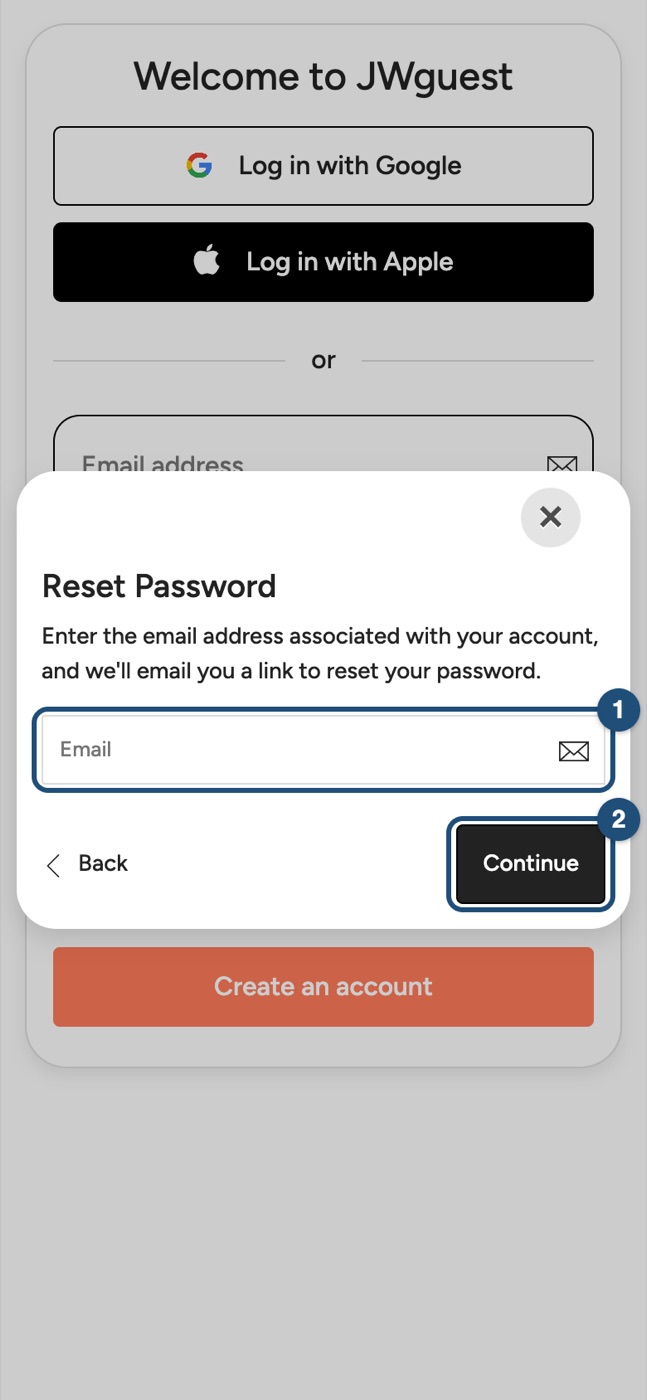
Signed up with Google or Apple? Use the same button again; the same steps create a password if you want one.
Can't log in?
- Check that you are using the email you signed up with, or try the Google or Apple button.
- After too many attempts, wait a minute.
- Can't see your bookings? You may be in another account: log in with the address you used to book.
- Still stuck? Write to [email protected] from the address of your account.
Log out
Open the menu at the top right and tap Log out.
Related articles: Edit your profile · Delete your account · Hosts and Guests verification
iOS app
You can log in to the app in three ways: with your Apple ID, with your Google account, or with your email address and a password. It is the same account as on the website: if you already use jwguest.com, log in with the same details.
The first screen
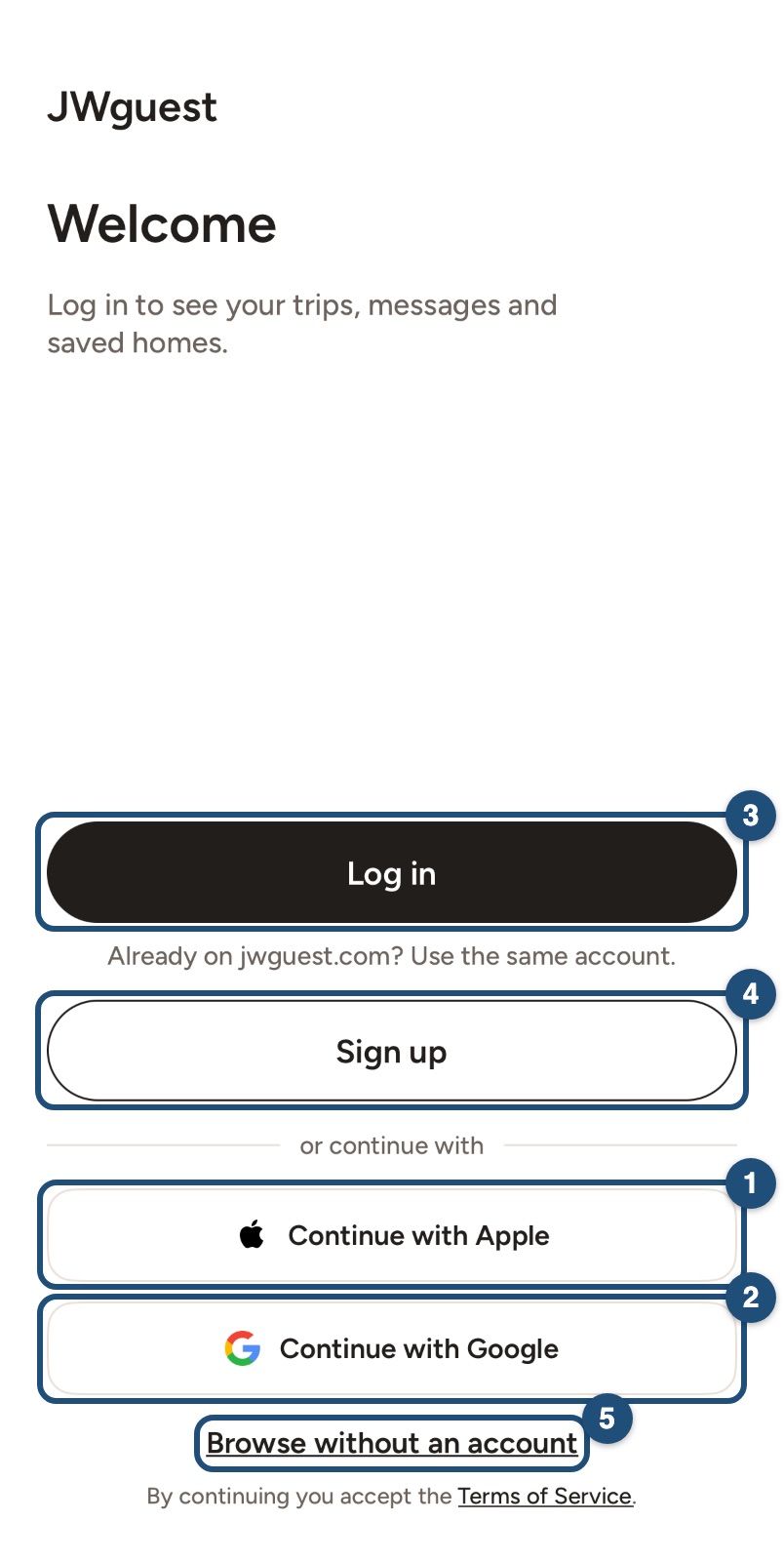
When you open the app for the first time you can choose Continue with Apple (1) or Continue with Google (2), Log in (3) with your email, or Sign up (4). Browse without an account (5) lets you look at homes first; the app asks you to log in when you save a home, message a host or book.
Log in
On the log in screen, tap Log in with Google (1) or Log in with Apple (2), or enter your email address and password (3) and tap Log in with email (4).
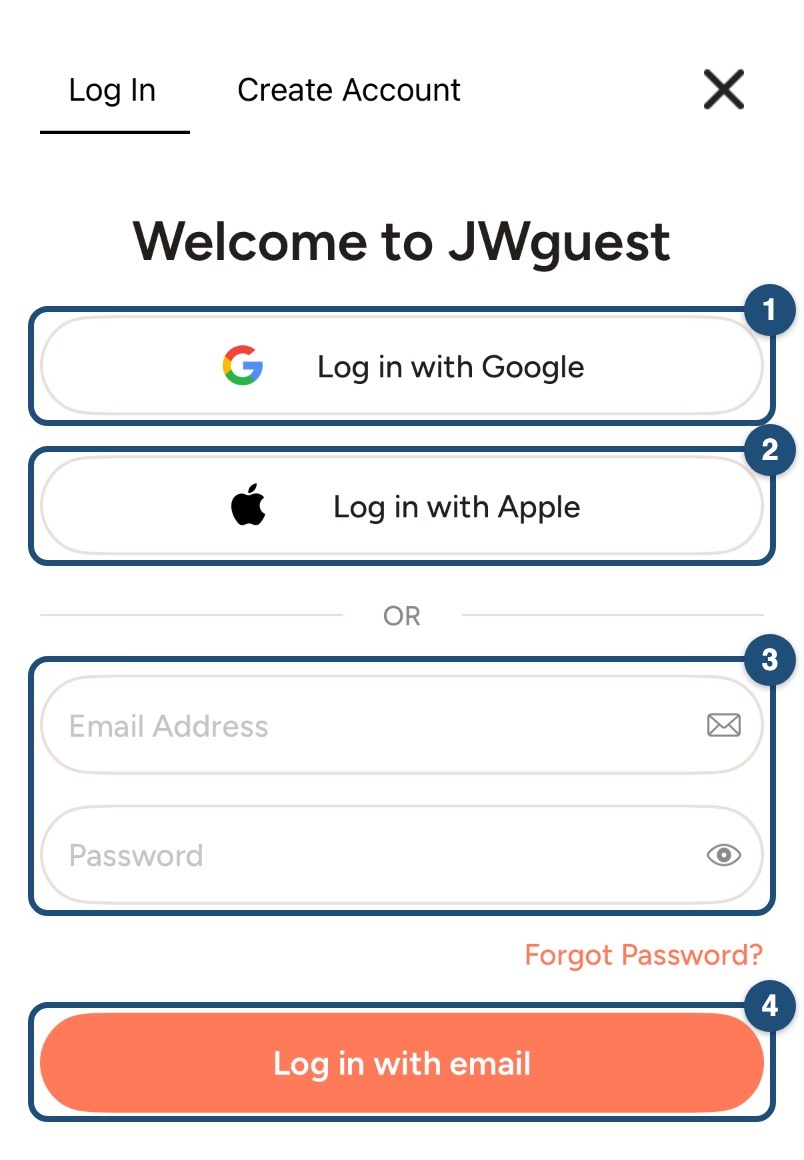
Apple, Google and email lead to the same account when they use the same email address. The app keeps you logged in until you log out.
Create an account
Tap Sign up, or Create Account at the top of the log in screen. With your email you fill in your name, email, a password of at least 8 characters, your date of birth (18 or older), whether you are a brother or a sister, your baptism date and your congregation, and accept the terms. With Apple or Google, your account is created from your Apple or Google details. Each person may have only one JWguest account.
Confirm your email and your phone
- Email: after signing up with your email, open the link we send you. You need a confirmed email to contact a host or to book. Apple and Google accounts are already confirmed.
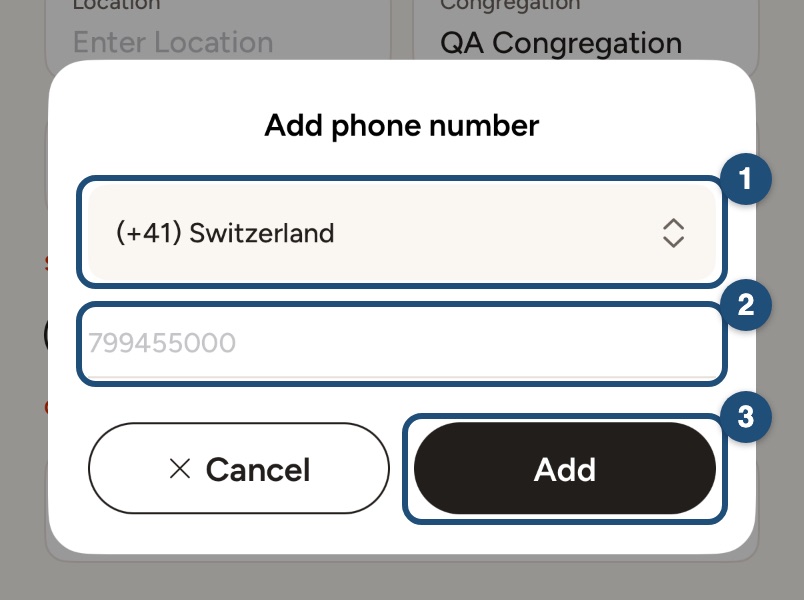
- Phone: before your first booking the app asks for your phone number. Choose your country (1), enter the number (2) and tap the button to receive a 6-digit code by SMS (3). Type the code to confirm. If it doesn't arrive, you can ask for it again after 15 seconds.
Forgot your password?
- Tap Forgot Password? (1) on the log in screen.
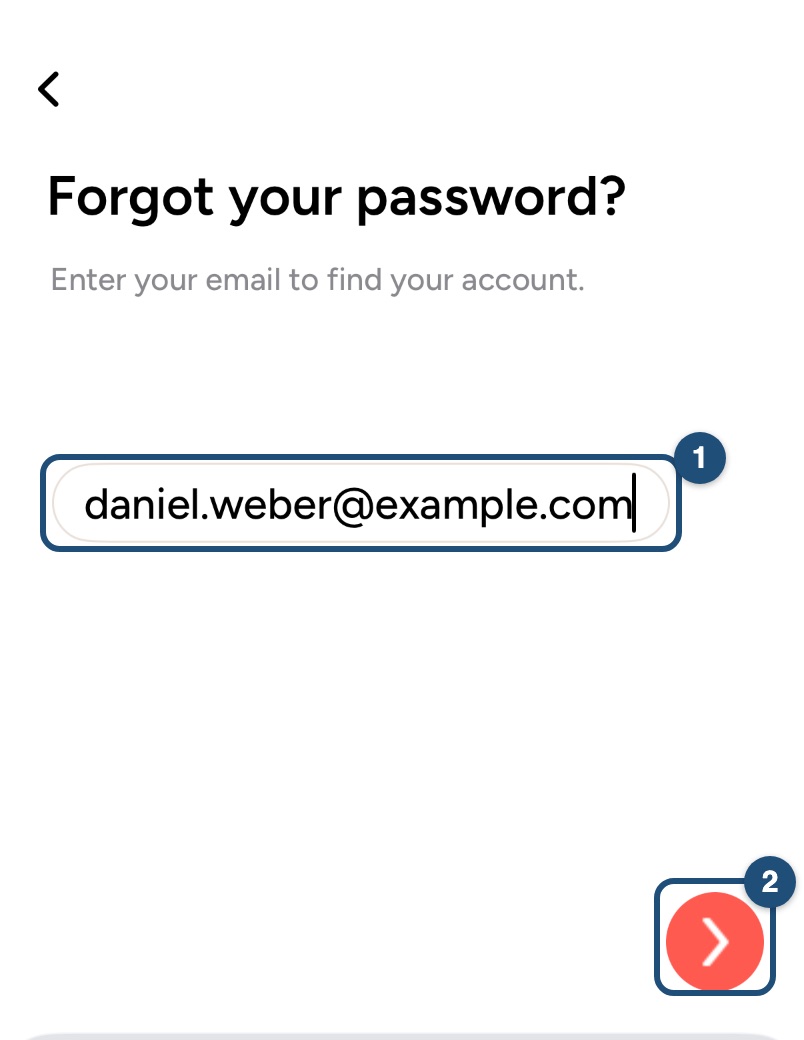
- Enter your email address (1) and tap the arrow (2). We email you a link to choose a new password; it is valid for one hour.
Signed up with Apple or Google? Use the same button again; the same steps create a password if you want one.
Can't log in?
- Check that you are using the email you signed up with, or try the Apple or Google button.
- "We could not confirm this sign-in": try again, or log in with your email and password.
- Can't see your bookings? You may be in another account: log in with the address you used to book.
- Still stuck? Write to [email protected] from the address of your account.
Log out
Tap Profile in the bar at the bottom, then Settings and Logout.
Related articles: Edit your profile · Delete your account
Android app
You can log in to the app in three ways: with your Google account, with your Apple ID, or with your email address and a password. It is the same account as on the website: if you already use jwguest.com, log in with the same details.
The first screen
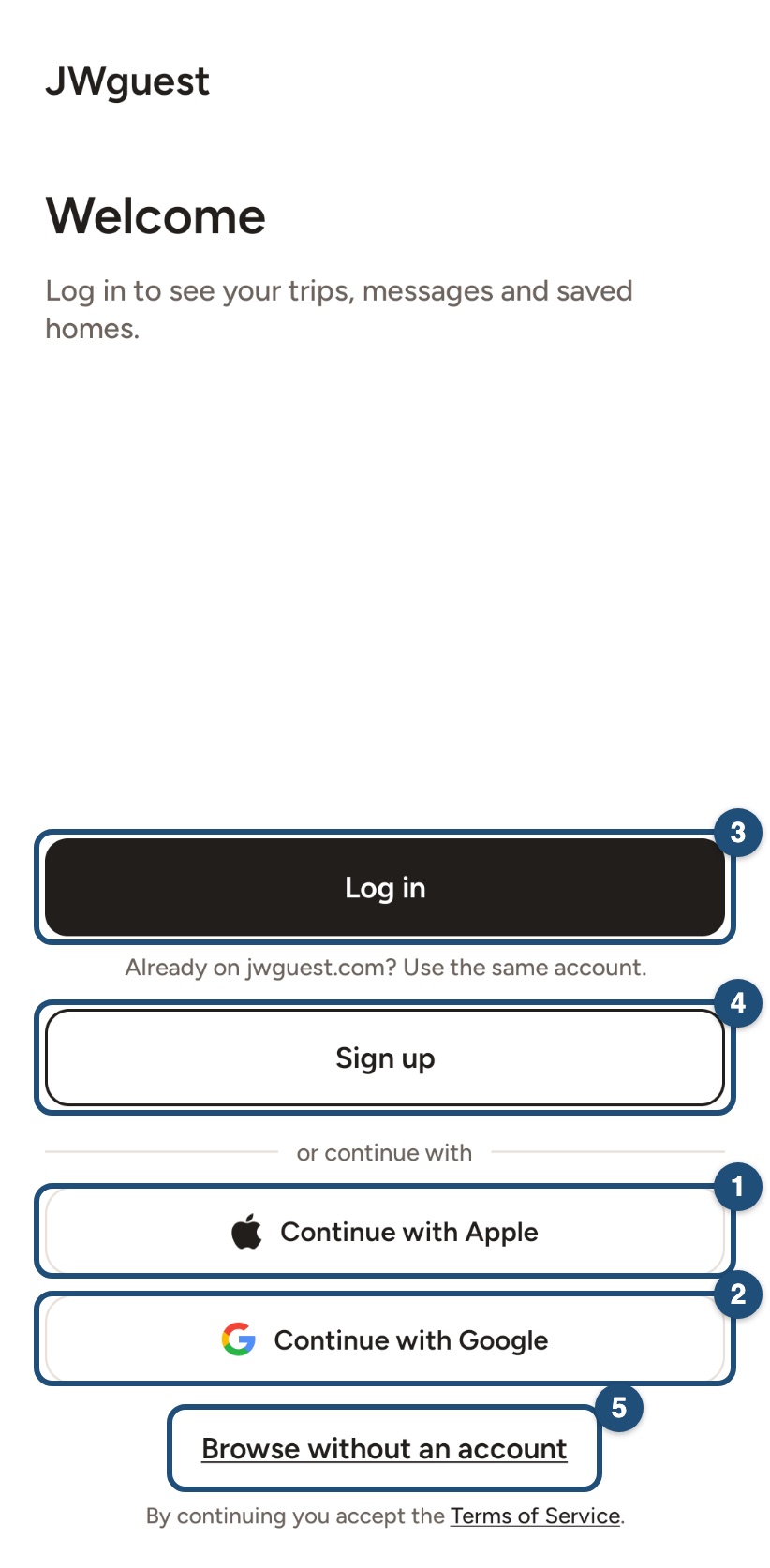
When you open the app for the first time you can choose Continue with Apple (1) or Continue with Google (2), Log in (3) with your email, or Sign up (4). Browse without an account (5) lets you look at homes first; the app asks you to log in when you save a home, message a host or book.
Log in
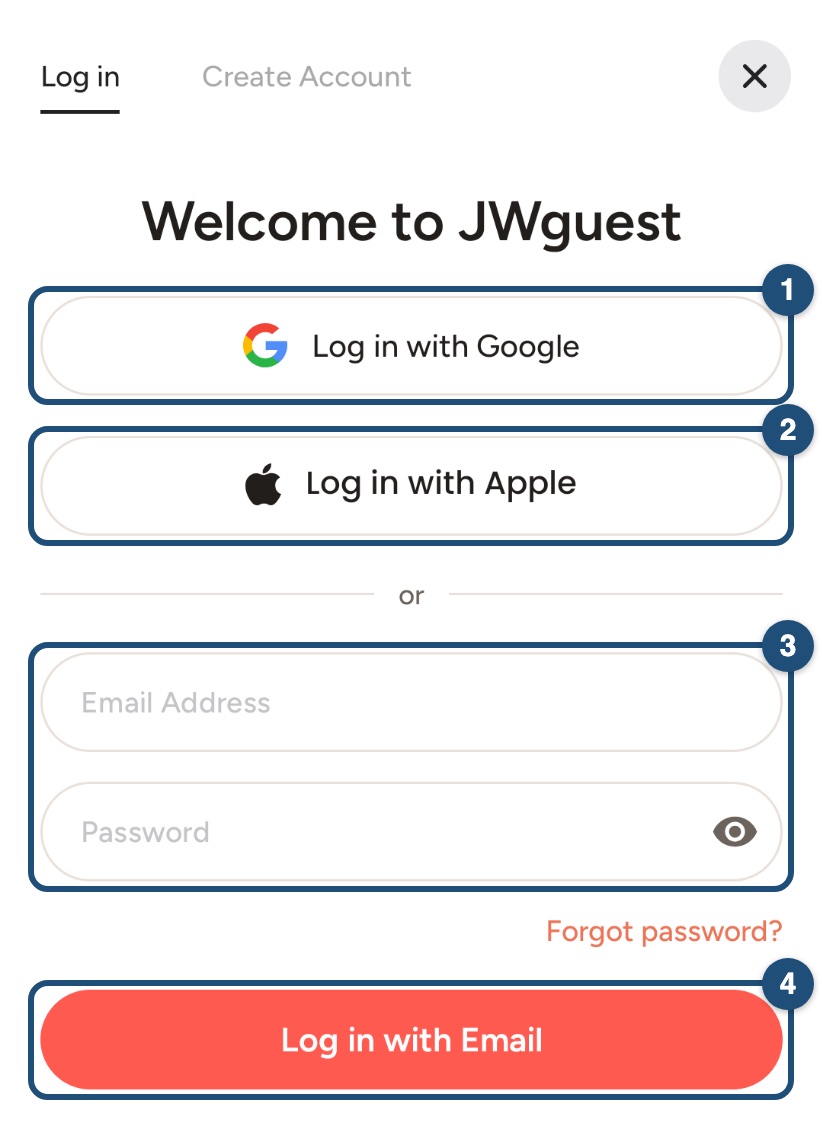
On the log in screen, tap Log in with Google (1) or Log in with Apple (2), or enter your email address and password (3) and tap Log in with Email (4).
Google and email lead to the same account when they use the same email address. The app keeps you logged in until you log out.
Create an account
Tap Sign up, or Create Account at the top of the log in screen. With your email you fill in your name, email, a password of at least 8 characters, your date of birth (18 or older), whether you are a brother or a sister, your baptism date and your congregation, and accept the terms. With Google or Apple, the app may ask you to complete your name, email and date of birth. Each person may have only one JWguest account.
Confirm your email and your phone
- Email: after signing up with your email, open the link we send you. You need a confirmed email to contact a host or to book.
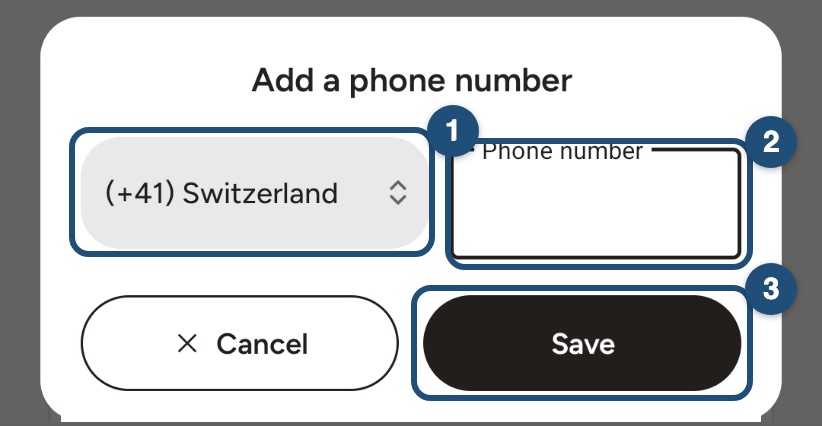
- Phone: before your first booking the app asks for your phone number. Choose your country (1), enter the number (2) and tap the button to receive a code by SMS (3). Type the code to confirm. If it doesn't arrive, you can ask for it again after 15 seconds.
Forgot your password?
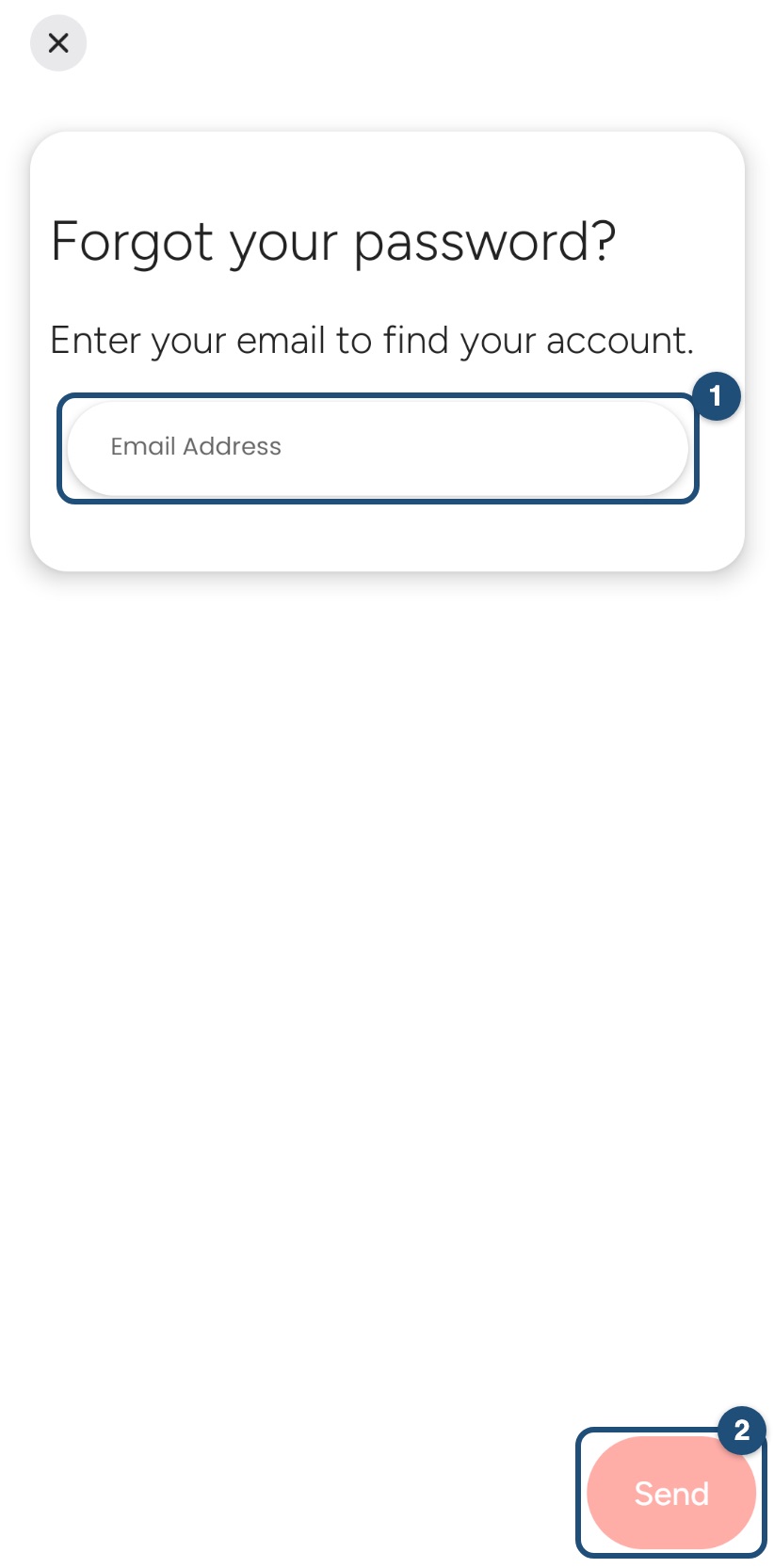
- Tap Forgot password? (1) on the log in screen.
- Enter your email address (1) and tap Send (2). We email you a link to choose a new password; it is valid for one hour.
Signed up with Google or Apple? Use the same button again; the same steps create a password if you want one.
Can't log in?
- Check that you are using the email you signed up with, or try the Google or Apple button.
- Can't see your bookings? You may be in another account: log in with the address you used to book.
- Still stuck? Write to [email protected] from the address of your account.
Log out
Tap Profile in the bar at the bottom, then Settings and Log out.
Related articles: Edit your profile · Delete your account