
Website
Your prices are set in the listing editor, under Pricing. There you choose your nightly price, the extra costs a booking can carry and the discounts you offer. To change the price of particular dates only, see Set a special price for some dates.
Open your prices
- Go to Listings: in the Personal Area bar, click Listings, then Manage Listing next to the listing.
- Select Pricing in the menu on the left.
Set your nightly price
- Nightly Price (1): the base price of one night.
- Currency (2): the currency of all your prices. Guests see the prices converted into their own currency, and they pay in your listing's currency.
- Weekend pricing (3): tick it and enter a nightly price that replaces your base price on every Friday and Saturday night.
- Cleaning fee and Additional guests fees (4): the cleaning fee is added once to every booking; the additional-guest fee is charged per night for each guest beyond the number you choose.
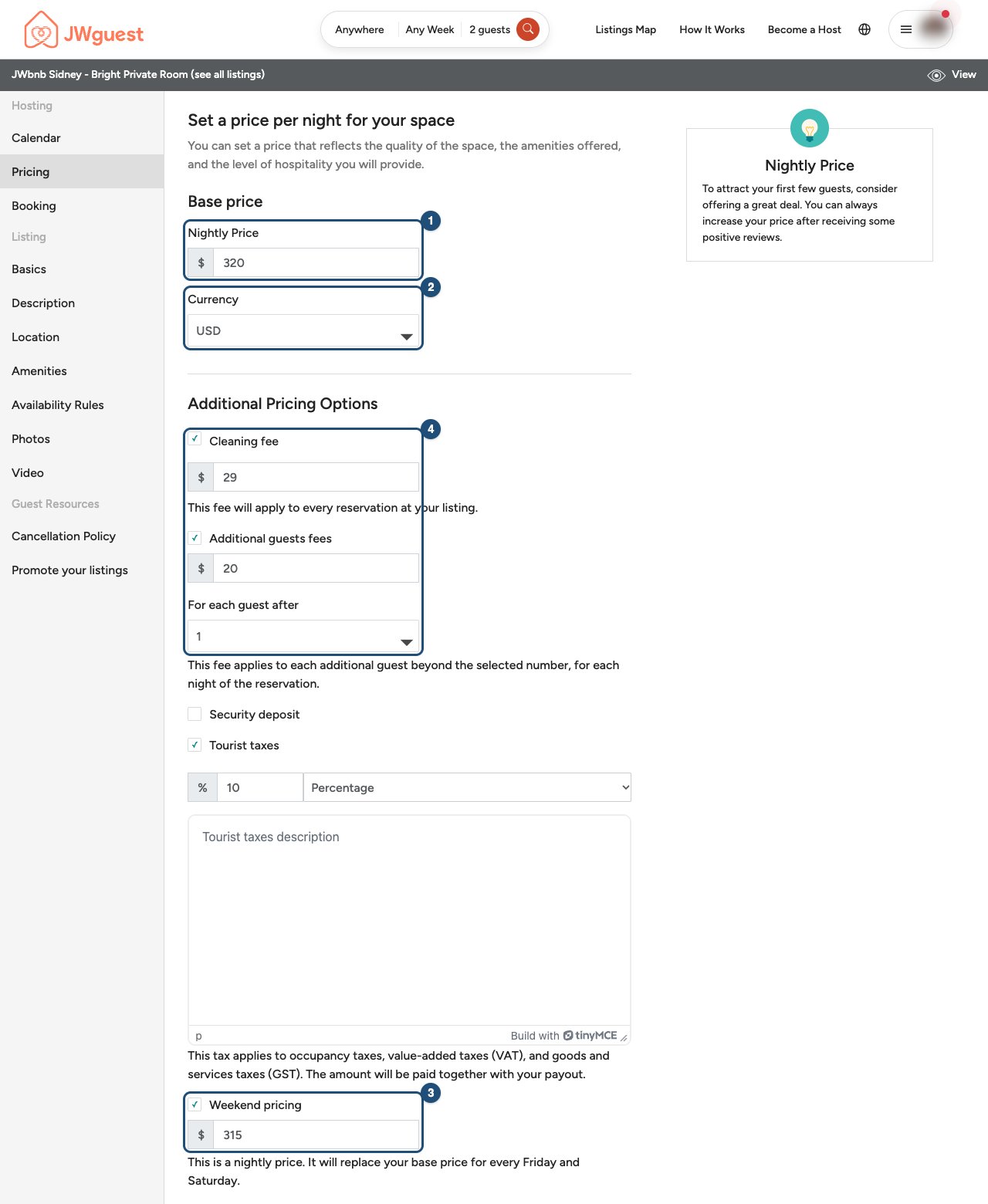
The same page has the Security deposit and your Tourist taxes. Changes apply to new requests: bookings already confirmed keep the price they were booked at.
Offer discounts
Further down the page you can reward longer or earlier bookings. Each discount is a percentage (1 to 99).
- Long Stay Discount (1): for stays from a number of nights you choose (for example from 7 nights, a weekly stay, or from 28 nights, a month).
- Early Booking Discount (2): for guests who book at least a set number of days before check-in.
- Last minute discounts (3): for bookings made a few days before check-in.
- Special Full-time Servants (SFTS) Discount (4): the discount you offer to full-time servants. Guests ask for it with their request; see Full-time servants discount.
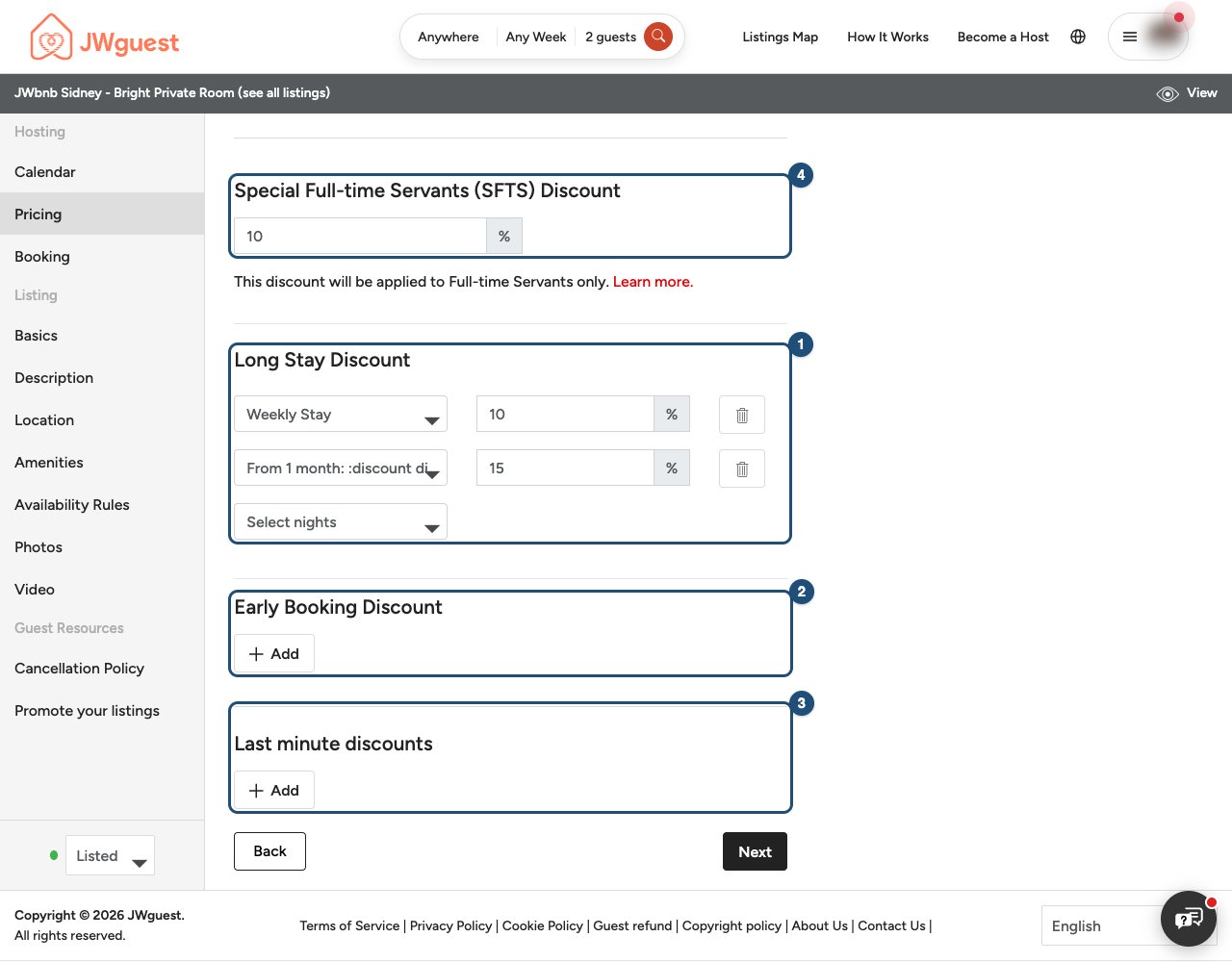
Discounts apply to the nights and the additional-guest fees, never to the cleaning fee, taxes or the service fee. They can add up: an early-booking or last-minute discount can apply together with a long-stay discount, and the SFTS discount is applied last.
Related articles: Set a special price for some dates · Send a special offer to a guest · Update your calendar
Mobile browser
Your prices are set in the listing editor, under Pricing: your nightly price, the extra costs a booking can carry and the discounts you offer. To change the price of particular dates only, see Set a special price for some dates.
Open your prices
- Go to Listings: tap Listings in the black Personal Area bar, then Manage Listing.
- Open Pricing: tap Edit your listing (the icon with lines at the top), then Pricing.
Set your nightly price
- Nightly Price (1): the base price of one night, in your listing's Currency.
- Weekend pricing (2): a nightly price that replaces the base price on Friday and Saturday nights.
- Cleaning fee and Additional guests fees, further down: added once per booking, and per night for each guest beyond the number you choose.
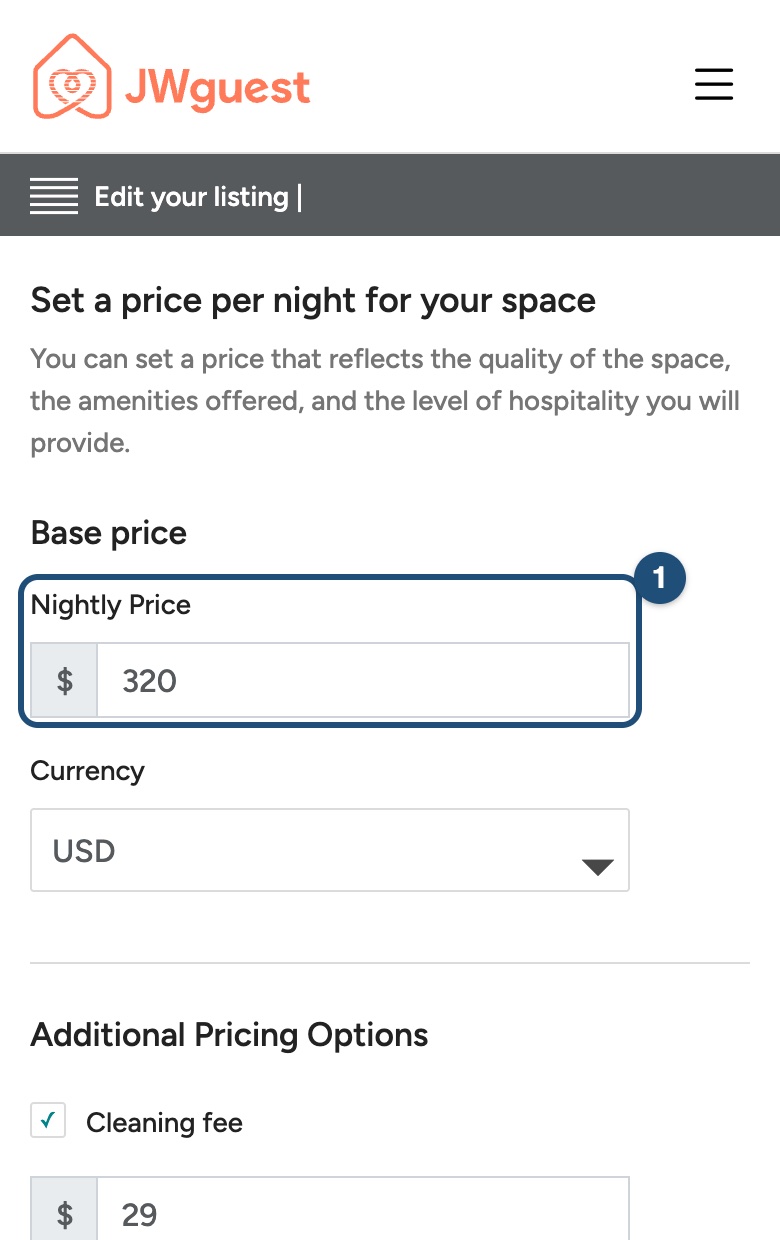
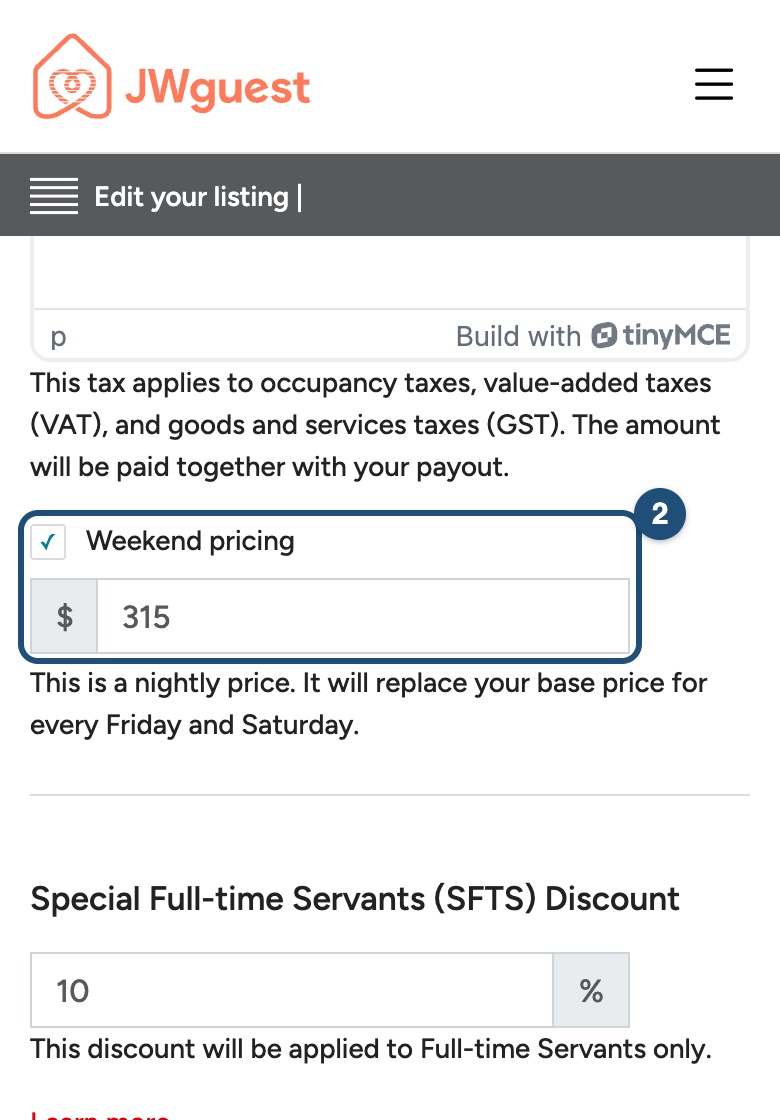
Changes apply to new requests: bookings already confirmed keep the price they were booked at.
Offer discounts
Scroll down for the discounts, each a percentage from 1 to 99: Long Stay Discount, Early Booking Discount, Last minute discounts and the Special Full-time Servants (SFTS) Discount (see Full-time servants discount).
Discounts apply to the nights and the additional-guest fees, never to the cleaning fee, taxes or the service fee. An early-booking or last-minute discount can apply together with a long-stay discount, and the SFTS discount is applied last.
Related articles: Set a special price for some dates · Send a special offer to a guest · Update your calendar
iOS app
Your prices are set in the listing editor: your nightly price, the extra costs a booking can carry and the discounts you offer. To change the price of particular dates only, see Set a special price for some dates.
Set your nightly price
Open your listing: switch to hosting (Profile > Switch to Host), tap Listing in the bar at the bottom, tap your listing and then Pricing > Price.
- Base price (1): the price of one night.
- Weekend adjustment (2): a percentage added to (or taken off) your base price on Friday and Saturday nights.
- Currency (3): the currency of all your prices. Guests see them converted, and they pay in your listing's currency.
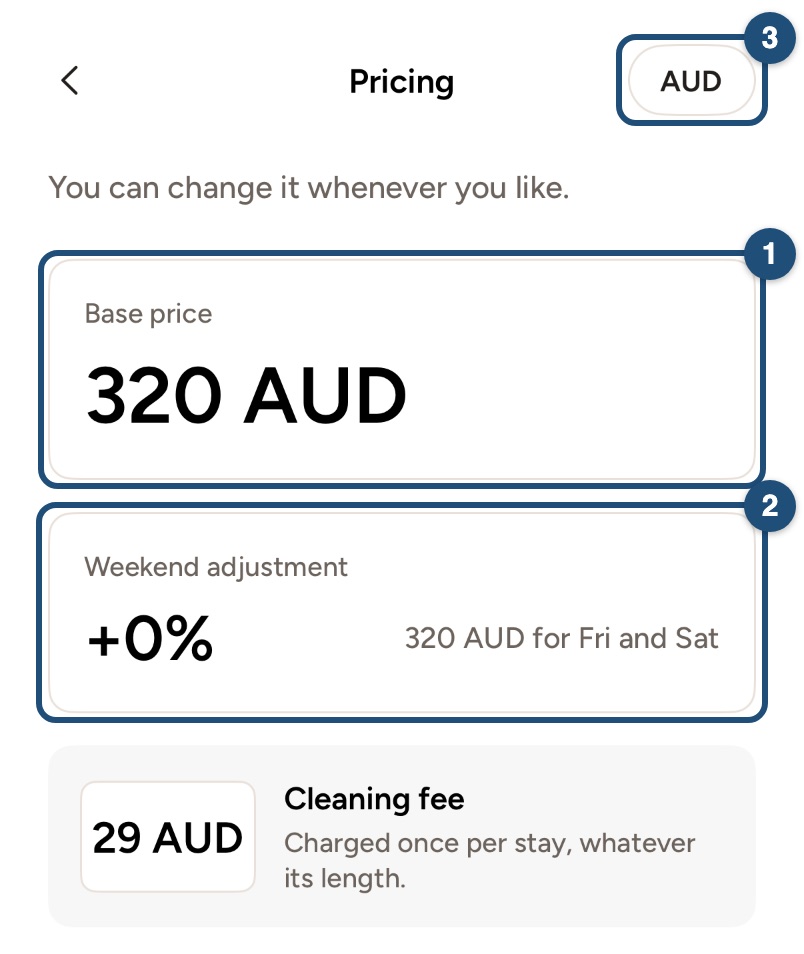
Changes apply to new requests: bookings already confirmed keep the price they were booked at.
Offer discounts
In the listing editor, tap Discounts:
- Last-minute (1): for bookings made in the last 14 days before check-in.
- Weekly (2): for stays of 7 nights or more.
- Monthly (3): for stays of 28 nights or more.
- SFTS (4): the discount you offer to full-time servants, who ask for it with their request. See Full-time servants discount.
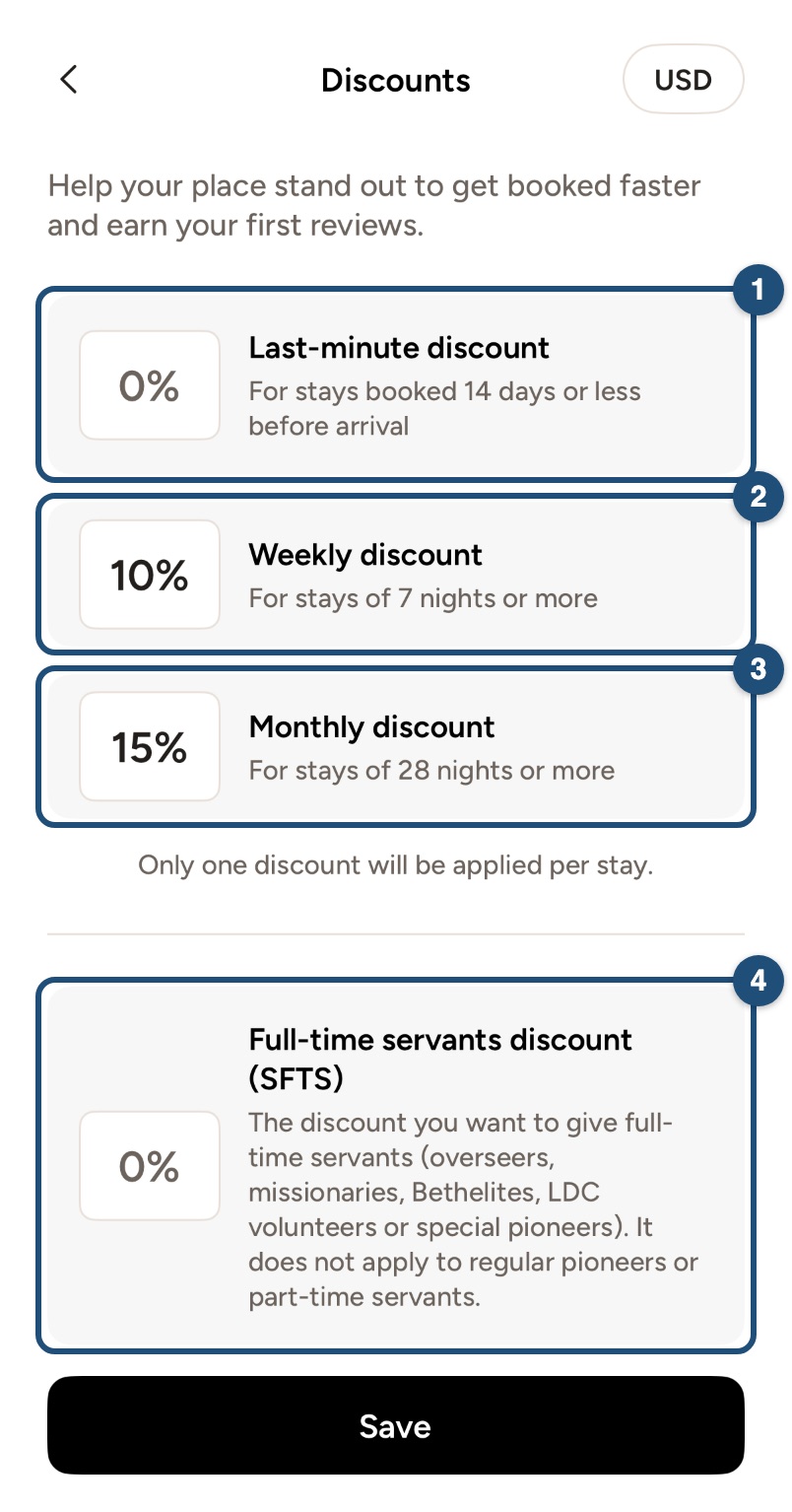
Discounts apply to the nights and the additional-guest fees, never to the cleaning fee, taxes or the service fee. An early-booking discount and long-stay discounts for other lengths can be set on the website.
Related articles: Set a special price for some dates · Send a special offer to a guest · Update your calendar
Android app
Your prices are set in the listing editor: your nightly price, the extra costs a booking can carry and the discounts you offer. To change the price of particular dates only, see Set a special price for some dates.
Set your nightly price
Open your listing: switch to hosting (Profile > Switch to Host), tap Listings in the bar at the bottom, tap your listing and then Prices > Price.
- Base price (1): the price of one night.
- Weekend adjustment (2): a percentage added to (or taken off) your base price on Friday and Saturday nights.
- Currency (3): the currency of all your prices. Guests see them converted, and they pay in your listing's currency.
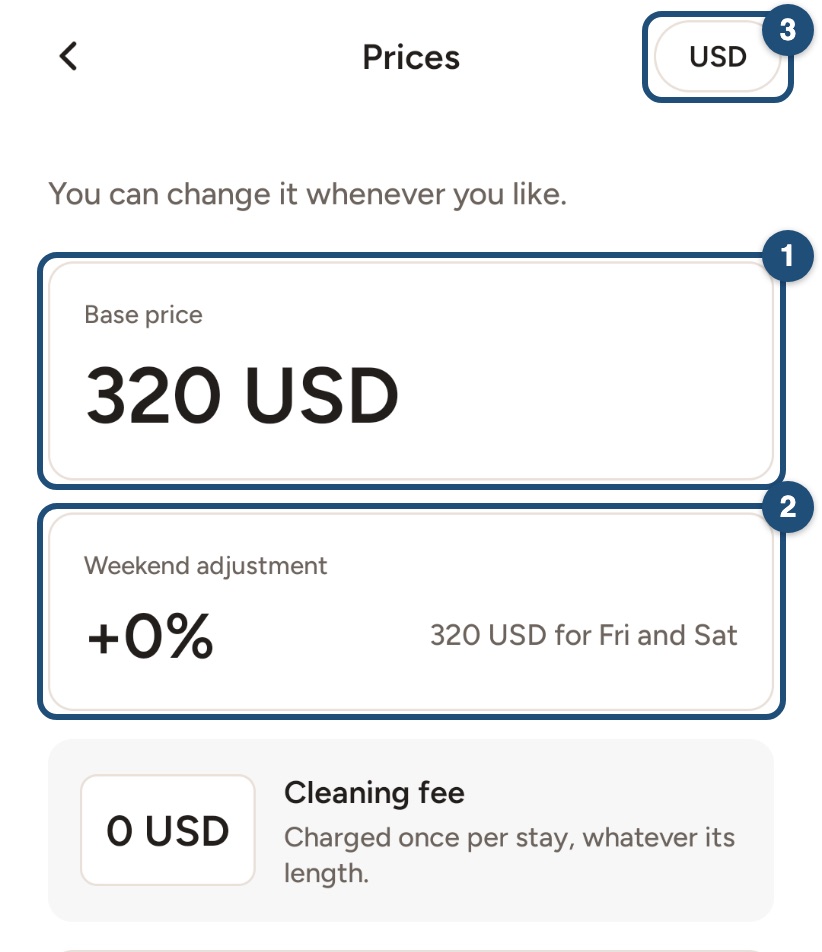
Changes apply to new requests: bookings already confirmed keep the price they were booked at.
Offer discounts
The app asks for these discounts when you list a new home. To change them later, use Pricing on the website:
- Last-minute (1): for bookings made in the last 14 days before check-in.
- Weekly (2): for stays of 7 nights or more.
- Monthly (3): for stays of 28 nights or more.
- SFTS (4): the discount you offer to full-time servants, who ask for it with their request. See Full-time servants discount.
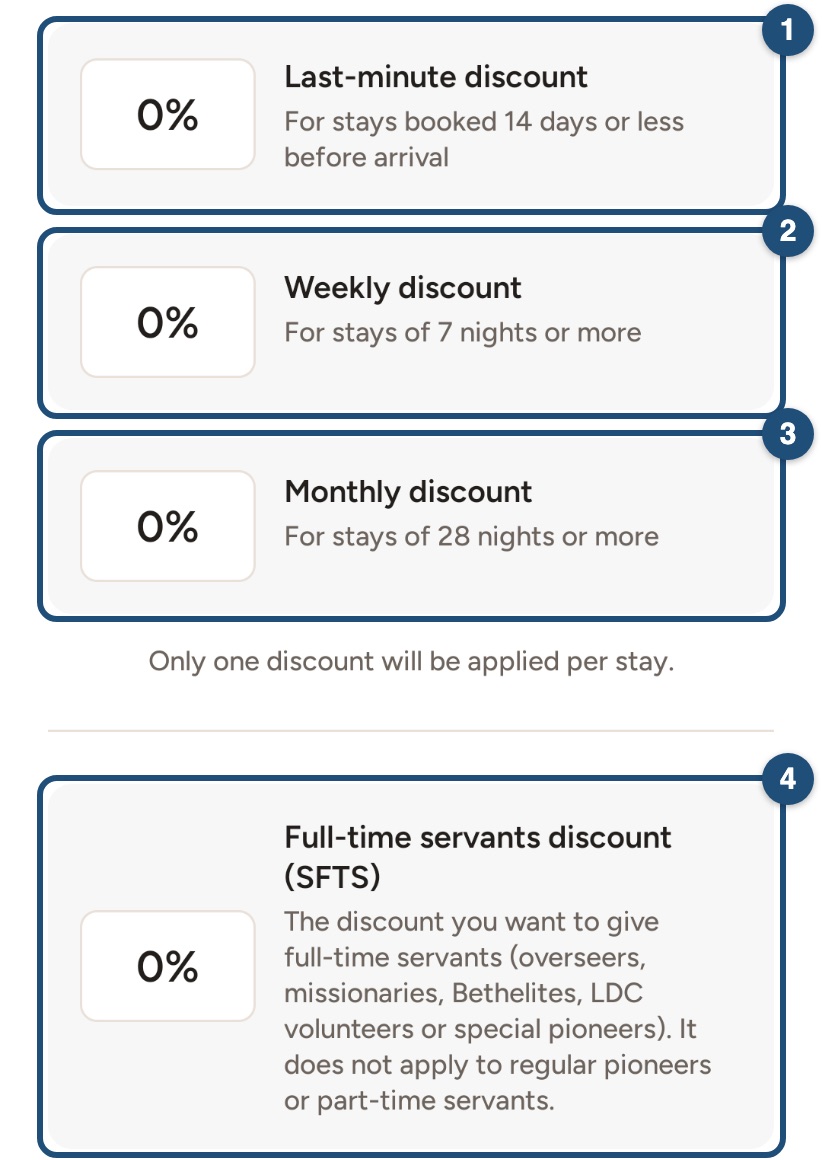
Discounts apply to the nights and the additional-guest fees, never to the cleaning fee, taxes or the service fee. An early-booking discount and long-stay discounts for other lengths can be set on the website.
Related articles: Set a special price for some dates · Send a special offer to a guest · Update your calendar