

Website
From a sofa bed in your living room to a whole house by the sea, you can share all kinds of spaces on JWguest, and listing is free. Here's how to get started.
How to create your listing
- Log in to your account: see Log in to your account.
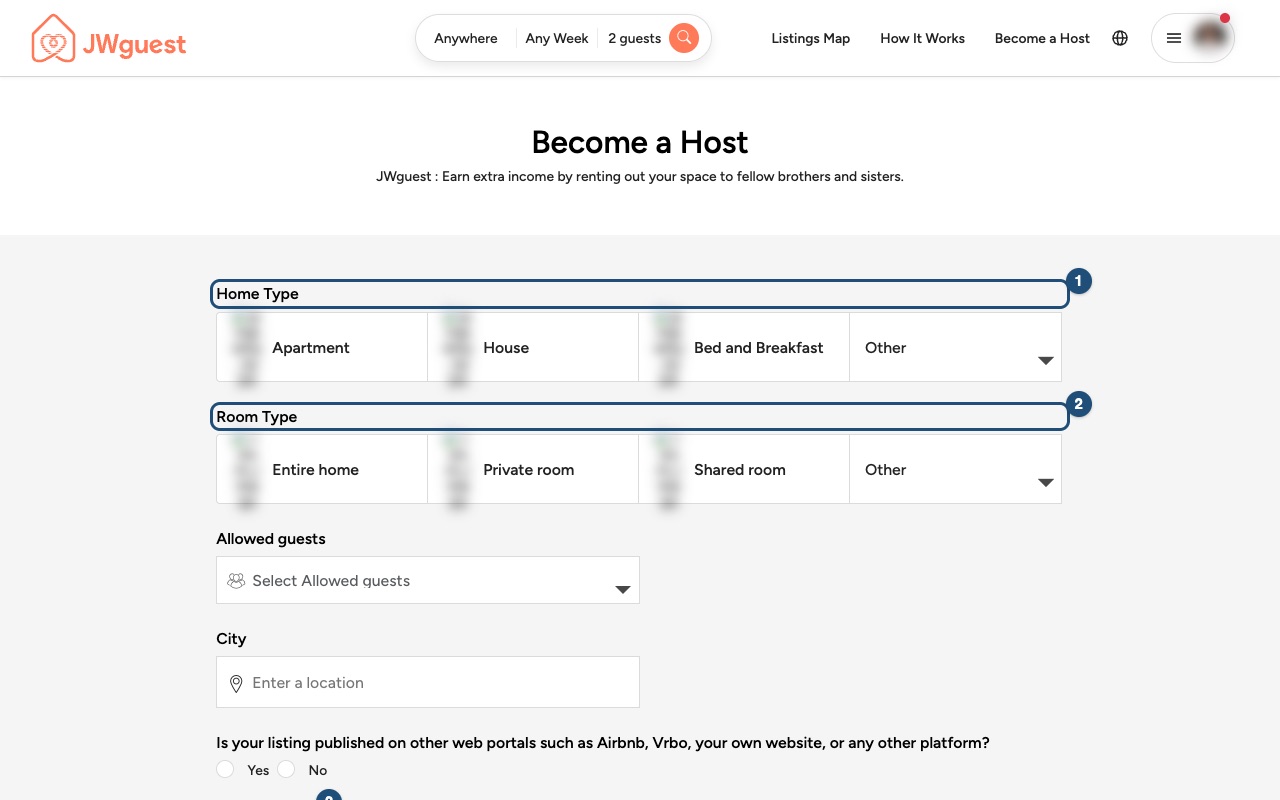
- Start a new listing: click Become a Host at the top of the page, or go to Listings in the Personal Area bar and click Add a new listing.
- Describe the basics: choose the Home Type (1) (apartment, house, bed and breakfast or other) and the Room Type (2) (entire home, private room or shared room). Then enter how many guests you can host and the city, and tell us whether the place is listed on other websites.
- Click Continue (3) and complete the remaining steps: description, location, amenities, photos, pricing and calendar.
Until your listing is complete, you'll see 3 Steps to list next to it in Listings. Once you finish, our team reviews your listing before it goes live. See Hosts and Guests verification.
Description and amenities
Describe your space honestly and in detail, so the right guests find you. Mention the amenities (for example whether you have Wi-Fi), the character of the place, the nearest Kingdom Hall, things to do and how to get around.
Photos
Photos help guests picture themselves in your home. Make sure they are well lit, sharp, and show the spaces guests can use. See Capturing great photos of your listing.
Pricing and availability
You know your home and your schedule best, so you set the price. You can set a nightly price, a cleaning fee, fees for additional guests and different prices for weekends or months. Keep your calendar up to date: dates you block won't appear in search. See Update your calendar.
Mobile browser
From a sofa bed in your living room to a whole house by the sea, you can share all kinds of spaces on JWguest, and listing is free. You can create your listing from your phone.
How to create your listing on your phone
- Log in to your account: tap the menu icon (three lines) at the top right. See Log in to your account.
- Start a new listing: tap Listings in the black Personal Area bar, then Add a new listing. You can also find Become a Host in the menu.
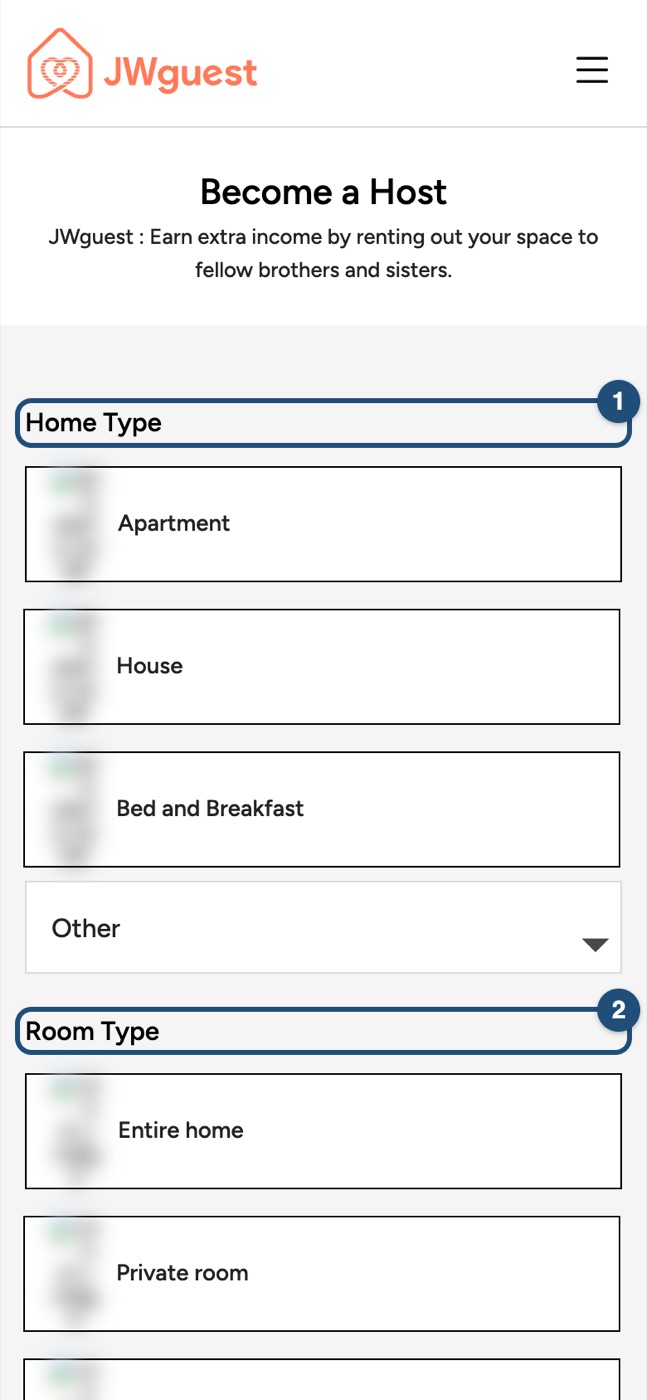
- Describe the basics: scroll down and choose the Home Type (1) and the Room Type (2). Then enter how many guests you can host and the city, and tell us whether the place is listed on other websites.
- Tap Continue (3) at the bottom and complete the remaining steps. To move between sections (description, location, amenities, photos, pricing, calendar), tap Edit your listing (the icon with lines) at the top.
Until your listing is complete, you'll see 3 Steps to list next to it in Listings. Once you finish, our team reviews your listing before it goes live.
Description and amenities
Describe your space honestly and in detail: amenities (for example Wi-Fi), the character of the place, the nearest Kingdom Hall, things to do and how to get around.
Photos
Upload well-lit, sharp photos of the spaces guests can use. See Capturing great photos of your listing.
Pricing and availability
You set the price: nightly price, cleaning fee, additional-guest fees and different prices for weekends or months. Keep your calendar up to date. See Update your calendar.
iOS app
From a sofa bed in your living room to a whole house by the sea, you can share all kinds of spaces on JWguest, and listing is free. You can create your listing in the app, step by step.
How to create your listing in the app
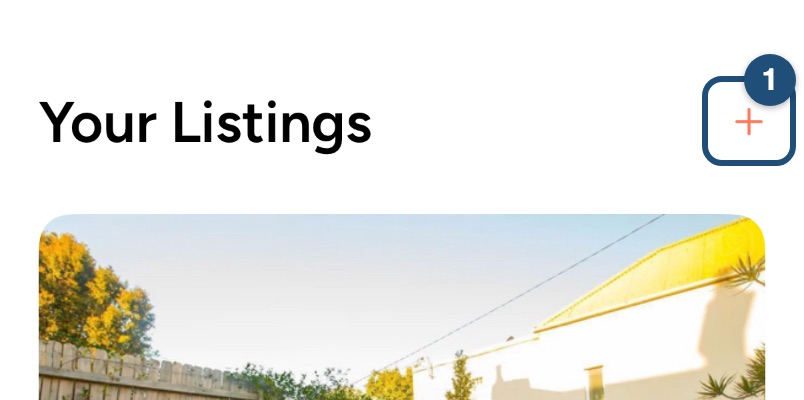
1. Switch to hosting: tap Profile > Switch to Host, then Listing in the bar at the bottom, and tap + (1).
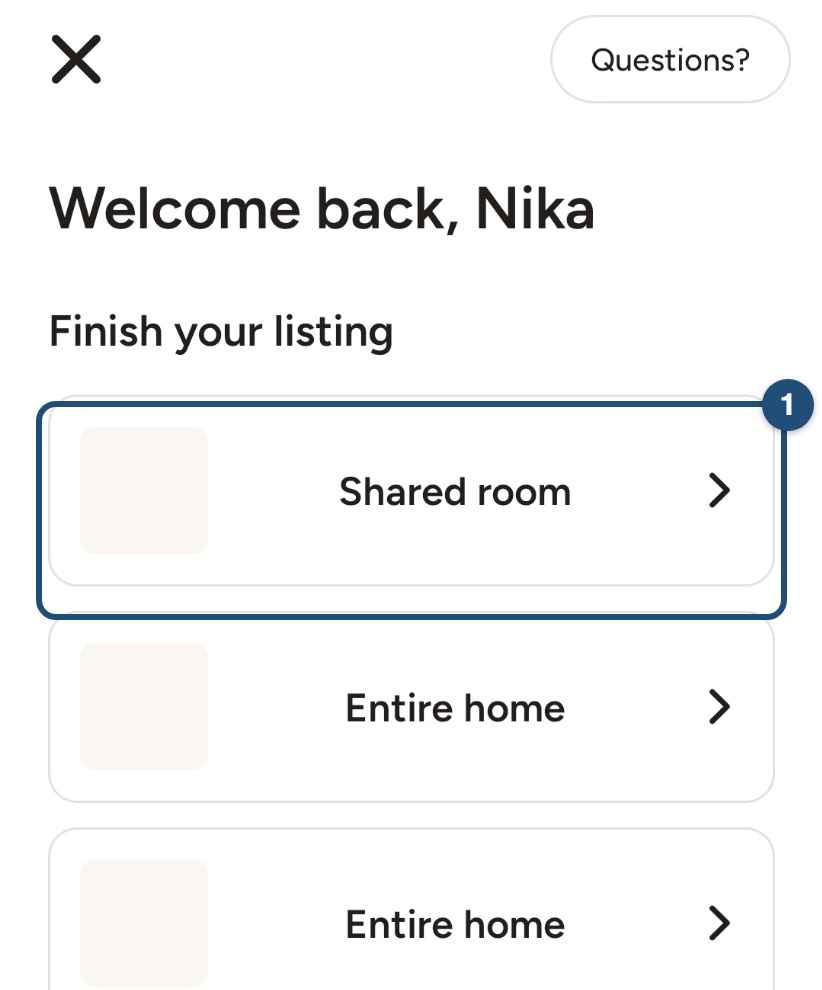
2. Pick up where you left off, or start again: if you have a listing you haven't finished, it is under Finish your listing (1): tap it to continue from the step where you stopped.
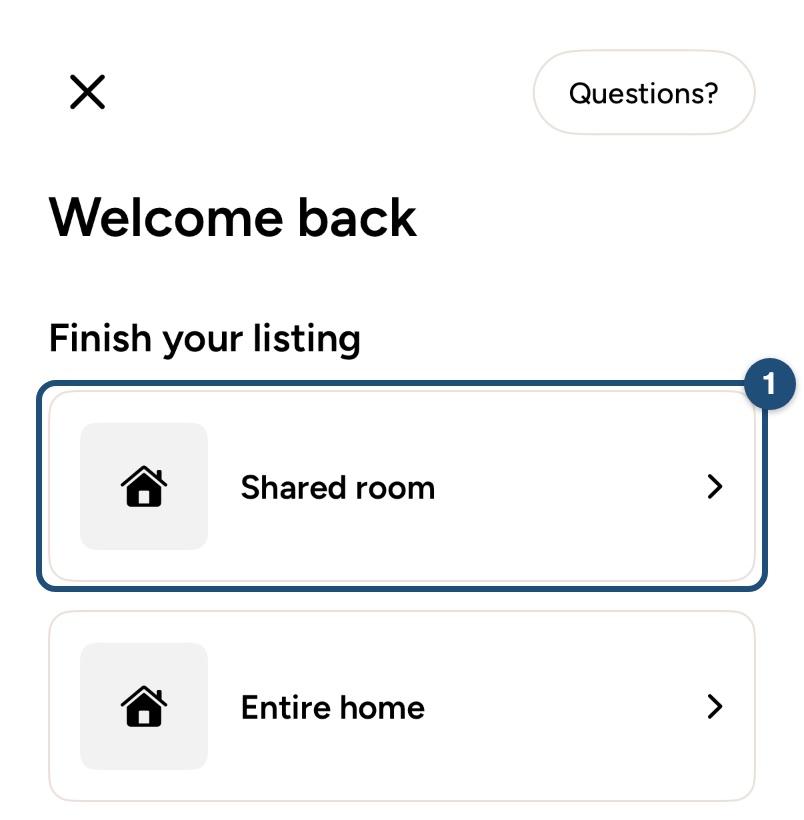
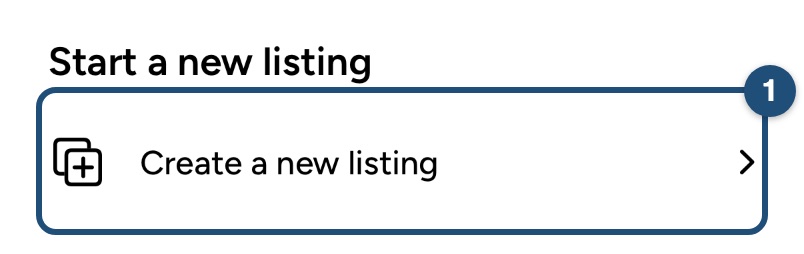
To start a new one, tap Create a new listing (1) at the bottom of the same page.
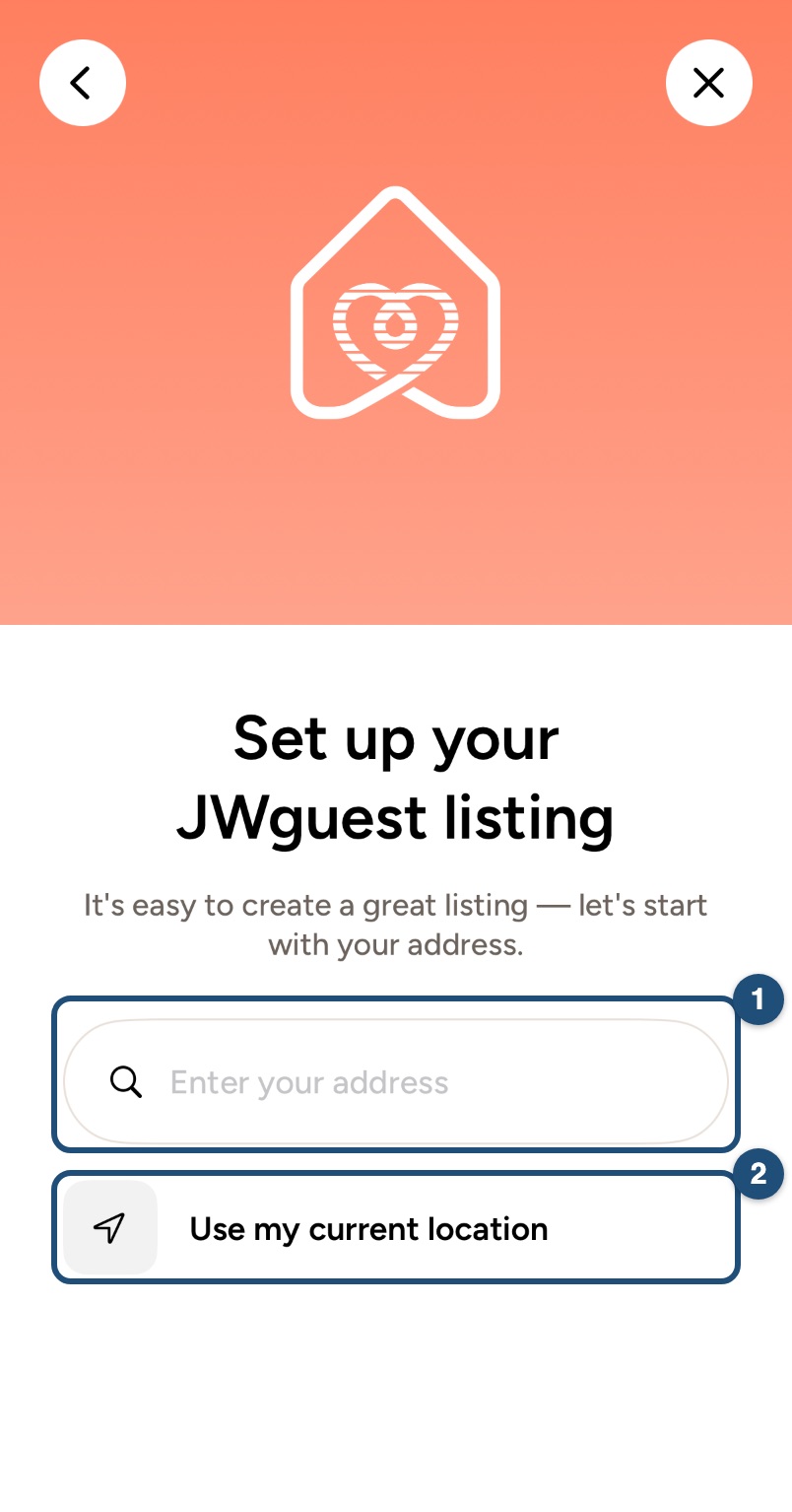
3. Follow the steps: start with the address (1), or tap Use my current location (2), then choose the type of place, the rooms, beds and bathrooms, the amenities, the photos (at least 5), the title and description, the house rules, the price, discounts and availability. Questions? at the top of every step opens the help centre.
Until your listing is complete, Listing shows how many steps are left. Once you finish, our team reviews your listing before it goes live.
Description and amenities
Describe your space honestly and in detail: amenities (for example Wi-Fi), the character of the place, the nearest Kingdom Hall, things to do and how to get around.
Photos
Upload well-lit, sharp photos of the spaces guests can use. See Capturing great photos of your listing.
Pricing and availability
You set the price: nightly price, cleaning fee, additional-guest fees and different prices for weekends or months. Keep your calendar up to date. See Update your calendar.
Android app
From a sofa bed in your living room to a whole house by the sea, you can share all kinds of spaces on JWguest, and listing is free. You can create your listing in the app, step by step.
How to create your listing in the app
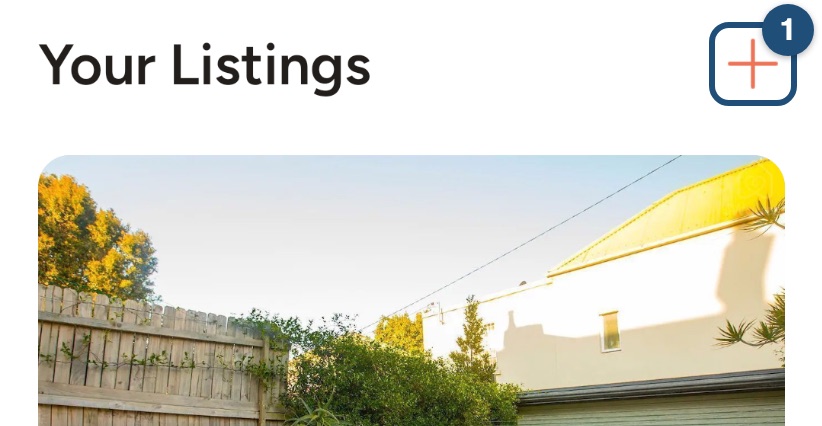
1. Switch to hosting: tap Profile > Switch to Host, then Listings in the bar at the bottom, and tap + (1).
2. Pick up where you left off, or start again: if you have a listing you haven't finished, it is under Finish your listing (1): tap it to continue from the step where you stopped.
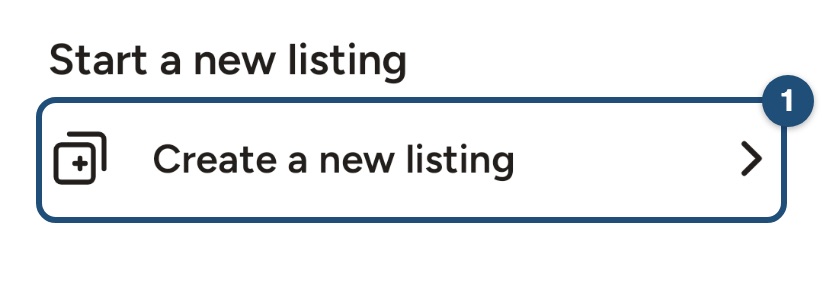
To start a new one, tap Create a new listing (1) at the bottom of the same page.
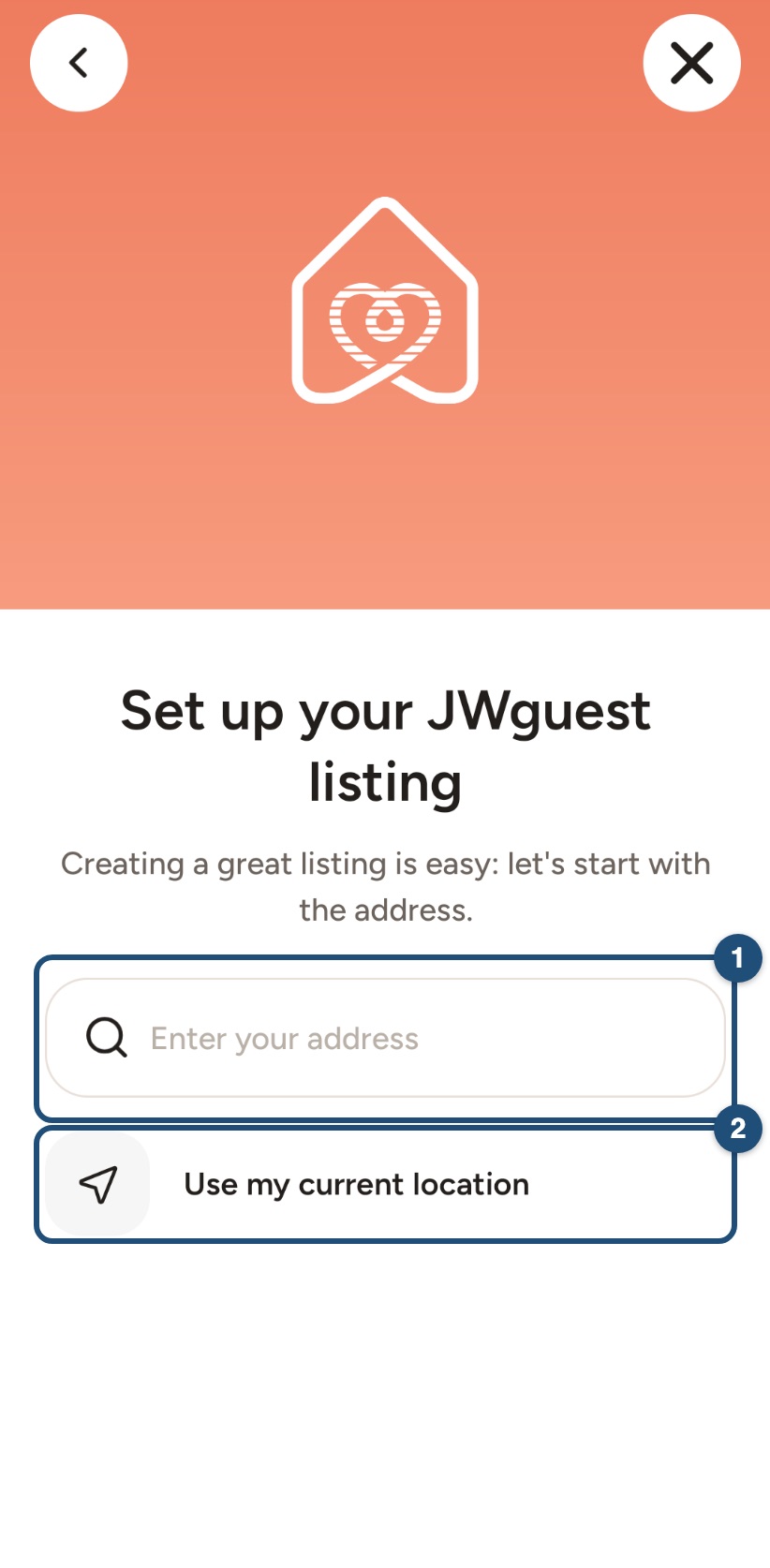
3. Follow the steps: start with the address (1), or tap Use my current location (2), then choose the type of place, the rooms, beds and bathrooms, the amenities, the photos (at least 5), the title and description, the house rules, the price, discounts and availability. Questions? at the top of every step opens the help centre.
Until your listing is complete, Listings shows how many steps are left. Once you finish, our team reviews your listing before it goes live.
Description and amenities
Describe your space honestly and in detail: amenities (for example Wi-Fi), the character of the place, the nearest Kingdom Hall, things to do and how to get around.
Photos
Upload well-lit, sharp photos of the spaces guests can use. See Capturing great photos of your listing.
Pricing and availability
You set the price: nightly price, cleaning fee, additional-guest fees and different prices for weekends or months. Keep your calendar up to date. See Update your calendar.