

Website
Photos are the first thing guests look at. Good photos help brothers and sisters picture themselves in your home and make them more likely to book.
Our tips
- Prepare your space: tidy up and remove clutter so rooms look welcoming and spacious. Close the toilet lid.
- Use natural light: shoot during the day, open the blinds and switch on the lights.
- Shoot in landscape: search results show photos horizontally, so avoid vertical photos.
- Use a good resolution: at least 1024 × 683 pixels. When in doubt, a larger image is better.
- Shoot from the corners: this shows the whole room and its size.
- Show what makes your place special: a fireplace, artwork, an outdoor grill area.
- Show accessibility features: step-free entrances, wide doorways or grab rails help guests with limited mobility.
- Show every space guests can use: bedrooms, bathroom, kitchen, living area, outside space, and the neighbourhood. Quality matters more than quantity.
- Equipment: a recent smartphone is enough. A stand or a steady surface helps.
How to upload your photos
- Go to your listings: in the Personal Area bar, click Listings, then Manage Listing next to your listing.
- Open Photos (3): select Photos in the menu on the left.
- Add your photos and save. You can also add a video in the Video section.
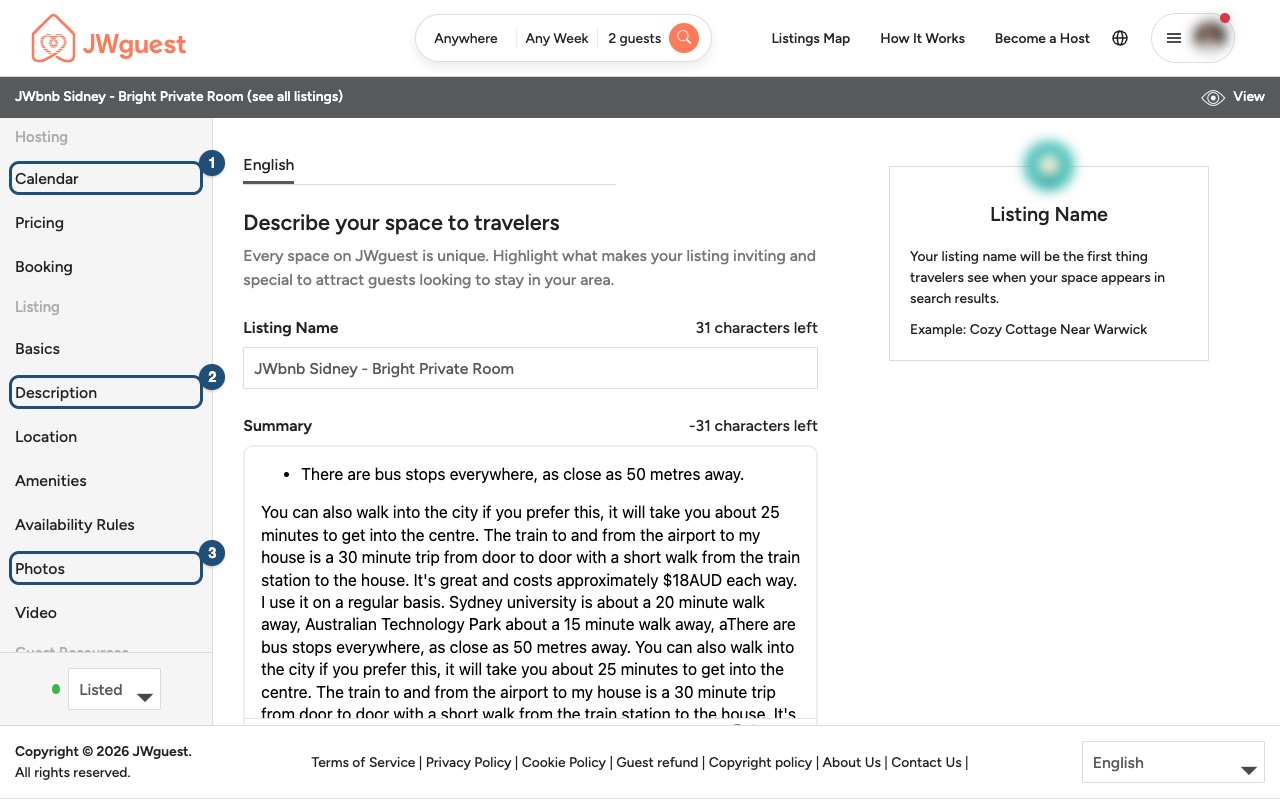
Drag and drop the photos to change their order: the first one is the featured photo guests see first.
Changes to photos are reviewed by our team before they appear on your listing. See Update your listing.
Mobile browser
Photos are the first thing guests look at. Good photos help brothers and sisters picture themselves in your home and make them more likely to book.
Our tips
- Prepare your space: tidy up and remove clutter so rooms look welcoming and spacious. Close the toilet lid.
- Use natural light: shoot during the day, open the blinds and switch on the lights.
- Shoot in landscape: search results show photos horizontally, so avoid vertical photos.
- Use a good resolution: at least 1024 × 683 pixels. When in doubt, a larger image is better.
- Shoot from the corners: this shows the whole room and its size.
- Show what makes your place special: a fireplace, artwork, an outdoor grill area.
- Show accessibility features: step-free entrances, wide doorways or grab rails help guests with limited mobility.
- Show every space guests can use: bedrooms, bathroom, kitchen, living area, outside space, and the neighbourhood. Quality matters more than quantity.
- Equipment: a recent smartphone is enough. A stand or a steady surface helps.
How to upload your photos from your phone
- Go to your listings: tap the menu (three lines, top right), then Listings in the black Personal Area bar, then Manage Listing.
- Open Photos (3): tap Edit your listing (the icon with lines, at the top) to open the menu, then tap Photos.
- Add your photos from your phone and save. You can also add a video in the Video section.
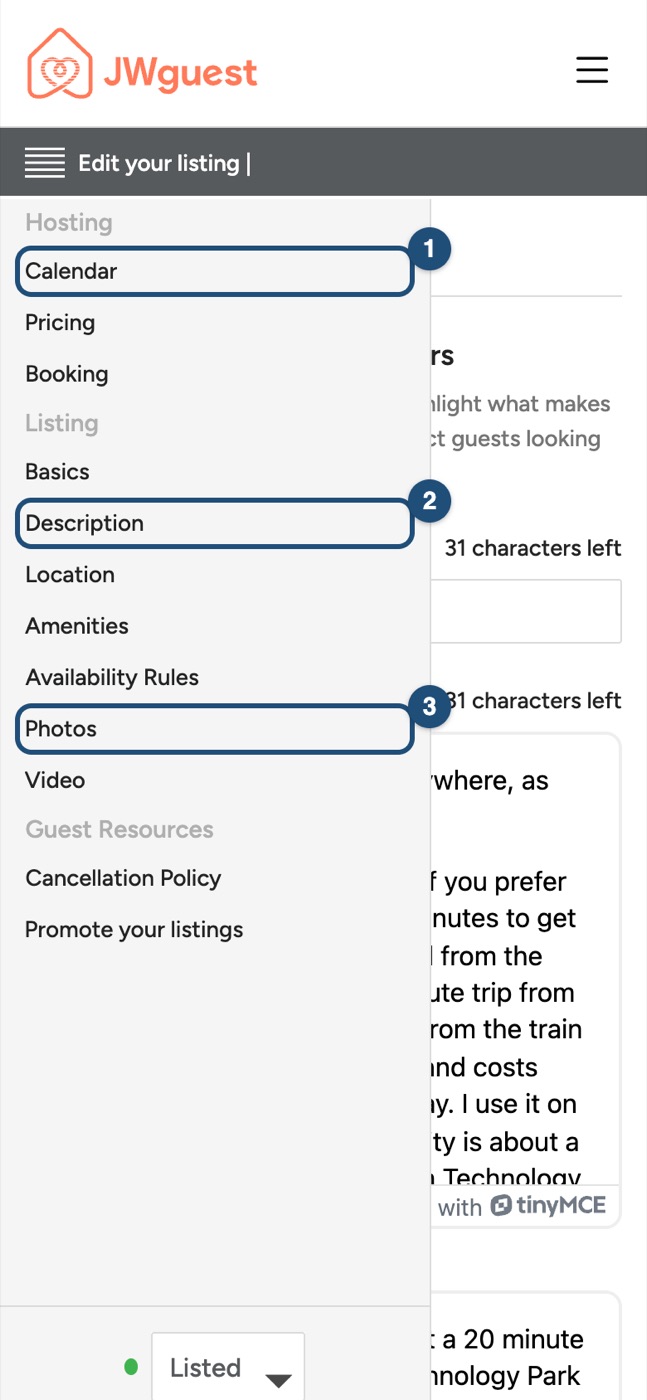
The first photo is the featured photo guests see first.
Changes to photos are reviewed by our team before they appear on your listing. See Update your listing.
iOS app
Photos are the first thing guests look at. Good photos help brothers and sisters picture themselves in your home and make them more likely to book.
Our tips
- Prepare your space: tidy up and remove clutter so rooms look welcoming and spacious. Close the toilet lid.
- Use natural light: shoot during the day, open the blinds and switch on the lights.
- Shoot in landscape: search results show photos horizontally, so avoid vertical photos.
- Use a good resolution: at least 1024 × 683 pixels. When in doubt, a larger image is better.
- Shoot from the corners: this shows the whole room and its size.
- Show what makes your place special: a fireplace, artwork, an outdoor grill area.
- Show accessibility features: step-free entrances, wide doorways or grab rails help guests with limited mobility.
- Show every space guests can use: bedrooms, bathroom, kitchen, living area, outside space, and the neighbourhood. Quality matters more than quantity.
- Equipment: a recent smartphone is enough. A stand or a steady surface helps.
How to upload your photos in the app
- Open your listing: switch to hosting (Profile > Switch to Host), tap Listing in the bar at the bottom and tap your listing.
- Tap Add photo (1) on the photo at the top of the editor.
- Add your photos from your phone. Drag them to change their order, and tap a photo to make it the cover photo or to delete it.
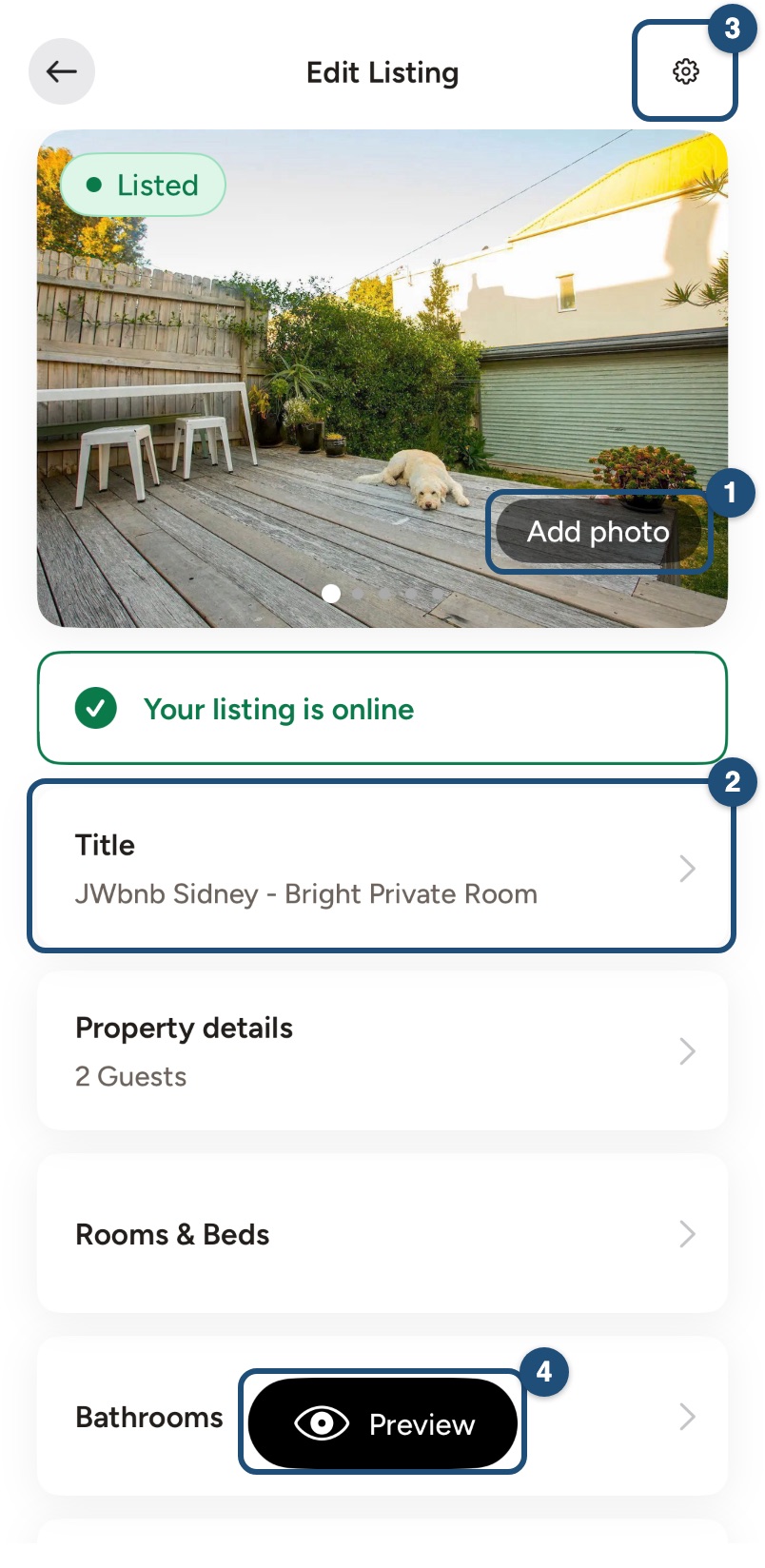
A listing needs at least 8 photos. If yours has fewer, the photo card shows Add at least 8 photos.
Changes to photos are reviewed by our team before they appear on your listing. See Update your listing.
Android app
Photos are the first thing guests look at. Good photos help brothers and sisters picture themselves in your home and make them more likely to book.
Our tips
- Prepare your space: tidy up and remove clutter so rooms look welcoming and spacious. Close the toilet lid.
- Use natural light: shoot during the day, open the blinds and switch on the lights.
- Shoot in landscape: search results show photos horizontally, so avoid vertical photos.
- Use a good resolution: at least 1024 × 683 pixels. When in doubt, a larger image is better.
- Shoot from the corners: this shows the whole room and its size.
- Show what makes your place special: a fireplace, artwork, an outdoor grill area.
- Show accessibility features: step-free entrances, wide doorways or grab rails help guests with limited mobility.
- Show every space guests can use: bedrooms, bathroom, kitchen, living area, outside space, and the neighbourhood. Quality matters more than quantity.
- Equipment: a recent smartphone is enough. A stand or a steady surface helps.
How to upload your photos in the app
- Open your listing: switch to hosting (Profile > Switch to Host), tap Listings in the bar at the bottom and tap your listing.
- Tap Add Photos (1) on the photo at the top of the editor.
- Add your photos from your phone. Drag them to change their order, and tap a photo to make it the cover photo or to delete it.
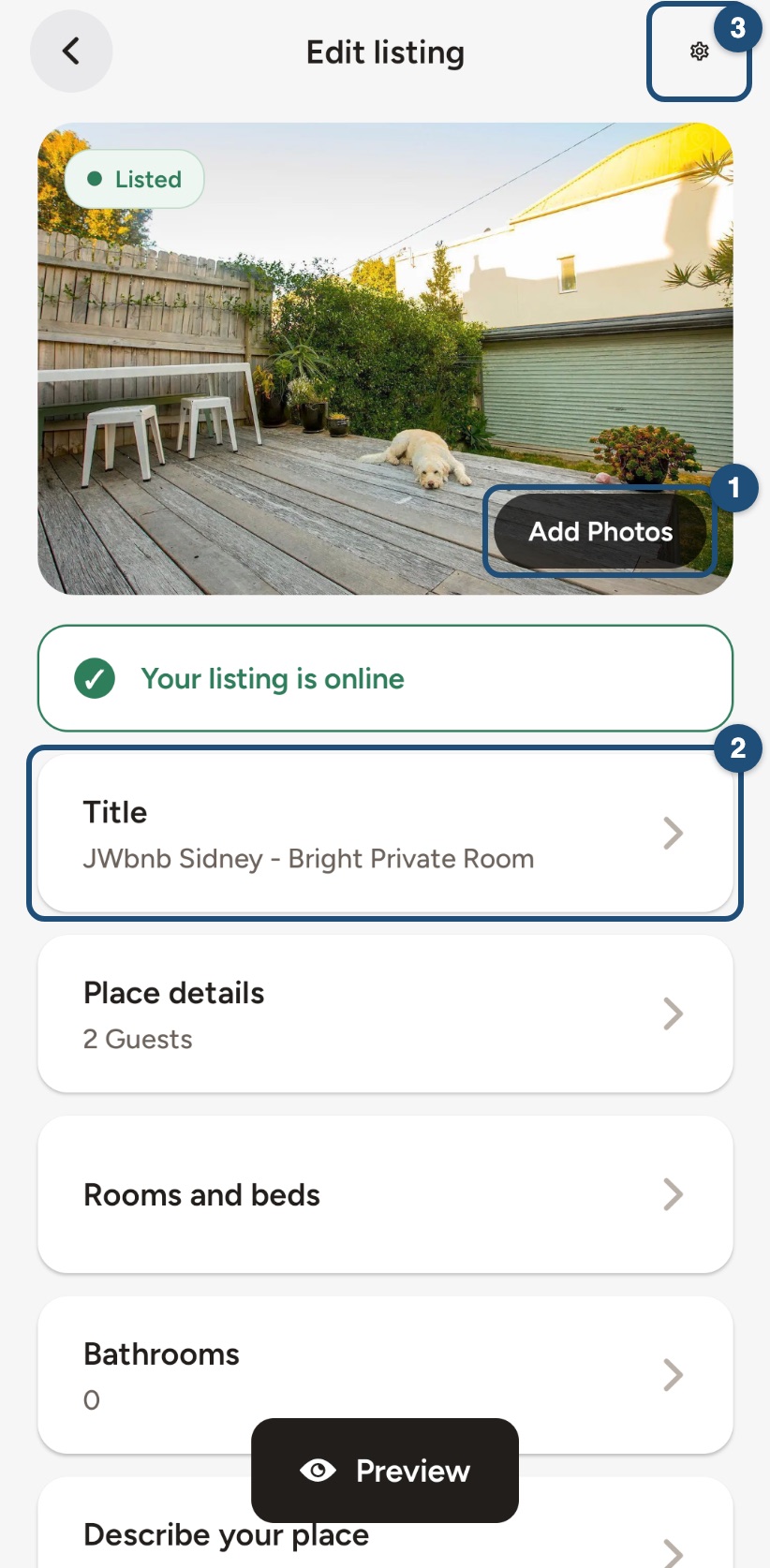
A listing needs at least 8 photos. If yours has fewer, the photo card shows Add at least 8 photos.
Changes to photos are reviewed by our team before they appear on your listing. See Update your listing.