
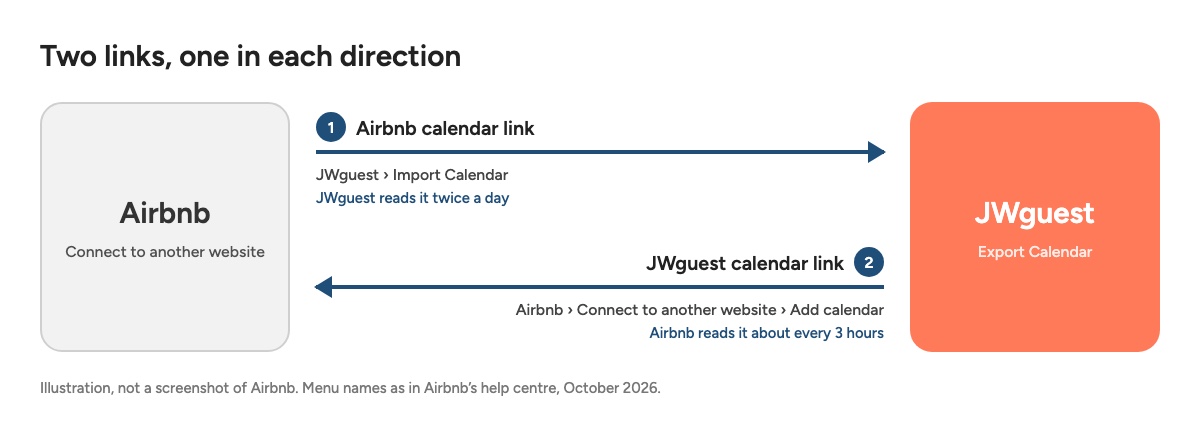
If your home is on Airbnb and on JWguest, connect the two calendars so the same nights cannot be booked twice. You need two links, one in each direction, and you set them up once for each listing:
- Airbnb → JWguest: Airbnb's calendar link, pasted into JWguest, closes on JWguest the nights booked on Airbnb.
- JWguest → Airbnb: JWguest's calendar link, pasted into Airbnb, closes on Airbnb the nights booked on JWguest.
1. Copy your Airbnb calendar link
Website
- On airbnb.com, while hosting, click Calendar and select the listing.
- Click Availability.
- Under Connect calendars, click Connect to another website.
- Copy the Airbnb calendar link shown there.
Mobile browser
- In your phone's browser, on airbnb.com while hosting, tap Calendar and select the listing.
- Tap Availability.
- Under Connect calendars, tap Connect to another website.
- Copy the Airbnb calendar link shown there.
iOS app
- In the Airbnb app, while hosting, tap Calendar and select the listing.
- Tap Settings (the gear), then Availability.
- Under Connect calendars, tap Connect to another website.
- Copy the Airbnb calendar link shown there.
Android app
- In the Airbnb app, while hosting, tap Calendar and select the listing.
- Tap Settings (the gear), then Availability.
- Under Connect calendars, tap Connect to another website.
- Copy the Airbnb calendar link shown there.
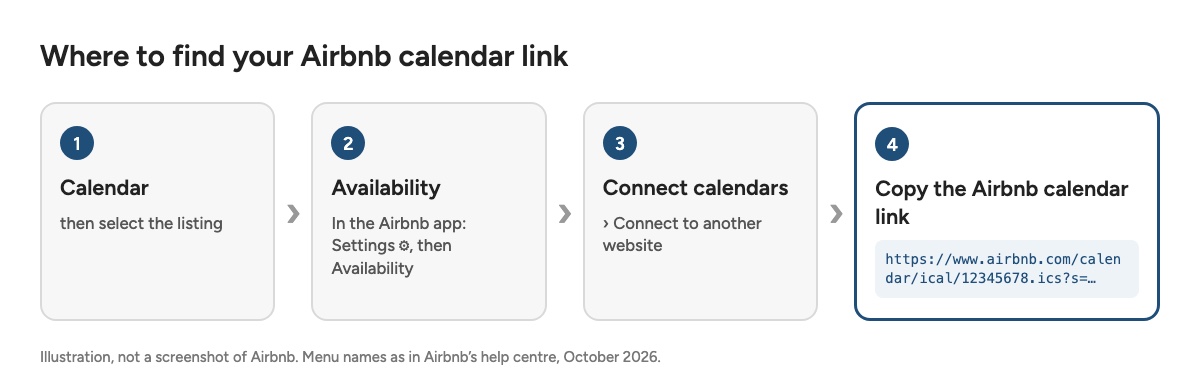
The right link contains /calendar/ical/ and .ics, for example https://www.airbnb.com/calendar/ical/12345678.ics?s=…. Copy all of it, including the part after the question mark. The address of your listing page (airbnb.com/rooms/…) does not work.
Each Airbnb listing has its own link: if you have several listings, repeat these steps for each one. Airbnb changes its menus from time to time; if you do not find these names, Airbnb's own article Sync your home host calendar to other websites has the current steps.
2. Paste it into JWguest
Website
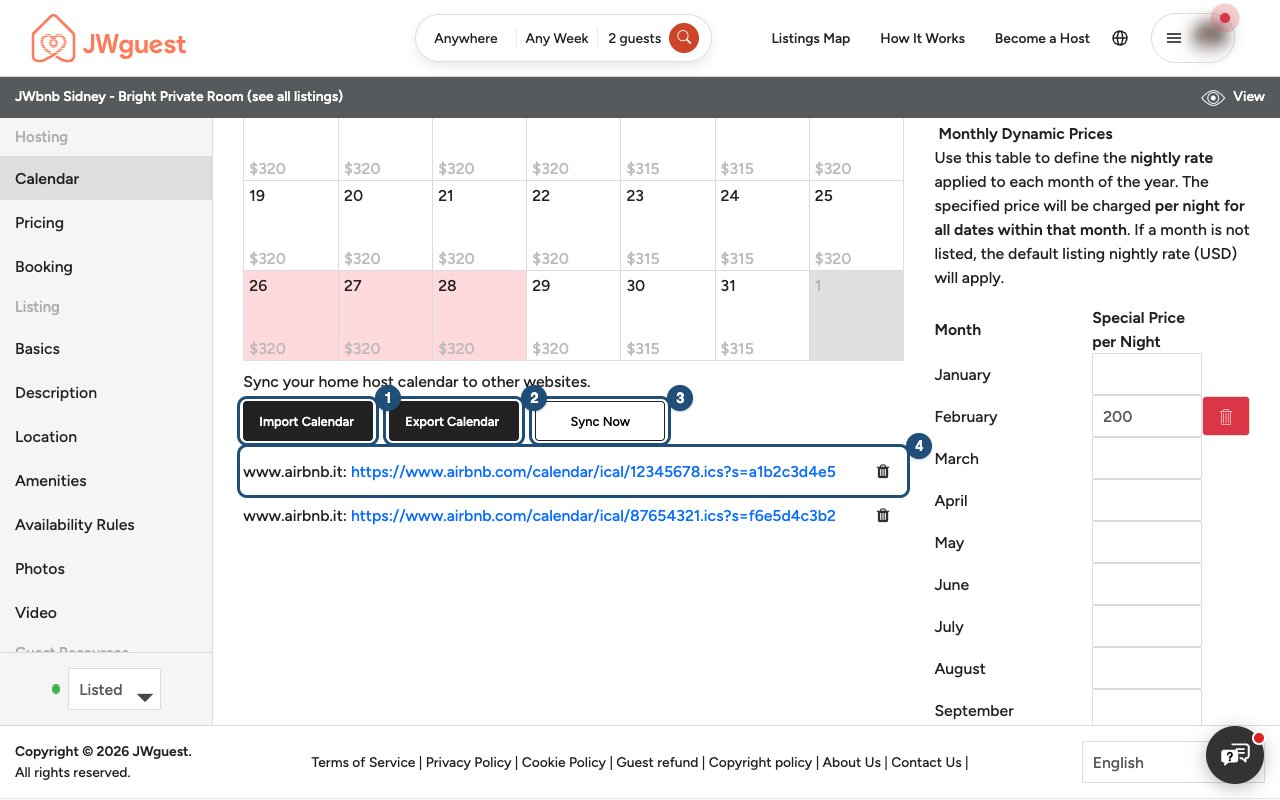
- Open your calendar: in the Personal Area bar, click Listings, then Manage Calendar next to the listing.
- Click Import Calendar (1) below the calendar.
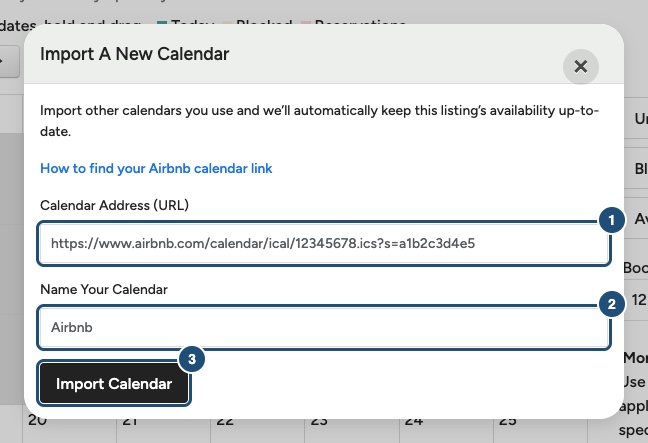
- Paste the Airbnb link in Calendar Address (URL) (1) and write a name in Name Your Calendar (2), for example "Airbnb".
- Click Import Calendar (3).
JWguest reads the calendar straight away: the nights booked or blocked on Airbnb become blocked dates on your listing, and the calendar appears in the list under the buttons (4). The link "How to find your Airbnb calendar link" in that window opens this article.
Mobile browser
- Open your calendar: tap Listings in the black Personal Area bar, then Manage Calendar.
- Scroll below the calendar and tap Import Calendar (1).
- Paste the Airbnb link in Calendar Address (URL), name the calendar "Airbnb" and tap Import Calendar.
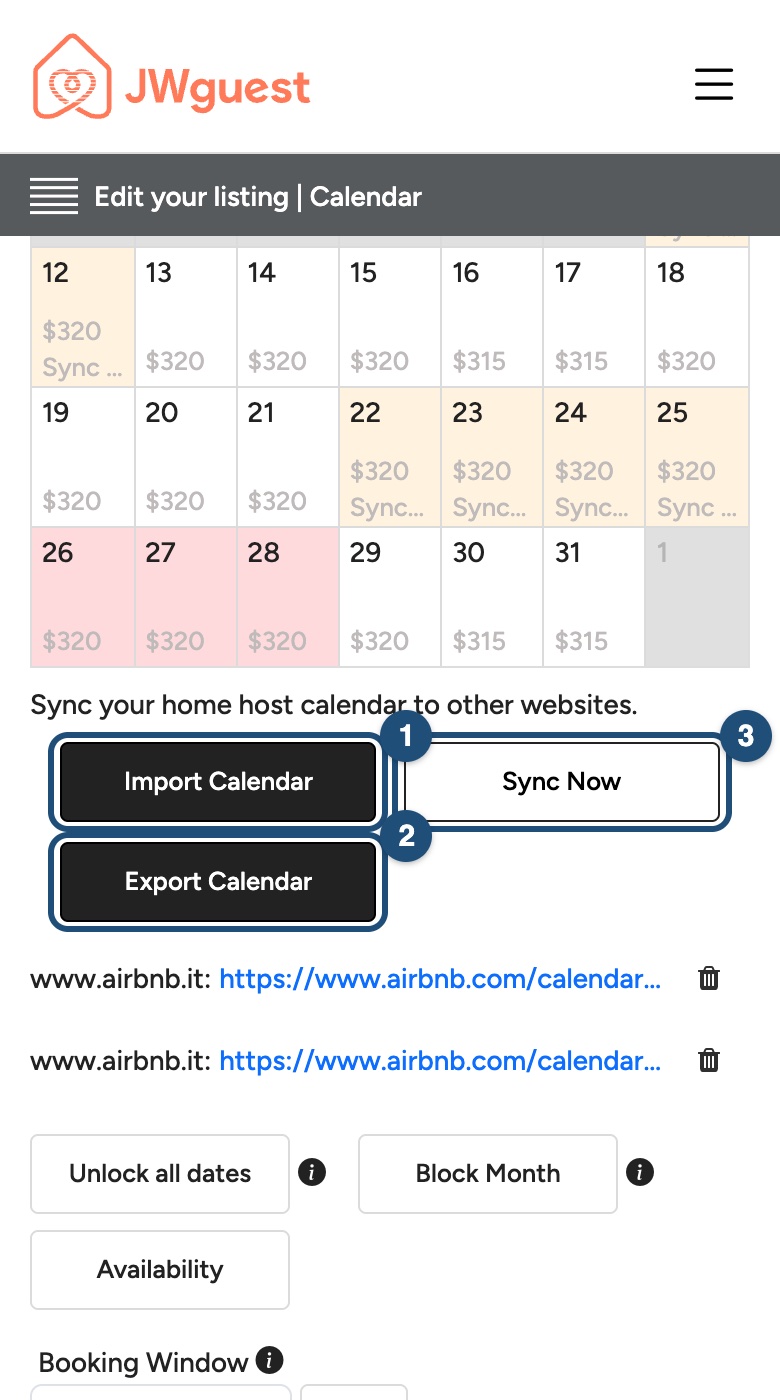
JWguest reads the calendar straight away and blocks the nights booked or blocked on Airbnb.
iOS app
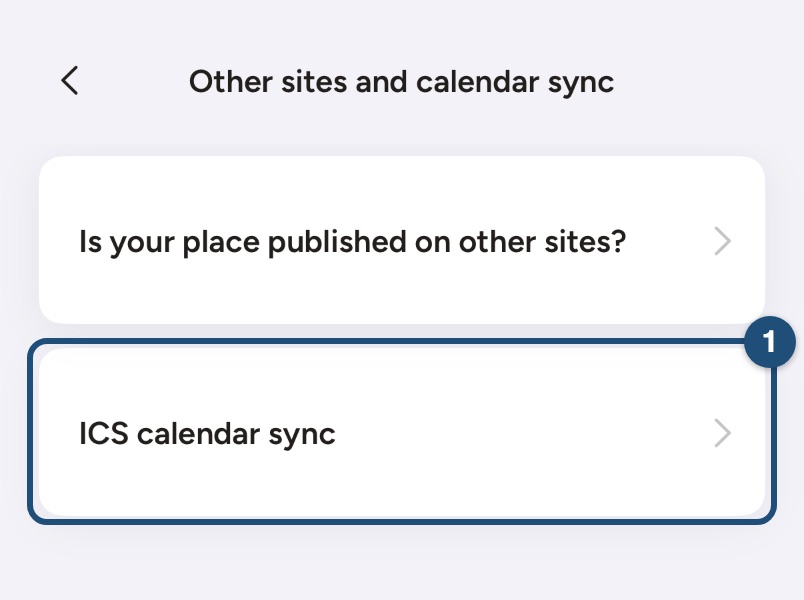
- Open the import screen: in Calendar, select any day and tap Custom settings > Import calendars. Or, in the listing editor, tap Availability > Other sites and calendar sync > ICS calendar sync (1).
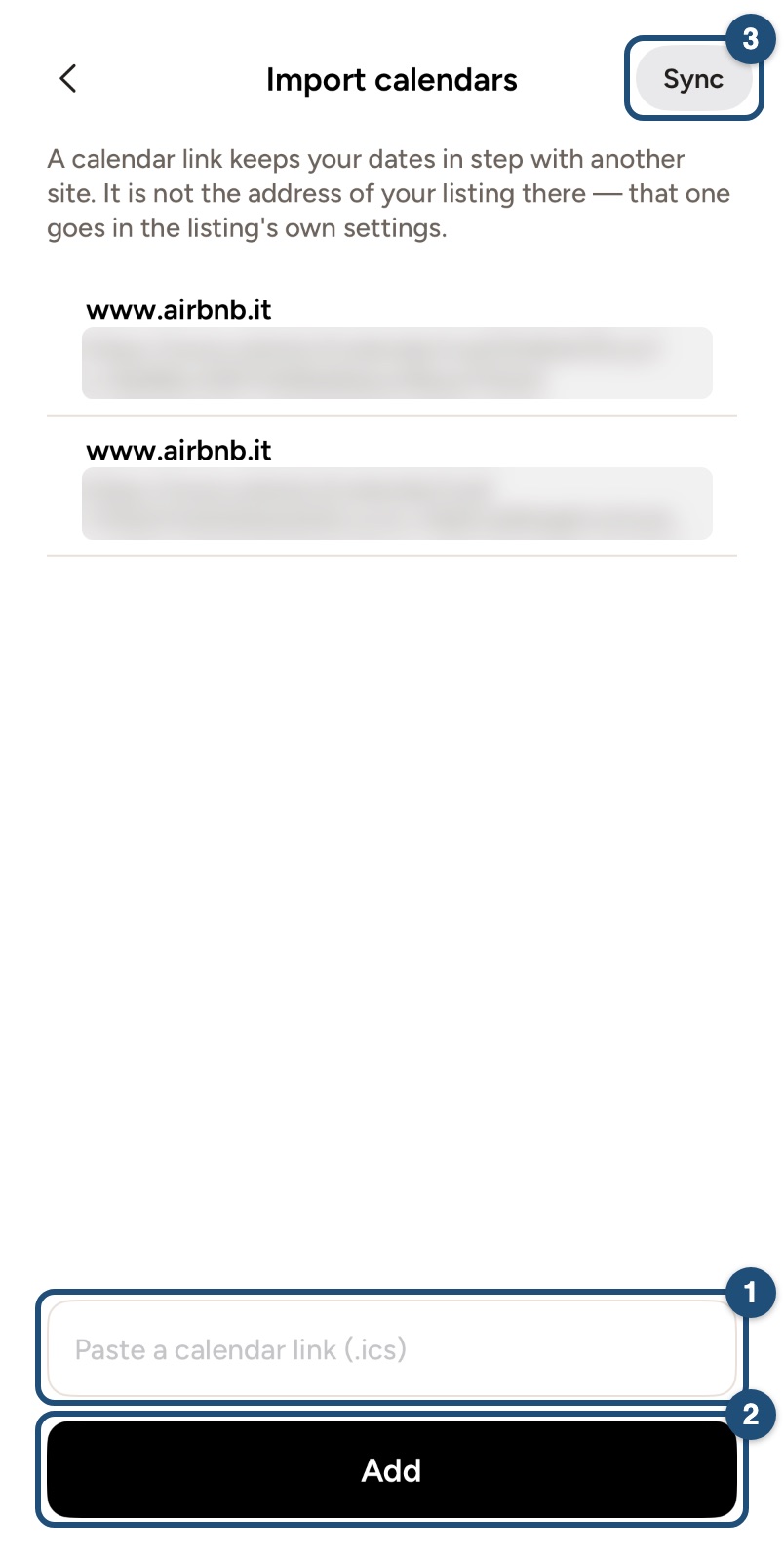
- Paste the Airbnb link in the field (1) and tap Add (2). The app names the calendar after the site, for example www.airbnb.com.
- Tap Sync (3) to read it straight away. Otherwise its nights arrive with the next automatic sync.
Android app
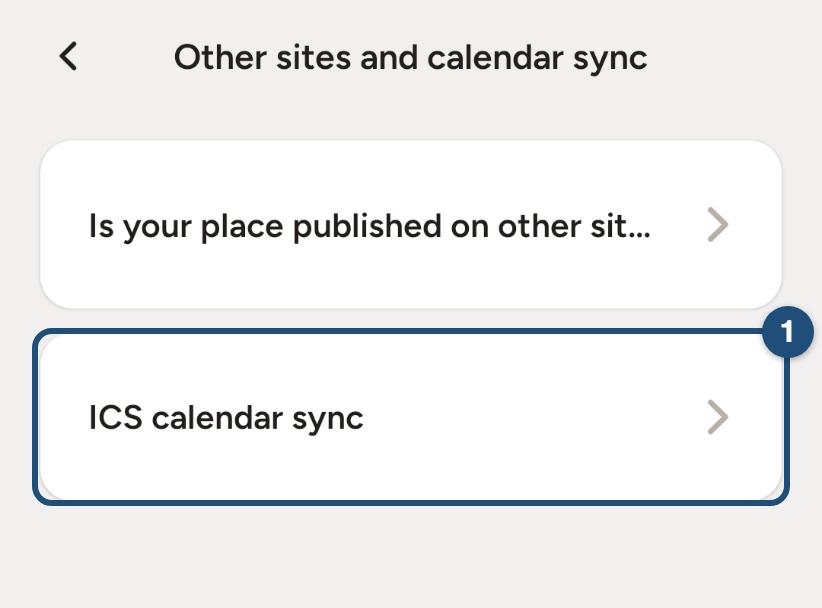
- Open the import screen: in Calendar, select any day and tap Custom settings > Import calendars. Or, in the listing editor, tap Availability > Other sites and calendar sync > ICS calendar sync (1).
- Paste the Airbnb link in the field (1) and tap Add (2). The app names the calendar after the site, for example www.airbnb.com.
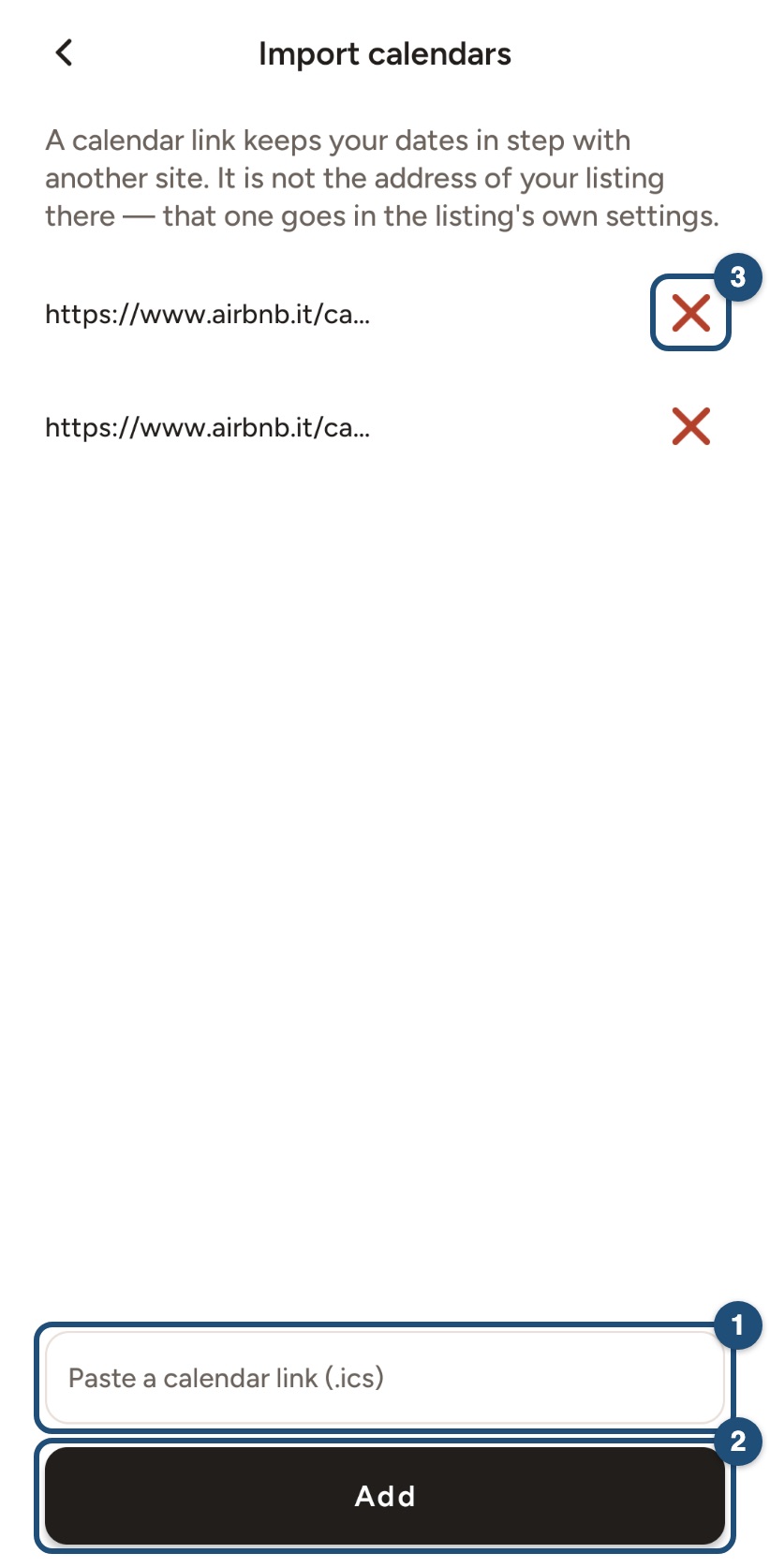
Its nights arrive with the next automatic sync. To read it at once, open your calendar on the website and click Sync Now.
3. Add your JWguest calendar to Airbnb
Website
- On the same JWguest page, click Export Calendar (2).
- Copy the link in the window (1). It looks like https://jwguest.com/calendar/ical/10008.ics.
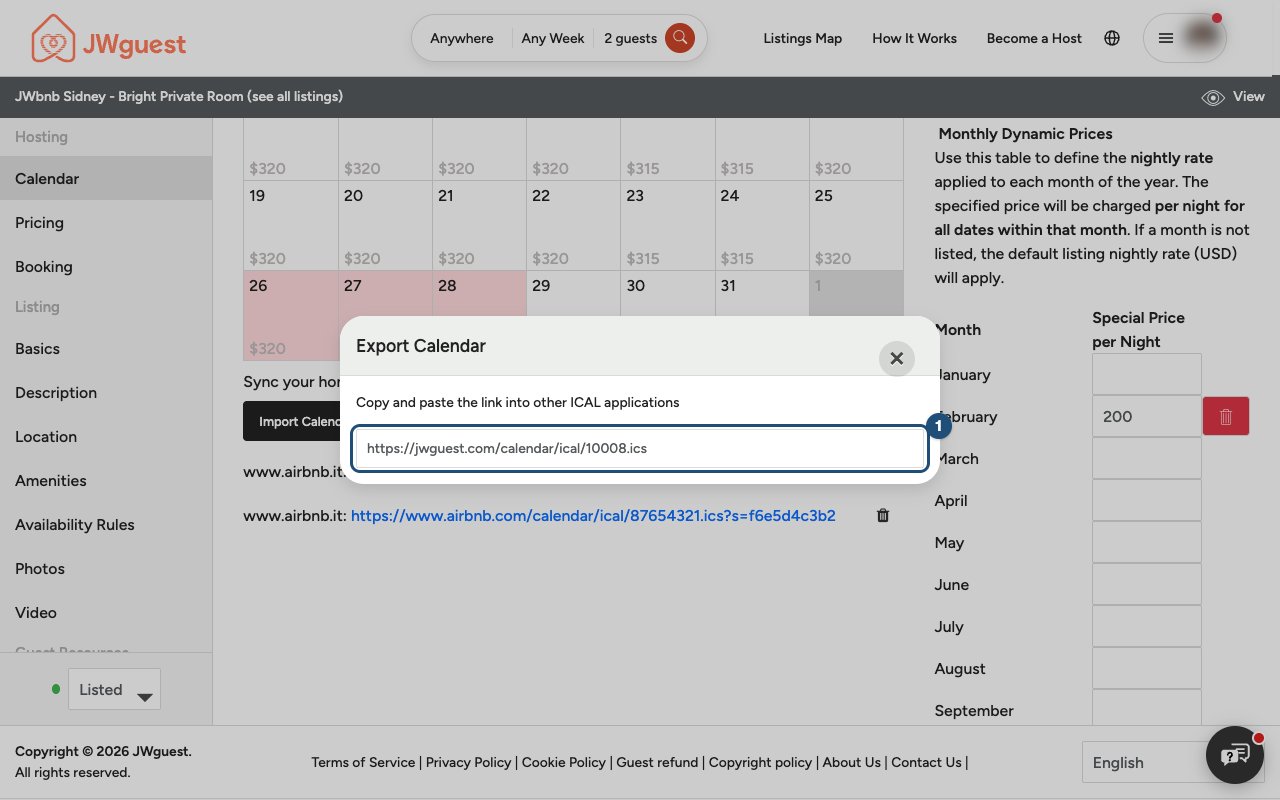
- On Airbnb, go back to Calendar > the listing > Availability > Connect to another website, the same place as in step 1.
- Paste the JWguest link in the calendar address field, name it "JWguest" and click Add calendar.
Mobile browser
- On the same JWguest page, tap Export Calendar (2) and copy the link.
- On Airbnb, go back to Calendar > the listing > Availability > Connect to another website.
- Paste the JWguest link in the calendar address field, name it "JWguest" and tap Add calendar.
iOS app
- The JWguest calendar link is on the website: in a browser, open Listings > Manage Calendar > Export Calendar and copy the link.
- In the Airbnb app, go back to Calendar > the listing > Settings > Availability > Connect to another website.
- Paste the JWguest link in the calendar address field, name it "JWguest" and tap Add calendar.
Android app
- The JWguest calendar link is on the website: in a browser, open Listings > Manage Calendar > Export Calendar and copy the link.
- In the Airbnb app, go back to Calendar > the listing > Settings > Availability > Connect to another website.
- Paste the JWguest link in the calendar address field, name it "JWguest" and tap Add calendar.
How often the calendars update
- JWguest reads Airbnb twice a day, at 04:00 and 16:00 UTC. To read it at once, for example right after a booking on Airbnb, click Sync Now under your JWguest calendar.
- Airbnb reads JWguest about every 3 hours, according to Airbnb. To read it at once, in Connect to another website on Airbnb choose the JWguest calendar and click Refresh Calendar.
What each link contains
- The Airbnb link closes on JWguest every night that is booked or blocked on Airbnb.
- The JWguest link contains your JWguest bookings. Nights you close by hand on JWguest, and nights imported from Airbnb, are not in it, so nothing goes round in a loop. If you close nights on JWguest for another reason, close them on Airbnb too.
If something does not work
- This link opens a web page, not a calendar: you pasted the address of the listing page. Copy the link from Connect to another website (step 1).
- The Airbnb nights do not appear: click Sync Now and check that the link comes from the right listing.
- To stop syncing: on JWguest, click the bin next to the Airbnb calendar and confirm with Delete; on Airbnb, remove the JWguest calendar in Connect to another website.
Related articles: Update your calendar