
Website
Your nightly price applies all year. For an assembly or convention weekend, a holiday or a quiet season you can give some dates a different price, for everyone who books them. There are two ways: a price for the days you select, or a price for whole months.
Want a different price for one guest only? Send a special offer instead: see Send a special offer to a guest.
Give some days a special price
- Open your calendar: in the Personal Area bar, click Listings, then Manage Calendar next to the listing.
- Select the days: click the first day and drag to the last one. The Dates and Price Customization window opens.
- Keep them available (1), and type the new price in Price for each night (2). You can also add a note for yourself.
- Click Save changes (3). The new price shows on each day of the calendar.
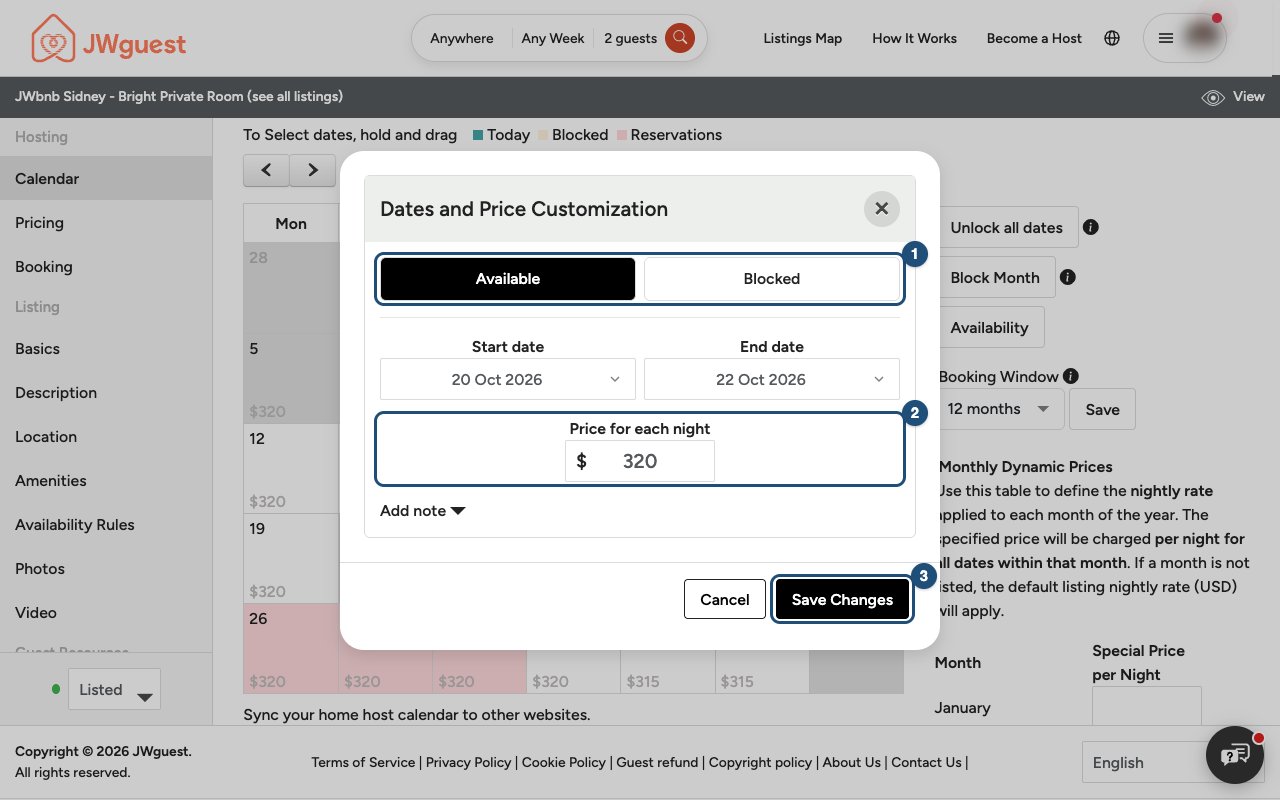
To go back to your normal price, select the days again and enter your standard nightly price.
Set a price for whole months
Next to the calendar, Monthly Dynamic Prices lets you set one nightly price for every night of a month, for example a higher price in summer.
- Type the price in the Special Price per Night field of the month (1).
- Click Apply (2) and confirm.
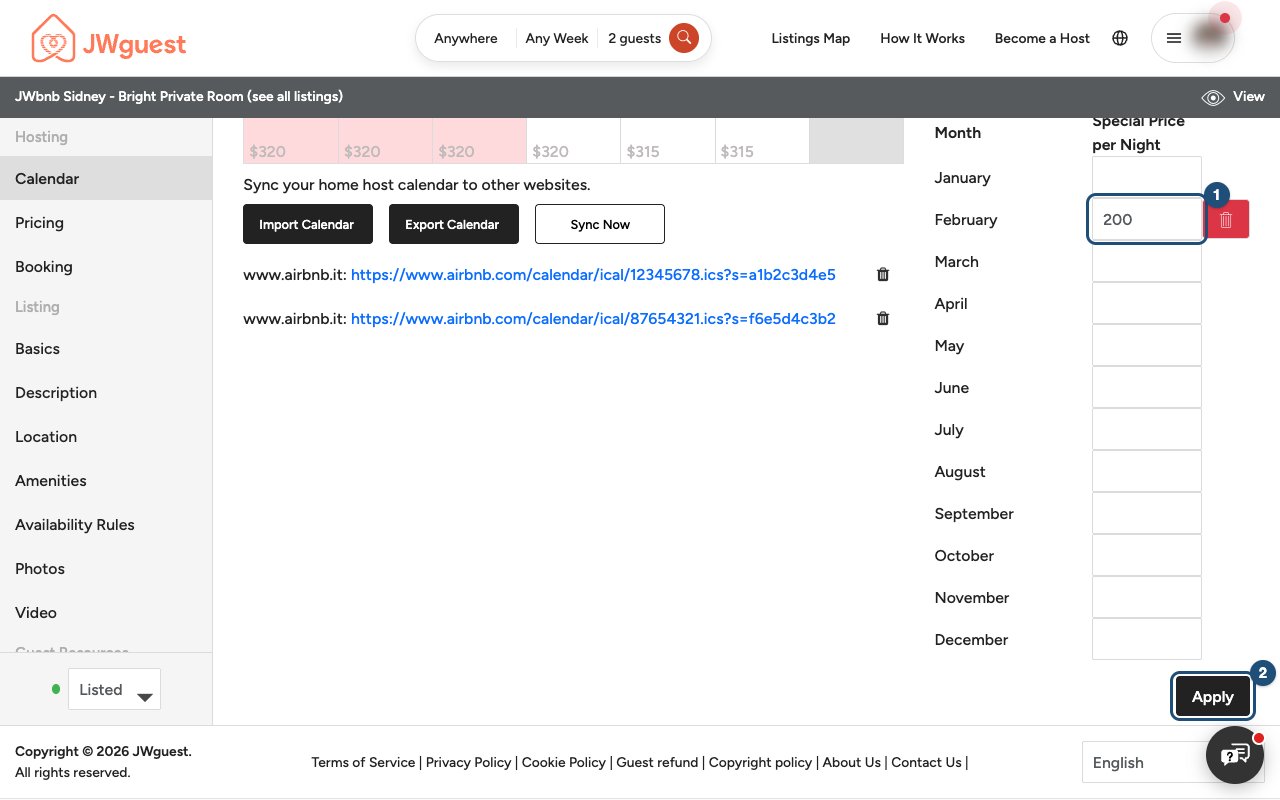
Months you leave empty use your standard nightly price. To remove a monthly price, click the red bin next to it.
Which price applies
- Your nightly price applies to every night, and your weekend price, if you set one, to Friday and Saturday nights.
- A special price on the calendar (for some days or for a month) replaces both. If a day has a monthly price and a price of its own, the one you saved last applies.
- Discounts (long stay, early booking, last minute, SFTS) are then calculated on that price.
- A special offer sent to a guest replaces all of this for that booking.
The price can't be lower than the site minimum, which the window shows. Prices are in your listing's currency. New prices apply to new requests: bookings already confirmed keep their price.
Related articles: Update your prices · Send a special offer to a guest · Update your calendar
Mobile browser
Your nightly price applies all year. For an assembly or convention weekend, a holiday or a quiet season you can give some dates a different price, for everyone who books them: a price for the days you select, or a price for whole months.
Want a different price for one guest only? Send a special offer instead: see Send a special offer to a guest.
Give some days a special price
- Open your calendar: tap Listings in the black Personal Area bar, then Manage Calendar.
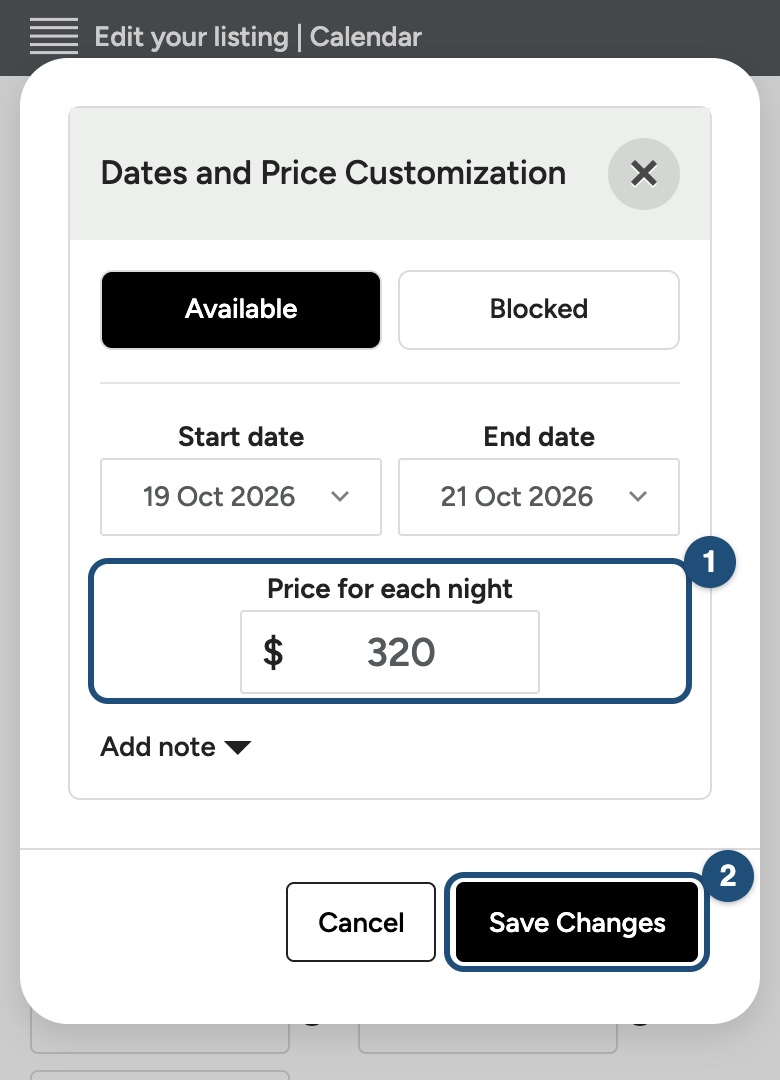
- Select the days: hold your finger on the first day and drag to the last one.
- Type the new price in Price for each night (1), keep the days available and tap Save Changes (2).
Set a price for whole months
Scroll below the calendar to Monthly Dynamic Prices, type a price next to the month in Special Price per Night and tap Apply. Months you leave empty use your standard nightly price.
Which price applies
- Your nightly price applies to every night, and your weekend price to Friday and Saturday nights.
- A special price on the calendar replaces both. If a day has a monthly price and a price of its own, the one you saved last applies.
- Discounts are calculated on that price, and a special offer replaces all of this for one booking.
The price can't be lower than the site minimum. New prices apply to new requests: bookings already confirmed keep their price.
Related articles: Update your prices · Send a special offer to a guest · Update your calendar
iOS app
Your nightly price applies all year. For an assembly or convention weekend, a holiday or a quiet season you can give some days a different price, for everyone who books them.
Want a different price for one guest only? Send a special offer instead: see Send a special offer to a guest.
Give some days a special price
- Open your calendar: switch to hosting (Profile > Switch to Host) and tap Calendar in the bar at the bottom.
- Select the days (3): tap the first and the last day. In the Year view (2) you can select whole months.
- Change the price (4): tap Price per night, type the new price and confirm.
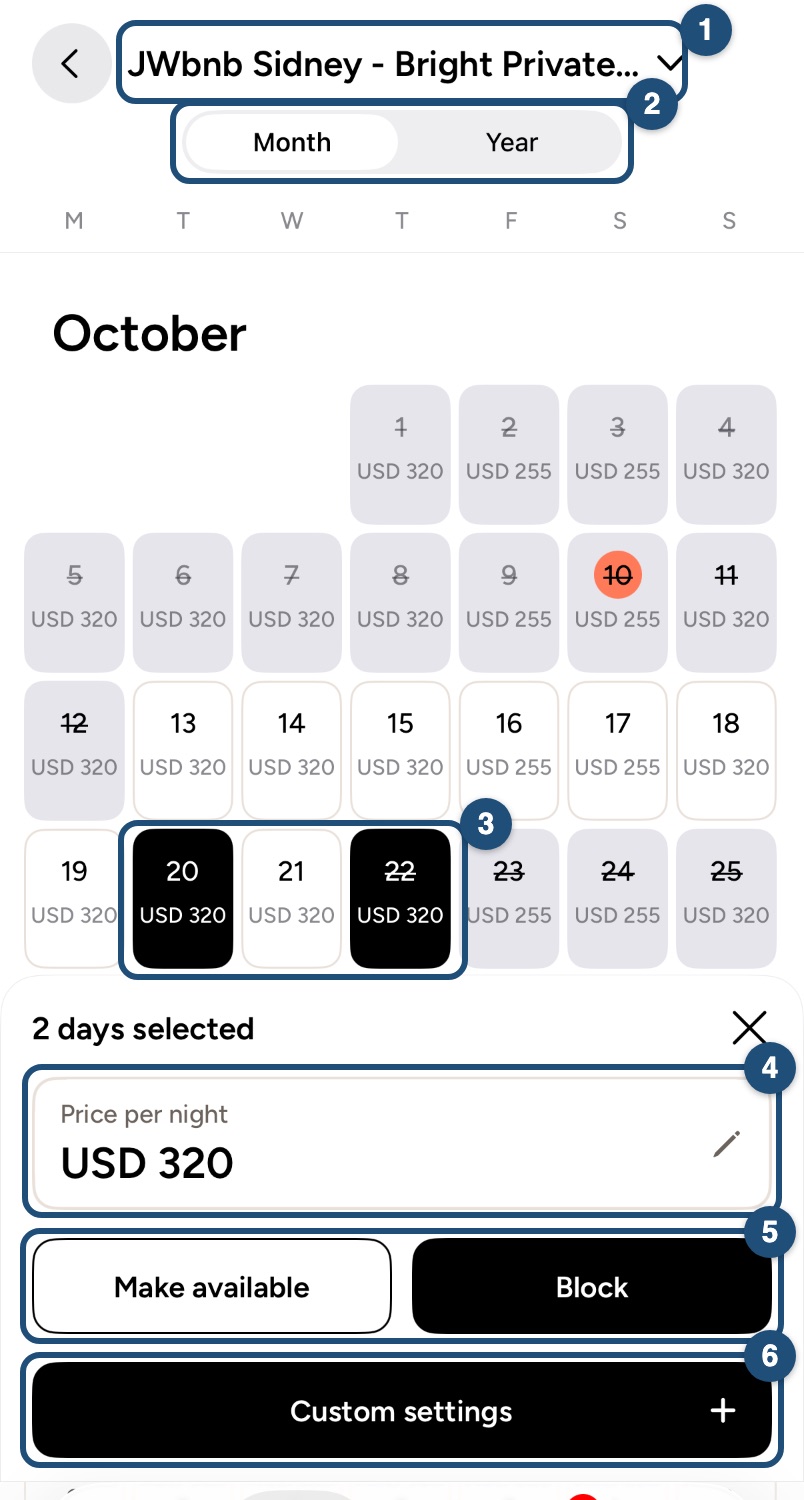
The calendar shows the new price on each day. To go back to your normal price, select the days and enter your standard nightly price: on Fridays and Saturdays your weekend price then applies again.
Days with a booking or a pending request keep their price: the change skips them.
Which price applies
- Your base price applies to every night, adjusted on Friday and Saturday nights if you set a weekend adjustment.
- A special price on the calendar replaces both for those days.
- Discounts are calculated on that price, and a special offer replaces all of this for one booking.
The price can't be lower than the site minimum. Prices for whole months (Monthly Dynamic Prices) can be set on the website.
Related articles: Update your prices · Send a special offer to a guest · Update your calendar
Android app
Your nightly price applies all year. For an assembly or convention weekend, a holiday or a quiet season you can give some days a different price, for everyone who books them.
Want a different price for one guest only? Send a special offer instead: see Send a special offer to a guest.
Give some days a special price
- Open your calendar: switch to hosting (Profile > Switch to Host) and tap Calendar in the bar at the bottom.
- Select the days (3): tap the first and the last day. In the Year view (2) you can select whole months.
- Change the price (4): tap Nightly Price, type the new price and confirm.
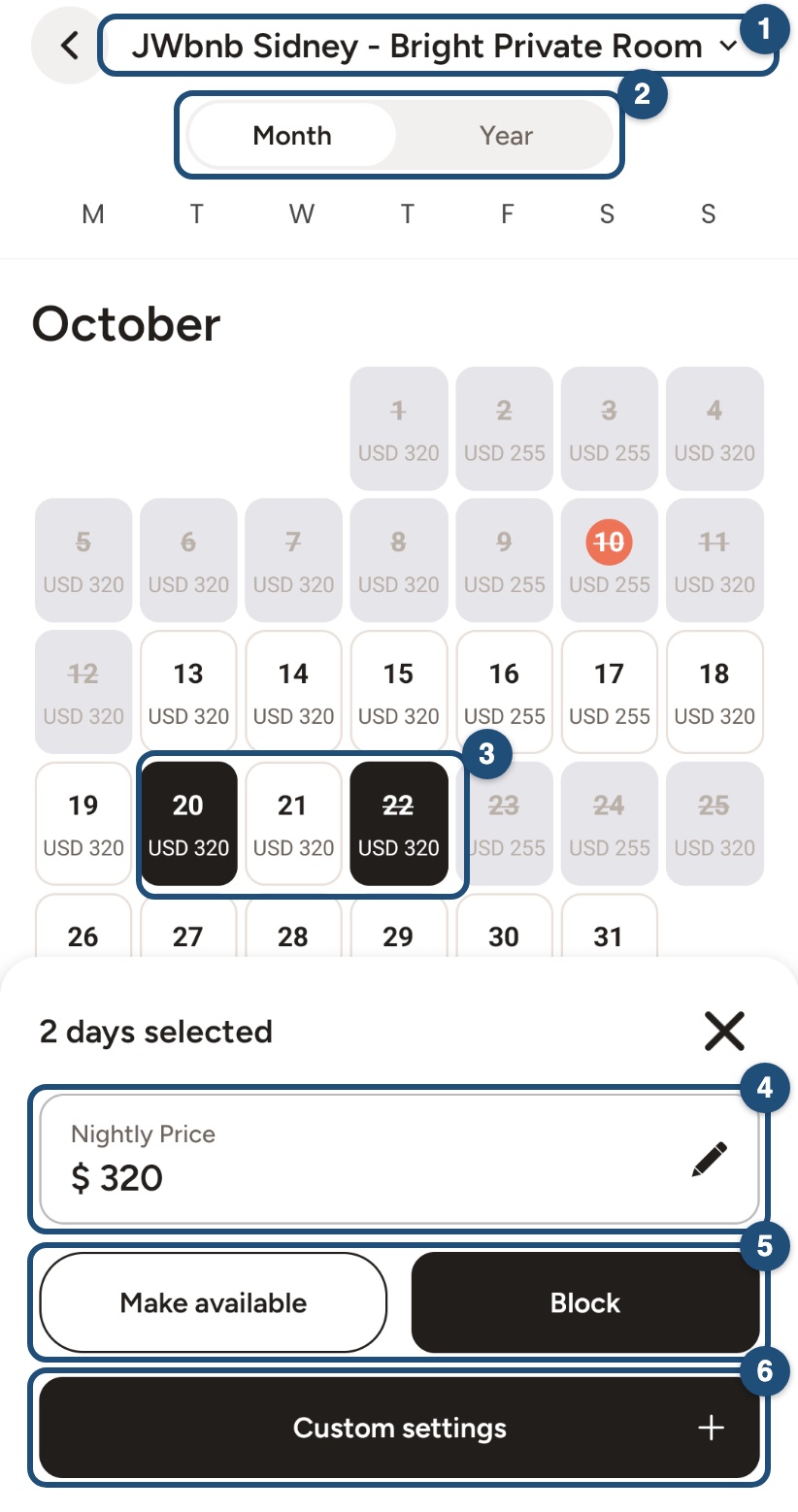
The calendar shows the new price on each day. To go back to your normal price, select the days and enter your standard nightly price: on Fridays and Saturdays your weekend price then applies again.
Days with a booking or a pending request keep their price: the change skips them.
Which price applies
- Your base price applies to every night, adjusted on Friday and Saturday nights if you set a weekend adjustment.
- A special price on the calendar replaces both for those days.
- Discounts are calculated on that price, and a special offer replaces all of this for one booking.
The price can't be lower than the site minimum. Prices for whole months (Monthly Dynamic Prices) can be set on the website.
Related articles: Update your prices · Send a special offer to a guest · Update your calendar