

Website
Keep your listing accurate and up to date: it helps guests choose well and avoids misunderstandings. You can change your listing whenever you like, on a computer or on your phone.
How to edit your listing
- Log in to your account: see Log in to your account.
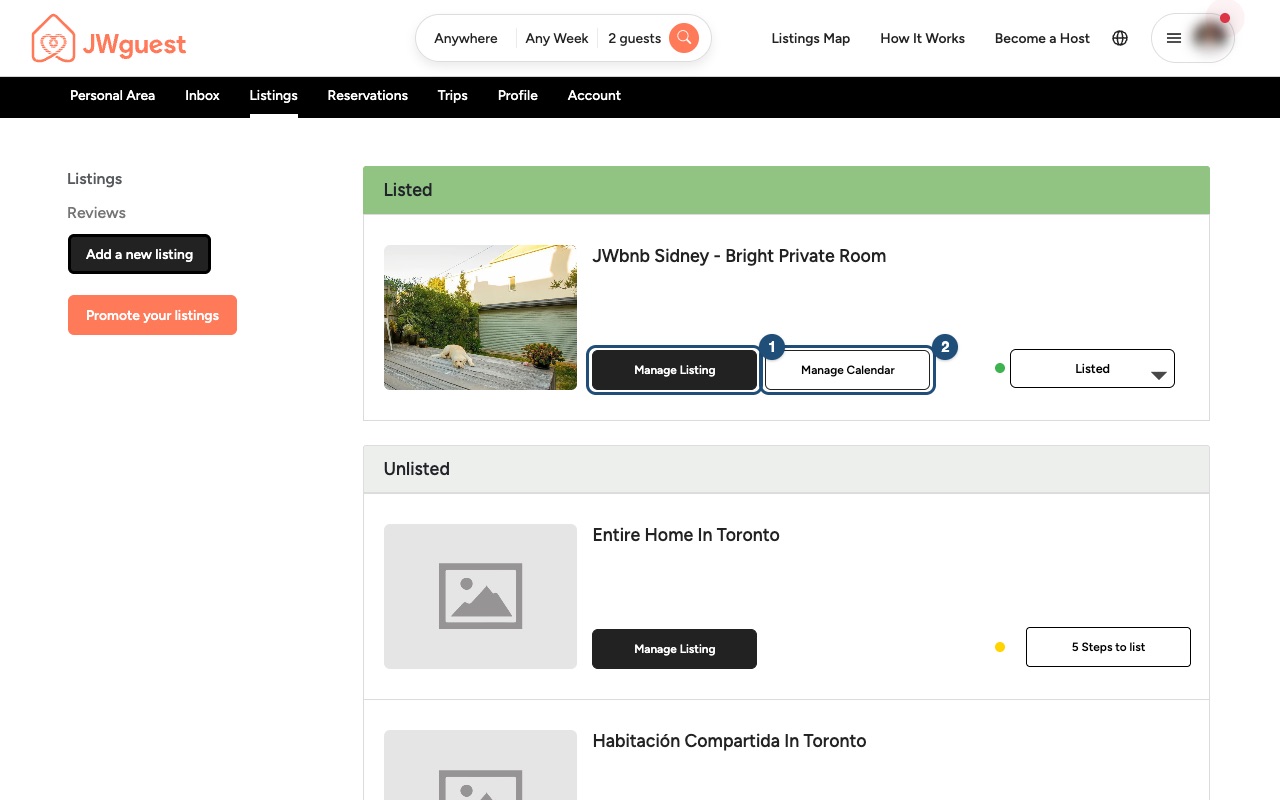
- Go to Listings: in the Personal Area bar, click Listings.
- Click Manage Listing (1) next to the listing you want to change.
- Choose a section from the menu on the left, make your changes and save.
What you can change
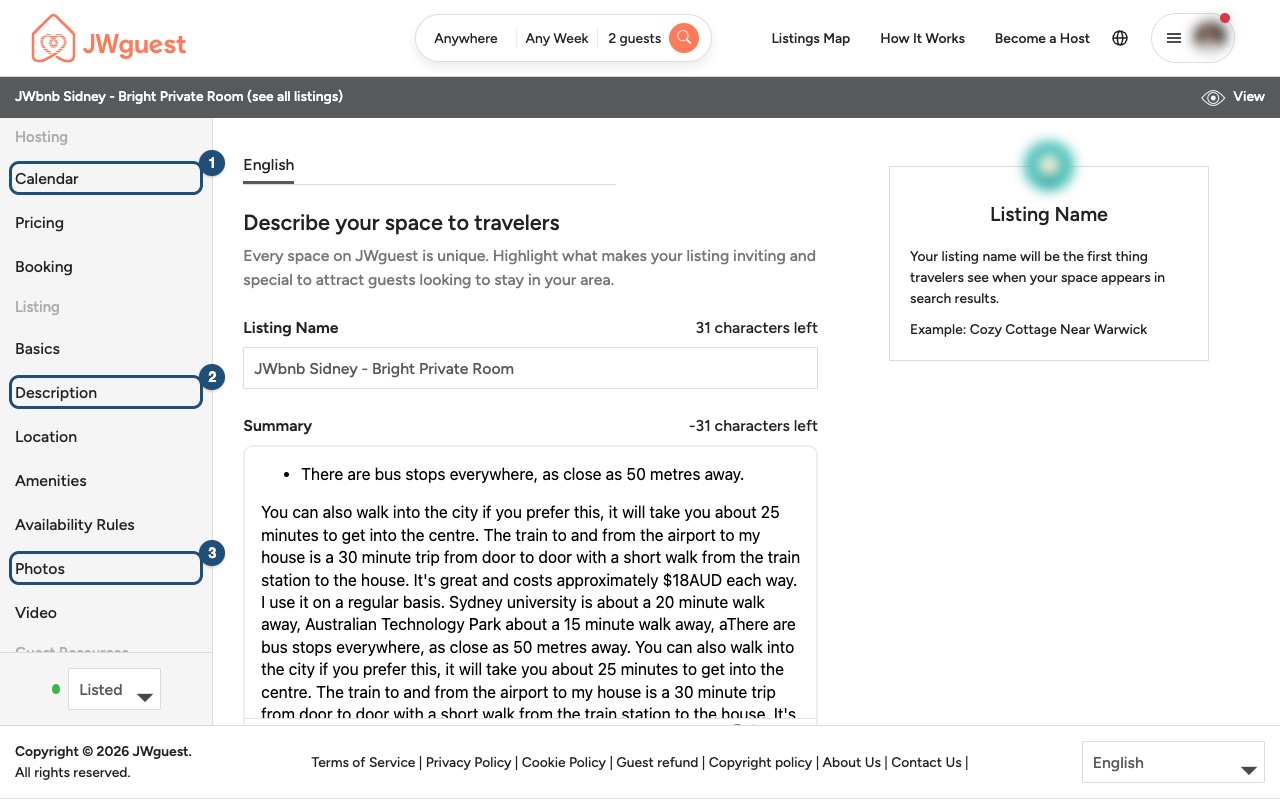
- Calendar (1): availability, blocked dates, monthly prices. See Update your calendar.
- Pricing: nightly price, cleaning fee, security deposit, additional-guest fees, tourist taxes, weekend pricing and discounts. See Update your prices.
- Booking: how you receive reservation requests (you answer each request within 48 hours) and the message guests receive before booking.
- Basics, Location, Amenities, Availability Rules: the type of space, rooms and beds, address, what you offer, and the rules for when and how long guests can book.
- Description (2): Listing Name, Summary, The Space, Guest Access, Interaction with Guests, Other Things to Note, House Rules, Neighborhood Must-Sees and Getting Around. Click Write a description in another language to add a translation.
- Photos (3) and Video: see Capturing great photos of your listing.
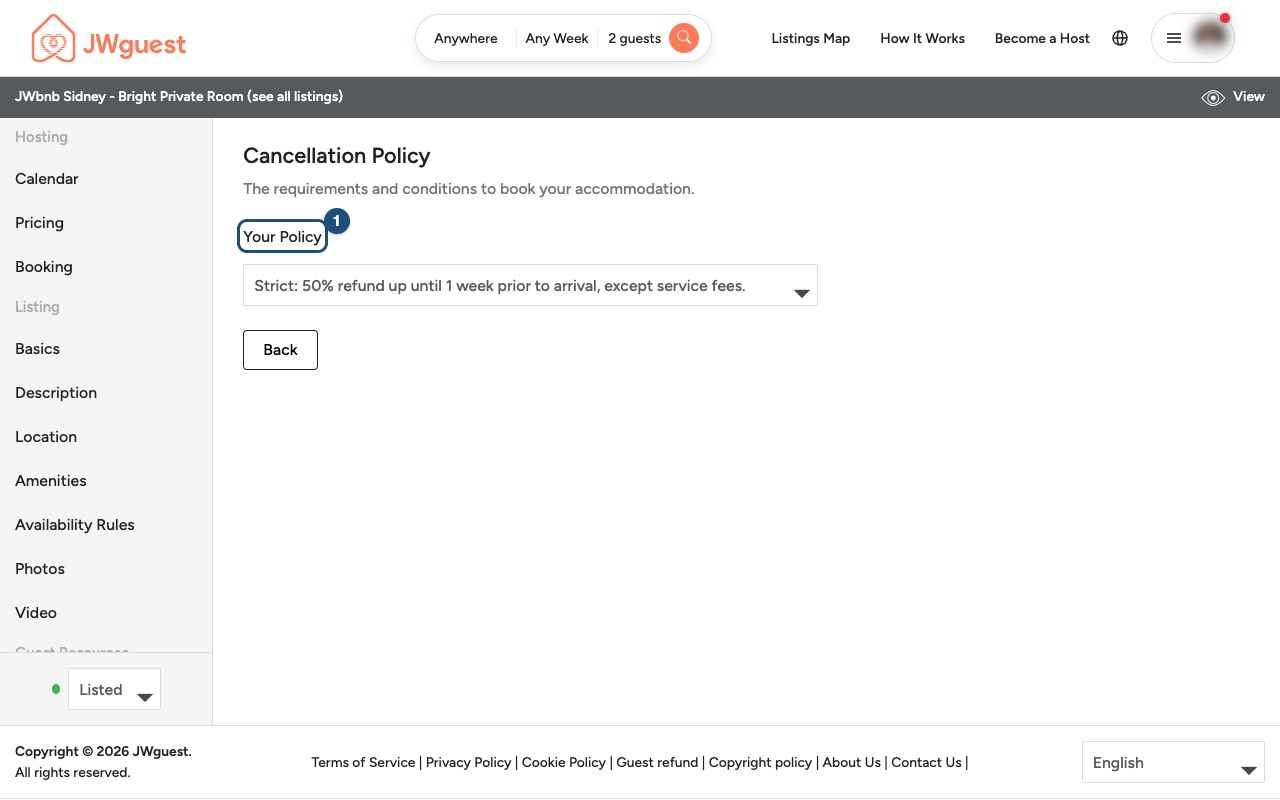
- Cancellation Policy: choose Your Policy (1) from the list.
Review of changes
Some changes, such as a new description or new photos, are reviewed by our team before they appear on your listing. This usually takes a few days and helps keep the platform safe.
Mobile browser
Keep your listing accurate and up to date. You can change everything from your phone.
How to edit your listing on your phone
- Log in to your account: tap the menu icon (three lines) at the top right. See Log in to your account.
- Go to Listings: tap Listings in the black Personal Area bar.
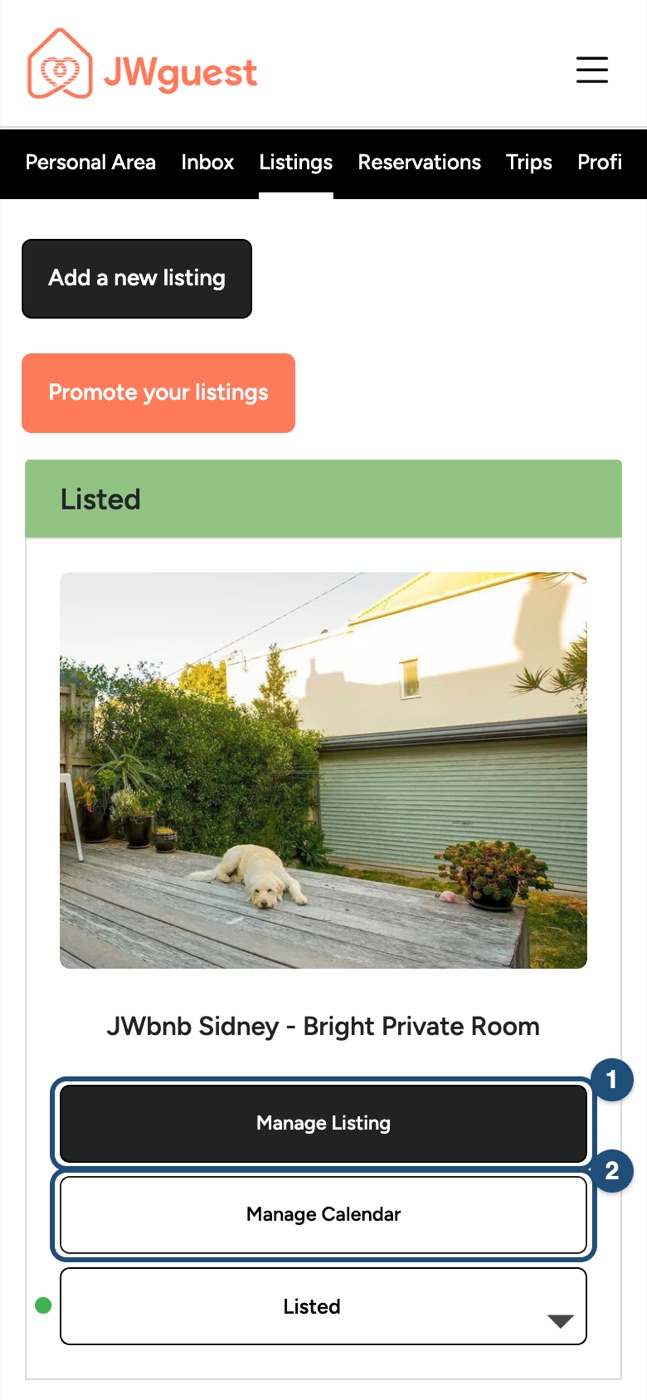
- Tap Manage Listing under the listing you want to change.
- Open the editor menu: tap Edit your listing (the icon with lines) at the top of the page. The list of sections opens.
- Tap a section, make your changes and save. To switch section, tap Edit your listing again.
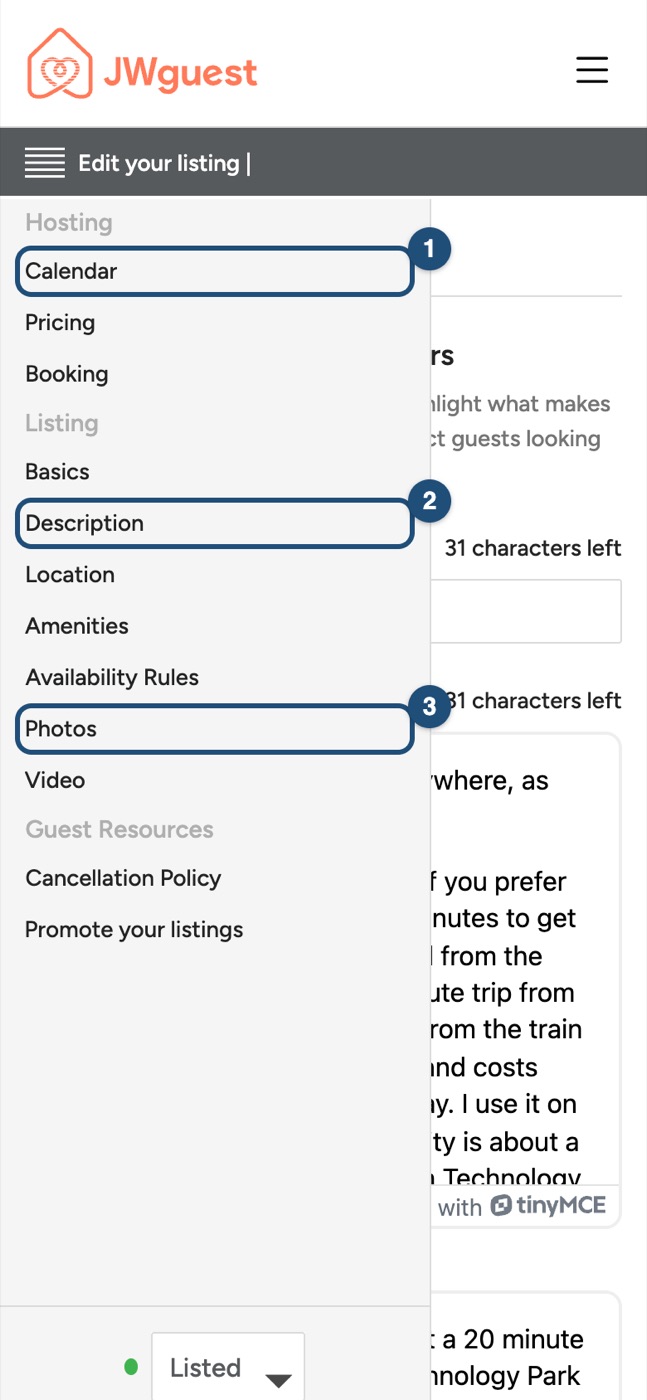
What you can change
- Calendar (1): availability, blocked dates, monthly prices. See Update your calendar.
- Pricing: nightly price, cleaning fee, security deposit, additional-guest fees, tourist taxes, weekend pricing and discounts. See Update your prices.
- Booking: how you receive reservation requests (you answer each request within 48 hours) and the message guests receive before booking.
- Basics, Location, Amenities, Availability Rules: the type of space, rooms and beds, address, what you offer, and the booking rules.
- Description (2): Listing Name, Summary, The Space, Guest Access, Interaction with Guests, Other Things to Note, House Rules, Neighborhood Must-Sees and Getting Around, plus Write a description in another language.
- Photos (3) and Video: see Capturing great photos of your listing.
- Cancellation Policy: tap Your Policy (1) and choose from the list.
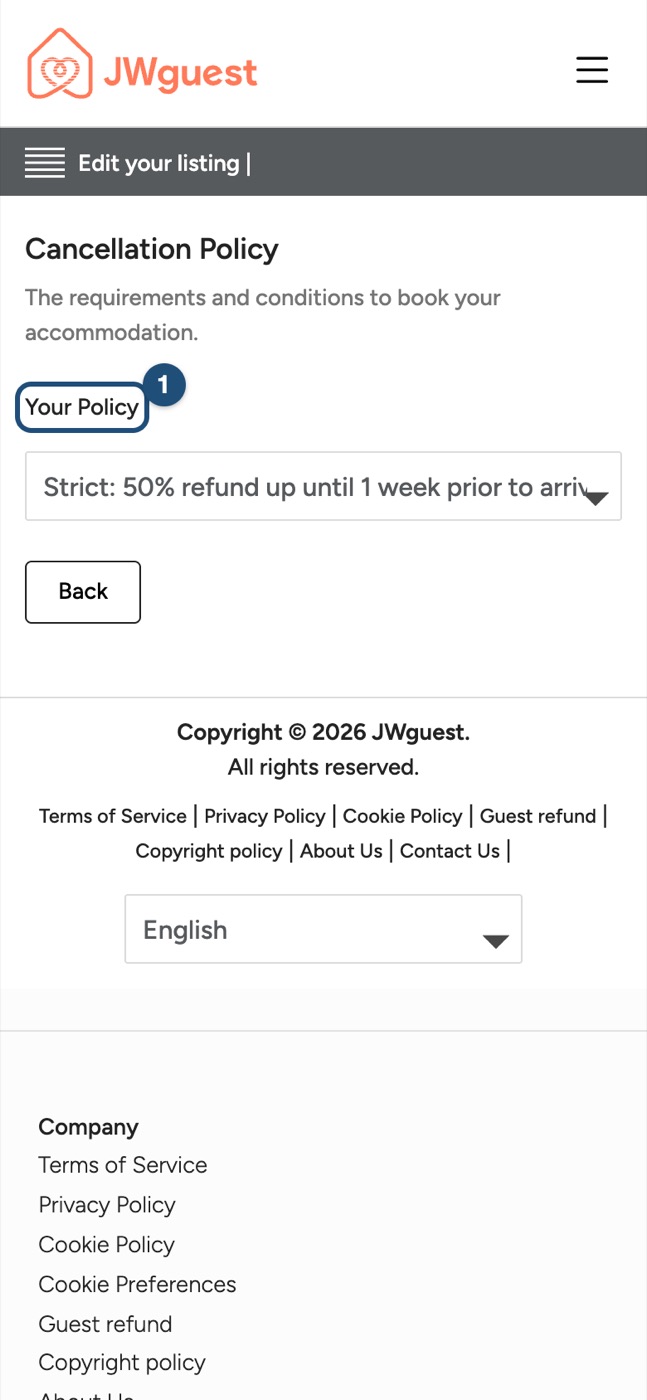
Review of changes
Some changes, such as a new description or new photos, are reviewed by our team before they appear on your listing. This usually takes a few days.
iOS app
Keep your listing accurate and up to date. You can change everything in the app.
How to edit your listing in the app
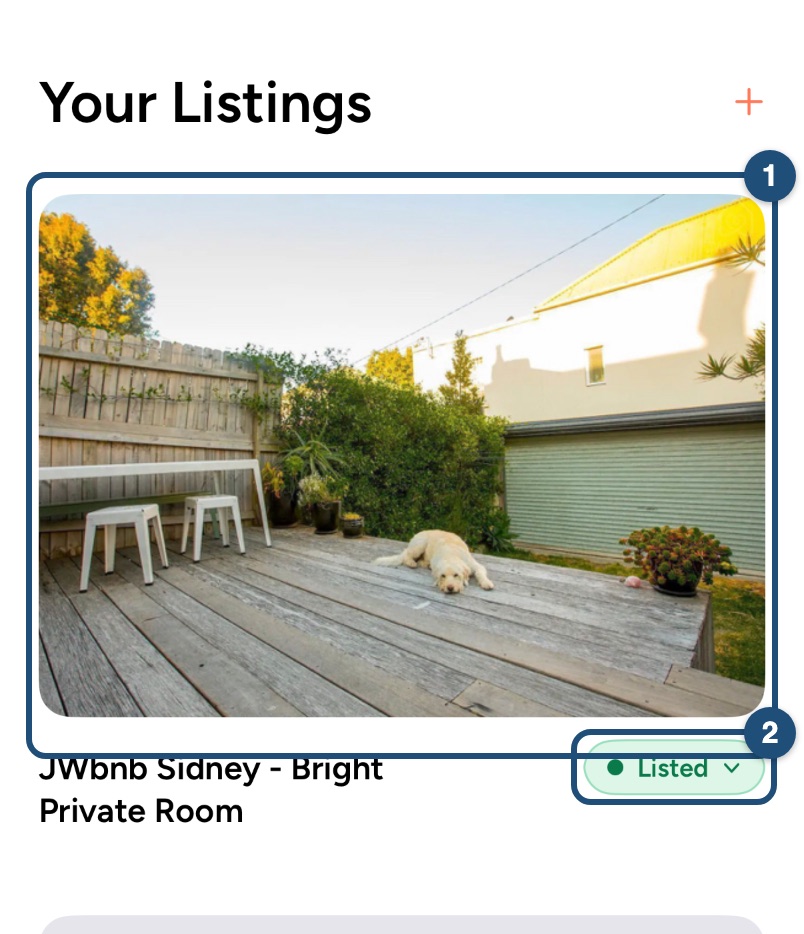
Open your listings: switch to hosting (Profile > Switch to Host), then tap Listing in the bar at the bottom. Tap the listing you want to change (1); its label (2) shows whether it is listed.
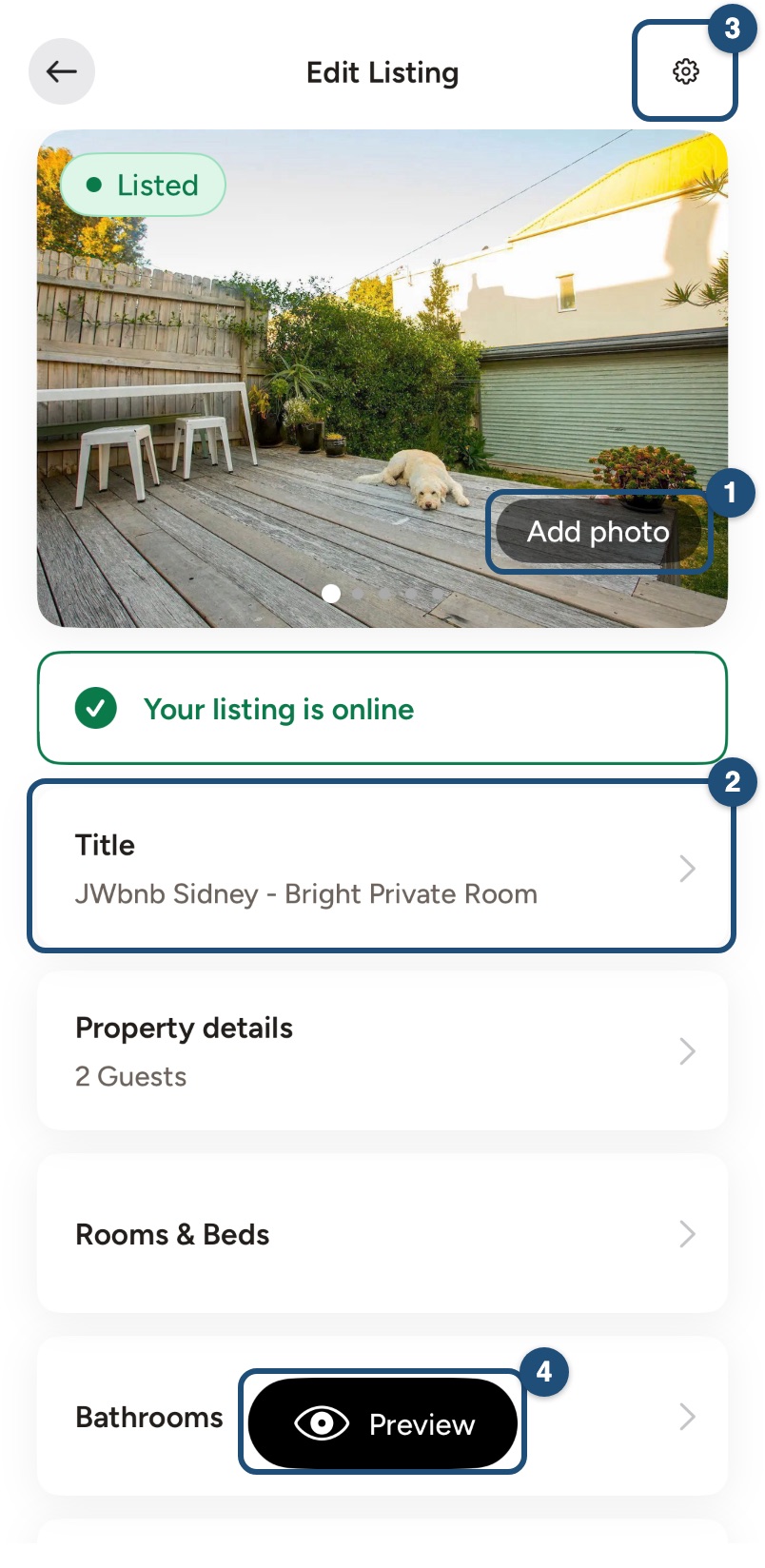
Choose what to change: tap Add photo (1) to add or reorder photos, and any card (2) to edit that part: Title, Property details, Rooms & Beds, Bathrooms, Describe your place, House rules and more. The gear (3) holds the listing settings, and Preview (4) shows the listing as guests see it.
Prices and availability: further down, Pricing (1) holds the nightly price, weekend price and fees, Discounts (2) your weekly, monthly and full-time servants discounts, and Availability (3) how far ahead and how long guests can book. At the bottom you find Share safety details, Location, About me and Cancellation terms.
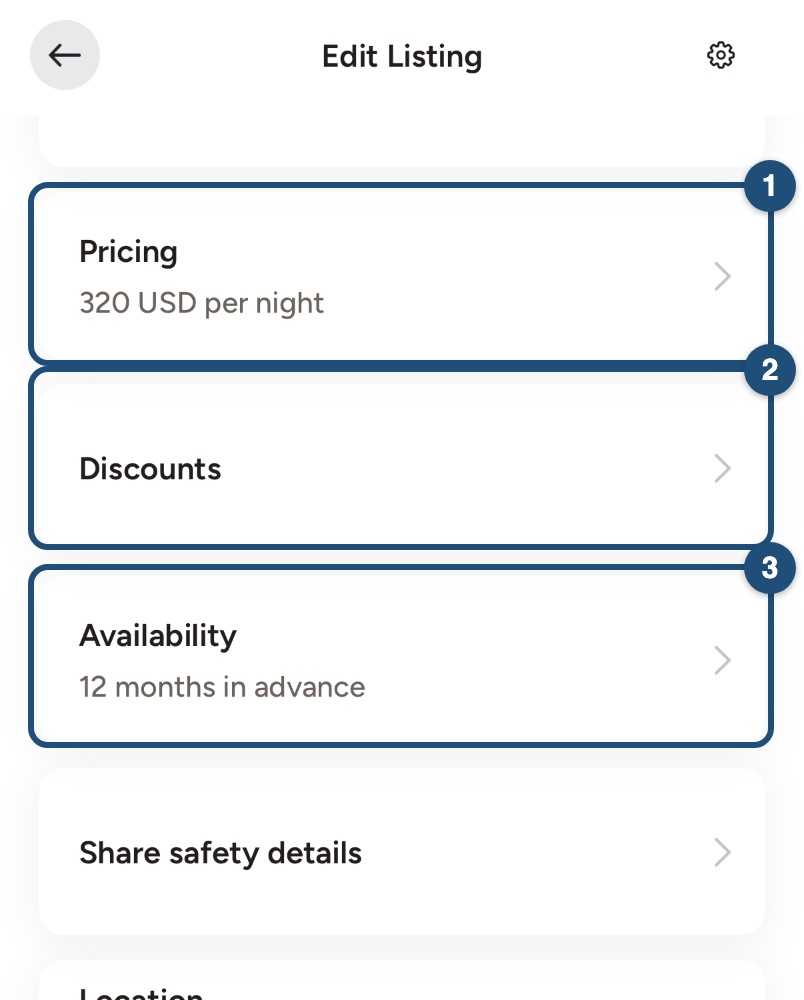
For your prices and discounts, see Update your prices. For blocked dates and prices on single days, see Update your calendar. To change your cancellation policy, tap Cancellation terms: see Choose a cancellation policy for your listing.
Review of changes
Some changes, such as a new description or new photos, are reviewed by our team before they appear on your listing. This usually takes a few days.
Android app
Keep your listing accurate and up to date. You can change everything in the app.
How to edit your listing in the app
Open your listings: switch to hosting (Profile > Switch to Host), then tap Listings in the bar at the bottom. Tap the listing you want to change (1); its label (2) shows whether it is listed.
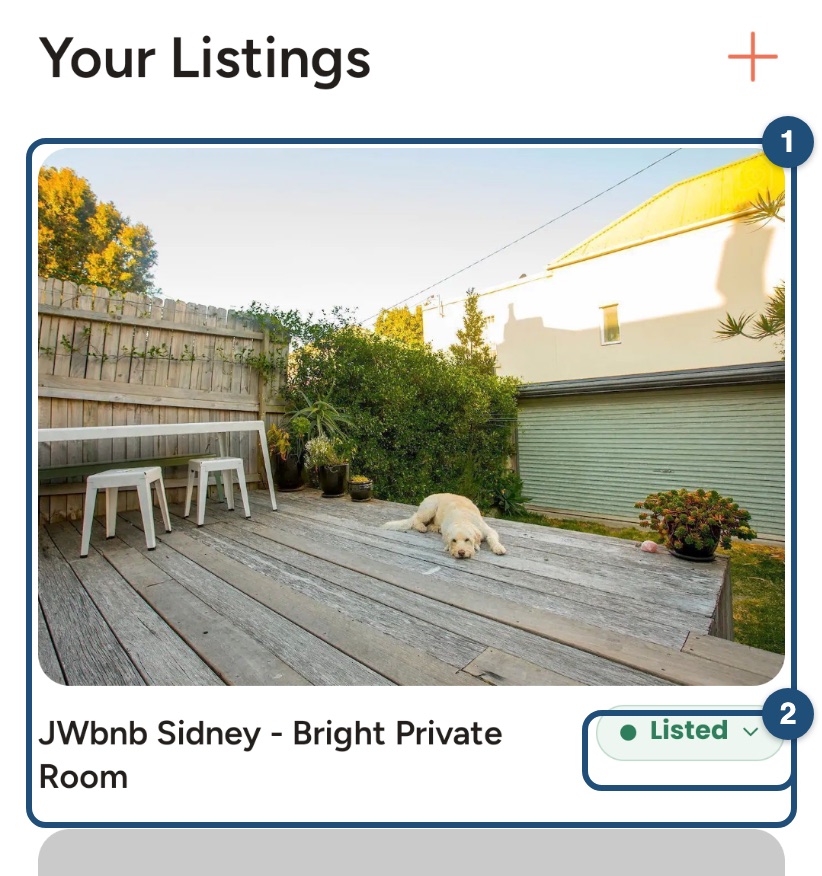
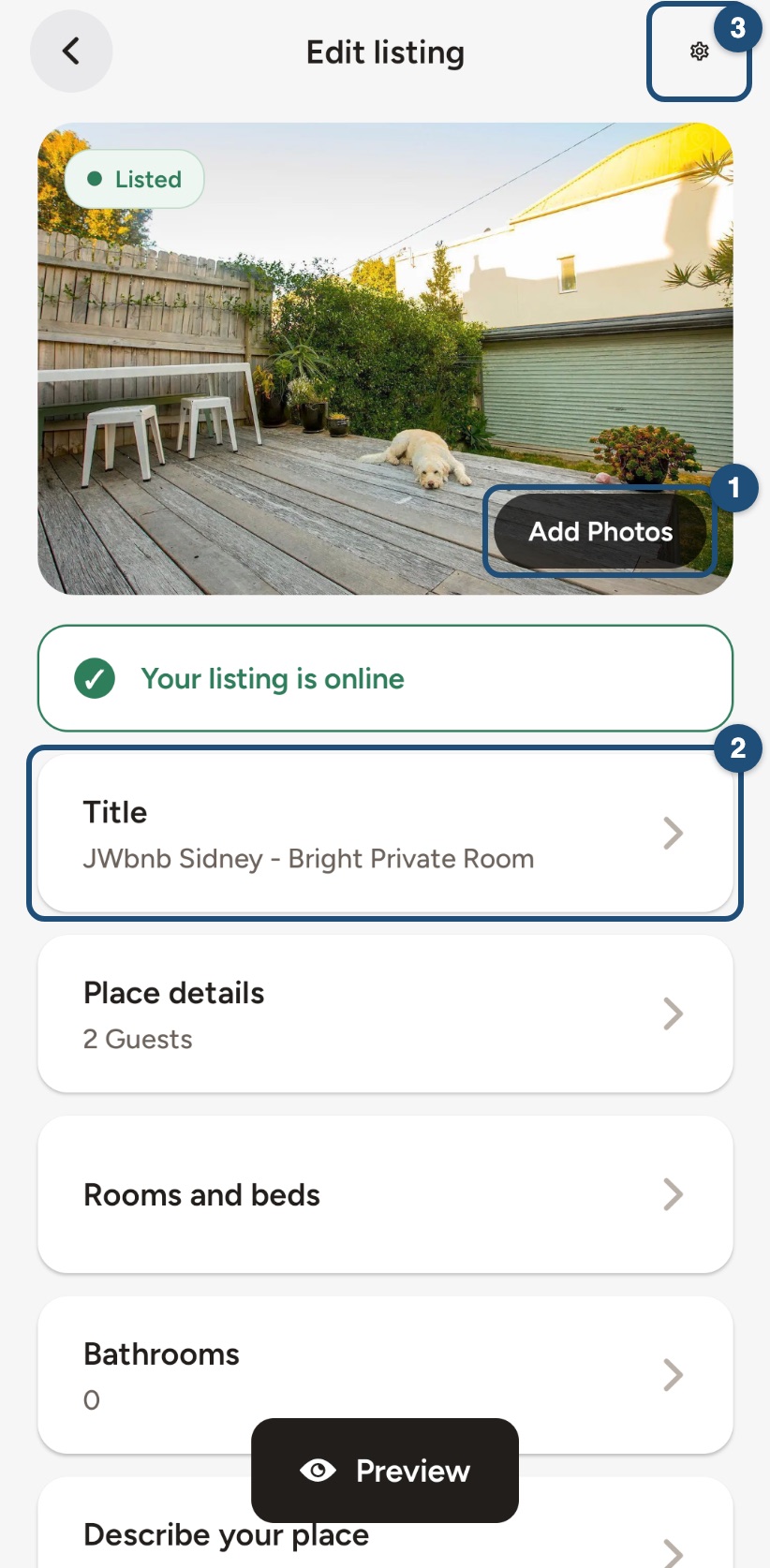
Choose what to change: tap Add Photos (1) to add or reorder photos, and any card (2) to edit that part: Title, Place details, Rooms and beds, the description, the house rules and more. The gear (3) holds the listing settings, and Preview at the bottom shows the listing as guests see it.
Prices and availability: further down, Prices (1) holds the nightly price, weekend price, fees and discounts, and Availability (2) how far ahead and how long guests can book. At the bottom you find Share safety details, Location, About me and Cancellation terms.
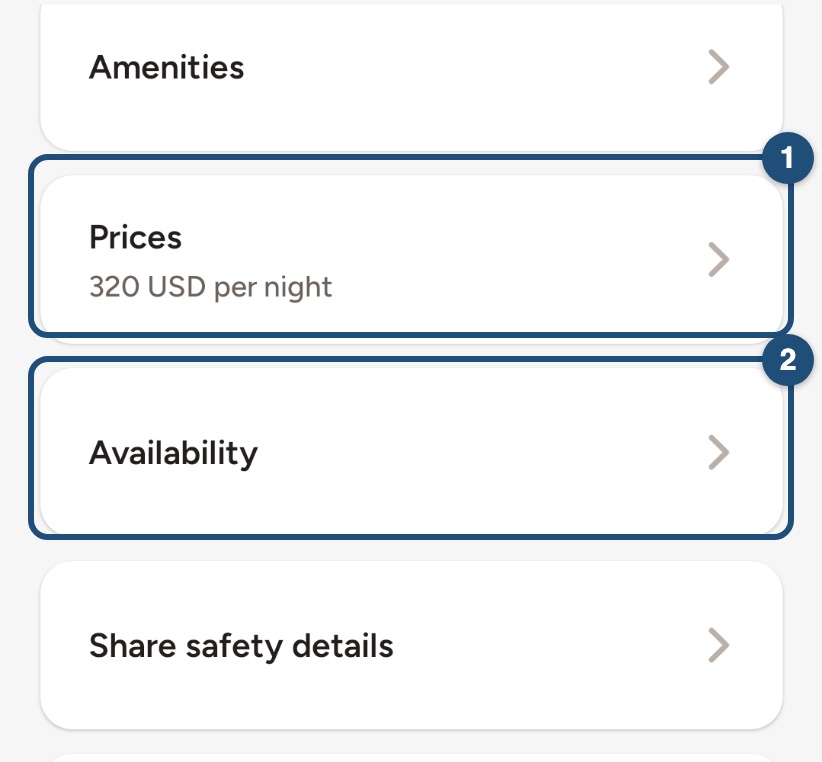
For your prices and discounts, see Update your prices. For blocked dates and prices on single days, see Update your calendar. To change your cancellation policy, tap Cancellation terms: see Choose a cancellation policy for your listing.
Review of changes
Some changes, such as a new description or new photos, are reviewed by our team before they appear on your listing. This usually takes a few days.