
Website
Open your listing editor and select Availability Rules: there you set the Minimum Stay, the Maximum Stay, your Check-in Time and Check-out Time, and extra requirements for seasons or weekends. To close single dates or whole months, use the Calendar instead.
How to set your rules
Here's a step-by-step guide:
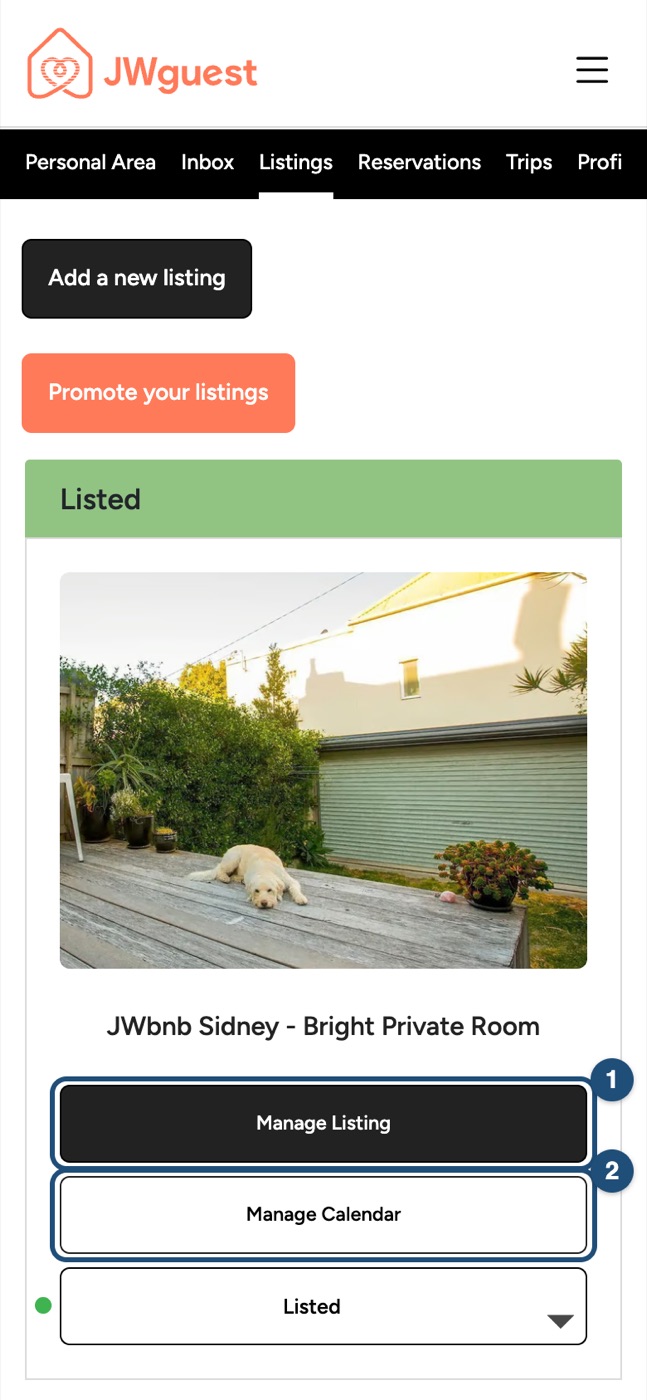
Open your listing: in the Personal Area bar, click Listings, then Manage Listing (1) next to the listing.
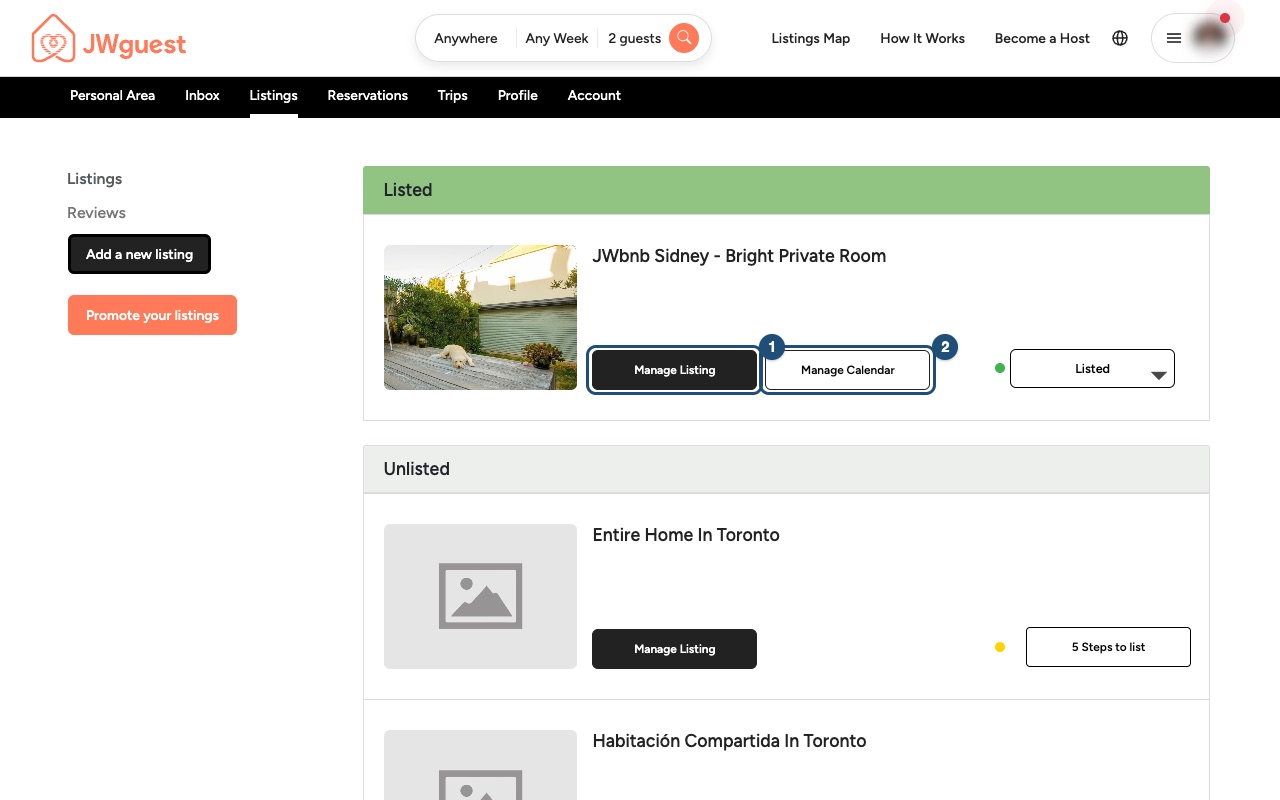
Select Availability Rules in the menu on the left.
Set your times and stay length:
- Check-in Time (1) and Check-out Time: when guests can arrive and must leave.
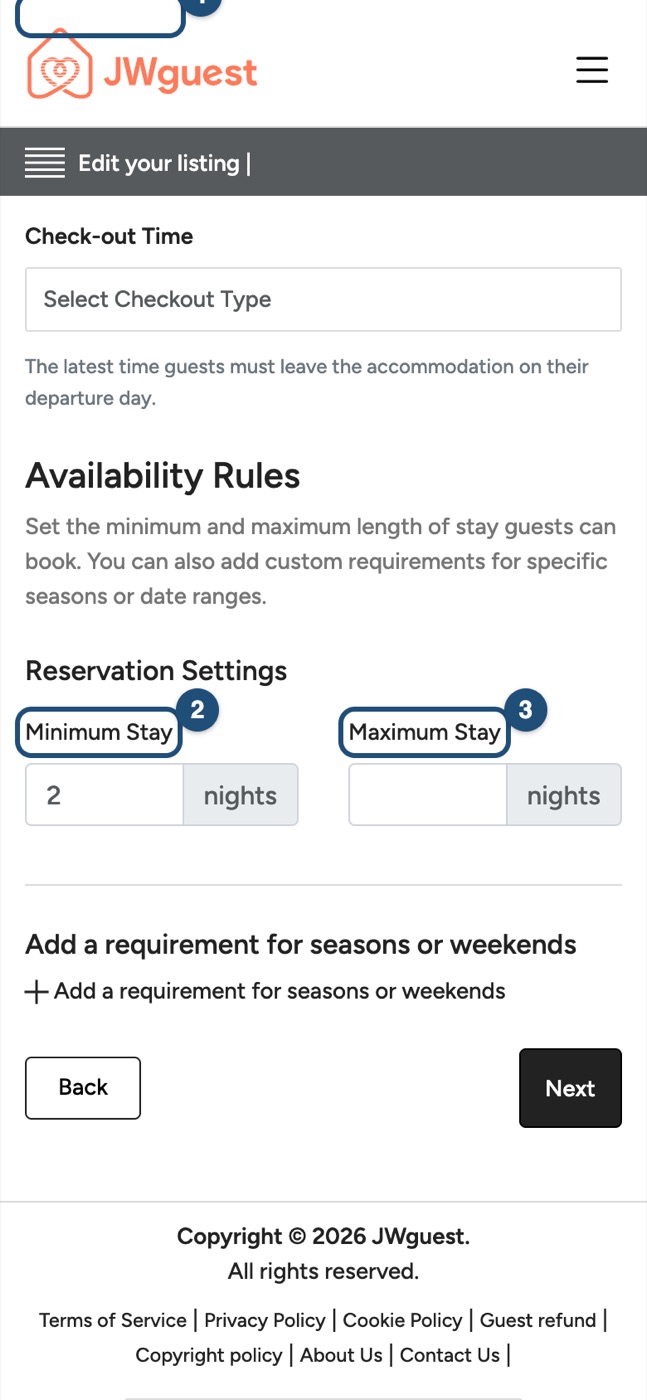
- Minimum Stay (2): the shortest stay, in nights, that you accept.
- Maximum Stay (3): the longest stay you accept.
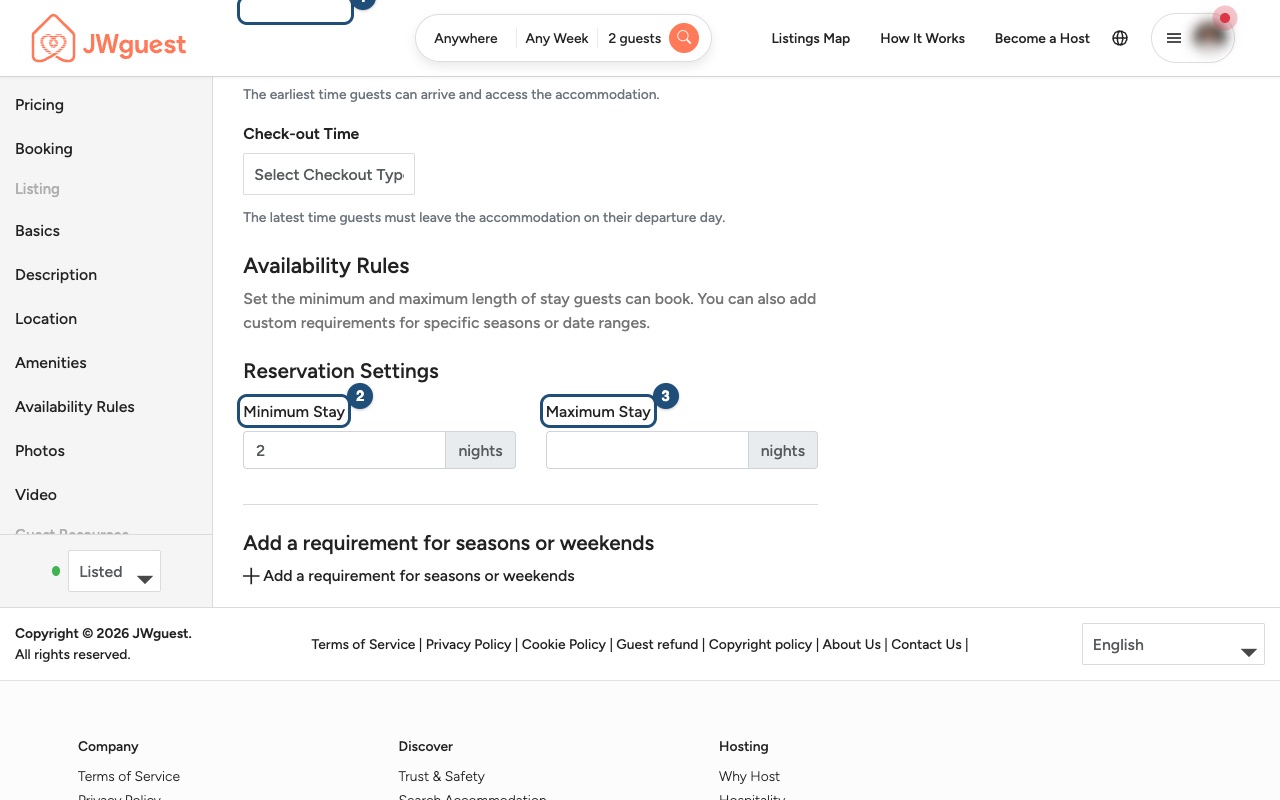
Add a rule for certain periods: click Add a requirement for seasons or weekends if some periods need different rules.
Close dates in the calendar
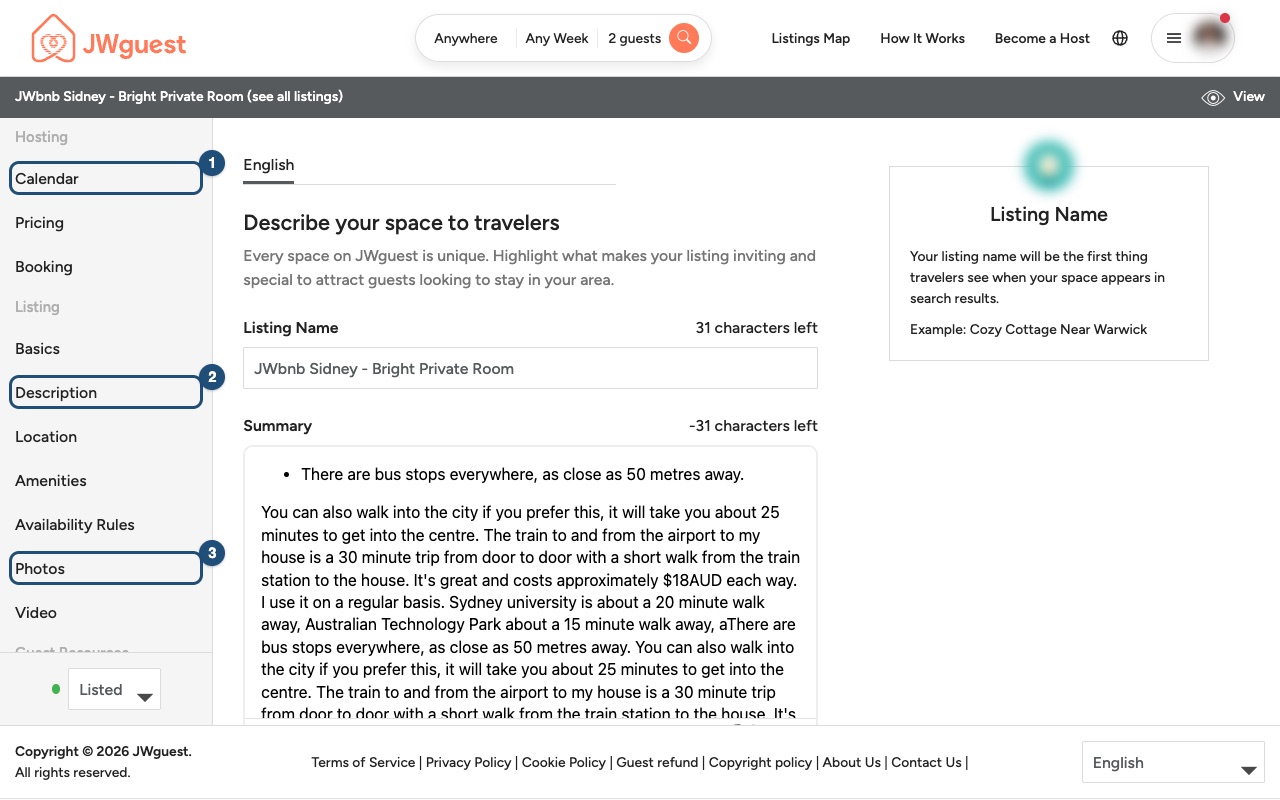
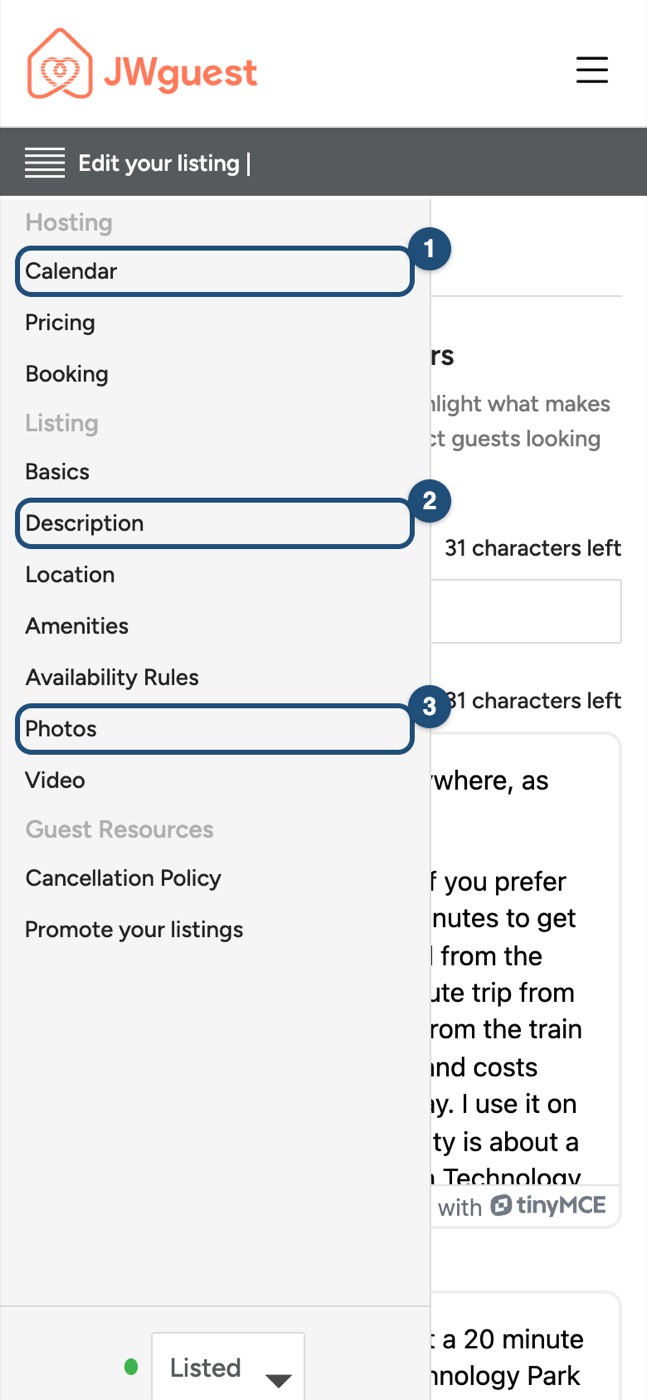
Rules set how long guests can stay; the calendar sets when they can come. In the editor menu, select Calendar (1) to block dates when your home is not available.
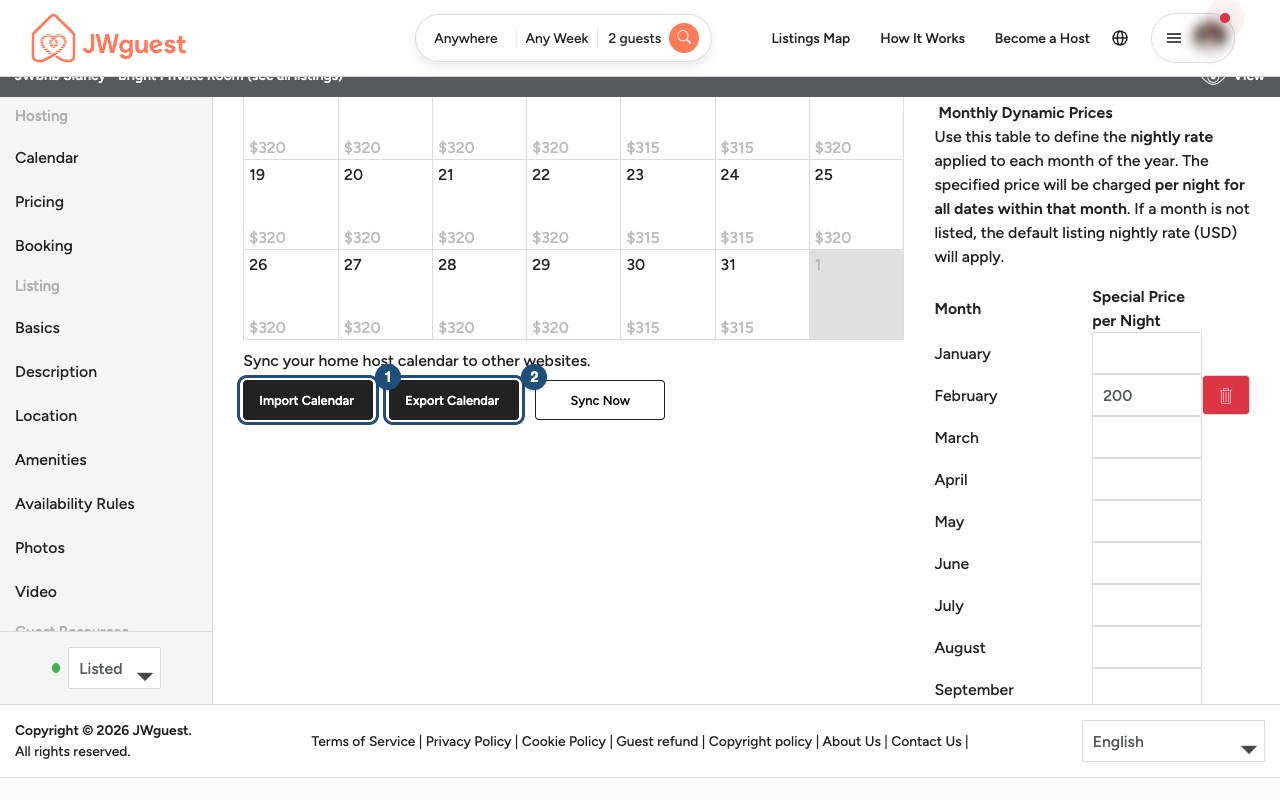
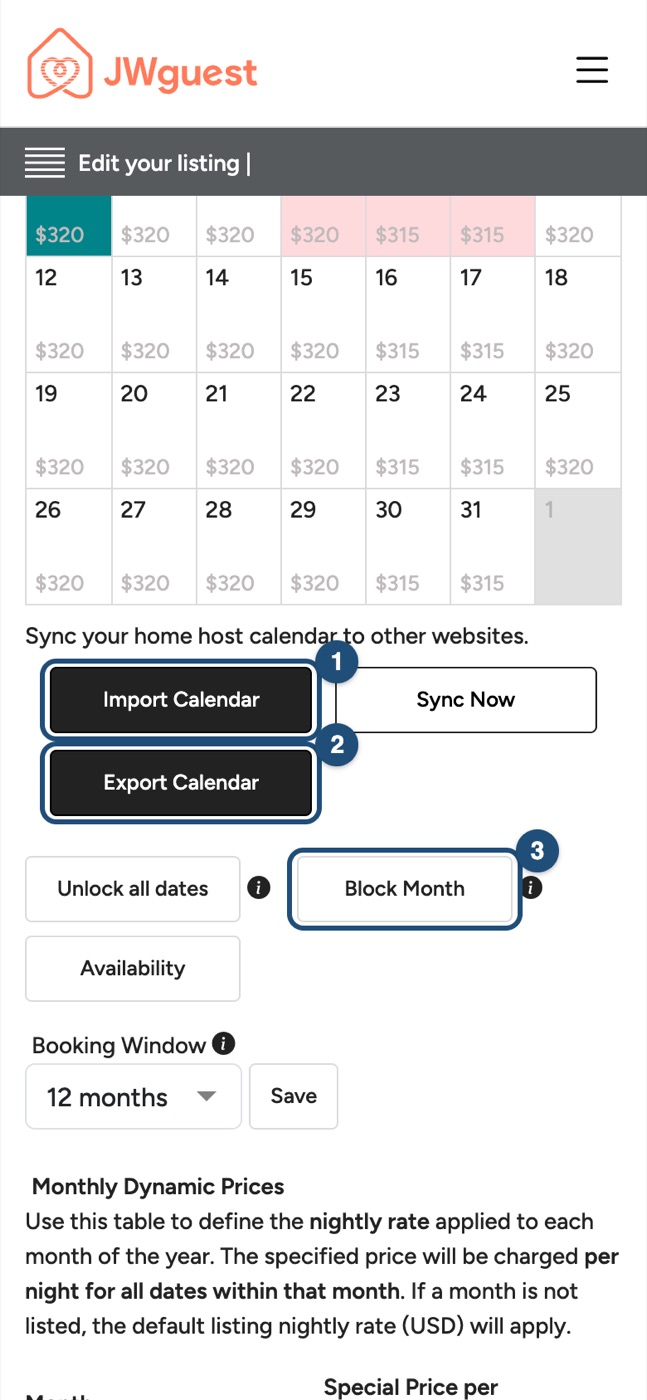
In the calendar you can block a whole month with Block Month (3), and keep other platforms in step with Import Calendar (1) and Export Calendar (2). See Update your calendar and pricing.
Tips for assemblies and conventions
- Many guests come for a weekend or for the days of a convention. A minimum stay longer than the event may keep them from booking your home.
- Keep your calendar up to date, so guests only request dates you can really offer.
- Remember that you have 48 hours to answer each reservation request (see Booking > Reservation Requests in the editor).
Related articles: Update your listing · Update your calendar and pricing · Accept or decline a booking request
Mobile browser
Open your listing editor and select Availability Rules: there you set the Minimum Stay, the Maximum Stay, your Check-in Time and Check-out Time, and extra requirements for seasons or weekends. To close single dates or whole months, use the Calendar instead.
How to set your rules on your phone
Here's a step-by-step guide:
Open your listing: tap the menu (three lines, top right), then Listings in the black Personal Area bar, then Manage Listing (1).
Open the editor menu: tap Edit your listing (the icon with lines, at the top) and tap Availability Rules.
Set your times and stay length: Check-in Time (1) and Check-out Time, Minimum Stay (2) and Maximum Stay (3). Scroll down to see all the fields.
Add a rule for certain periods: tap Add a requirement for seasons or weekends if some periods need different rules.
Close dates in the calendar
Tap Edit your listing again and tap Calendar (1) to block dates when your home is not available.
In the calendar, Block Month (3) closes a whole month; Import Calendar (1) and Export Calendar (2) keep other platforms in step. See Update your calendar and pricing.
Tips for assemblies and conventions
- A minimum stay longer than an assembly or convention weekend may keep guests from booking your home.
- Remember that you have 48 hours to answer each reservation request.
Related articles: Update your listing · Update your calendar and pricing · Accept or decline a booking request