
Website
When a brother or sister wants to stay at your place, you receive a booking request. You have 48 hours to accept or decline it; after that the request expires.
How to answer a request
Here's a step-by-step guide:
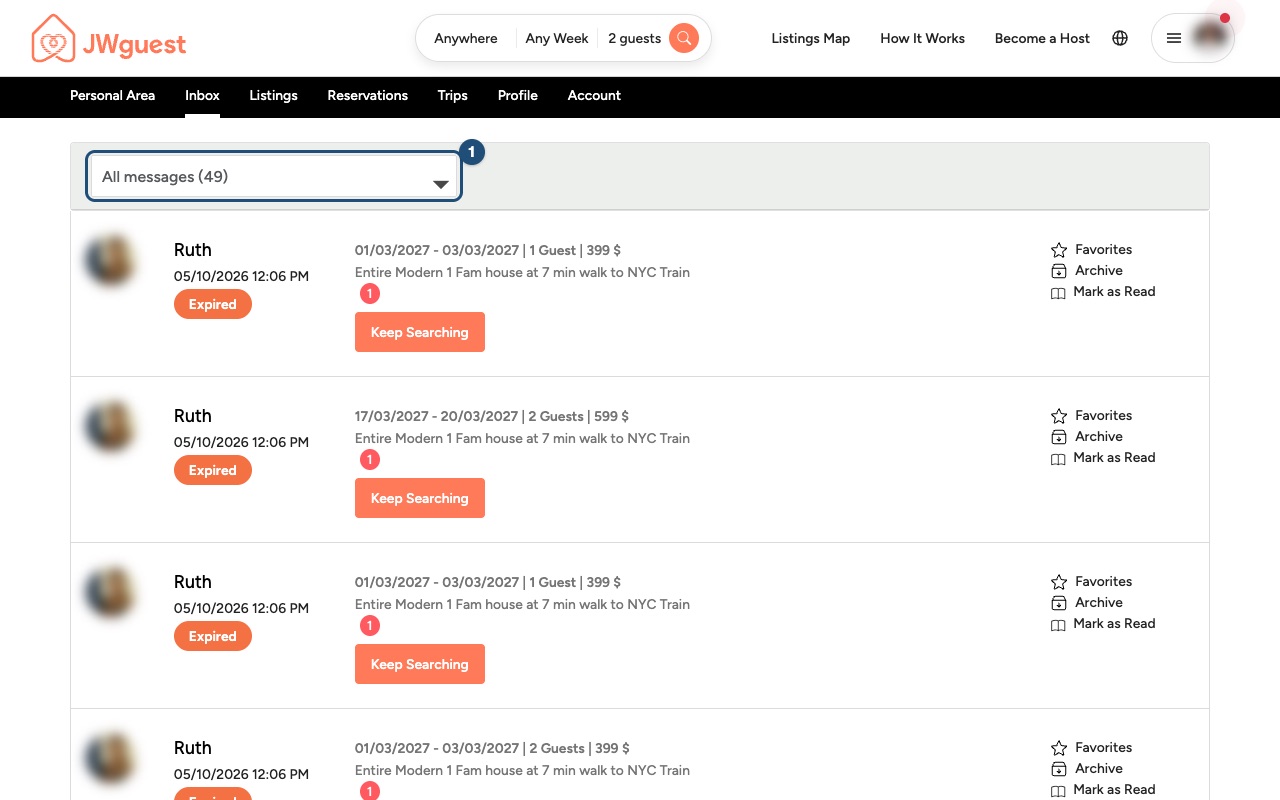
Open the request: You will receive an email and a notification. Go to Inbox and click the request (1). Its status is Pending.
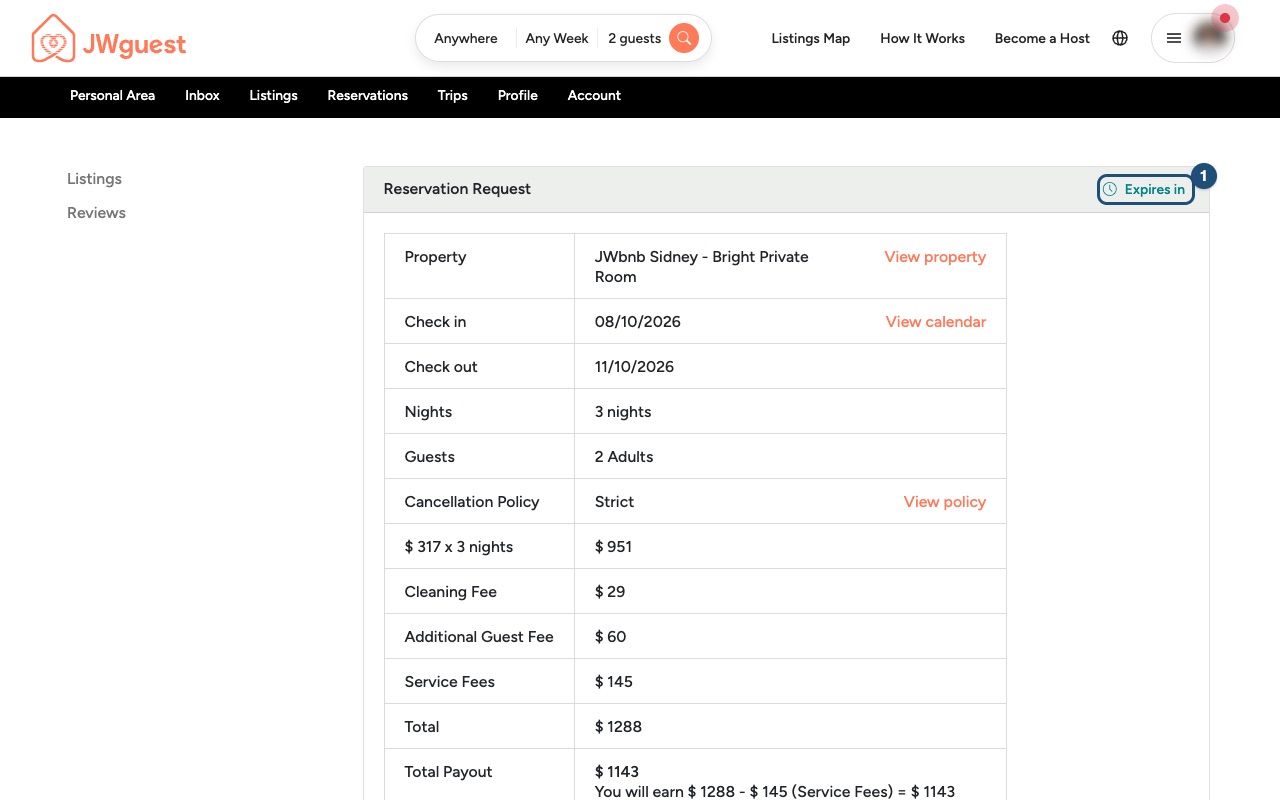
Check the details: The page shows the dates, the number of guests, the price and your payout. At the top, Expires in (1) tells you how much time you have left.
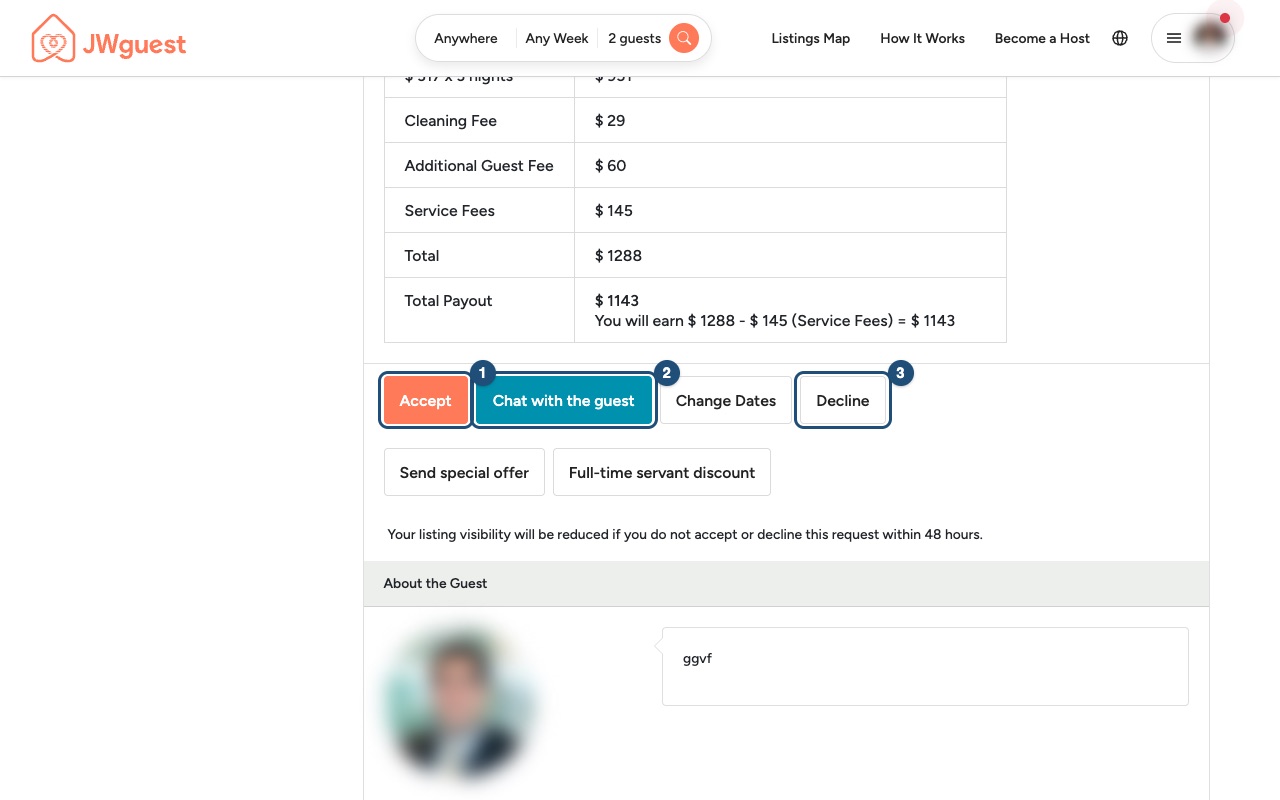
Answer the request:
- Accept (1): the guest is asked to Confirm & Pay. The booking is confirmed when the payment goes through.
- Chat with the guest (2): ask a question before deciding, for example about arrival time or who is travelling.
- Decline (3): if you can't host them. Please tell the guest kindly why.
You can also propose other dates (Change Dates) or a different price (Send special offer).
Before you accept
- Make sure the dates are really free in your calendar.
- Once a guest has sent a request, you can't ask for a higher price than the one in the request.
- Do not exchange phone numbers or emails in the chat before the booking is confirmed, and never accept payments outside JWguest.
Related articles: Booking Process · Steps for Hosts to Cancel a Booking
Mobile browser
When a brother or sister wants to stay at your place, you receive a booking request. You have 48 hours to accept or decline it; after that the request expires.
Open the request: Tap the notification or the link in the email, or tap the menu and then Inbox. Tap the request (1).
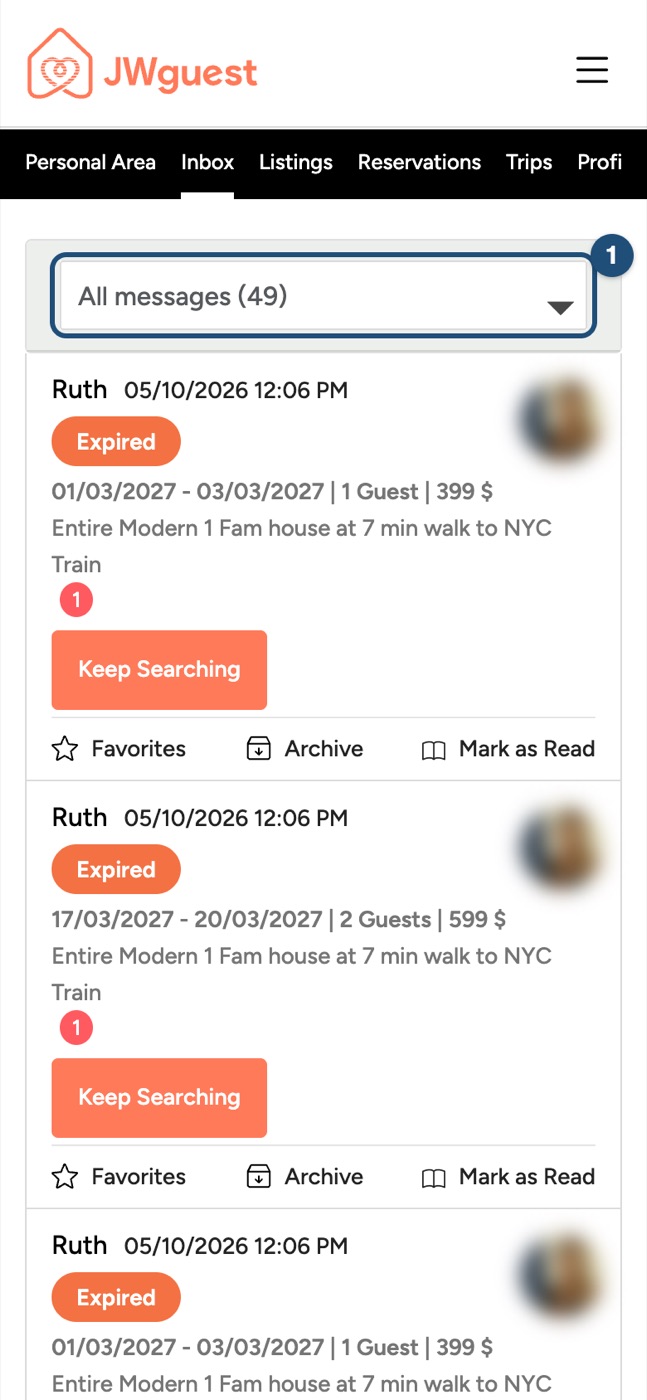
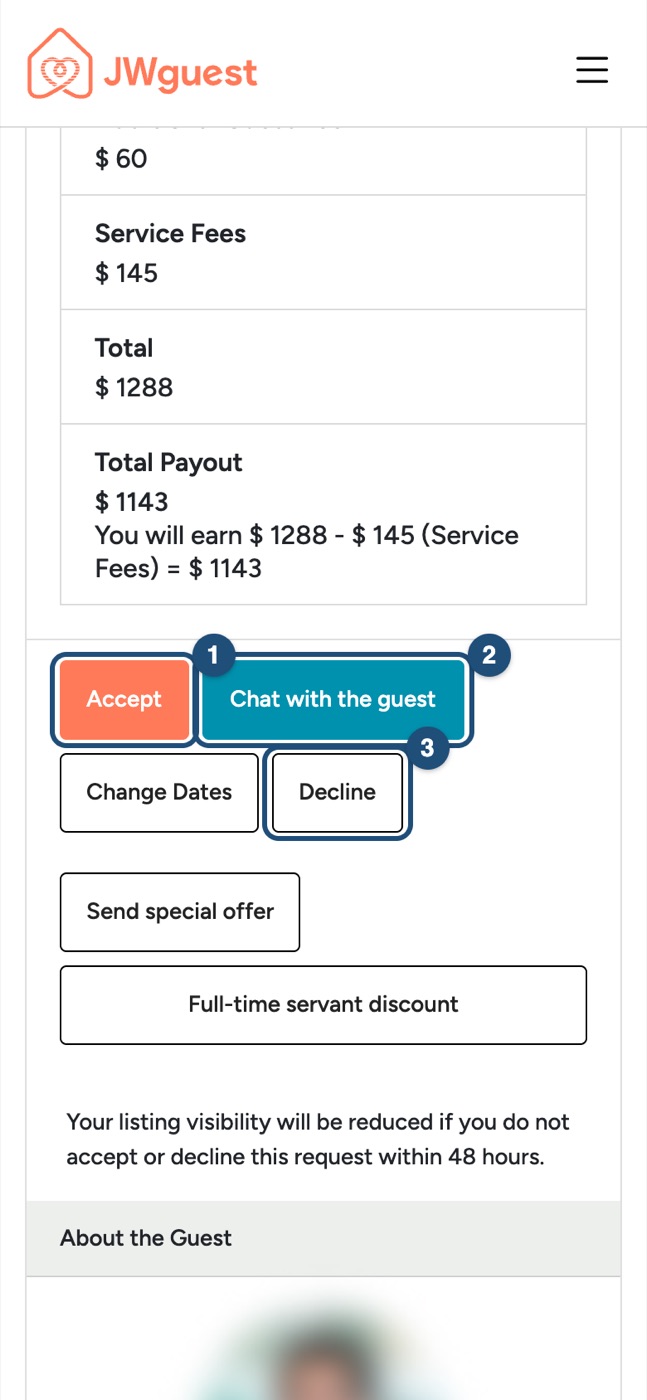
Check the details: Expires in (1) at the top shows the time left. Scroll down to see the price and your payout.
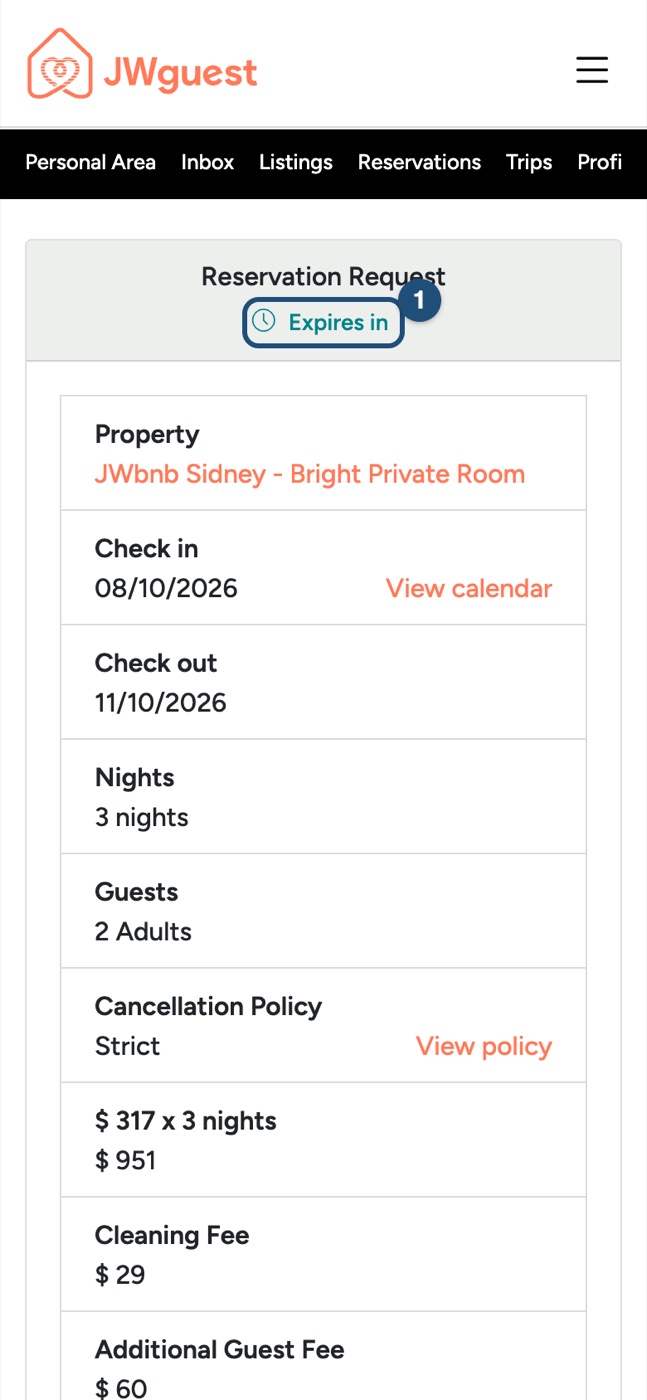
Answer: Scroll to the buttons: Accept (1), Chat with the guest (2) or Decline (3).
Before you accept
- Make sure the dates are really free in your calendar.
- Once a guest has sent a request, you can't ask for a higher price than the one in the request.
- Do not exchange phone numbers or emails in the chat before the booking is confirmed, and never accept payments outside JWguest.
Related articles: Booking Process · Steps for Hosts to Cancel a Booking