

Website
Open the guest's booking request and click Send special offer: enter how much you want to receive for the whole stay, add a message and send it. The guest's Service Fee stays as calculated for their request, and the guest can then confirm the booking instantly at the special price.
When to use it
A special offer lets you answer a request with a different price, for example for a longer stay, a family, or brothers and sisters you would like to help. You send it from the request, within the 48 hours you have to answer.
How to send a special offer
Here's a step-by-step guide:
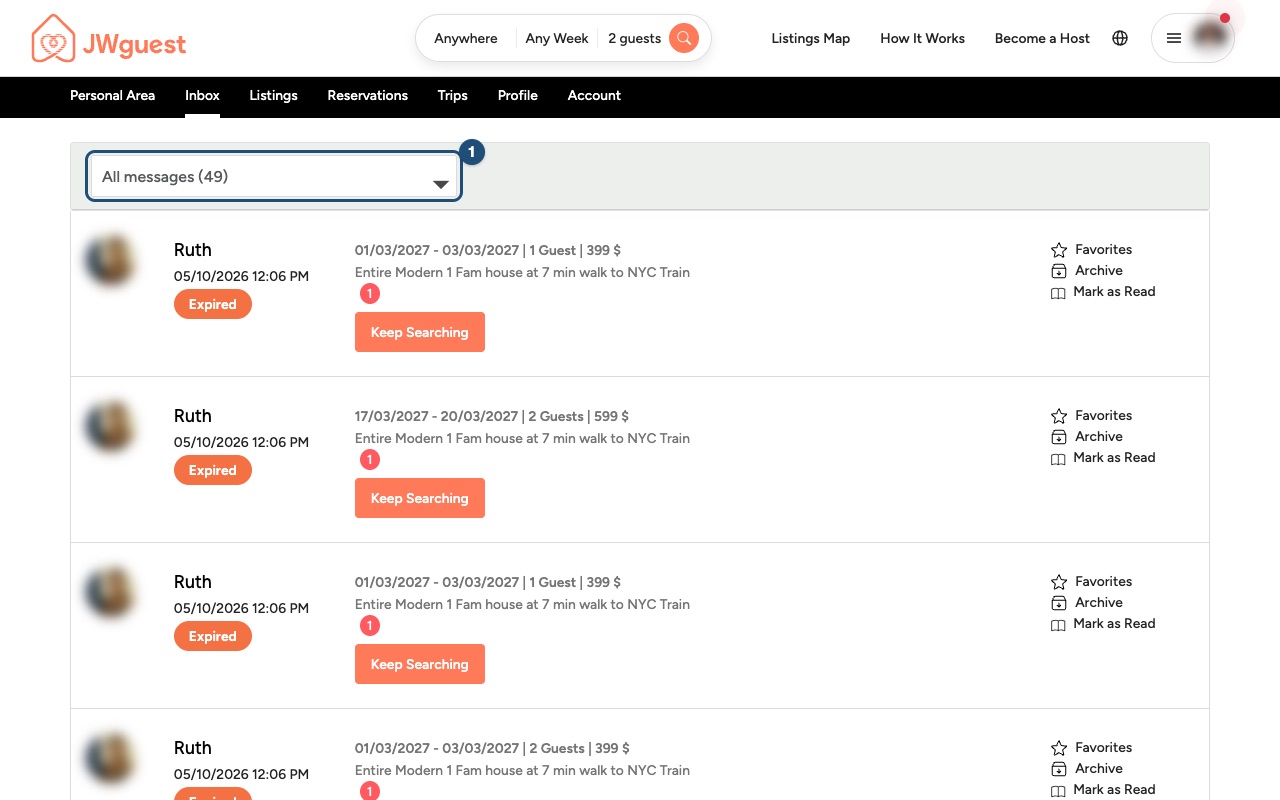
Open the request: go to Inbox and click the pending request (1).
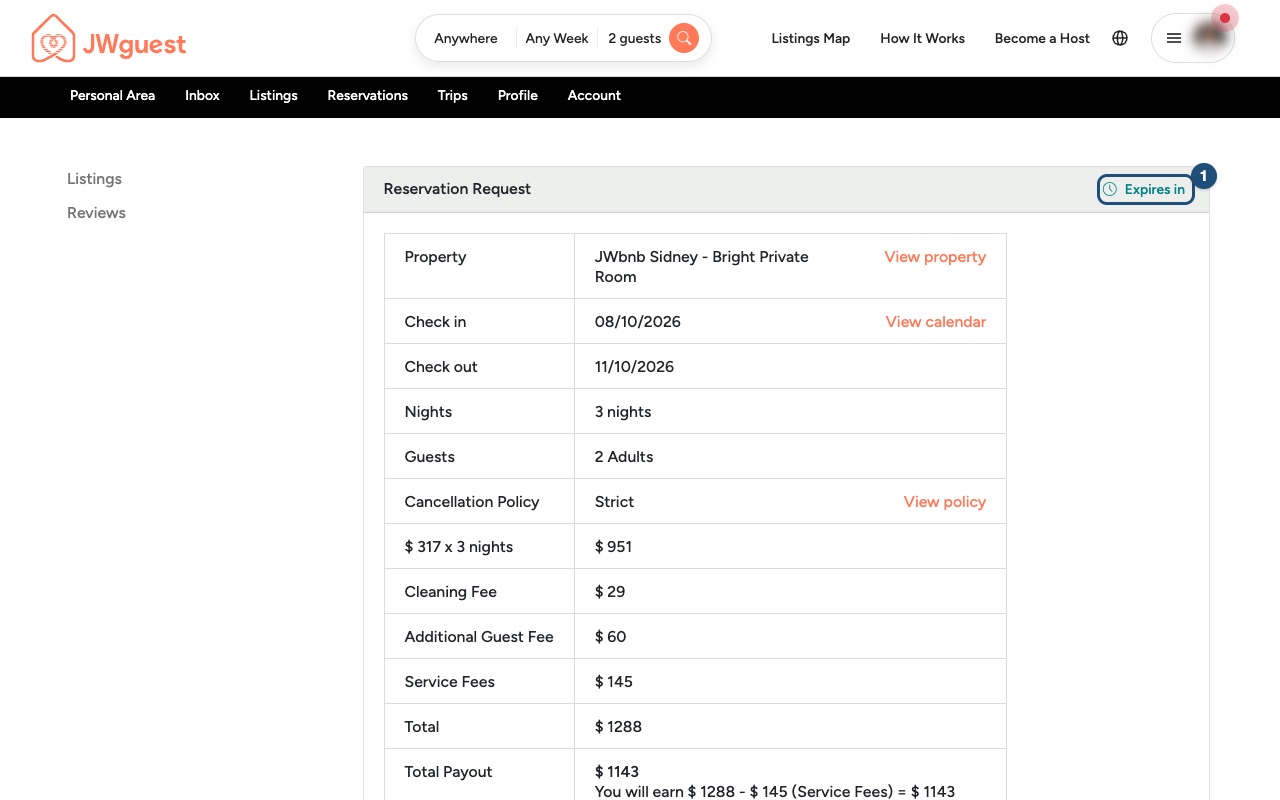
Check the time left: Expires in (1) at the top of the request shows how long you have to answer.
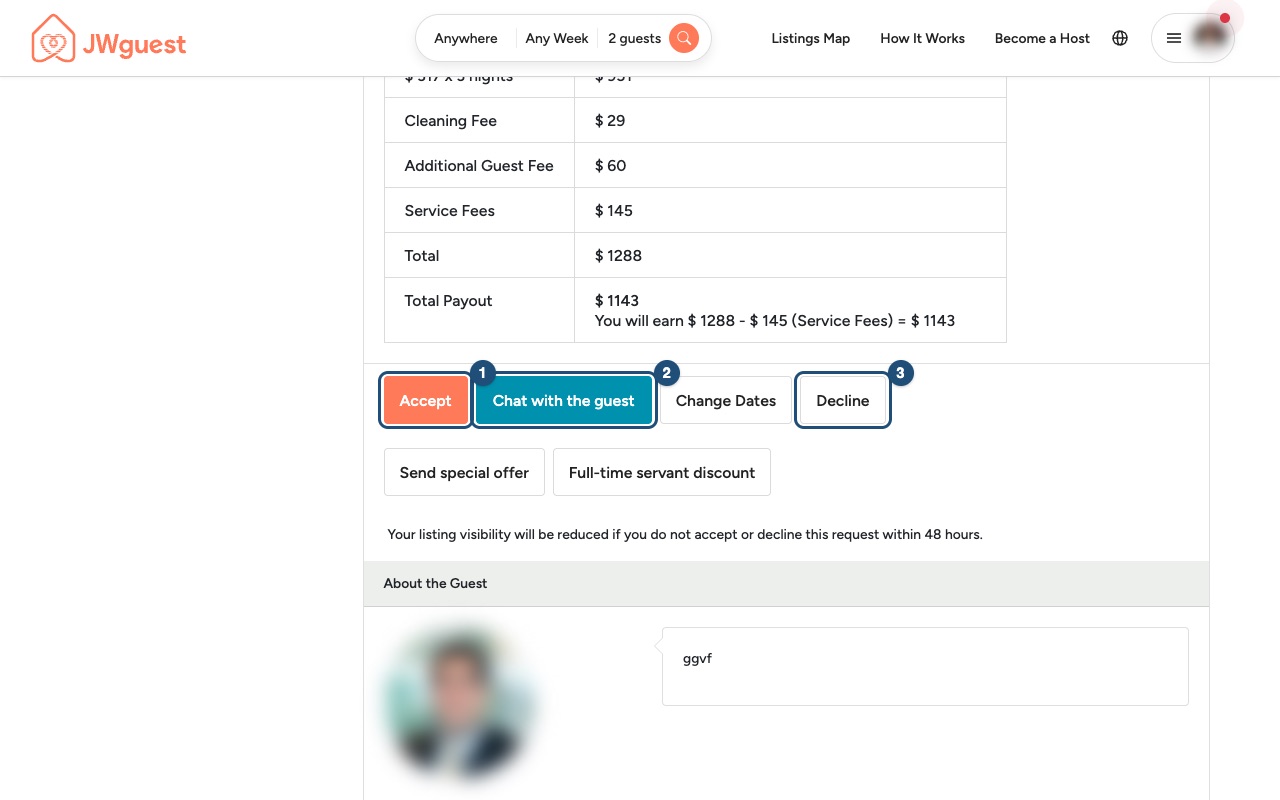
Click Send special offer: you'll find it with the other buttons on the request page, next to Accept (1), Chat with the guest (2) and Decline (3).
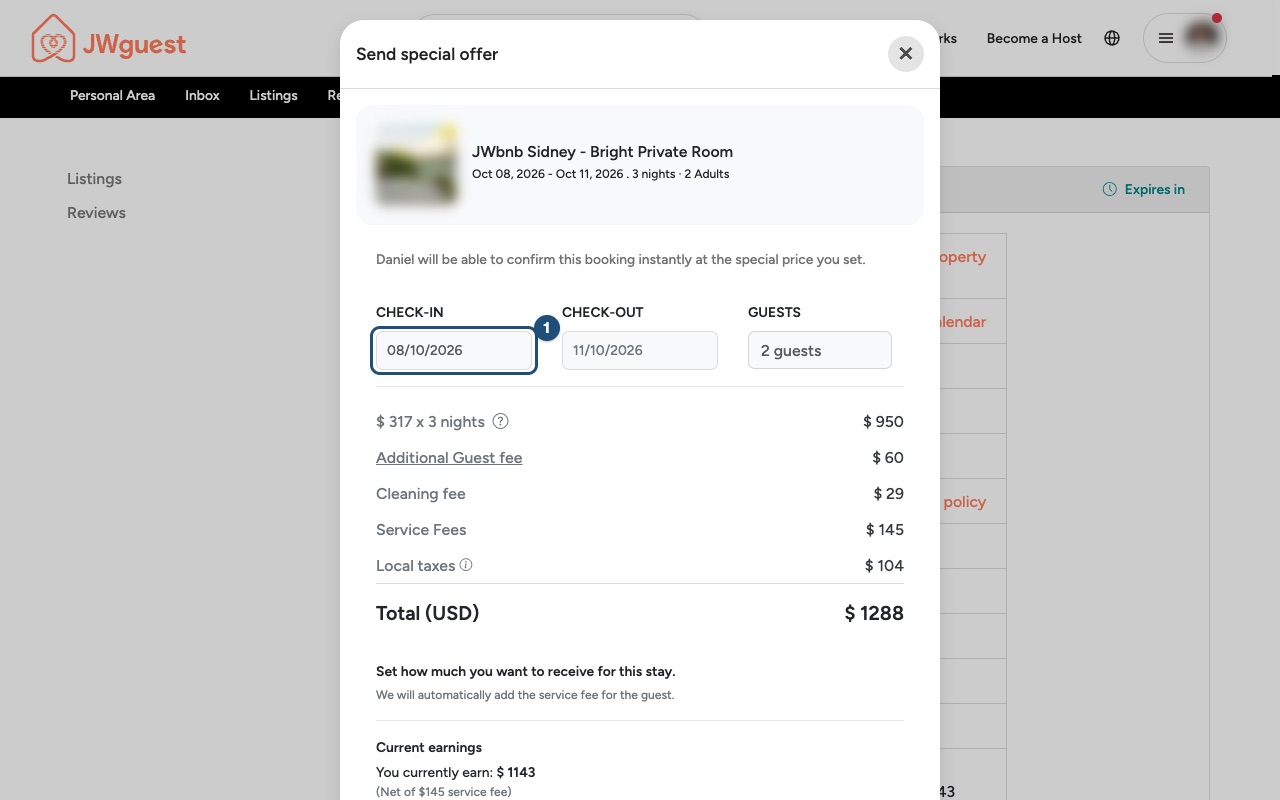
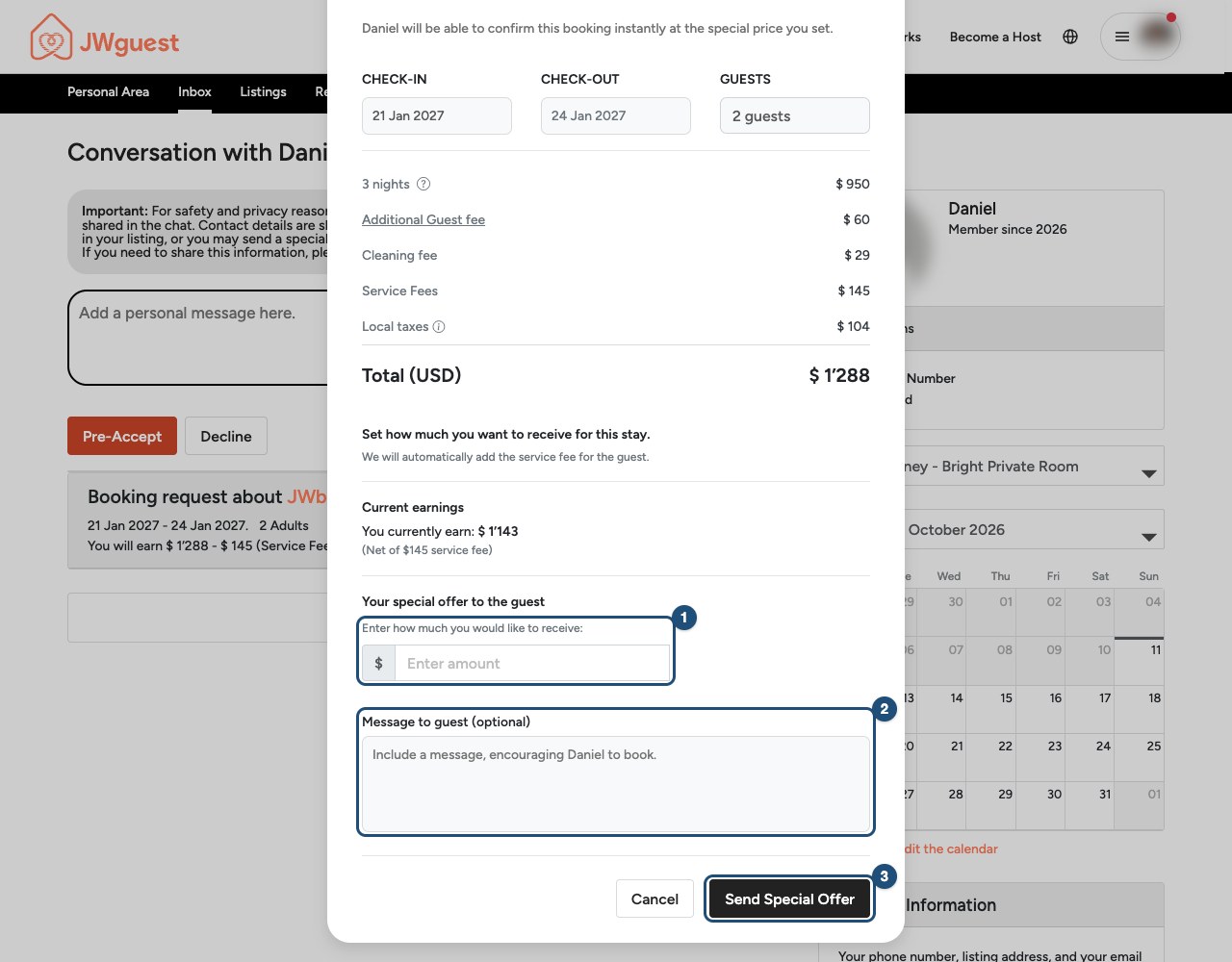
Check the stay and the current price: the offer keeps the listing, the dates (1) and the guests of the request: they are shown but can't be changed here. Below them you see the price breakdown of the request and, under Current earnings, what you currently earn.
Enter your amount (1): in Enter how much you would like to receive, type the amount you want to receive for the whole stay, including your fees and taxes. The guest's Service Fee stays as calculated for their request: it is not recalculated. For example, if you currently earn $1,143 and you enter $1,000, you receive $1,000 for the whole stay, including your fees and taxes: no local taxes are added on top for the guest.
Write a message and send it: explain your offer to the guest in a few words in Message to guest (optional) (2), then click Send Special Offer (3).
To offer other dates or a different number of guests, close the window and use Edit dates or guests on the request instead.
The guest will be able to confirm the booking instantly at the special price with Confirm & Pay. The booking is confirmed when the guest's payment succeeds.
Good to know
- You receive the price you set: JWguest charges hosts no commission. The Service Fee is paid by the guest on top of your price. See Service fees for hosts.
- Agree everything inside JWguest. Never ask the guest to pay outside JWguest, and don't share phone numbers, emails or links in the chat before the booking is confirmed.
- You can also simply Accept, Decline or propose other dates with Edit dates or guests. See Accept or decline a booking request.
Related articles: Accept or decline a booking request · Full-time servants discount · When you will get your payout
Mobile browser
Open the guest's booking request and tap Send special offer: enter how much you want to receive for the whole stay, add a message and send it. The guest's Service Fee stays as calculated for their request, and the guest can then confirm the booking instantly at the special price.
When to use it
A special offer lets you answer a request with a different price, for example for a longer stay or a family. You send it from the request, within the 48 hours you have to answer.
How to send a special offer from your phone
Here's a step-by-step guide:
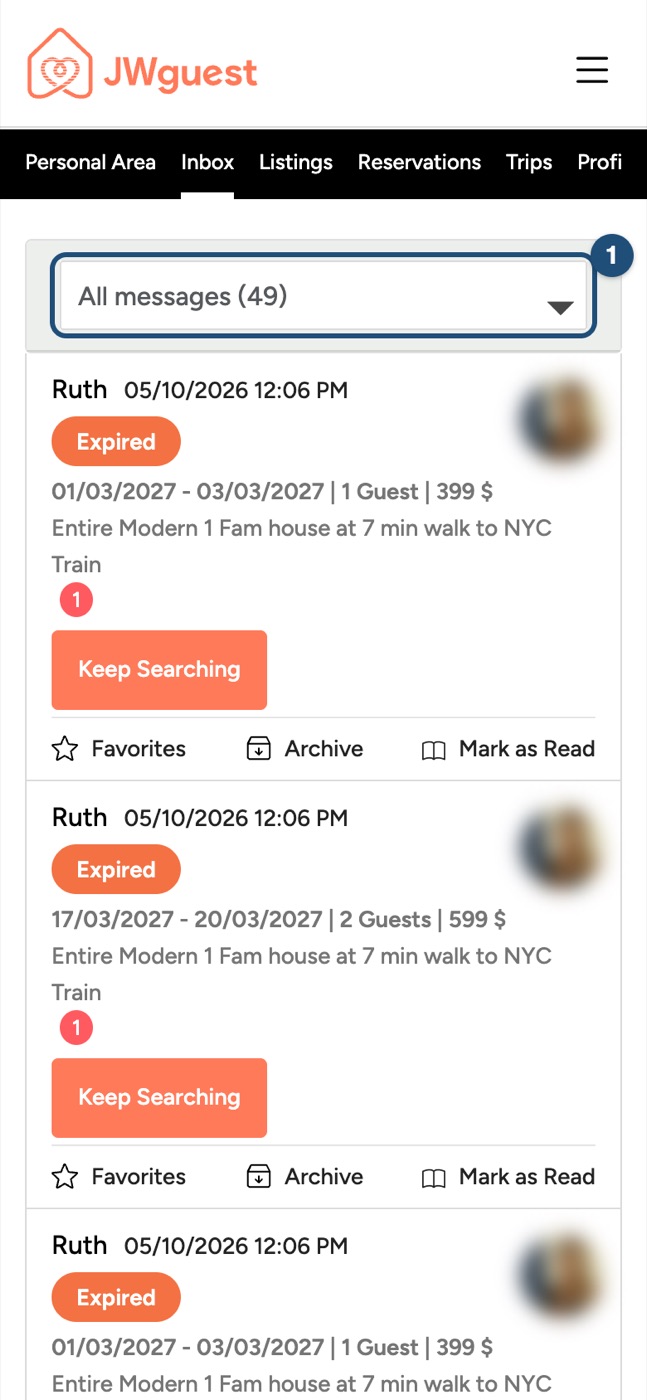
Open the request: tap the menu (three lines, top right), then Inbox, and tap the pending request (1).
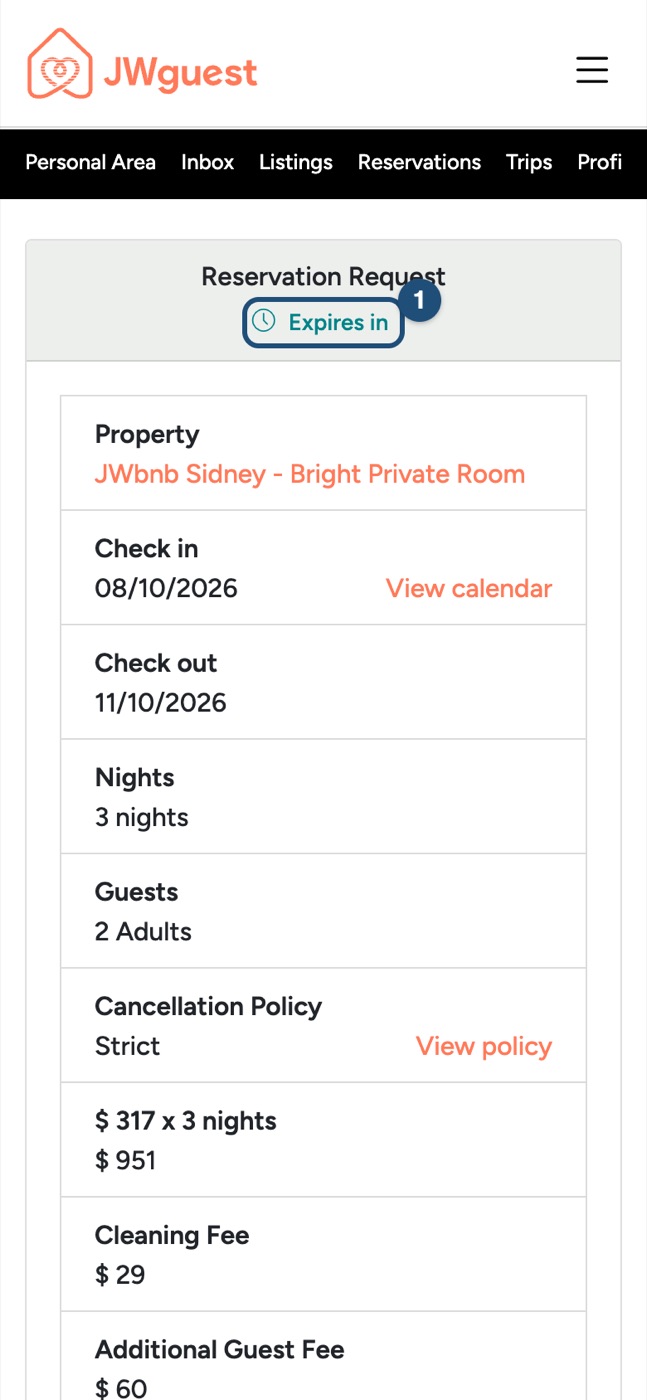
Check the time left: Expires in (1) is at the top of the request.
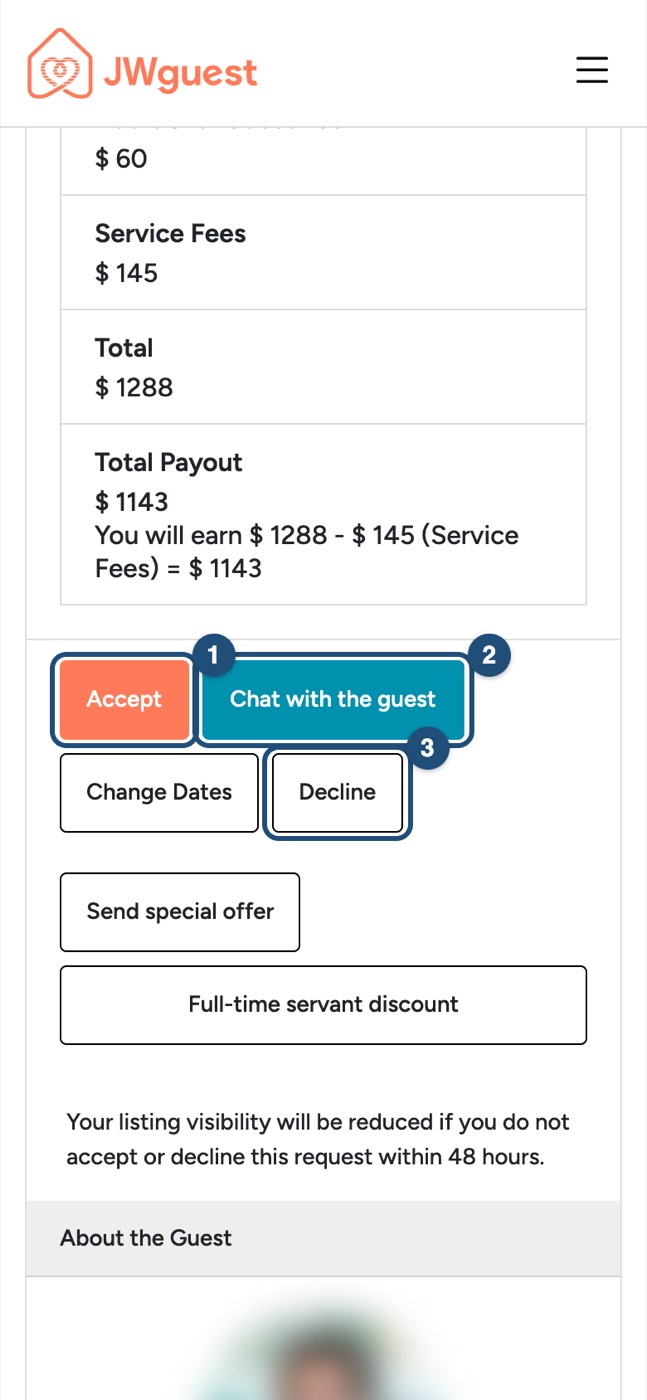
Scroll to the buttons: next to Accept (1), Chat with the guest (2) and Decline (3), tap Send special offer.
Check the stay and the current price: the offer keeps the listing, the dates (1) and the guests of the request: they are shown but can't be changed here. Scroll down for the price breakdown and what you currently earn.
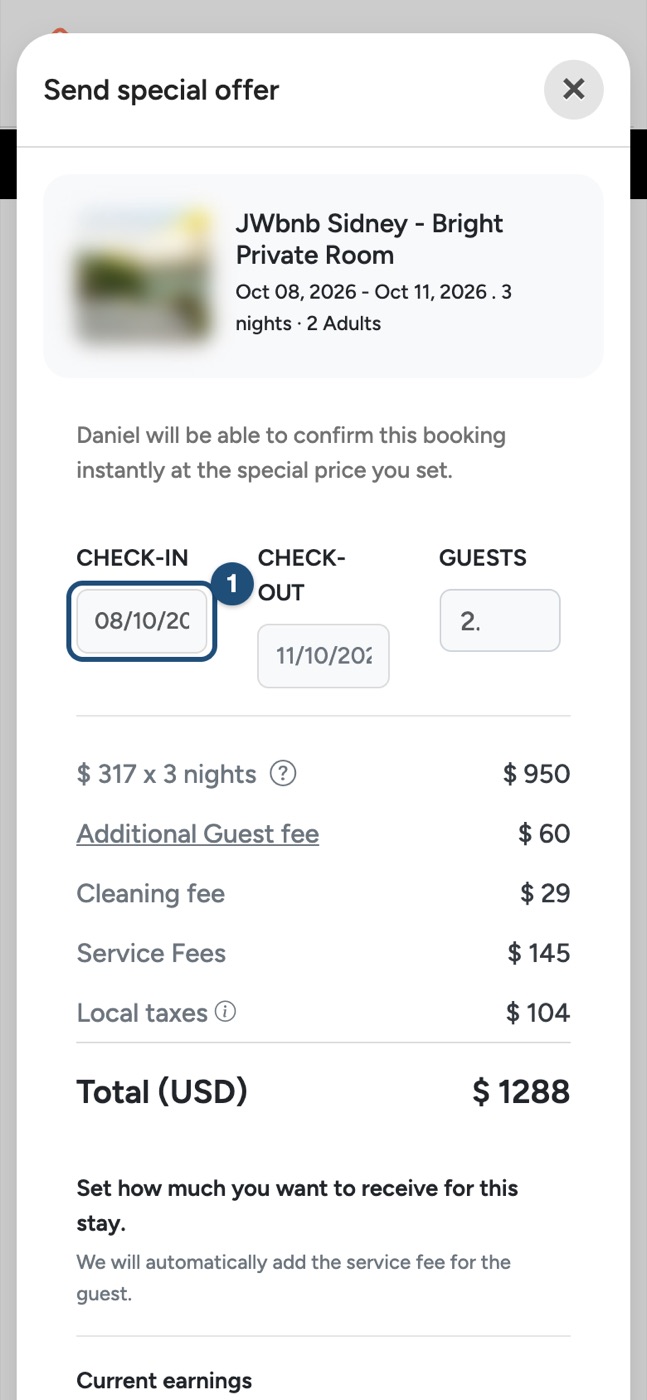
Enter your amount (1): in Enter how much you would like to receive, type the amount you want to receive for the whole stay, including your fees and taxes. The guest's Service Fee stays as calculated for their request: it is not recalculated.
Write a message and send it: add a few words in Message to guest (optional) (2) and tap Send Special Offer (3).
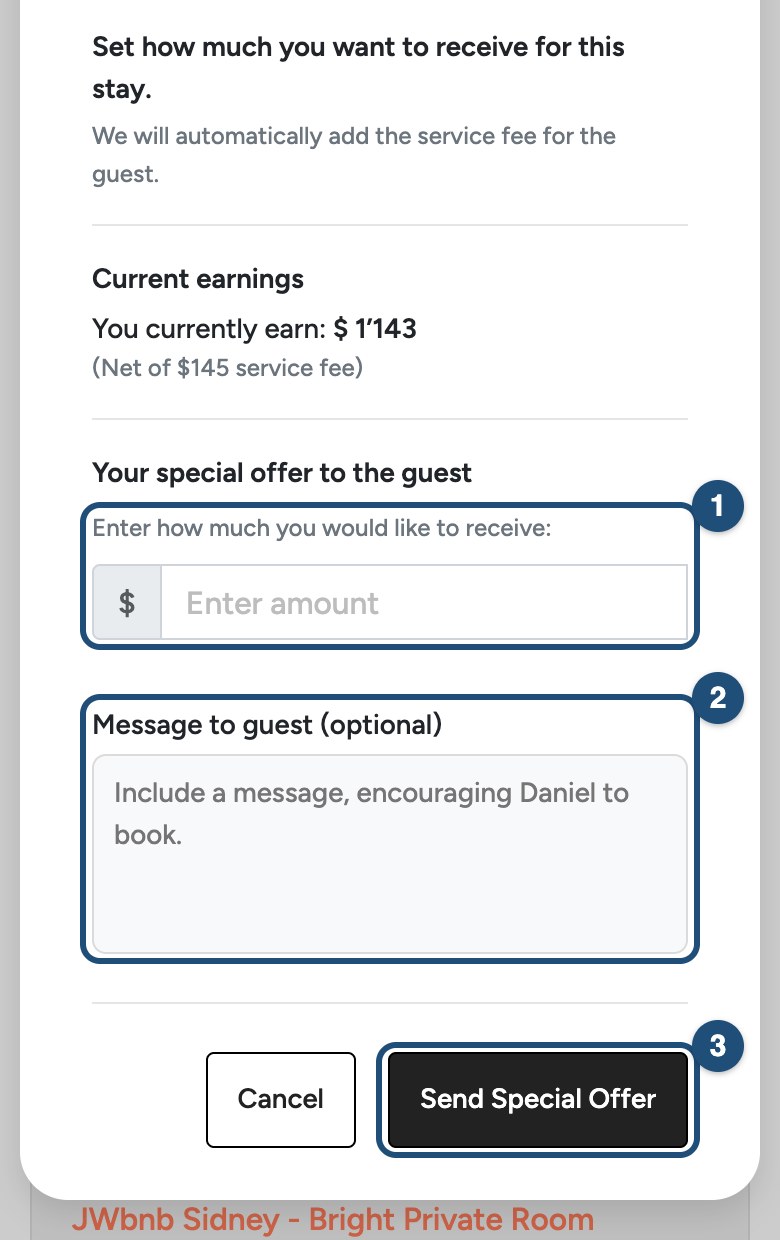
To offer other dates or a different number of guests, close the window and use Edit dates or guests on the request instead.
The guest will be able to confirm the booking instantly at the special price with Confirm & Pay. The booking is confirmed when the payment succeeds.
Good to know
- You receive the price you set: JWguest charges hosts no commission. See Service fees for hosts.
- Never ask the guest to pay outside JWguest, and don't share contact details in the chat before the booking is confirmed.
Related articles: Accept or decline a booking request · Full-time servants discount · When you will get your payout
iOS app
Open the guest's booking request and tap Send Special Offer: enter how much you want to receive for the whole stay, add a message and send it. The guest's Service Fee stays as calculated for their request, and the guest can then confirm the booking instantly at the special price.
When to use it
A special offer lets you answer a request with a different price, for example for a longer stay or a family. You send it from the request, within the 48 hours you have to answer.
How to send a special offer in the app
Here's a step-by-step guide:
Open the request: tap the notification, or tap Inbox in the bar at the bottom (in hosting mode) and tap the pending request. Below the message field, tap Send Special Offer (4).
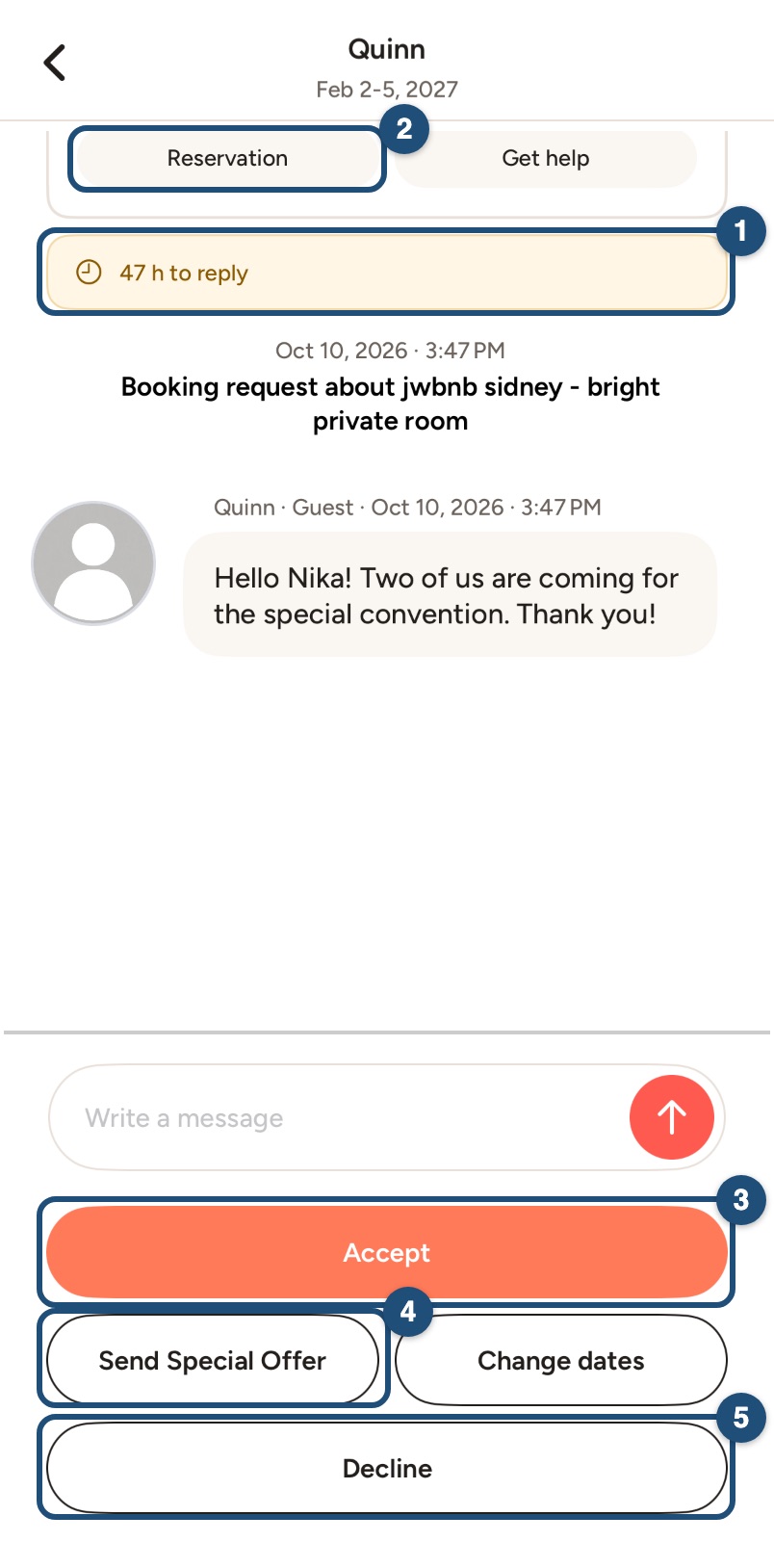
Check the stay and the current price: the window shows the listing, the dates, the guests and what you earn today.
Enter your amount (1): type how much you want to receive for the whole stay, including all your fees and taxes, or tap a quick discount (2). You receive (3) shows the result next to today's amount; the guest's Service Fee is calculated separately.
Send it: The button reads Change the price to send until the price differs from today's; then tap it to send the offer (4). Add a message for the guest below the price if you like.
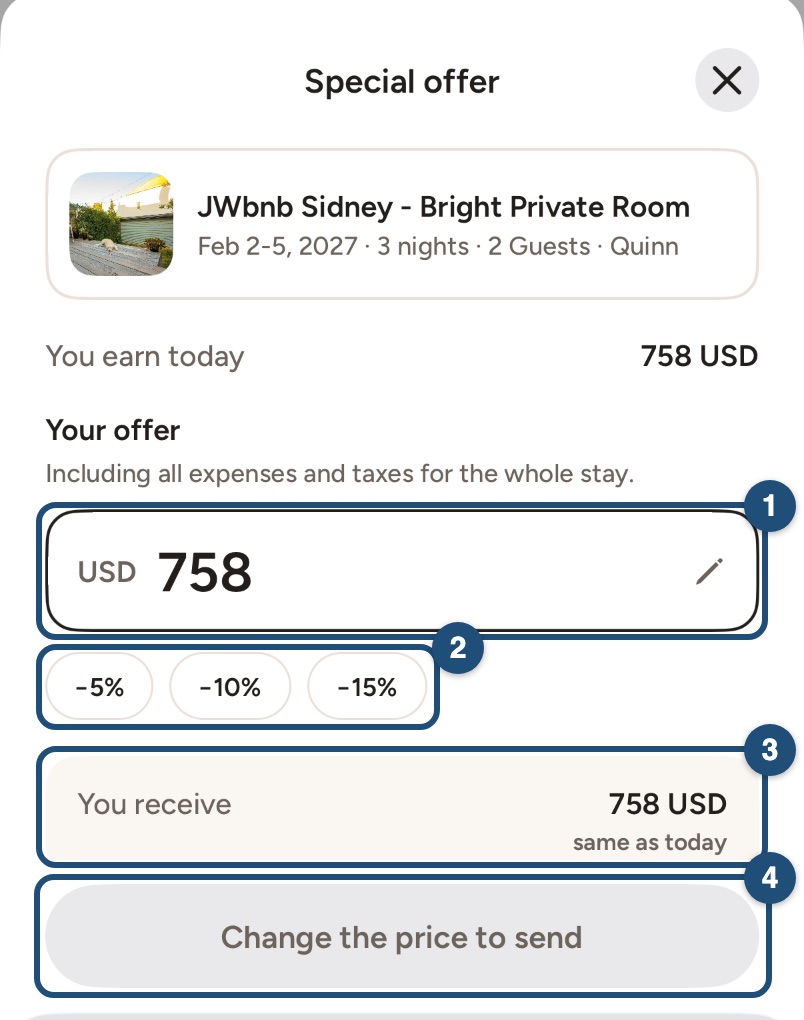
The guest will be able to confirm the booking instantly at the special price with Confirm and pay. The booking is confirmed when the payment succeeds.
Good to know
- You receive the price you set: JWguest charges hosts no commission. See Service fees for hosts.
- Never ask the guest to pay outside JWguest, and don't share contact details in the chat before the booking is confirmed.
Related articles: Accept or decline a booking request · Full-time servants discount · When you will get your payout
Android app
Open the guest's booking request and tap Send Special Offer: enter how much you want to receive for the whole stay, add a message and send it. The guest's Service Fee stays as calculated for their request, and the guest can then confirm the booking instantly at the special price.
When to use it
A special offer lets you answer a request with a different price, for example for a longer stay or a family. You send it from the request, within the 48 hours you have to answer.
How to send a special offer in the app
Here's a step-by-step guide:
Open the request: tap the notification, or tap Inbox in the bar at the bottom (in hosting mode) and tap the pending request. Below the message field, tap Send Special Offer (4).
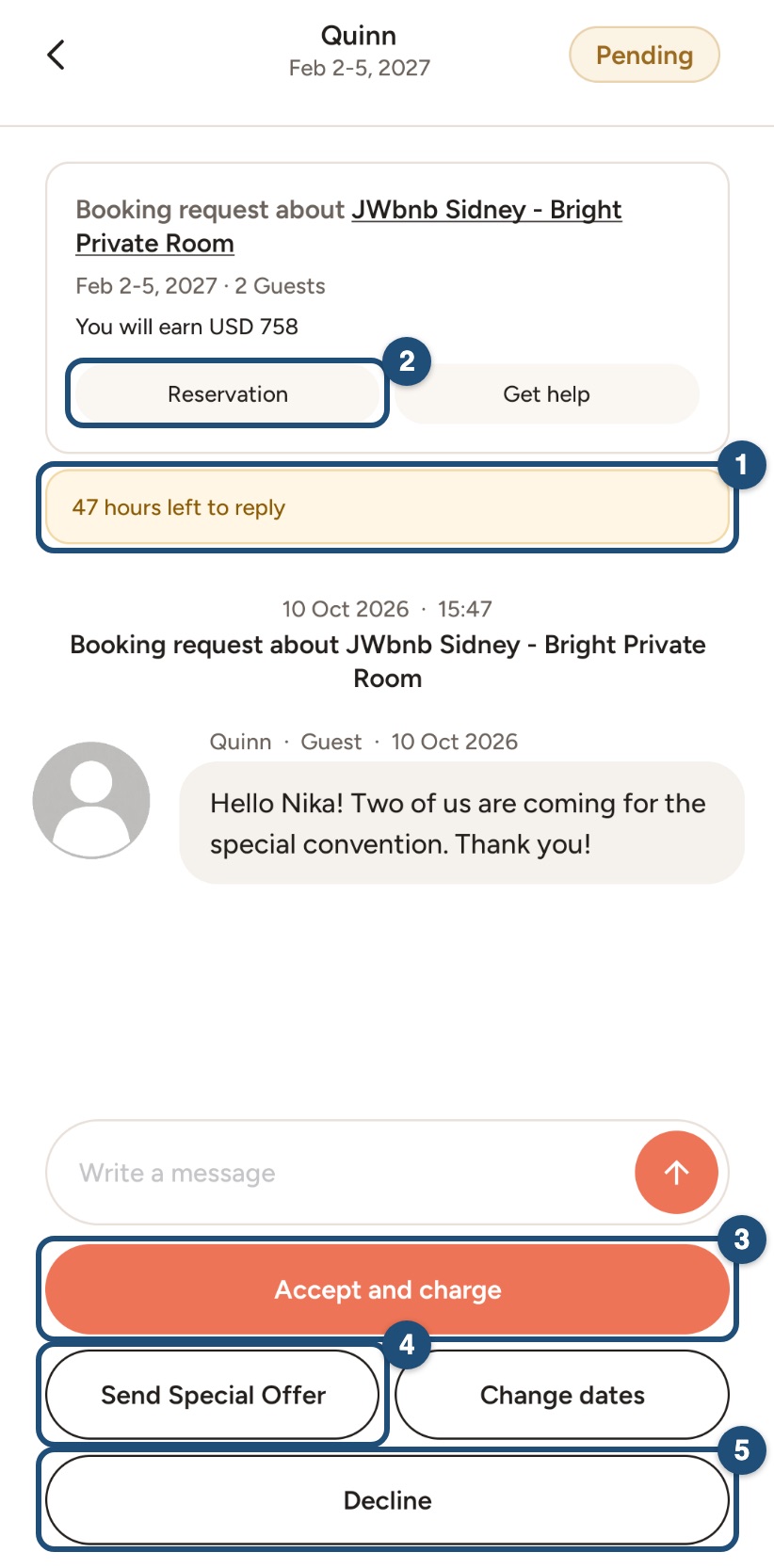
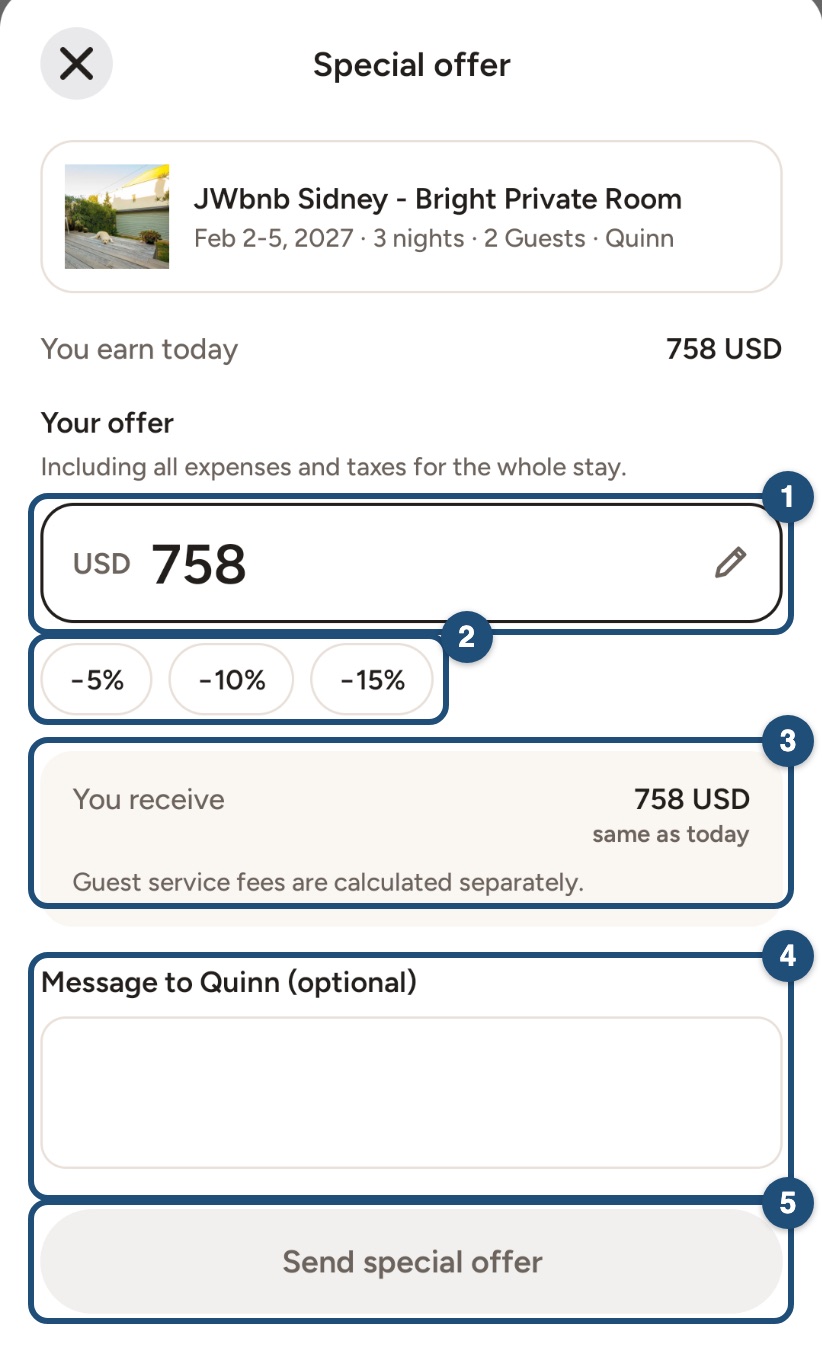
Check the stay and the current price: the window shows the listing, the dates, the guests and what you earn today.
Enter your amount (1): type how much you want to receive for the whole stay, including all your fees and taxes, or tap a quick discount (2). You receive (3) shows the result next to today's amount; the guest's Service Fee is calculated separately.
Send it: Add a message for the guest if you like (4) and tap Send special offer (5).
The guest will be able to confirm the booking instantly at the special price with Confirm and pay. The booking is confirmed when the payment succeeds.
Good to know
- You receive the price you set: JWguest charges hosts no commission. See Service fees for hosts.
- Never ask the guest to pay outside JWguest, and don't share contact details in the chat before the booking is confirmed.
Related articles: Accept or decline a booking request · Full-time servants discount · When you will get your payout