
Website
Hosts are the heart of JWguest, and we want to help you succeed. Here's how to handle requests, where to find your reservations, and how to reach us.
Answer booking requests
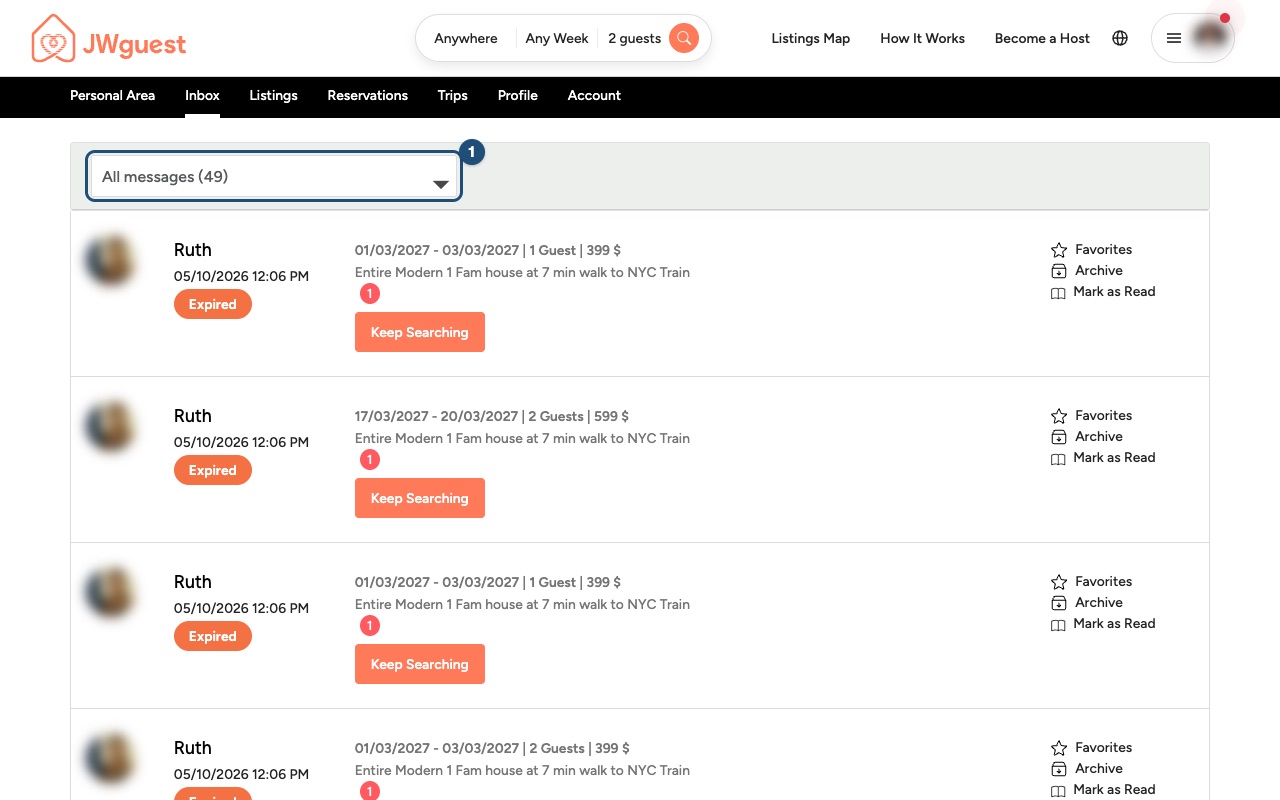
When a guest sends a request, you receive a message in your Inbox (1).
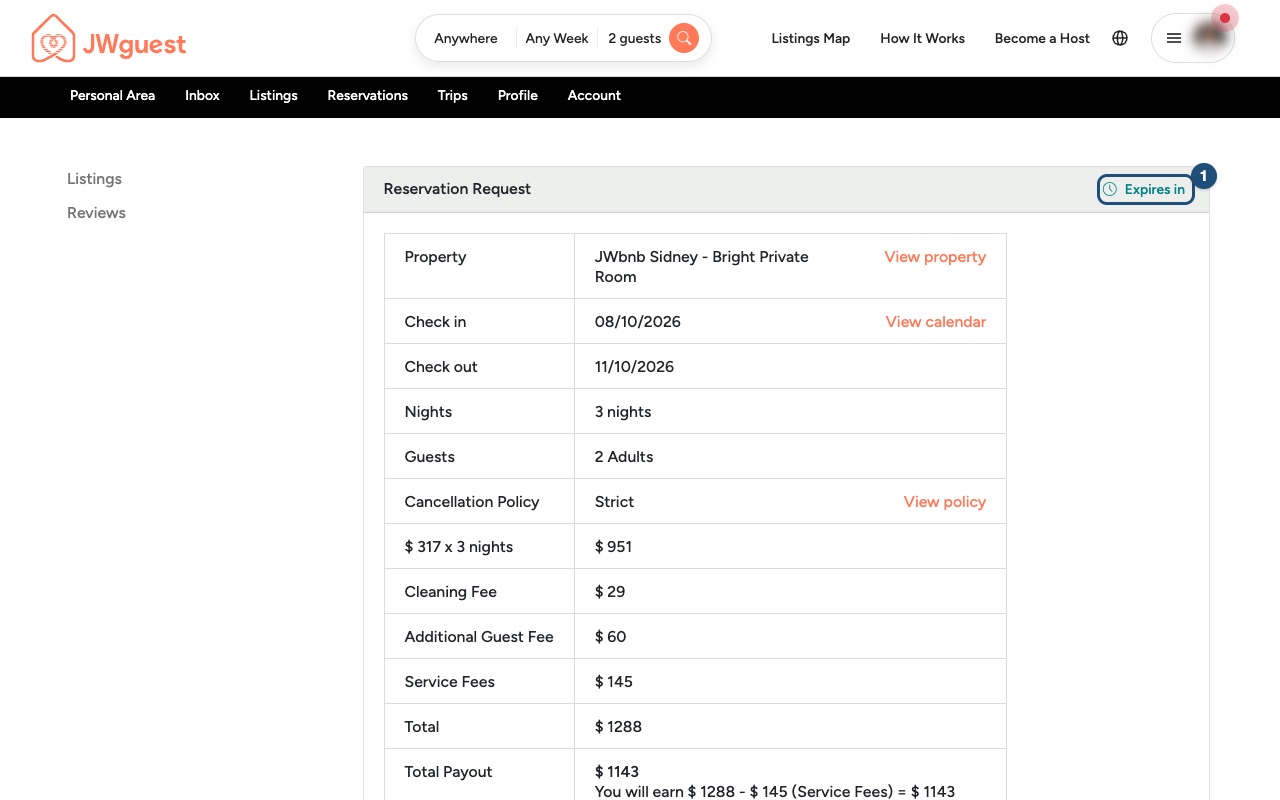
Open it to see the Reservation Request page: dates, guests, cancellation policy, price breakdown and your Total Payout. The Expires in countdown (1) shows how long you have left to answer.
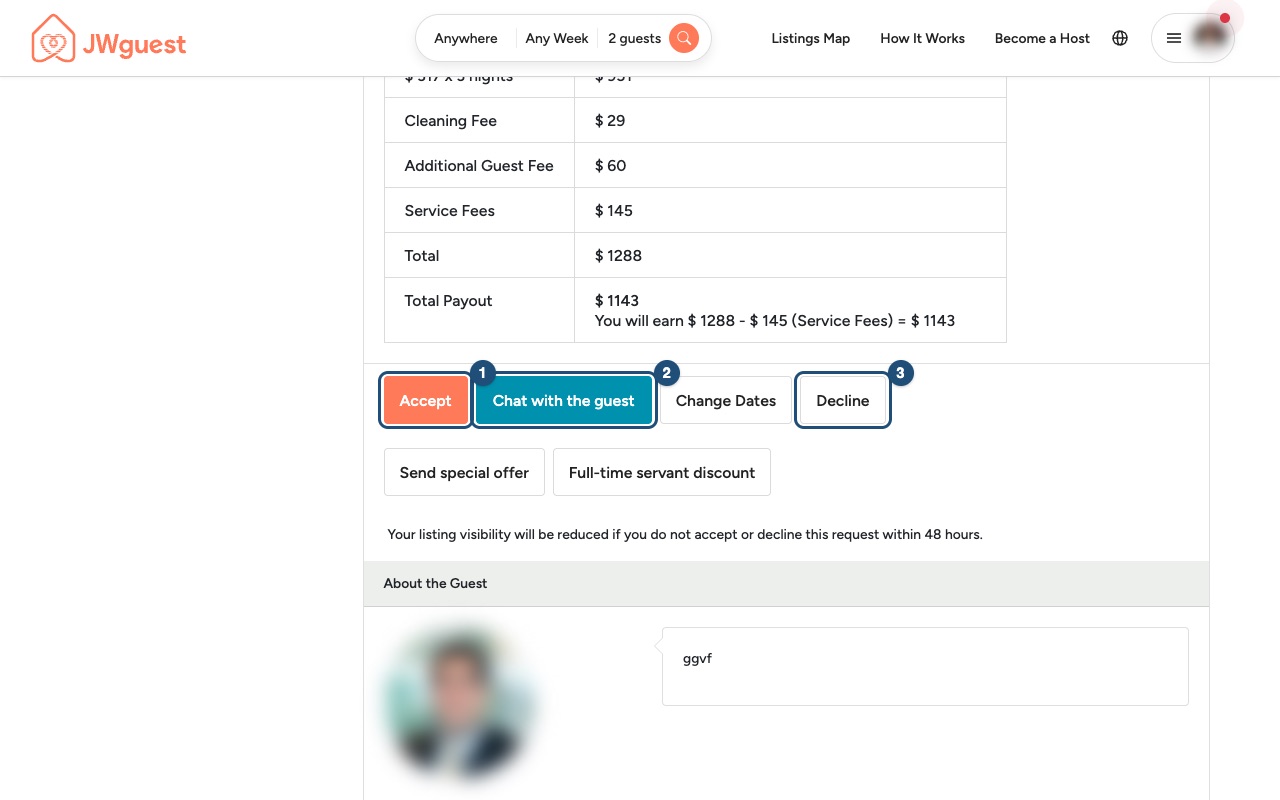
At the bottom of the request you can:
- Accept (1): confirm the guest's request.
- Chat with the guest (2): ask a question before deciding.
- Decline (3): if the dates or the request don't work for you.
- Change Dates or Send special offer: propose different dates or a different price.
Your reservations
Click Reservations in the Personal Area bar to see upcoming stays. Use Message History to write to a guest.
Changing or cancelling a reservation
Please keep every booking you accept: cancellations disrupt guests' plans and affect trust in the community. If you really must cancel, follow Steps for hosts to cancel a booking: penalties such as a cancellation fee or a blocked calendar may apply. If a guest cancels, you face no penalty.
During the stay
Be available, or have someone available, for the first 12 hours after check-in. If a guest reports a problem to us, we may contact you. See How to provide an excellent service.
Contact us
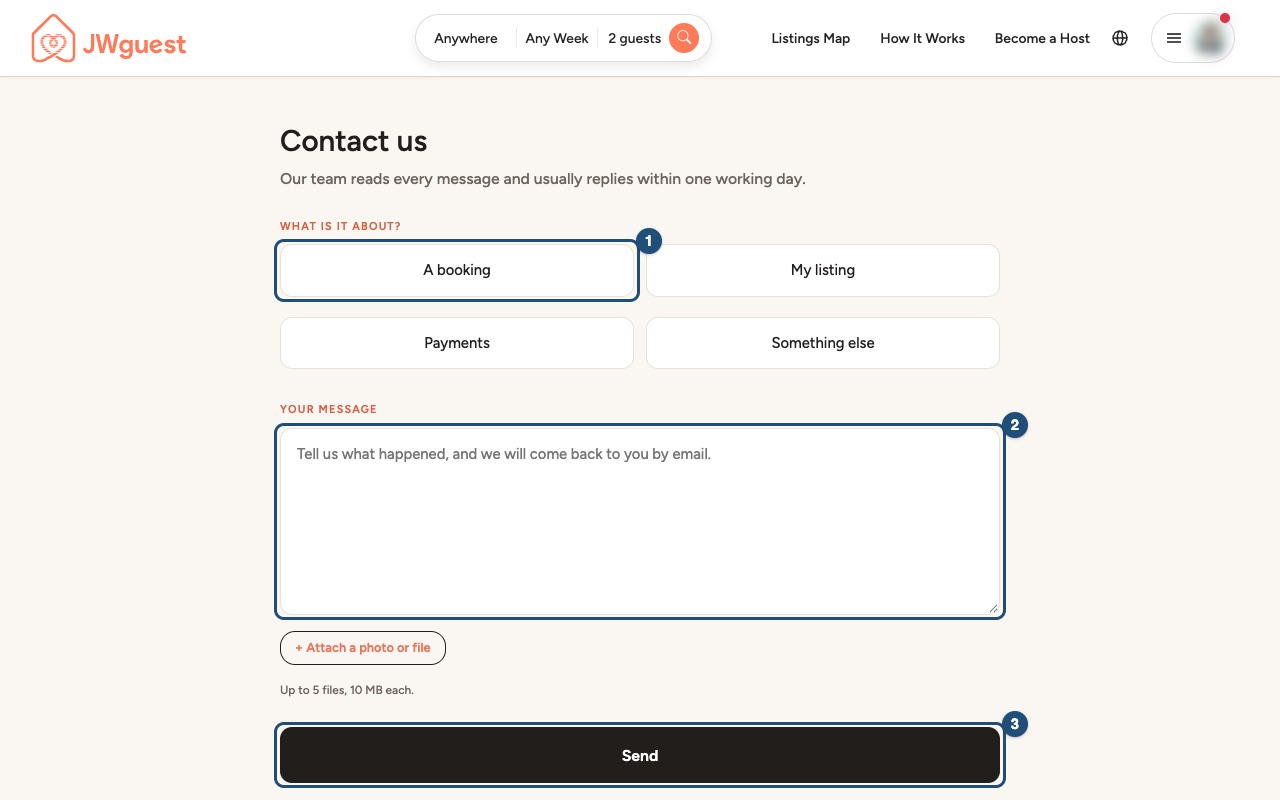
Use the Contact us page: choose a topic such as "My listing" or "A booking", write your message and click Send. You can attach up to 5 files of 10 MB each. You can also email [email protected]. Our team usually replies within one working day.
More guides: List your accommodation · Update your listing · Update your calendar · When you will get your payout
Mobile browser
Hosts are the heart of JWguest, and we want to help you succeed. Here's how to handle requests from your phone and how to reach us.
Answer booking requests
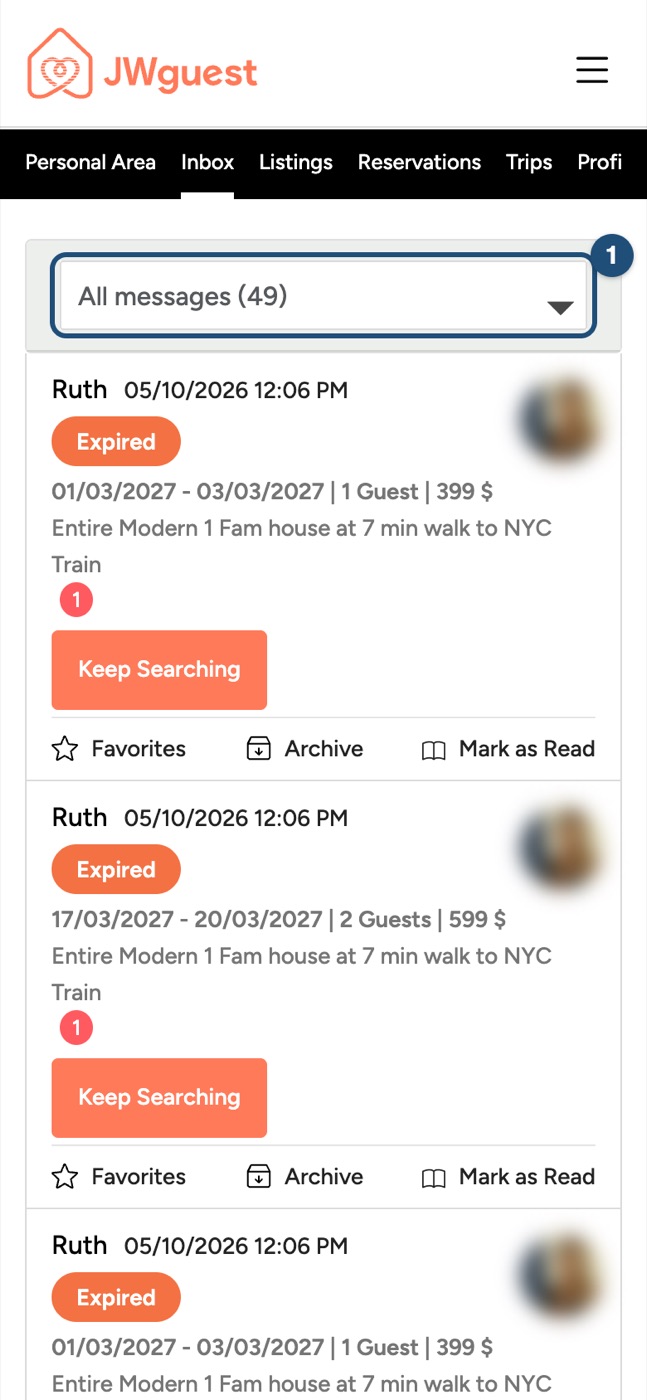
When a guest sends a request, you receive a message in your Inbox: tap Inbox in the black Personal Area bar and open the guest's message (1).
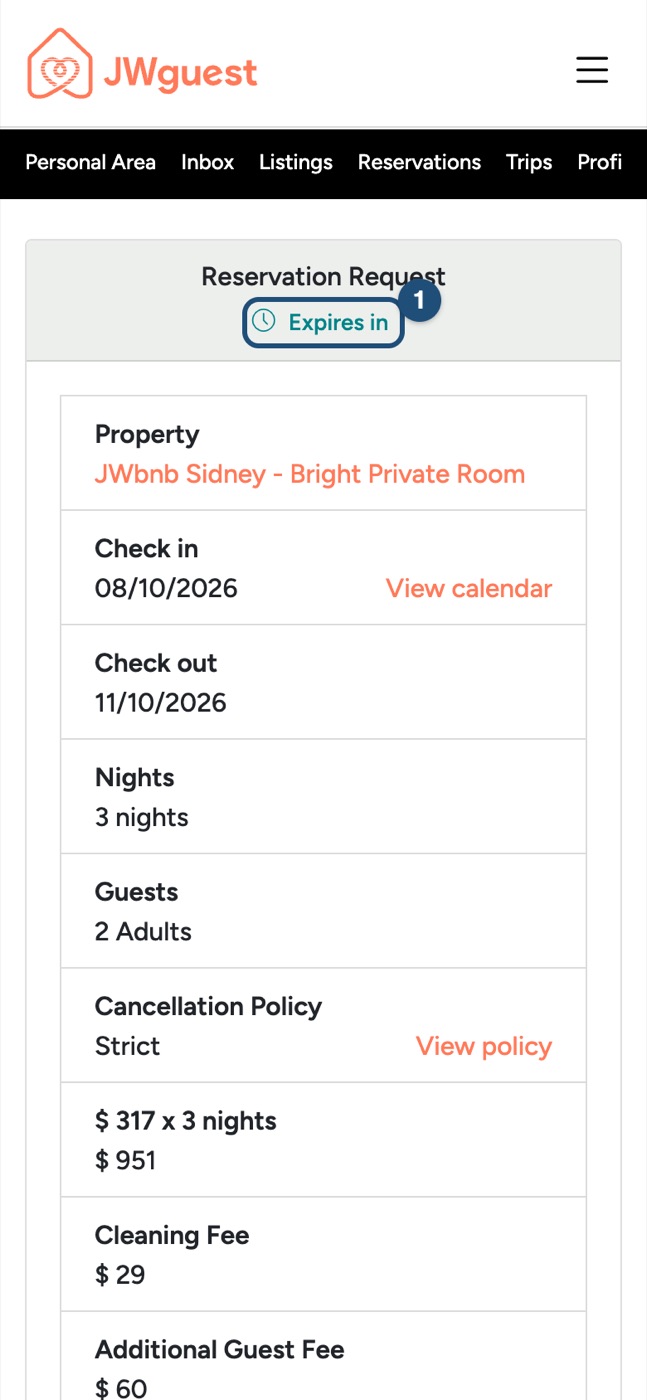
The Reservation Request page shows the dates, guests, price breakdown and your Total Payout. The Expires in countdown (1) at the top shows how long you have left to answer.
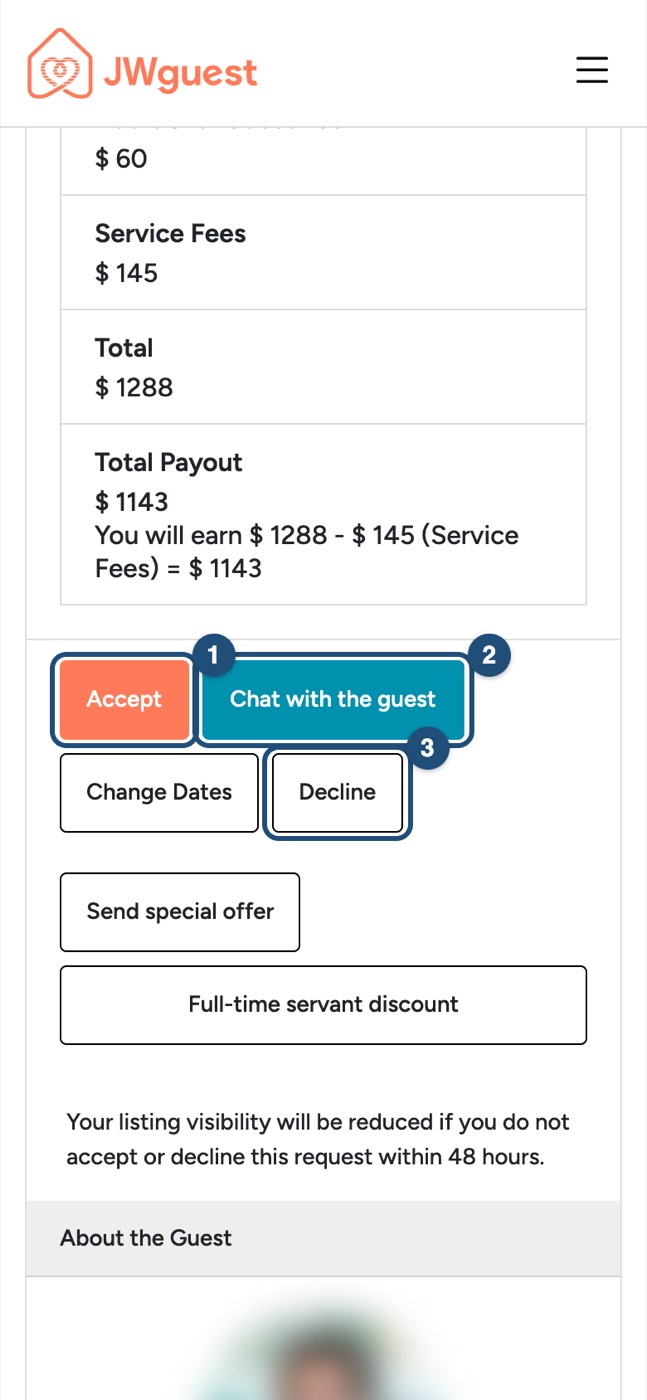
Scroll down to the buttons:
- Accept (1): confirm the guest's request.
- Chat with the guest (2): ask a question before deciding.
- Decline (3): if the dates or the request don't work for you.
- Change Dates or Send special offer: propose different dates or a different price.
Your reservations
Tap Reservations in the Personal Area bar. The table is wider than your screen: swipe it left to see the guest and Message History.
Changing or cancelling a reservation
Please keep every booking you accept. If you really must cancel, follow Steps for hosts to cancel a booking: penalties such as a cancellation fee or a blocked calendar may apply. If a guest cancels, you face no penalty.
During the stay
Be available, or have someone available, for the first 12 hours after check-in. See How to provide an excellent service.
Contact us
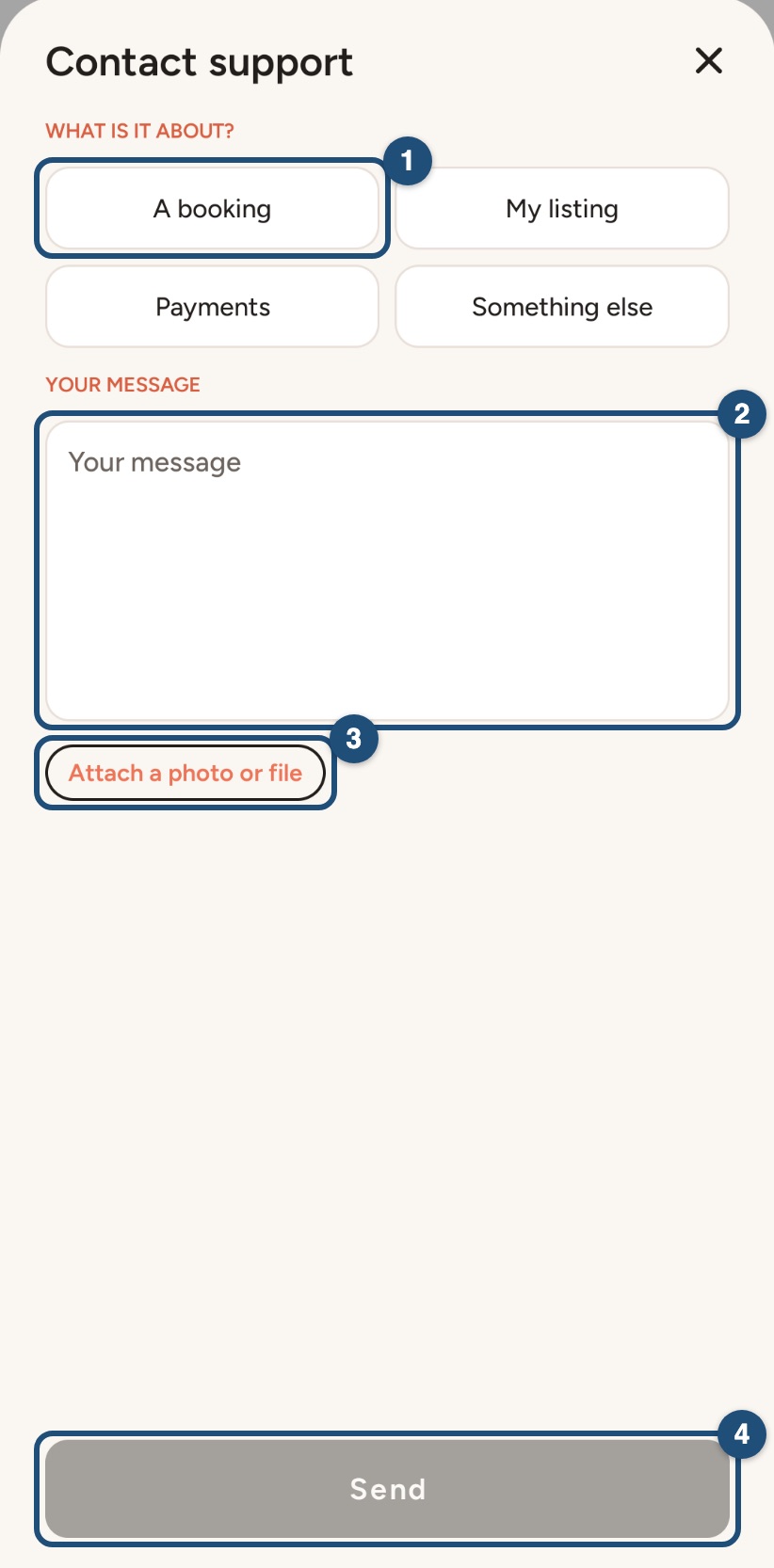
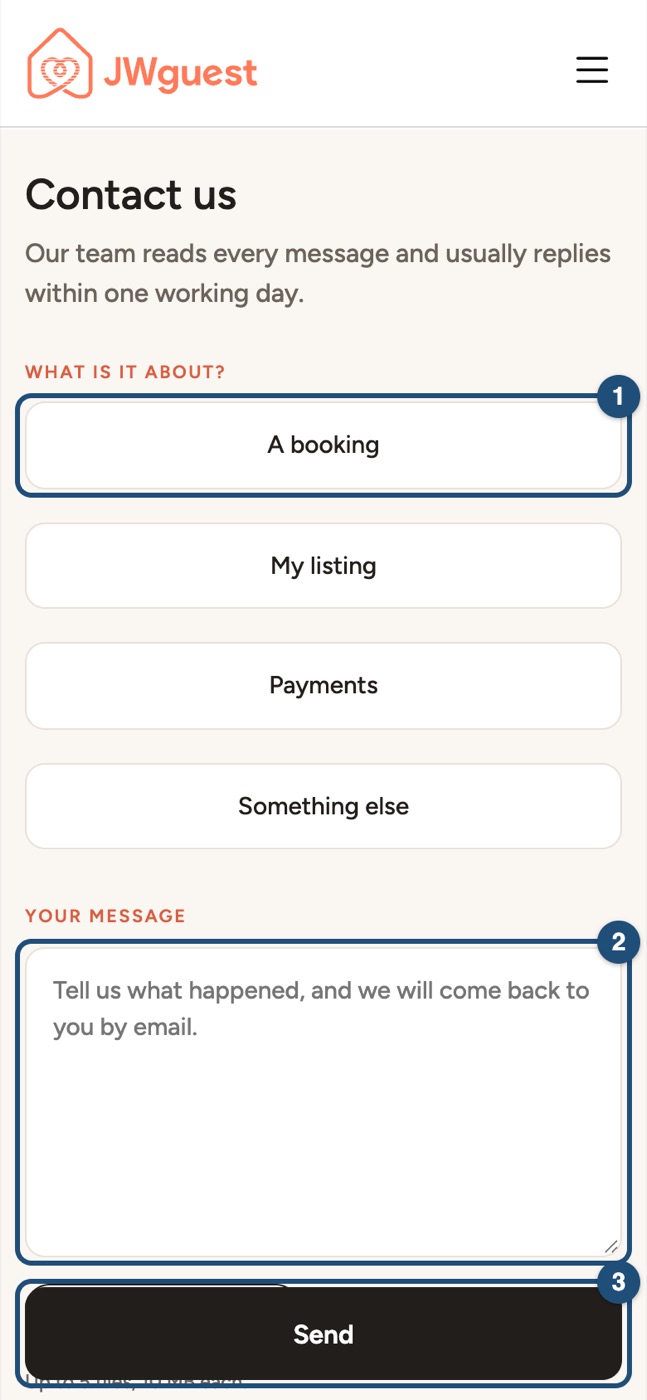
Open the Contact us page, tap a topic such as "My listing" (1), write your message (2), attach photos if needed and tap Send (3). You can also email [email protected]. Our team usually replies within one working day.
iOS app
Hosts are the heart of JWguest, and we want to help you succeed. Here's how to handle requests in the app and how to reach us.
Answer booking requests
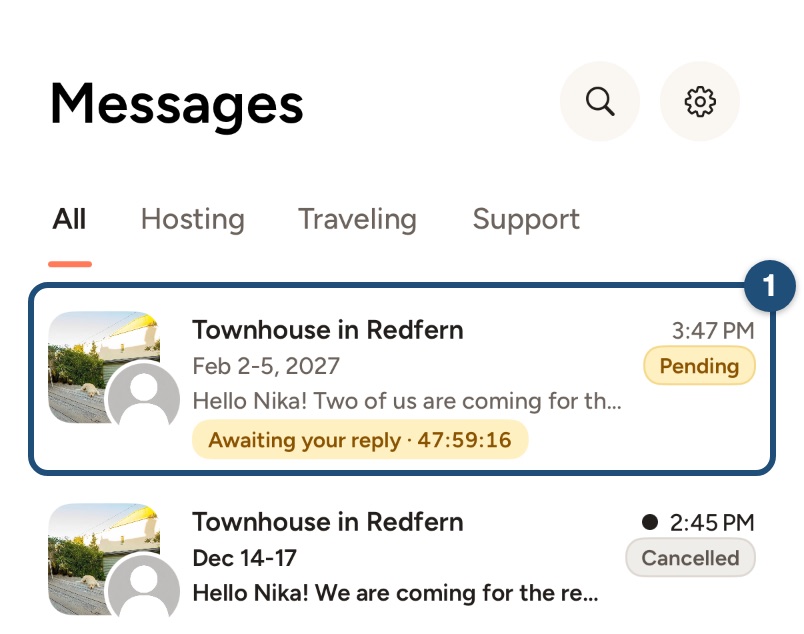
When a guest sends a request, you receive a notification and a message in your Inbox. Switch to hosting (Profile > Switch to Host), tap Inbox and open the request (1): it shows Awaiting your reply and the time left.
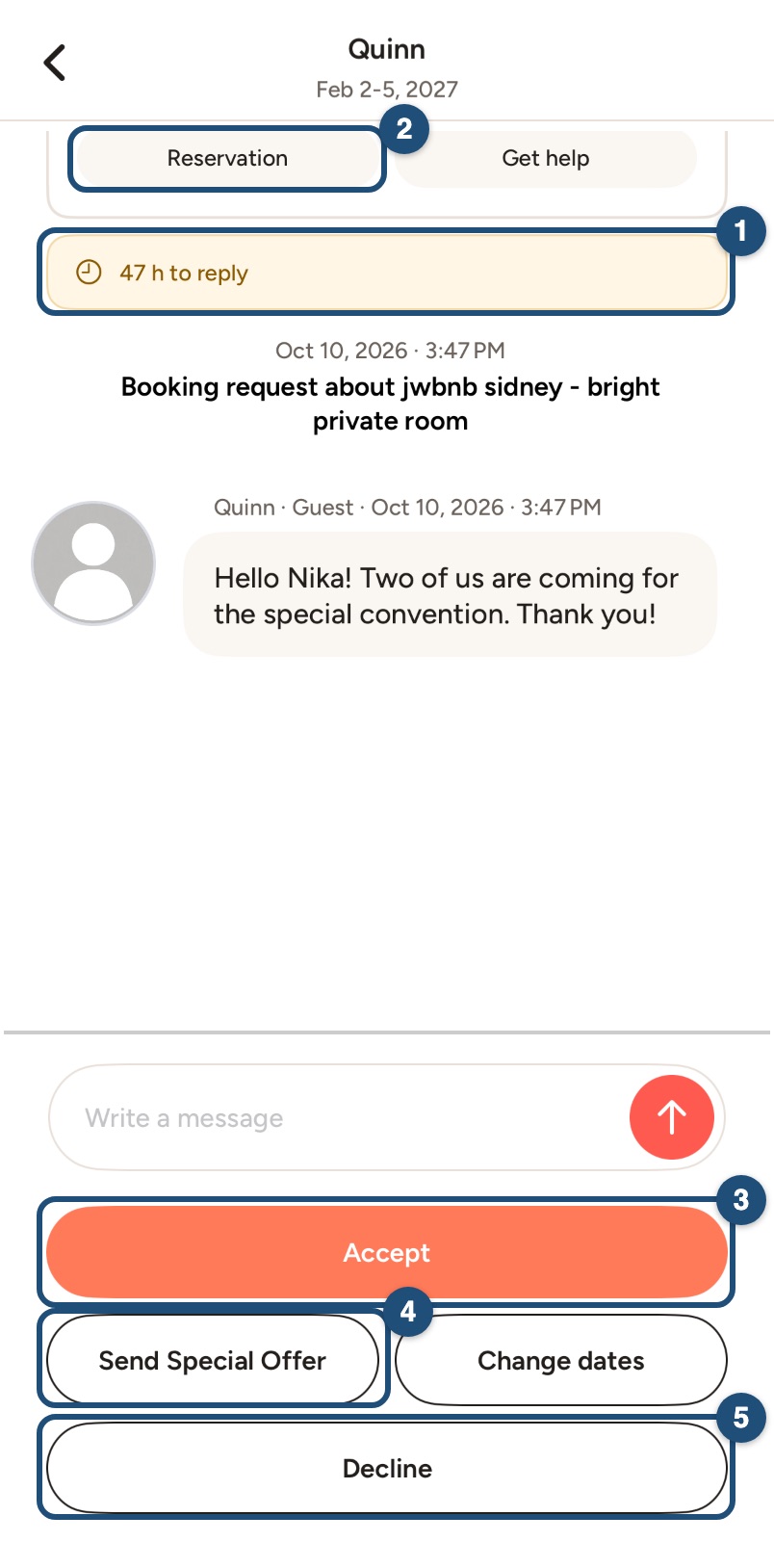
At the top of the conversation you see the dates, the guests and what you will earn; the yellow band (1) shows how long you have left to answer, and Reservation (2) opens the full booking. Below the message field:
- Accept (3): confirm the guest's request.
- Send Special Offer (4) or Change dates: propose a different price or different dates.
- Decline (5): if the dates or the request don't work for you.
- To ask a question before deciding, write in the message field.
Your reservations
Tap Reservations in the bar at the bottom: each booking shows the guest, the dates and its status, with Message to write to the guest. Calendar shows your bookings on your calendar.
Changing or cancelling a reservation
Please keep every booking you accept. If you really must cancel, follow Steps for hosts to cancel a booking: penalties such as a cancellation fee or a blocked calendar may apply. If a guest cancels, you face no penalty.
During the stay
Be available, or have someone available, for the first 12 hours after check-in. See How to provide an excellent service.
Contact us
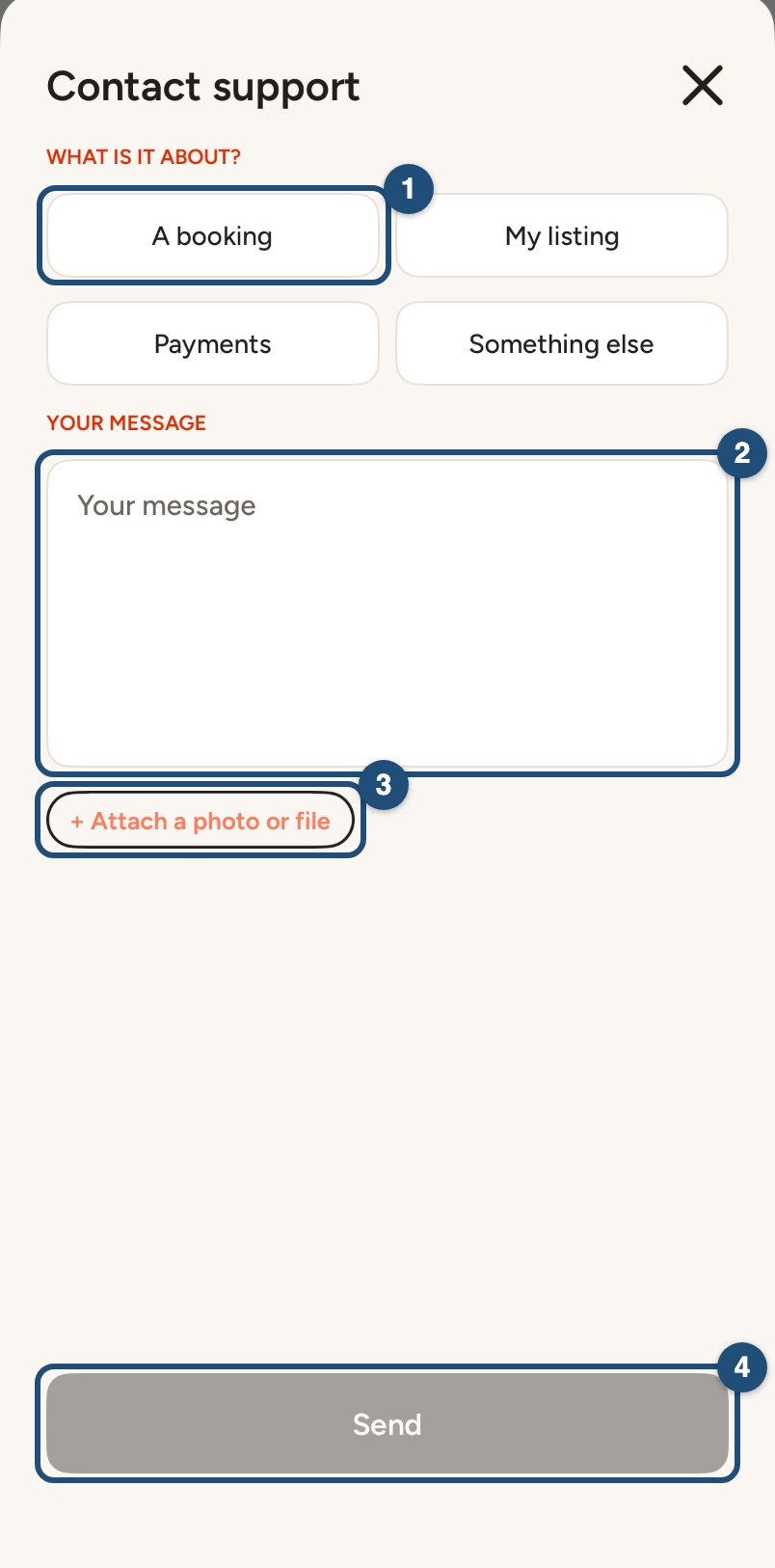
Tap Profile > Help & Support, scroll to the bottom and tap Contact us. Choose a topic such as My listing, write your message (2), tap + Attach a photo or file (3) if needed and tap Send (4). You can also email [email protected]. Our team usually replies within one working day.
Android app
Hosts are the heart of JWguest, and we want to help you succeed. Here's how to handle requests in the app and how to reach us.
Answer booking requests
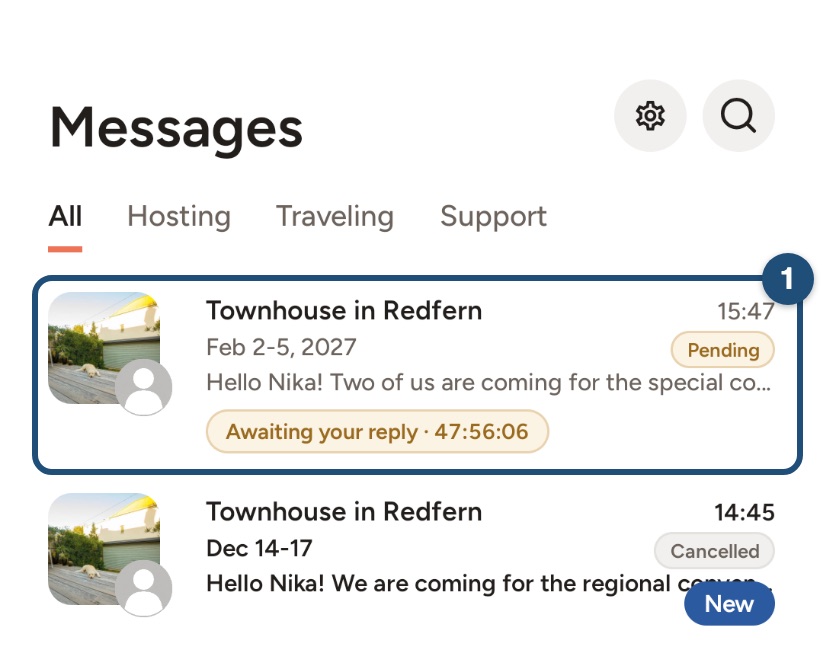
When a guest sends a request, you receive a notification and a message in your Inbox. Switch to hosting (Profile > Switch to Host), tap Inbox and open the request (1): it shows Awaiting your reply and the time left.
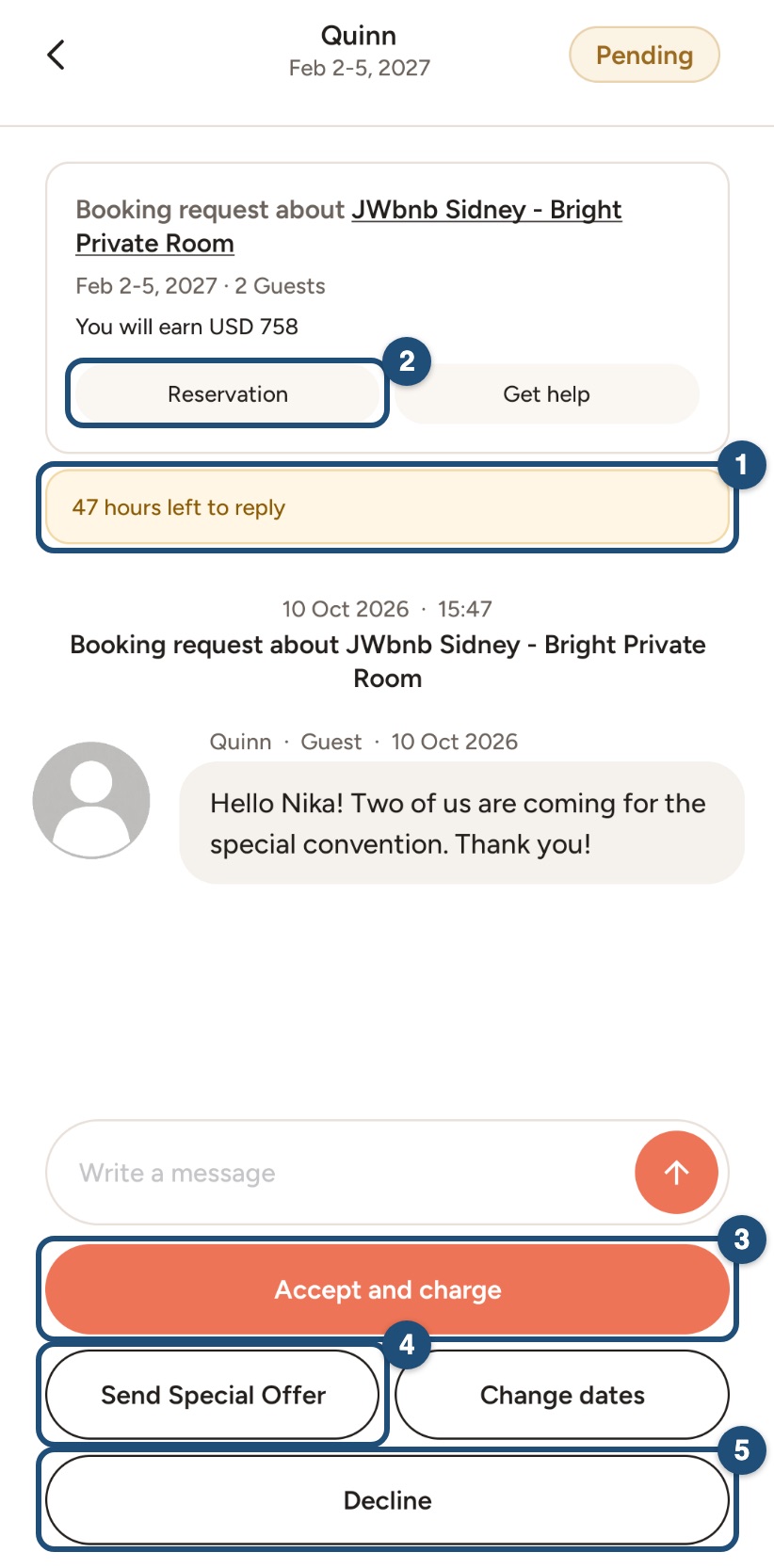
At the top of the conversation you see the dates, the guests and what you will earn; the yellow band (1) shows how long you have left to answer, and Reservation (2) opens the full booking. Below the message field:
- Accept and charge (3): confirm the guest's request.
- Send Special Offer (4) or Change dates: propose a different price or different dates.
- Decline (5): if the dates or the request don't work for you.
- To ask a question before deciding, write in the message field.
Your reservations
Tap Reservation in the bar at the bottom: each booking shows the guest, the dates and its status, with Message to write to the guest. Calendar shows your bookings on your calendar.
Changing or cancelling a reservation
Please keep every booking you accept. If you really must cancel, follow Steps for hosts to cancel a booking: penalties such as a cancellation fee or a blocked calendar may apply. If a guest cancels, you face no penalty.
During the stay
Be available, or have someone available, for the first 12 hours after check-in. See How to provide an excellent service.
Contact us
Tap Profile > Help & Support, scroll to the bottom and tap Contact us. Choose a topic such as My listing, write your message (2), tap Attach a photo or file (3) if needed and tap Send (4). You can also email [email protected]. Our team usually replies within one working day.