
Website
Go to Profile in the Personal Area bar and click Edit Profile to change your details. When you send a booking request, the host sees your first name and your profile; your last name and your contact details are shared only once the booking is confirmed.
Edit your profile
Here's a step-by-step guide:
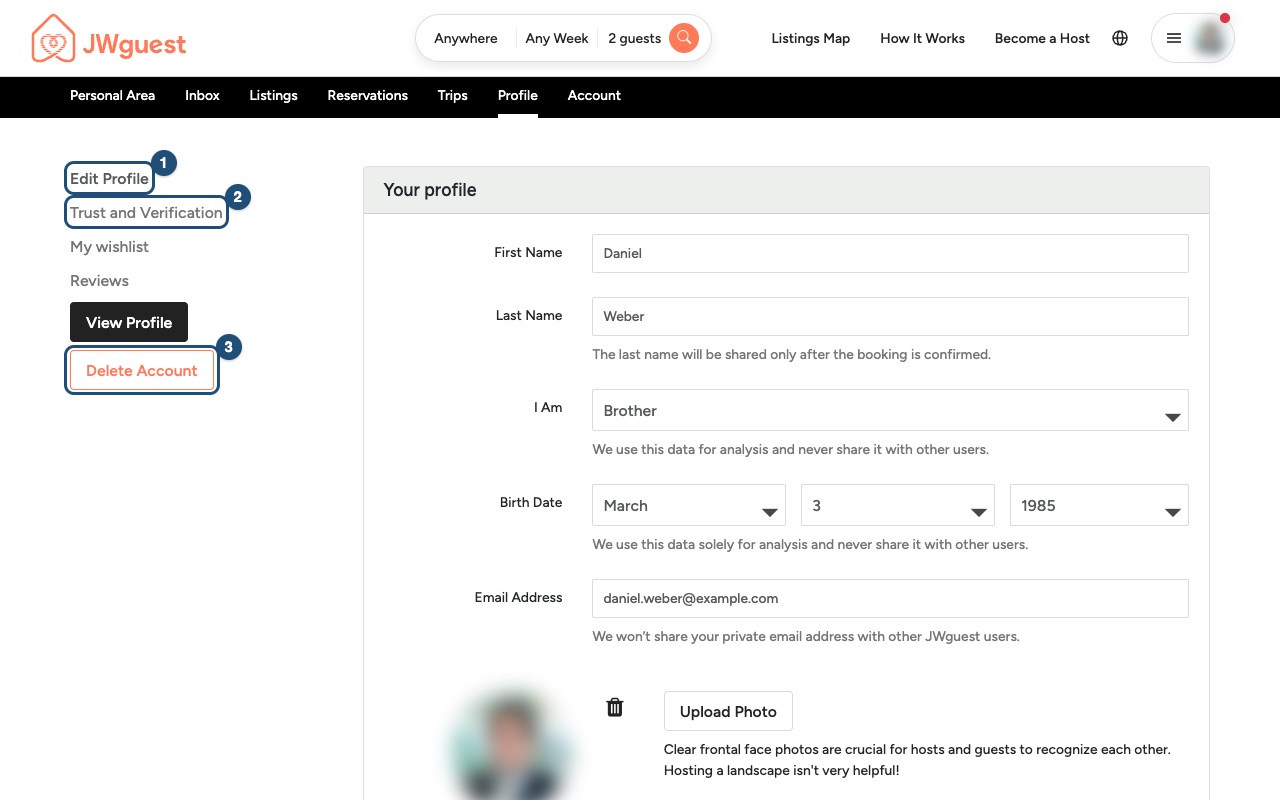
Open your profile: log in (see Log in to your account) and click Profile in the Personal Area bar.
Click Edit Profile (1): you can update:
- First Name and Last Name;
- I Am (brother or sister), Birth Date, Congregation and Baptism Date;
- Email and Phone;
- Where You Live, Describe Yourself, Languages and Preferred Language.
Save your changes.
Tell hosts about yourself: a few lines in Describe Yourself, and the languages you speak, help a host get to know you before they accept your request.
What hosts see
| When | What the host sees |
|---|---|
| You send a booking request | Your first name and your profile |
| Your booking is confirmed | Also your last name and your contact details |
Hosts may set requirements that guests must meet to book their home, for example a profile picture or a verified phone number. See What are the requirements to book?
Verify your details
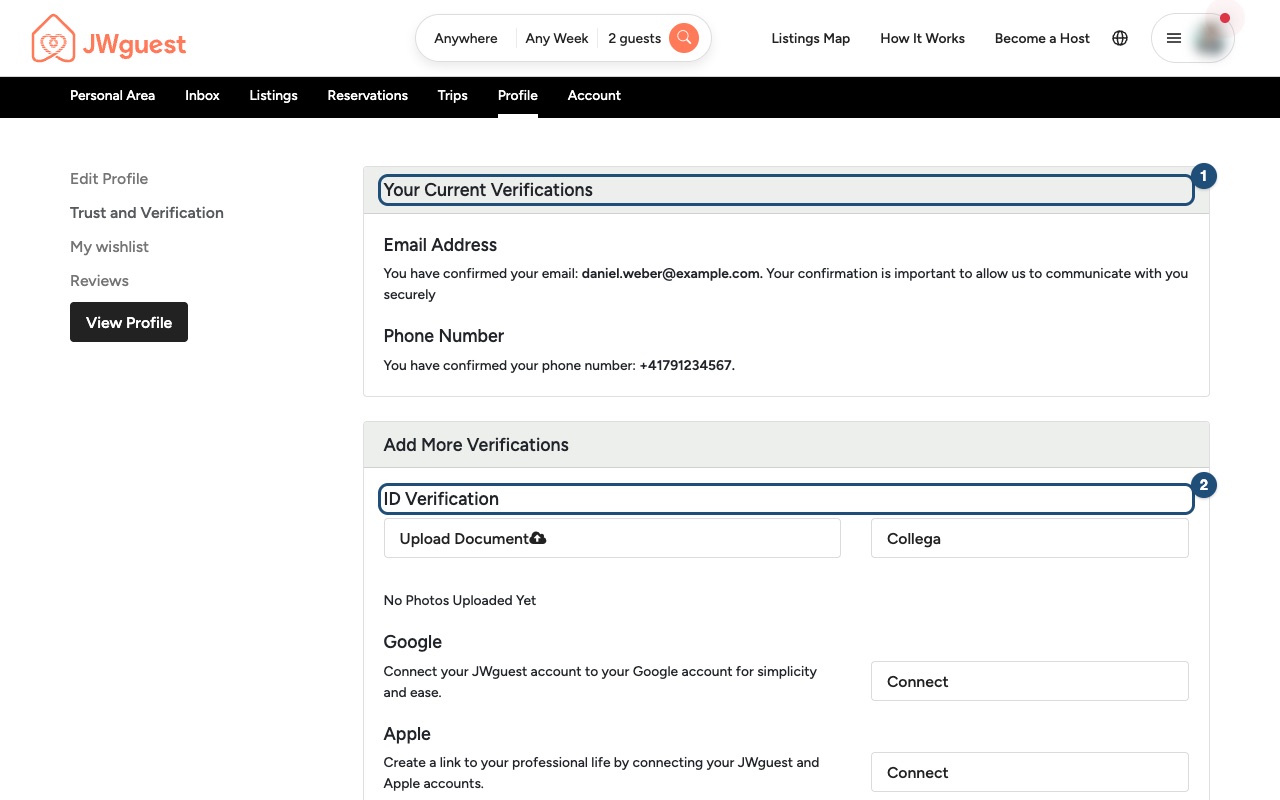
Click Trust and Verification (2) on your profile. Under Your Current Verifications (1) you see what you have verified, such as your email and phone. Under Add More Verifications you can upload an identity document with ID Verification (2) > Upload Document, or connect your Google or Apple account.
Verification helps build trust, but it is not a guarantee. See Hosts and Guests verification.
Password and account
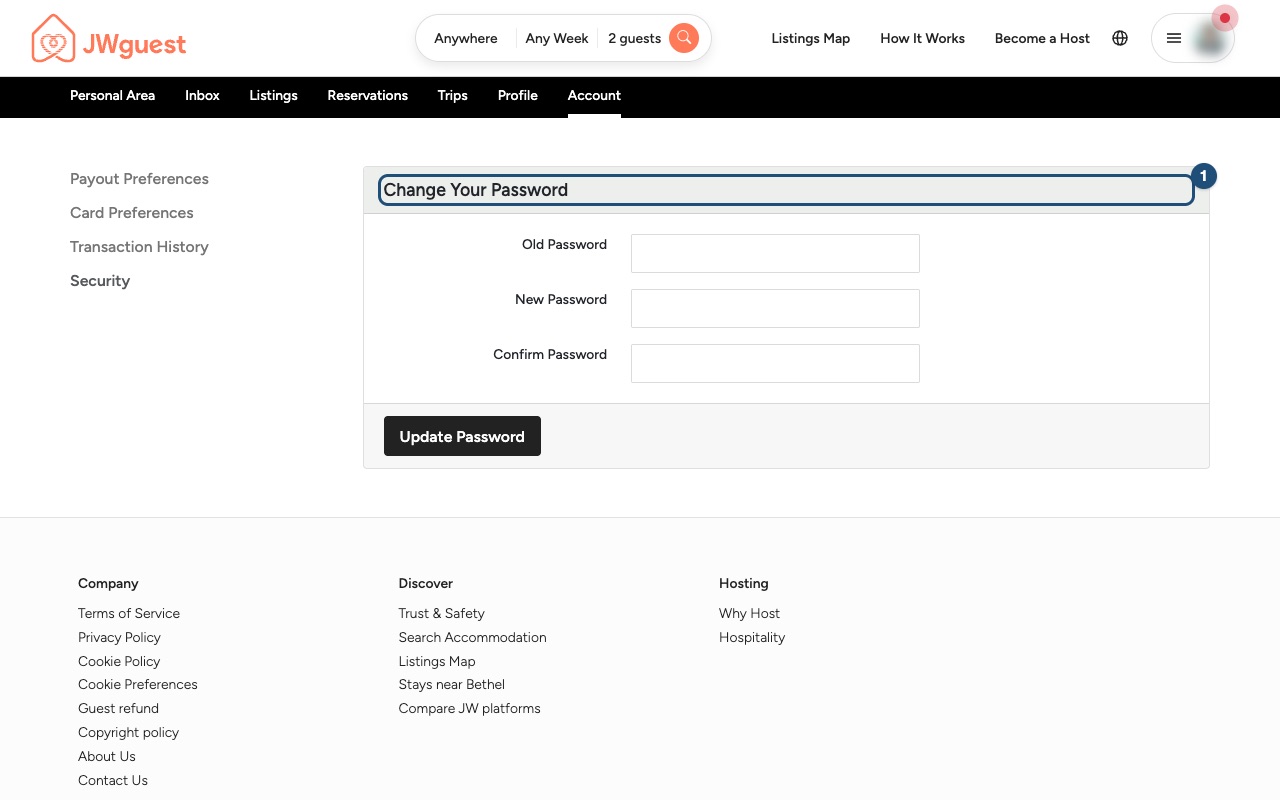
- Change your password: in the Personal Area bar, click Account, then Security and Change Your Password (1). Enter your old password, the new one twice, and click Update Password.
- Delete your account: you'll find Delete Account (3) on your profile page.
Related articles: Log in to your account · Reset your password · Hosts and Guests verification
Mobile browser
Go to Profile in the Personal Area bar and tap Edit Profile to change your details. When you send a booking request, the host sees your first name and your profile; your last name and your contact details are shared only once the booking is confirmed.
Edit your profile on your phone
Here's a step-by-step guide:
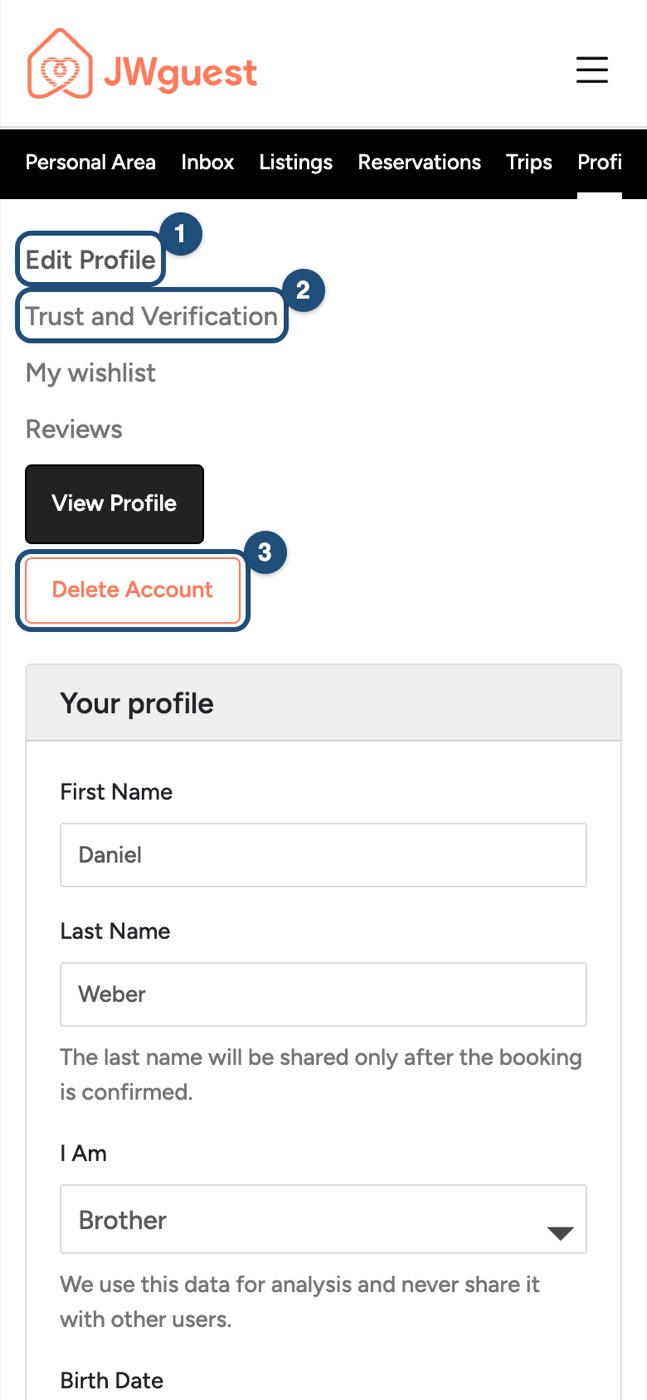
Open your profile: tap the menu (three lines, top right) and log in. The black Personal Area bar is wider than your screen: swipe it to the left until you see Profile, then tap it.
Tap Edit Profile (1) and update your details: First Name, Last Name, I Am, Birth Date, Email, Congregation, Baptism Date, Phone, Where You Live, Describe Yourself, Languages and Preferred Language.
Scroll down and save your changes.
What hosts see
- With a booking request: your first name and your profile.
- Once the booking is confirmed: also your last name and your contact details.
Hosts may set requirements to book their home, for example a profile picture or a verified phone number. See What are the requirements to book?
Verify your details
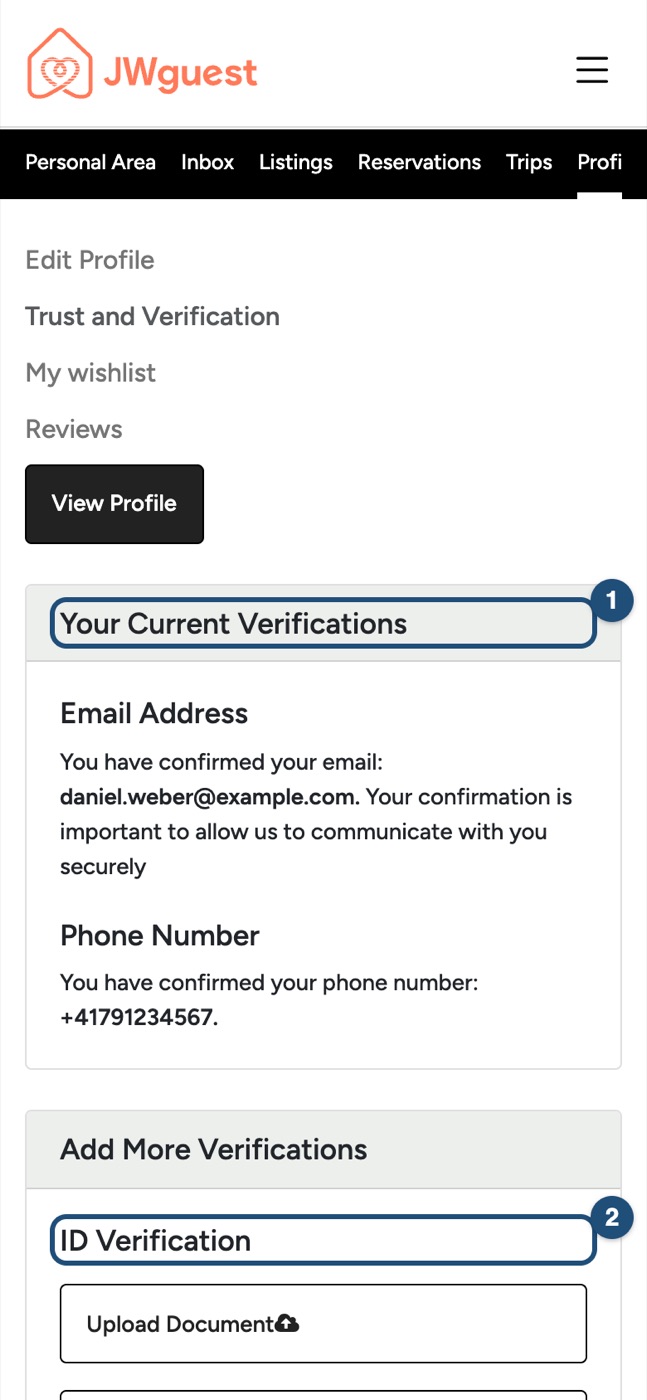
Tap Trust and Verification (2) on your profile. Your Current Verifications (1) shows what you have verified. To add an identity document, tap ID Verification (2) > Upload Document; you can also connect your Google or Apple account.
Password and account
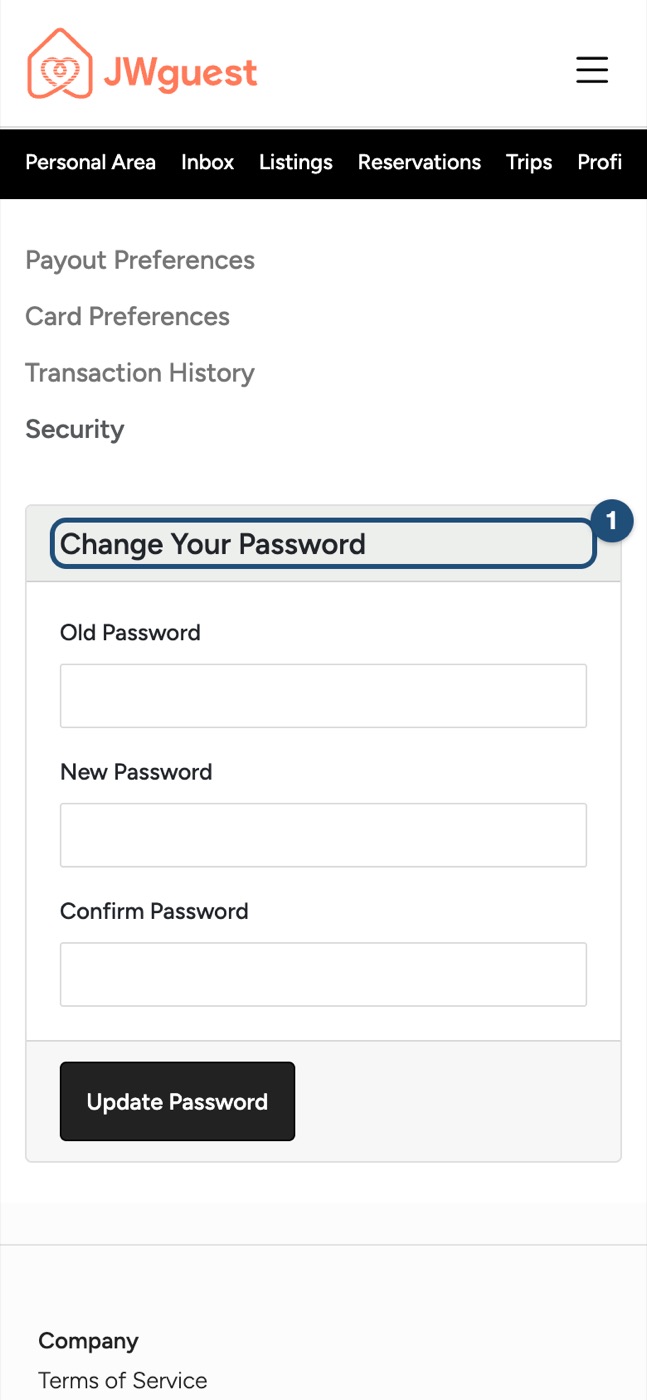
- Change your password: swipe the Personal Area bar left to Account, tap Security, then use Change Your Password (1).
- Delete your account: Delete Account (3) is on your profile page.
Related articles: Log in to your account · Reset your password · Hosts and Guests verification